If you have been a Microsoft Windows user for any amount of time, you have surely run into problems such as computer crashes, forgotten password, accidentally deleted files and hard drive issues. Some of these can be easy to fix while others require a specialized tool to do so.
There are many PC repair tools such as Medicat, NHV Boot and Hirens Boot CD that you can use for these types of tasks. Many of these tools require you to create a bootable flash drive to run them. But the tool we will be discussing has some features that can be run from within Windows while also having some that require you to create a boot disk. This tool can be used to fix Windows, recover lost data, reset passwords, clone disks, create backups and is called Lazesoft Home Edition Free.

The free version Lazesoft does not have all the features of the pay for version of course, but you can still do a lot with the tool. The first thing you will need to do is download and install it. You can get it from their website here.
When you run Lazesoft Home Edition, you will see the main menu that is broken down into several categories such as system backup, Windows recovery, data recovery, disk image & clone, password recovery and create a boot disk.
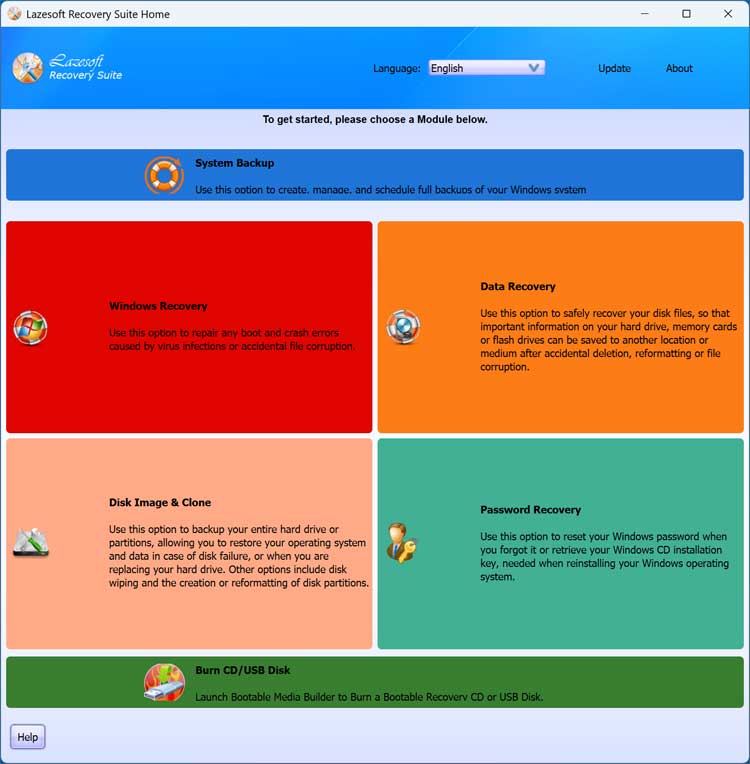
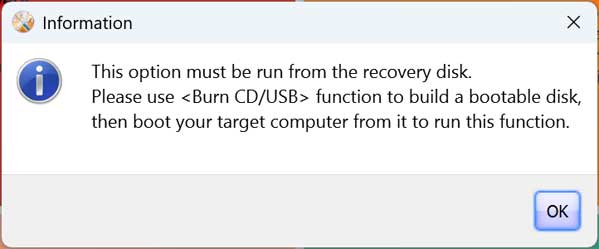
Most of the tools will run from within Windows, but if you click on Windows Recovery or Password Recovery for example, it will tell you that you need to run it from the recovery disk which you can create from the app itself.
Data Recovery Wizard
If you have deleted some files that you did not mean to, you can use this tool to try and recover them. It’s broken down into four different tools you can use based on your needs.
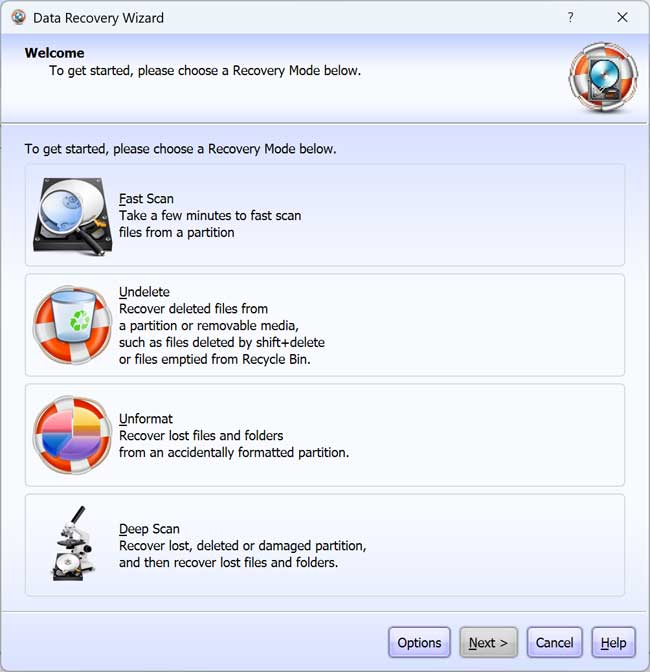
- Fast Scan – This performs a quick search for recently deleted files by scanning only the most accessible areas of your drive. It’s faster than a full deep scan but may find fewer recoverable files.
- Undelete – This option scans your drive for files that were deleted but whose data blocks have not yet been overwritten, allowing you to restore them quickly. It is designed to recover recently deleted items from intact file systems without performing a full deep recovery scan.
- Unformat – The Unformat choice is used to recover files from a partition that was accidentally formatted, restoring data that still exists underneath the newly created file system. It targets scenarios where a disk was reformatted, but the underlying data has not yet been overwritten, allowing the software to rebuild and retrieve the lost file structure.
- Deep Scan – This option performs a thorough, sector‑by‑sector search of the disk to locate lost data even when the file system is damaged or missing. It takes longer than other scan types but can recover files that simpler scans cannot.
Disk Image and Clone
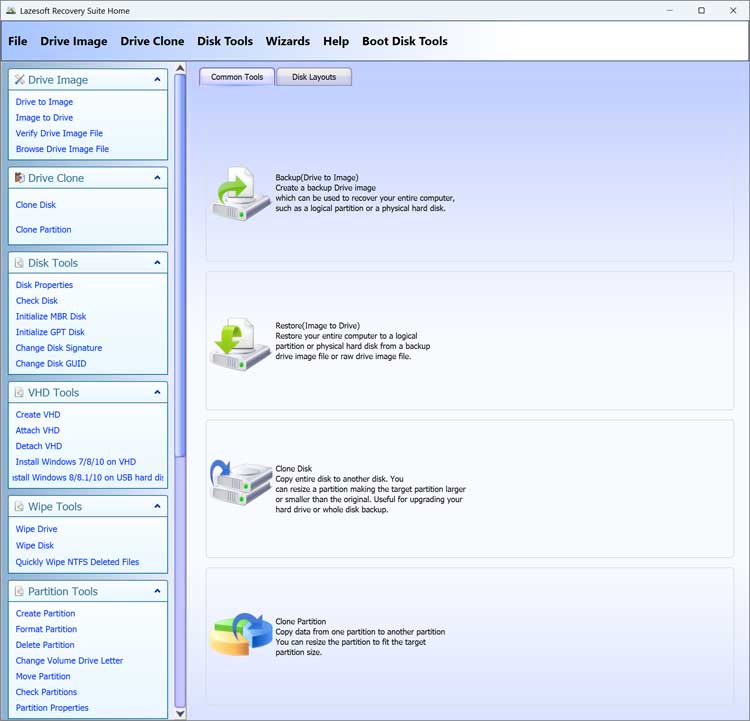
There are many options here to do things such as clone your Windows drive to a new drive when you want to upgrade to a newer or faster hard drive. Here is a writeup of how the disk clone process works.
You can also do things such as clone partitions, convert a drive to an image, initialize disks, change disk signatures and GUID and even create virtual hard disks.
The Disk Layouts tab will show you the configuration of your hard drives, similar to what you will see in Disk Management.
Creating a Bootable USB Flash Drive
If you want to use the tools that cannot be run from Windows, you will need to create a bootable flash drive or CD to do so. You can use the Burn CD/USB Disk option to accomplish this.
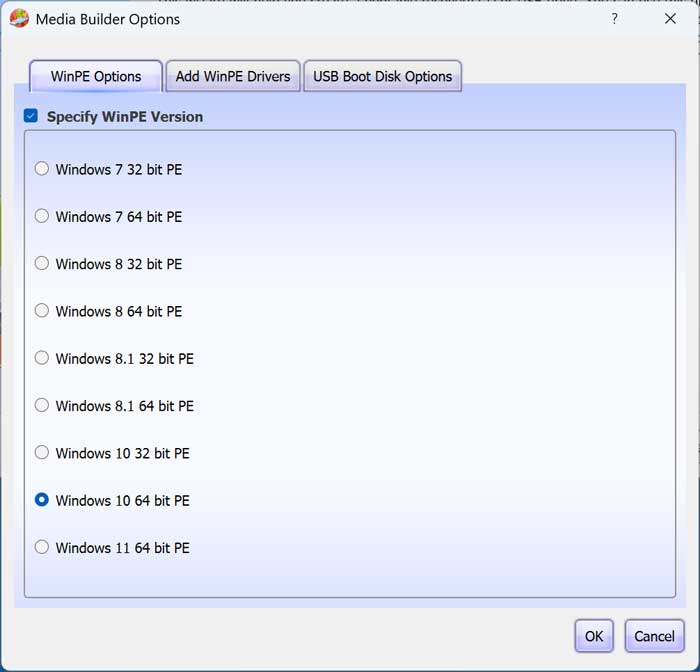
When you start the media builder process, you will have the option to choose a different WinPE version in case you are going to be using Lazesoft Recovery on an older versions of Windows.
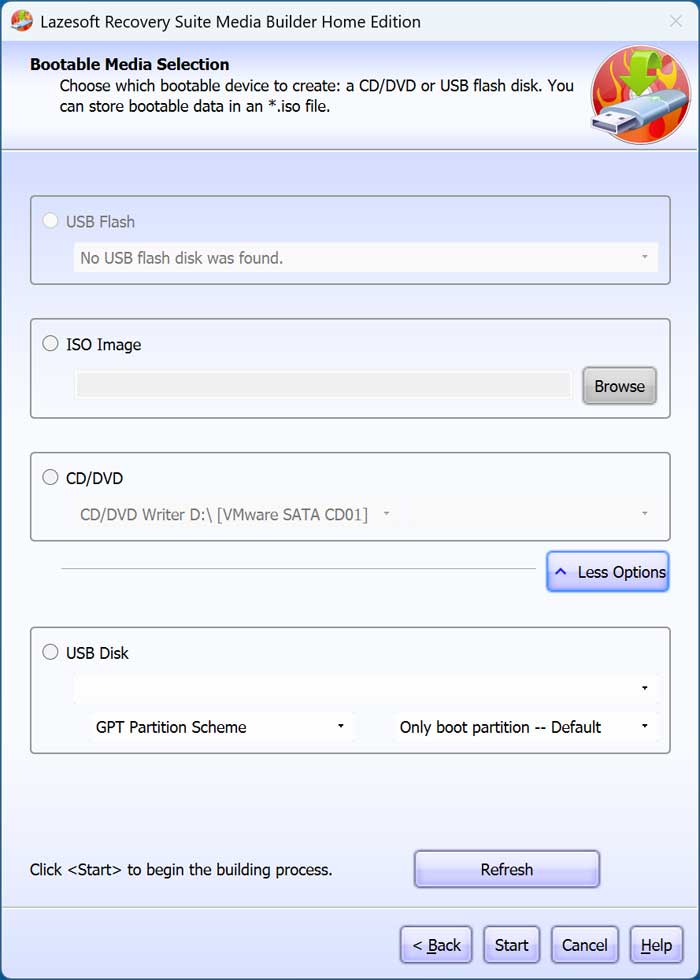
You can then choose to create your recovery media on a USB flash drive, save it as an ISO image, burn it to a CD/DVD and even create it on a USB hard drive.
Starting your Computer with the Lazesoft Recovery Bootable Media
When you boot your PC with your recovery media, you will have the option to load the Lazesoft software, run the Windows Memory Diagnostic tool or press F8 for additional options.
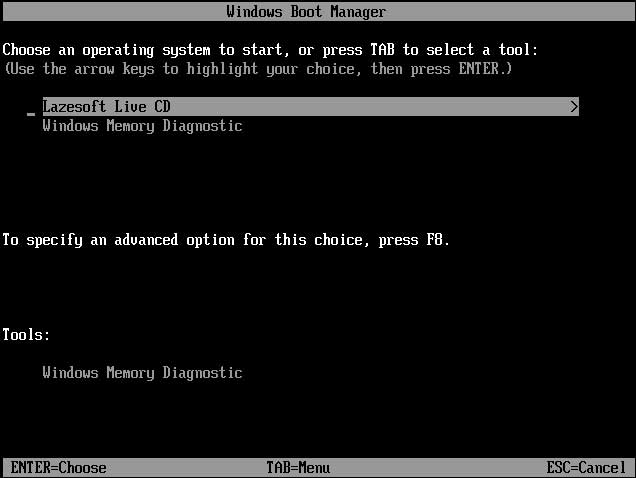
Windows Recovery
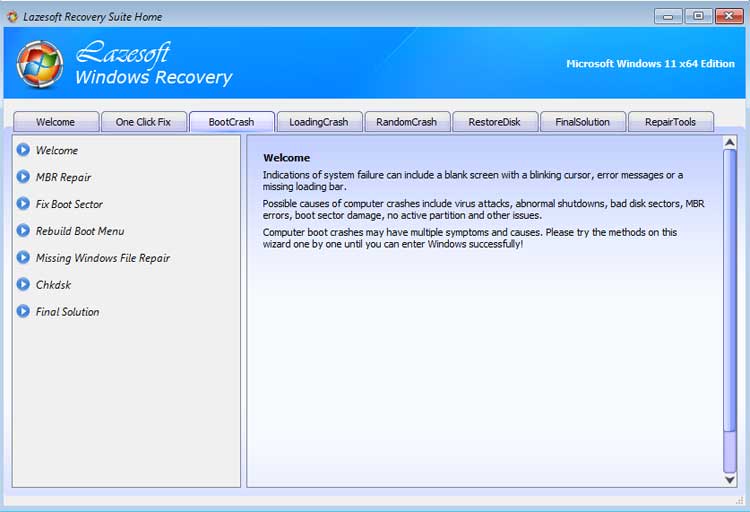
You can use the Windows Recovery options to do things such as repair your master boot record (MBR), fix your boot sector, rebuild the boot menu, run check disk, repair the registry and more.
The first thing you will need to do is select your Windows installation and click OK. You will most likely only have one entry here unless you are using a Windows dual boot configuration.
You can then choose from one of the many tabs that contain a variety of fixes.
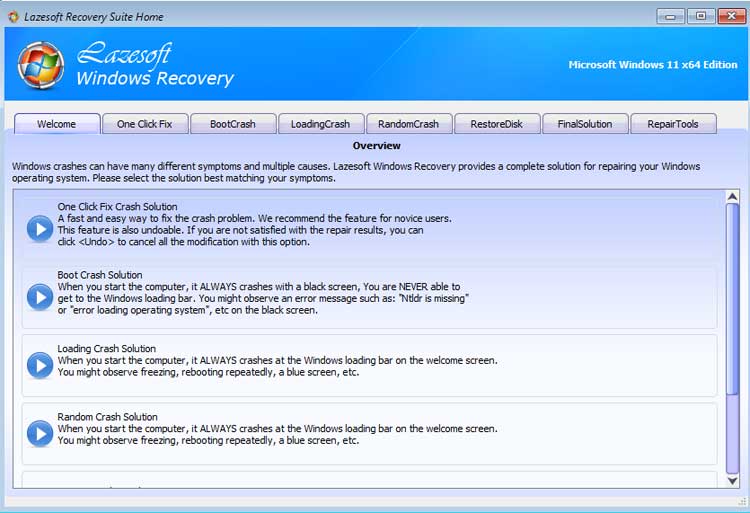
Certain tabs will have multiple tools contained in that one tab. You can then click on the tool you want to use to see if it will solve your problem. The Repair Tools tab has a bunch of tools all located in one place, making it easy to access.
Password Recovery
If you cannot get onto your computer or have forgotten your password, you can try to reset your password here. This also comes in handy if you want to reset the password for another user or enable the Windows administrator account.
Keep in mind that you can only reset passwords for local accounts, not for Microsoft accounts. There is an option to convert a Microsoft account to a local account and then unlock it but that is only available for the professional version of Lazesoft Recovery.
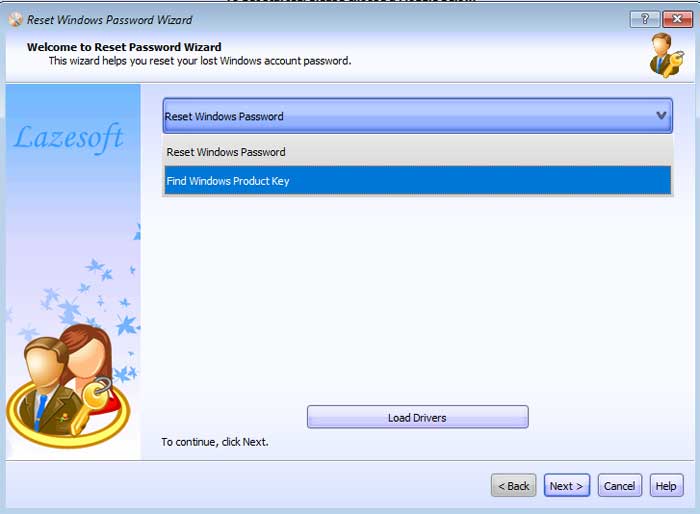
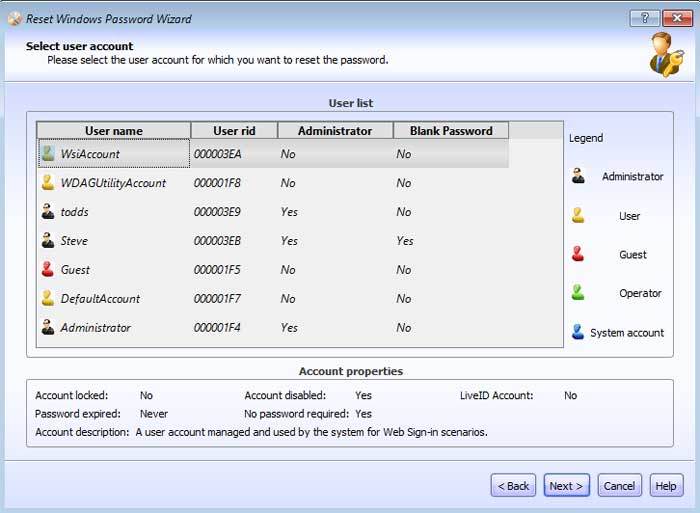
Once you make your choice, you will then need to agree that you are using this tool for non-commercial use to continue. Then you will see the list of user accounts configured on your computer. This will show local accounts, Microsoft accounts and hidden or disabled accounts.
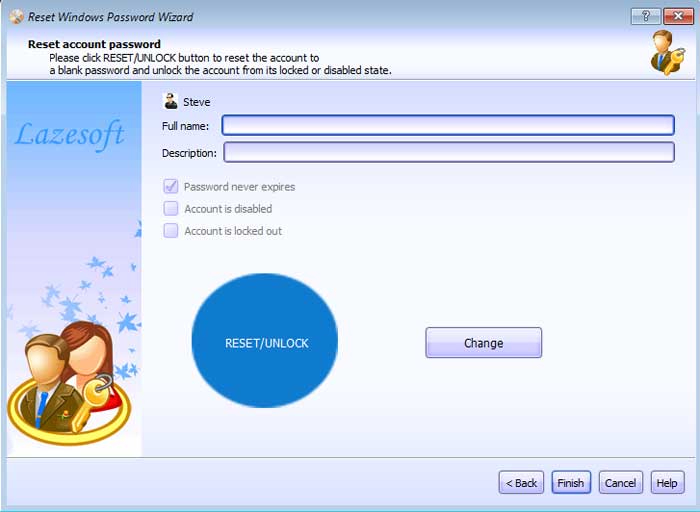
Once you choose a local account to reset or unlock, it will then change the account, so it uses a blank password. You can also change the name and description for that account from here.
Here are a couple of other articles that may help you get back into your Windows computer when you get locked out.
Reset a Windows User Password & Make Them an Admin When Locked Out of a Computer.
Enable & Log in with the Built in Windows Administrator Account If You Get Locked Out of Your PC.
For additional training resources, check out our online IT training courses.
Check out our extensive IT book series.