Last Updated on May 17, 2026
As you probably know, computers are prone to having issues from time to time such as random crashing or freezing, blue screen errors (BSOD), malware infections, disk errors and more. And if you are the type who likes to try and fix your own PC rather than pay someone else to do it, you will need the proper tools to handle the task.
Fortunately, there are many all-in-one USB boot disk tools you can use to help diagnose and repair your computer when it’s giving you problems or won’t even boot at all. You may have heard of some of these tools such as Hiren’s Boot CD or Live USB Malekal. But in this article, we will be talking about a lesser-known repair tool called ANHDV Boot which might just be the ultimate PC repair & system rescue toolkit.

ANHDV Boot comes in two versions. There is a free version and a premium version requiring either a yearly subscription or a one-time lifetime payment. We will strictly be discussing the free version of ANHDV Boot today.
1. Download the Protected Archive
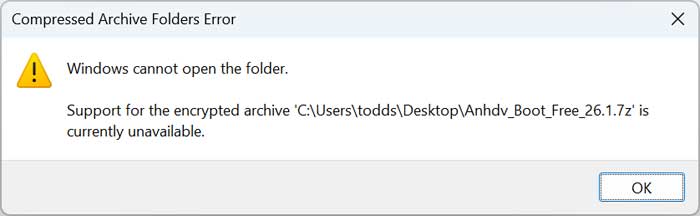
You need to download the official zip file directly from the ANHDV Boot website. The developers secure this archive with a specific password listed right under their download links. Attempting to open the zip file using the default Windows File Explorer will throw an instant error. The native Windows utility simply cannot handle this specific type of encryption.
2. Extract the Image with 7-Zip
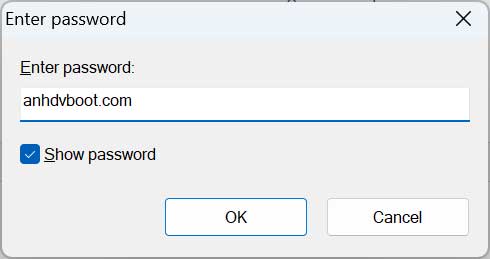
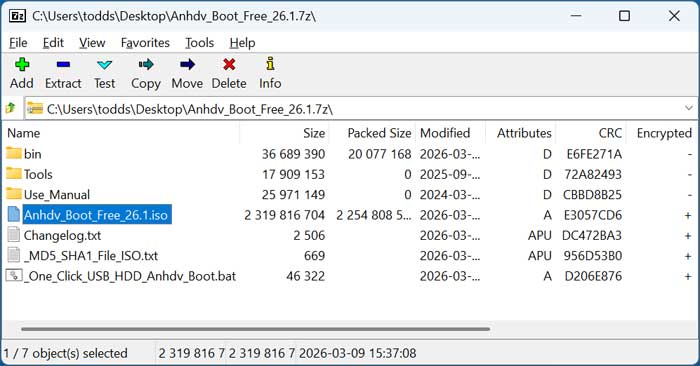
You must use a dedicated extraction tool like 7-Zip to process this specific download. Right click the downloaded archive and point 7-Zip to extract the contents to a new folder. A security prompt will immediately ask you for the developer password. Type in anhdvboot.com exactly as shown to unlock the files inside.
3. Locate the Core ISO File
Opening the decrypted folder reveals the main ISO file sitting alongside several other system directories. You will actually find dedicated USB flash drive creation tools bundled right inside this folder. Grab the massive ISO image file and pull it out to your desktop. You need this specific raw image isolated before you can successfully burn it to a portable drive.
4. Inspect the Bootable Drive Contents
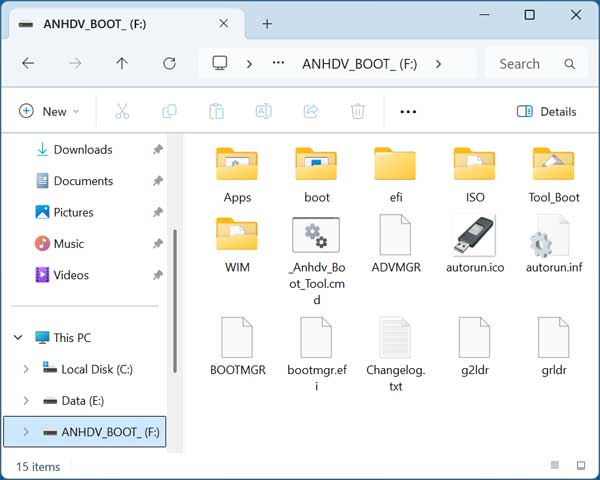
Use your preferred imaging software like Rufus to write that ISO file onto a blank flash drive. Open the finished USB drive in File Explorer to verify the installation was successful. You should see a highly structured file system containing specific boot directories and EFI folders. Do not modify or delete any of these hidden configuration files.
5. Boot into the WinPE Environment
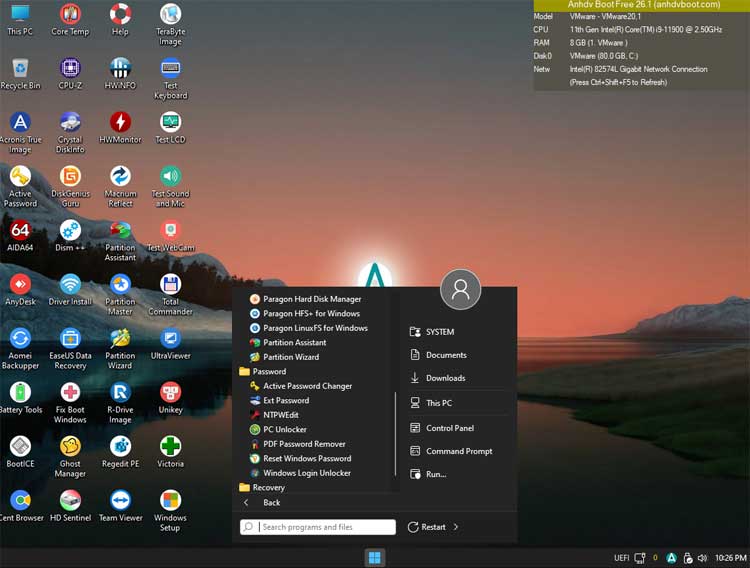
Restart your broken machine and tap the dedicated boot menu key for your specific motherboard. Select your newly created ANHDV flash drive from the hardware list. The system will bypass your broken Windows installation and load directly into a custom WinPE desktop environment. You now have full access to a working graphical interface filled with powerful repair software.
6. Explore the Custom Start Menu
Look at the bottom taskbar to find a familiar Windows 11 style start button. Clicking this reveals a massive library of specialized tools broken down into logical diagnostic categories. You can instantly launch standard utilities like the Windows command prompt or the Control Panel straight from this menu. The toolkit contains dozens of powerful applications ready to fix almost any system failure.
7. Access AppsPE and System Utilities
The core AppsPE category provides essential file management and system configuration utilities. You get direct access to deep registry editors like RegeditPE alongside raw hex editors like WinHex. Programs like Everything Search and Total CMD make navigating a broken file system incredibly fast. It also includes boot repair tools like BootICE, EasyUEFI, EasyBCD, and NTBOOT AutoFix to rebuild corrupted boot records. System Dism ++ and WinNT Setup allow you to modify or deploy Windows images on the fly.
8. Utilize Professional Backup Software
Securing client data before attempting a risky repair is absolutely mandatory. This toolkit packs heavy hitting imaging software like Macrium Reflect, Aomei Backupper, and Hasleo Backup Suite. Legacy technicians will appreciate the inclusion of Norton Ghost and multiple versions of Acronis True Image. You can quickly clone failing drives or capture raw byte level images using TeraByte Image for Windows or R-Drive Image.
9. Connect to the Internet and Remote Support
Sometimes you need to research a specific error code or pull a specialized driver from the web. The Internet folder provides a lightweight Cent Browser alongside network diagnostic tools like DNS Jumper and iperf. You can easily establish a remote support session right from the bootable drive. Launch TeamViewer, AnyDesk, AeroAdmin, or UltraViewer to let an offsite technician take complete control of the diagnostic process.
10. Run Antivirus Scans and Office Tools
A machine locked down by severe malware requires offline scanning to safely eradicate the threat. You can run deep system sweeps using the Kaspersky Virus Removal Tool, Microsoft Safety Scanner, or Web CureIt. This category also bundles the SoftMaker Office suite so you can view Word, Excel, and PowerPoint documents without booting the host operating system. Utilities like UltraISO and Free ISO Burner let you manipulate disc images directly from the rescue environment.
11. Extract Deleted and Lost Files
Accidentally formatting a partition or emptying the recycle bin requires immediate data recovery intervention. ANHDV Boot features industry standard extraction programs like EaseUS Data Recovery Wizard, R-Studio, and Stellar Data Recovery. Software like GetDataBack and MiniTool Power Data Recovery can reconstruct broken master file tables to salvage missing directories. You can even rescue lost partition boundaries using Active@ Partition Recovery or Partition Find and Mount.
12. Manage Partitions and File Systems
Resizing hard drives or converting volume formats requires specialized partition management software. You can easily modify active volumes using EaseUS Partition Master, MiniTool Partition Wizard, or AOMEI Partition Assistant. The included Paragon utilities allow your Windows PE environment to natively read Apple APFS and Linux file systems. You can shrink, extend, merge, or wipe disk partitions completely using DiskGenius or Paragon Hard Disk Manager.
13. Diagnose Failing Storage Hardware
Hardware degradation causes unpredictable system crashes that software simply cannot fix. Check the exact physical health and smart status of your drives using CrystalDiskInfo, HD Sentinel, or SSD Life. You can run deep sector scans to identify physical bad blocks with Victoria, HD Tune Pro, or WD Data Lifeguard Diagnostics. Benchmark your read speeds with CrystalDiskMark or securely wipe sensitive data forever using Active@ KillDisk and the HDD Low Level Format Tool.
14. Stress Test and Identify Components
Figuring out exactly which piece of hardware is failing requires intense system stress testing. Push your processor and graphics card to their absolute limits using FurMark, CPU Burner, and AIDA64. Identify overheating issues in real time by monitoring thermal sensors with HWiNFO, CoreTemp, and HWMonitor. You can also run isolated hardware diagnostics like Keyboard Test, MemTest64, or IsMyLcdOK to pinpoint failing peripherals and bad RAM sticks.
15. Reset Forgotten Windows Passwords
Clients frequently lock themselves out of their own computers by forgetting their local account credentials. The toolkit includes several dedicated utilities designed specifically to bypass or strip away Windows login screens. Programs like PC Unlocker, Reset Windows Password, and Active@ Password Changer interact directly with the system registry to blank out active passwords. You can also use NTPWEdit and Windows Login Unlocker to regain administrative access in minutes.
16. Run Legacy DOS Diagnostic Utilities
Older hardware requires a completely different approach using classic DOS based software. ANHDV Boot packs a massive directory of legacy tools supporting both older UEFI and traditional Legacy Boot BIOS systems. You can load up ancient but reliable versions of Norton Ghost, HDD Regenerator, Partition Table Doctor, and MHDD without loading a graphical interface. Use MemTest Pro and KonBoot to troubleshoot raw hardware faults before any operating system kernel even attempts to initialize.
As you can see, there should be almost anything you need available with the ANHDV toolkit to help you fix a broken or non-booting computer.
For additional training resources, check out our online IT training courses.
Check out our extensive IT book series.