Last Updated on August 16, 2026
If you’ve ever booted up your computer and noticed two entries for Windows 11 and need to choose one to continue, you’re not alone. This situation can be puzzling, especially if you only have one operating system installed. Duplicate boot entries often appear after major updates, recovery operations, dual booting with another OS or certain system changes, and while they don’t usually indicate a serious problem, they can raise questions about what’s happening behind the scenes during startup. Understanding why these extra entries show up can help you feel more confident about your system’s configuration and what it means for your PC.

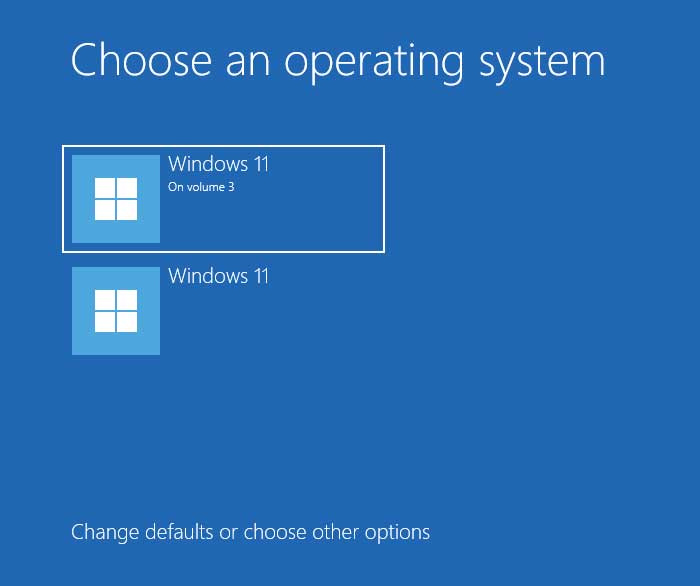
The image below shows what you might see when you boot up your computer and see two entries for Windows 11. One of them might say something like Windows 11 on volume 3 or something similar. Then you will need to be sure to choose the right one in order to start your computer correctly. So, if your Windows boot menu shows two OS entries, we will be showing you how to fix it.
There are two methods you can use to fix the issue of the Windows boot menu showing two OS entries, one is via the System Configuration tool and the other is via the command line.
Removing the Extra Windows Boot Menu OS Entry Using the System Configuration Utility
1. Open the System Configuration Tool
If you type msconfig in the Windows taskbar search box, you should see an option for the System Configuration utility. Click on that app icon to launch the program. This built-in tool manages how your computer starts up and what services load in the background.
2. Identify the Active Operating System
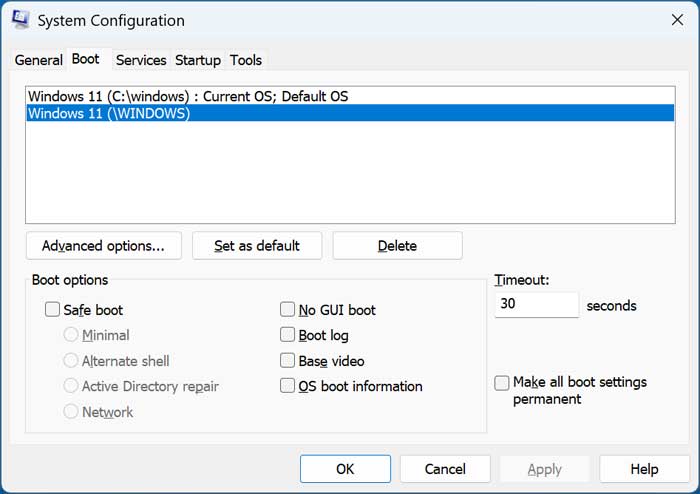
Once you have the tool open, click on the Boot tab. You will see the same two OS entries as you did when booting your computer. You should be able to click on both items inside that white box.
3. Delete the Duplicate Entry
One entry should have the Delete button grayed out when selected. This tells you that this is the OS version that you are booted to right now. If you click on the other entry, you should be able to click on the Delete button and have it removed from your boot menu choices.
(Image: Msconfig shows two boot entries)
4. Understand BitLocker Encryption Warnings
One thing you need to consider when deleting the OS entry using this method involves drive security. If you are using BitLocker or Device Encryption , they will detect this boot configuration change. It will likely trigger BitLocker or Device Encryption recovery mode on the next reboot. If this does happen then you should be ok just entering your decryption key when prompted.
5. Disable Windows Device Encryption
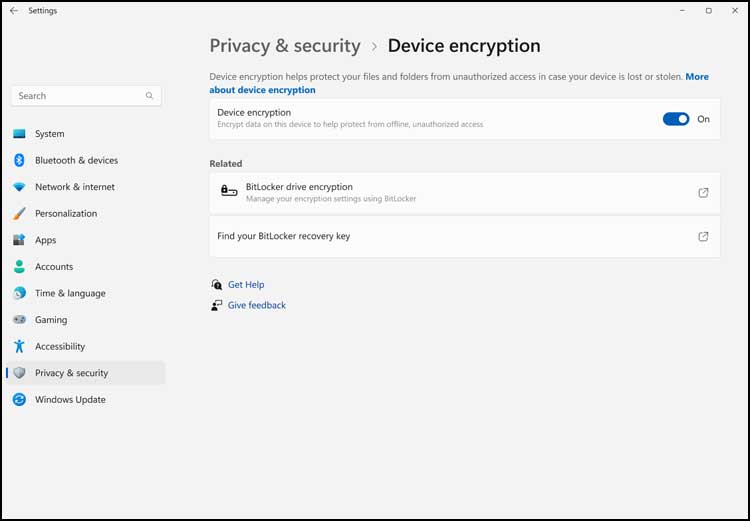
You can temporarily shut down this security feature to avoid the recovery prompt. To disable Device Encryption you can do so directly from the Windows settings. Navigate under Privacy & security > Device encryption and toggle the switch to the off position.
6. Suspend BitLocker in Windows 11 Pro
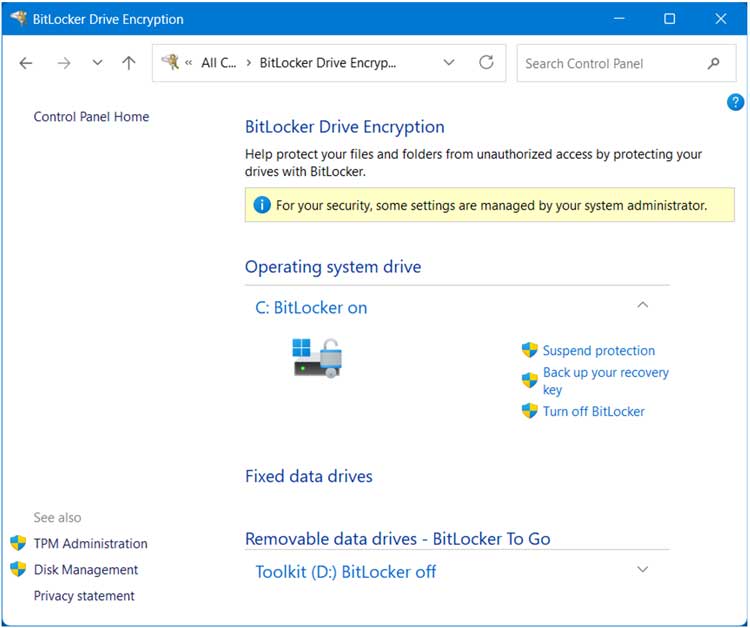
To temporarily suspend BitLocker in Windows 11 Pro, you can find it inside the classic Control Panel. Look under BitLocker Drive Encryption for your primary drive. There should be a link you can click on that says Suspend protection.
Checking BitLocker Status and Suspending it if Needed Via the Command Line
1. Check Current Drive Encryption Status
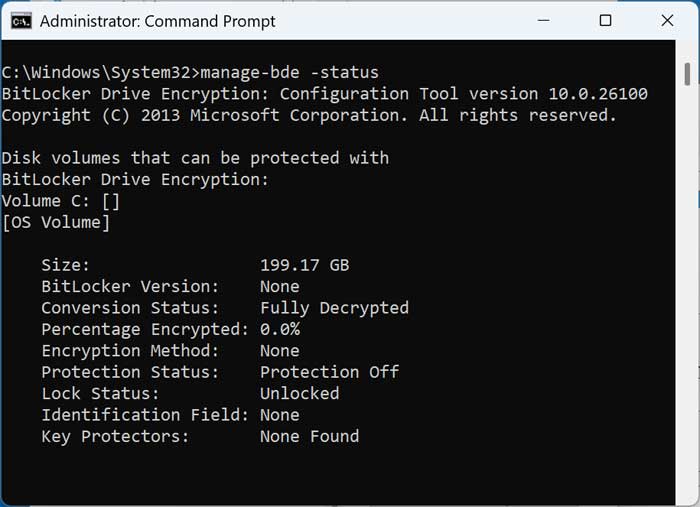
If you plan on using the command line method to remove the extra Windows boot menu entry, you can disable BitLocker from there as well. To check to see if BitLocker is enabled via the command line, you can open an administrative command prompt. Type the command manage-bde -status and press enter.
2. Verify Decryption Percentages
Read the output text generated by the utility. If the conversion status says fully decrypted and the percentage encrypted says 0.0% then you know that BitLocker is not enabled on your computer. You can skip the suspension steps.
3. Execute the Suspension Commands
To disable BitLocker temporarily if enabled you can use a specific command string. Type manage-bde -protectors -disable C: to suspend the protection. Once you finish your boot menu repairs, type manage-bde -protectors -enable C: to turn it back on.
Removing the Extra Windows Boot Menu OS Entry Using the Command Line
1. List All Boot Entries
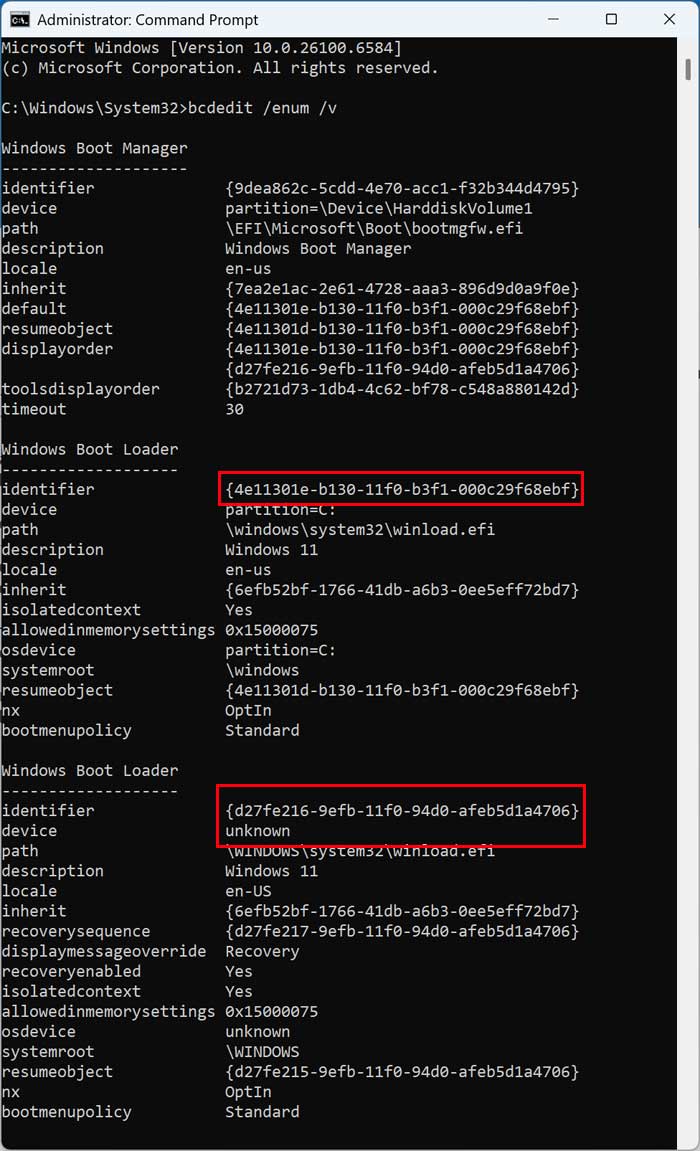
If you prefer to remove the extra Windows boot menu entry via the command line, you can do that fairly easily. From an administrative command prompt, type the command bcdedit /enum /v to list all the boot entries on your computer. Press enter to execute the query.
2. Locate the Boot Loader Identifiers
Then you will need to look for two entries labeled Windows 11 under the Boot Loader section. Note their specific identifiers. In our example, we have these two identifiers listed on the screen.
{4e11301e-b130-11f0-b3f1-000c29f68ebf}
{d27fe216-9efb-11f0-94d0-afeb5d1a4706}
3. Find the Unknown Device Status
As you can see in the image below, the second one has a status of unknown in the device section. This tells us that this is the one we no longer need. The system cannot find a valid drive attached to that specific boot record.
4. Back Up Your Boot Configuration Data
If you want to take an extra step to make sure you are covered before deleting this identifier, then you can back up the BCD (Boot Configuration Data) first. To do so, run the command bcdedit /export C:\bcdbackup in the prompt. It will be saved to the root of your C: drive as a file named bcdbackup.
5. Restore the Backup if Necessary
If something goes wrong, you can restore the backup in recovery mode. Use the command bcdedit /import C:\bcdbackup to rewrite the original file. This safety net prevents your computer from becoming unbootable.
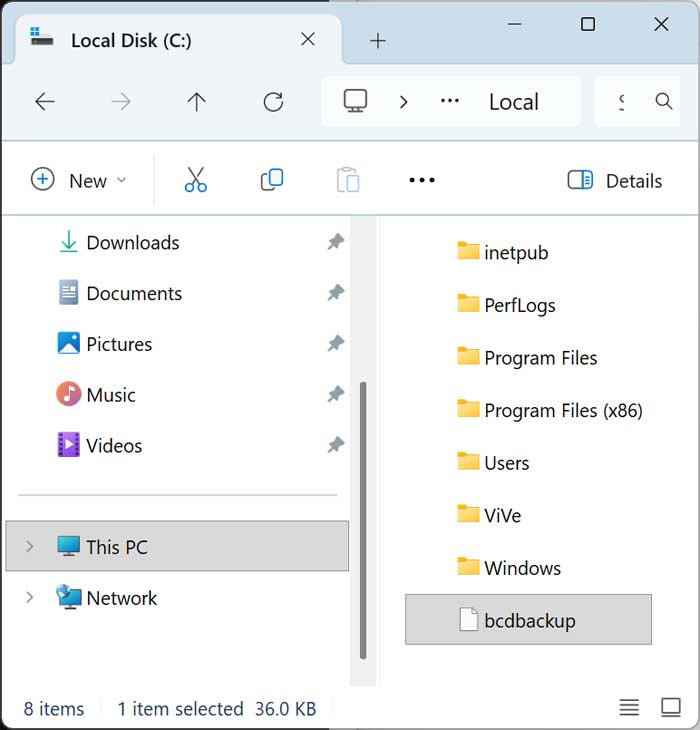
6. Delete the Duplicate Boot Entry
To delete the duplicate entry, we will use the delete command. You will need to replace {identifier} with the exact alphanumeric identifier you found in the previous command. So, in our case, the command we will use will be as follows: bcdedit /delete {d27fe216-9efb-11f0-94d0-afeb5d1a4706}
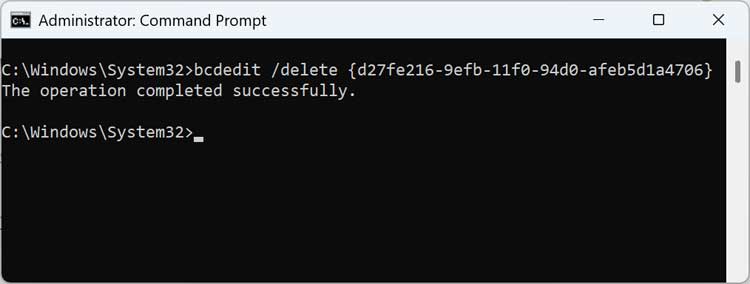
7. Verify the Changes in Msconfig
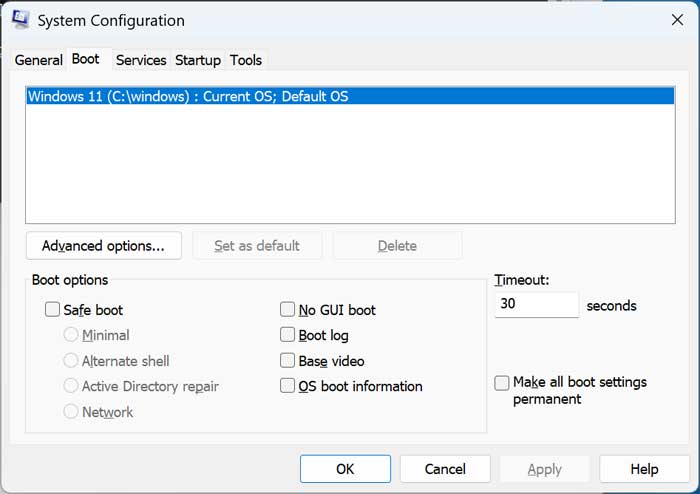
Now when we go back to the System Configuration tool, we will find that we only have one entry for the Windows boot menu. We will no longer see two OS entries when we boot our computer. The duplicate record is permanently gone.
For additional training resources, check out our online IT training courses.
Check out our extensive IT book series.