These days, it’s common for people to install their own operating system, especially when it comes to repairing their computers or when they have built their own computer from scratch. When it comes to creating a bootable USB flash drive that you can use to install operating systems such as Windows or Linux, you have many choices when it comes to what apps you can use.
Even though there are more USB creator app choices for Windows than Linux, you still have several options such as WoeUSB and even Ventoy. In this article, we will be showing you how to create a bootable Windows installation USB flash drive in Linux with USBZile. You can run USBZile from a command line to open the tool and create your flash drive. You may have to perform a couple of other steps first in case your computer is missing any prerequisites.

We will be creating a Windows 11 bootable flash drive on a PNY 128GB flash drive.
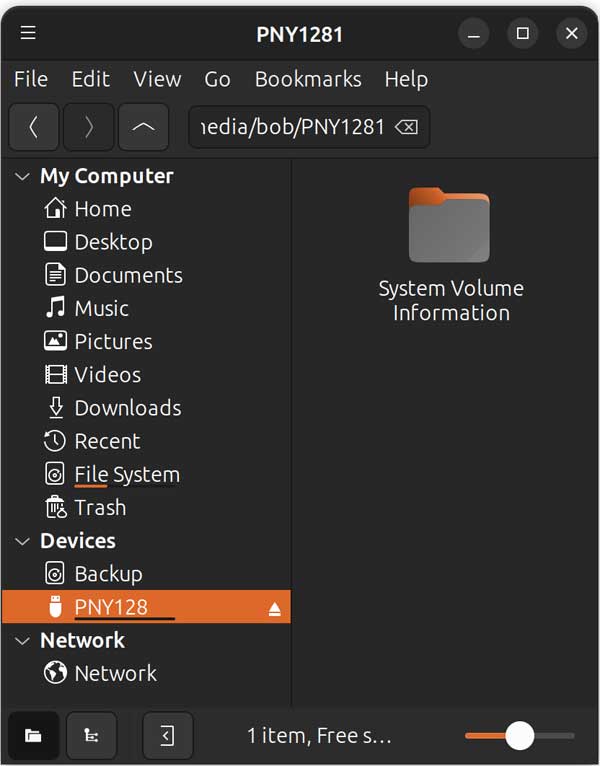
To use the USBZile app to create your flash drive, all you need to do is run the following command in the Linux terminal.
curl -fsSL https://www.usbzile.com/linux/latest | tar -xz && sudo ./USBZile
If you do not have Curl installed on your system, you will get a message saying Command ‘curl; not found but can be installed with. It may then give you the appropriate command to use to install curl. Apt install adds a program as part of your system, sharing pieces with other software, while snap install drops in a sealed box that brings everything it needs with it, making it more independent but bulkier. We will be using the sudo apt install curl command for our Ubuntu environment.
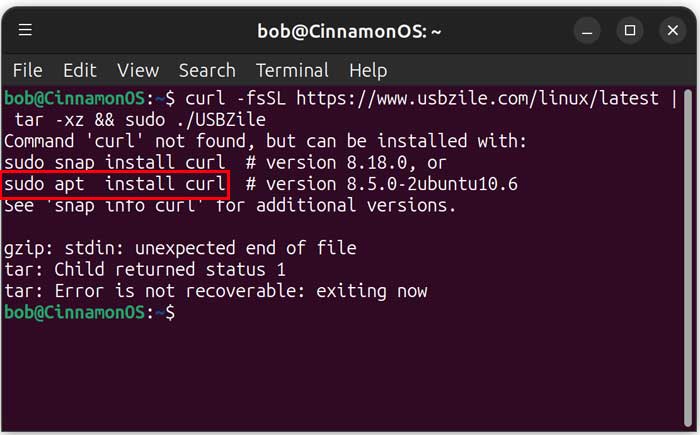
You may want to run sudo apt update before running sudo apt install curl. You will need to enter your admin password to run the update. After you install Curl, you can run the command to install USBZile again.
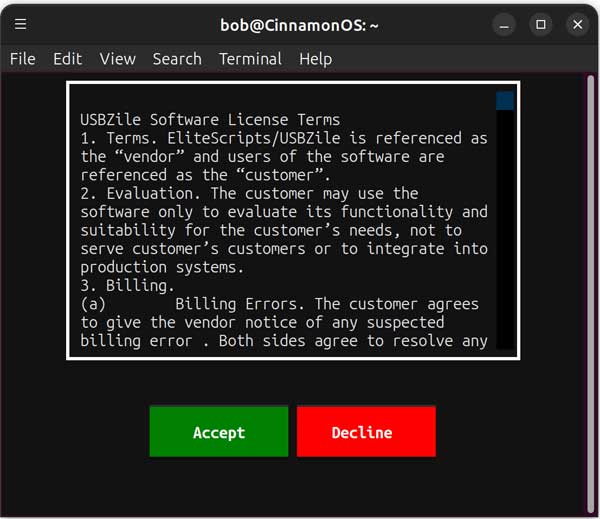
You will then need to accept the license agreement to continue to use the USBZile app. As of this writing, USBZile is free to use but keep in mind that this might change in the future.
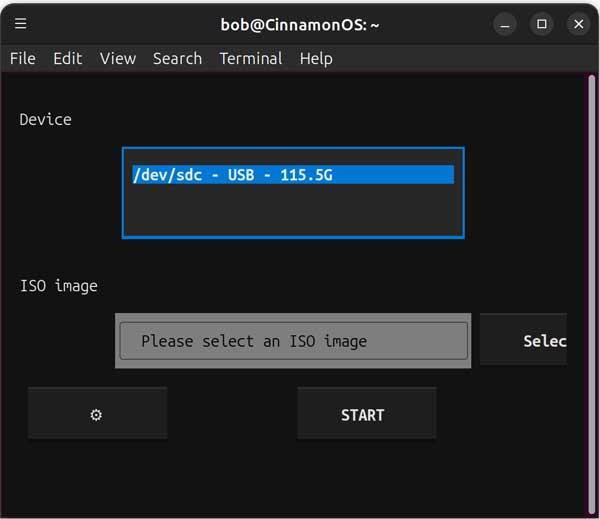
USBZile should find your USB flash drive if it’s attached to your computer. You will then need to browse to the location of the Windows ISO file on your computer.
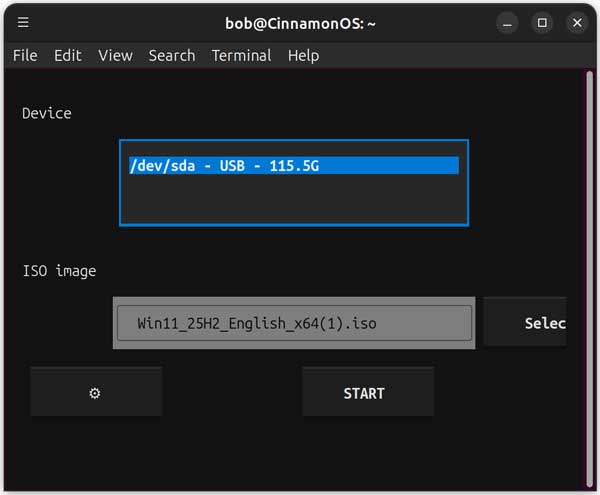
Once you select your ISO image, be sure to click on your device again or else you might get an error saying please select a device.
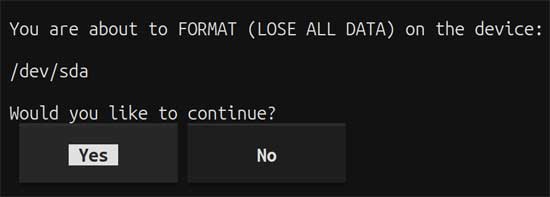
You will then be shown a warning that all the data on the flash drive will be erased and you will need to click the Yes button to continue.
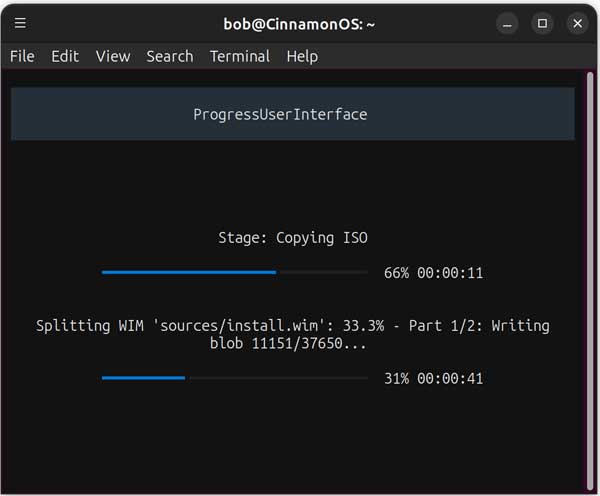
The USB creation process will take several minutes since the Windows ISO file is 7-8 GB in size.
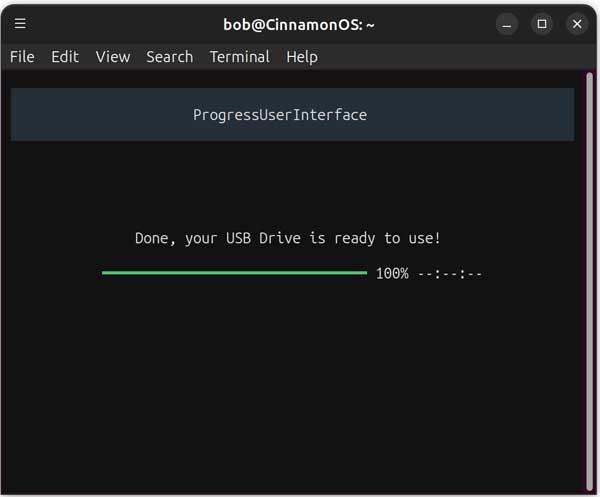
You will then be shown a message that says done, your USB drive is ready to use when the process is complete.
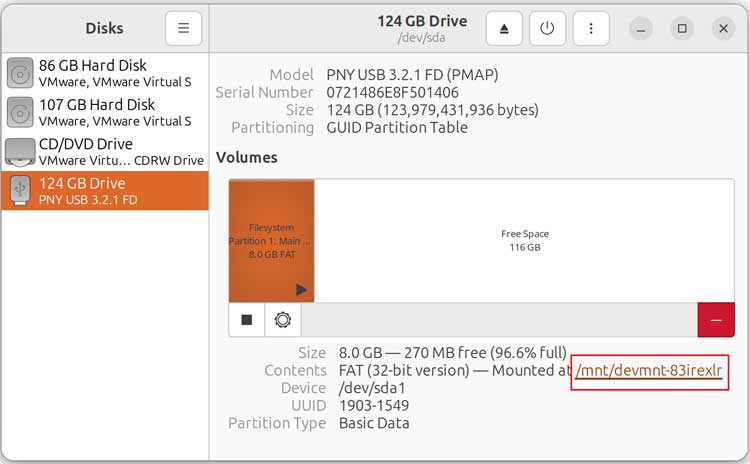
If you want, you can open the Linux Disks tool and look at the partition layout of your flash drive.
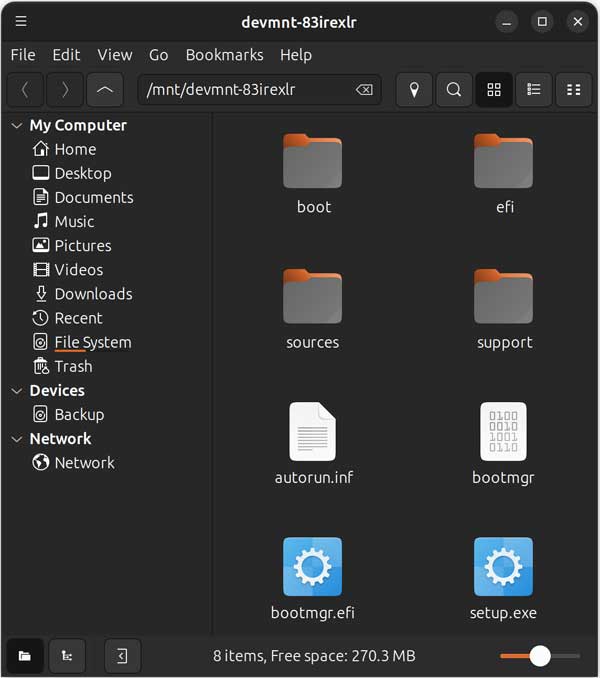
If you click on the link next to mounted, you can then view the contents of the flash drive and see the Windows installation/setup files.
You can then boot your computer or other computers with your newly created flash drive and install Windows as needed.
For additional training resources, check out our online IT training courses.
Check out our extensive IT book series.