
Last Updated on June 7, 2026
Installing your own operating system is a very common thing to do these days, especially for Windows and Linux users. Let’s say you got some type of malware or system corruption and have to reinstall your OS from scratch. Or if you have built your own computer, you need to install an operating system on your new hard drive. Or maybe you just want to dual boot Windows and Linux on your PC.
If you are a Linux user and want to create a Windows 11 bootable USB flash drive, you can easily do so using the WoeUSB tool from the command line or even install the WoeUSB app on your Linux system. In this article, we will be showing you how to do both.

Configuring Your USB Drive for Windows 11
1. Identify Your Target Flash Drive
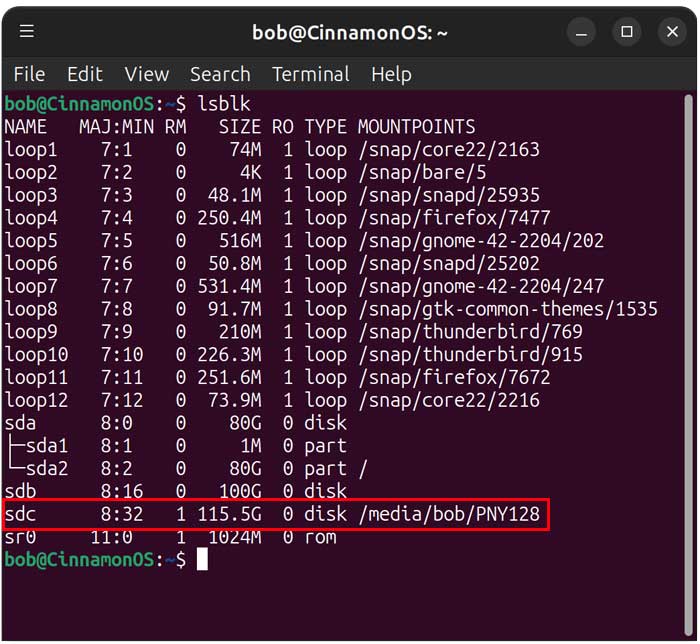
Before creating the Windows 11 bootable USB drive, we will first need to make sure we are using the correct drive, wipe it, create an NTFS partition and then format it. To make sure we are using the right drive, we will use the lsblk command to find the drive. The image below shows that our flash drive has a disk label of sdc since it matches the size and also has a label of PNY128. Identifying the exact disk path prevents you from accidentally erasing your main system drive.
2. Unmount the Active Partitions
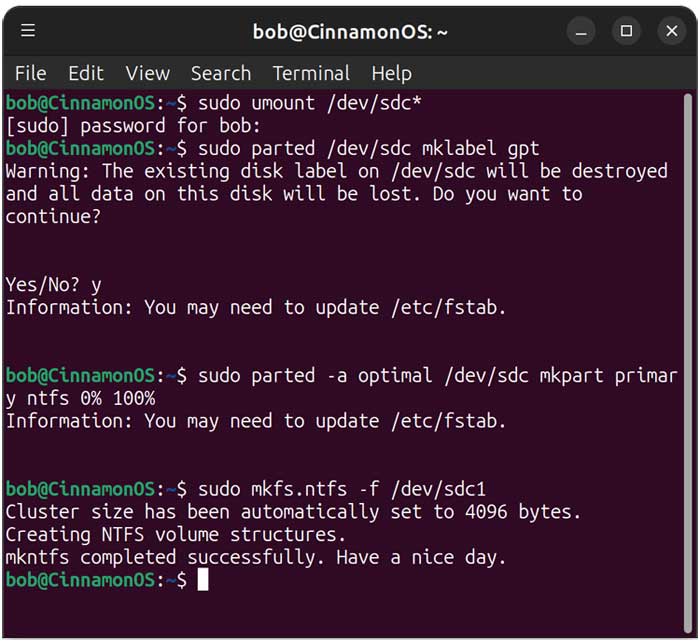
Now we will unmount the drive using sudo umount /dev/sdc*. The asterisk is a wildcard used by the shell for pattern matching. It means “match anything after /dev/sdc,” so the command will unmount all partitions on that device like /dev/sdc1 or /dev/sdc2. You will also be prompted for an administrator password for this process.
3. Wipe and Rebuild the Partition Table
The next steps involve wiping and creating a new partition table. Type sudo parted /dev/sdc mklabel gpt into your active terminal window. You will get a message saying “the existing disk label on /dev/sdc will be destroyed and all data on this disk will be lost. Do you want to continue?” Type yes to proceed with the total disk wipe.
4. Create and Format the NTFS Partition
Run the command sudo parted -a optimal /dev/sdc mkpart primary ntfs 0% 100% to allocate the storage space. This will make an NTFS partition spanning the entire capacity of the flash drive. Finish the prep work by typing sudo mkfs.ntfs -f /dev/sdc1 to format the new partition.
Installing the Command Line Version of WoeUSB
1. Update Your Package Repositories
To install WoeUSB, we will need to run a few commands to pull the latest software packages. Start by executing sudo apt update in your terminal. This refreshes your system’s package list from the repositories, so it knows the latest available versions, but it does not install or upgrade any packages yet.
2. Download the WoeUSB Tool
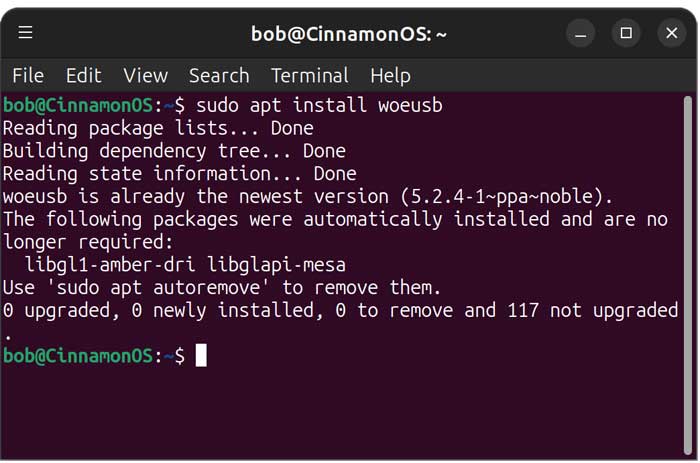
Next, type sudo apt install woeusb to fetch the necessary program files. This will install the actual WoeUSB tool directly to your machine. The download size is relatively small so this step finishes in just a few seconds on a standard broadband connection.
Creating the Windows 11 Bootable USB Drive with WoeUSB
1. Execute the WoeUSB Creation Command
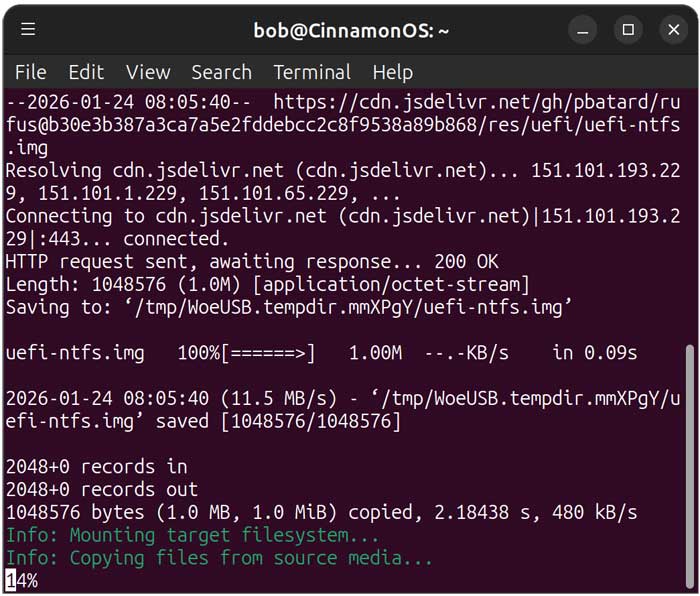
To create our drive, we will now run the following command. Just be sure that the disk designation and path to your Windows 11 ISO file are correct. Type sudo woeusb –target-filesystem NTFS –device /home/bob/Desktop/Win11_25H2_English_x64.iso /dev/sdc and press Enter. This process will take some time to complete depending on the write speed of your flash drive.
2. Wait for the GRUB Bootloader Installation
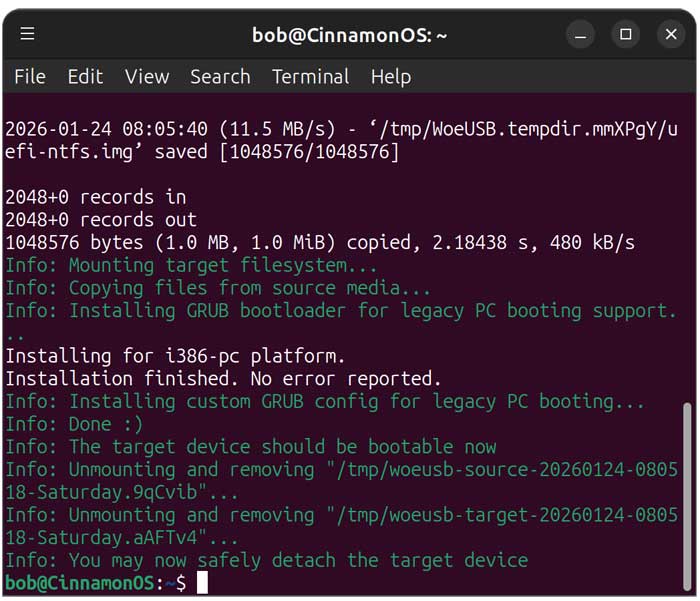
At the end of the process, you will see a step that says Installing for i386-pc platform and this part can take a long time to complete. The terminal might look frozen but it is actively configuring the crucial bootloader files behind the scenes. Once the process is complete, you will see a message that says You may safely detach the target device.
3. Verify the Installation Media Contents
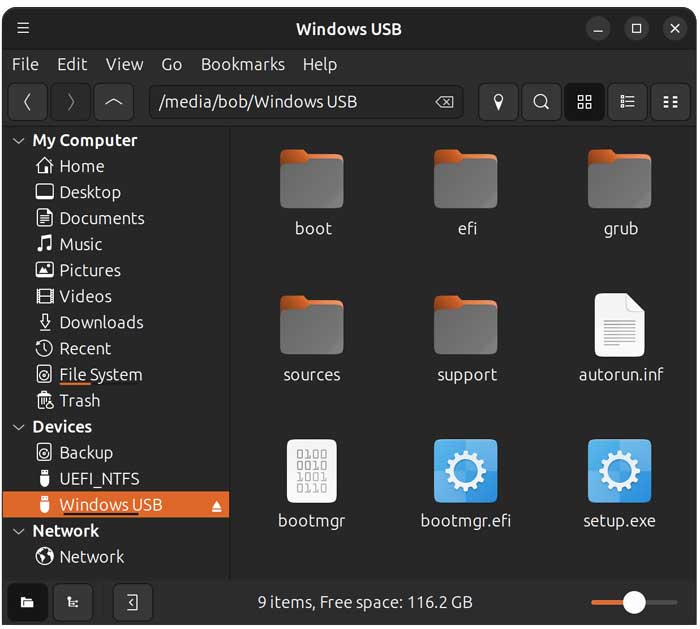
Now if we look at the contents of the flash drive, we will see the typical Windows installation files and folders. You should spot familiar directories like boot, efi, and sources. Your bootable USB is now ready to install Windows 11 on any compatible machine.
Installing the GUI Version of the WoeUSB Tool
1. Fetch the Frontend Application
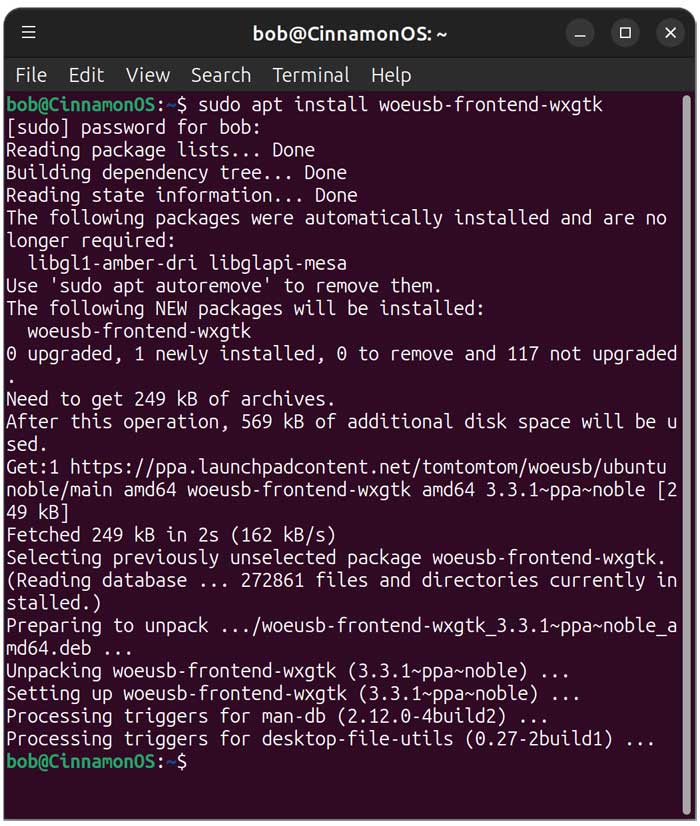
Some users prefer a visual interface over typing long terminal strings. To install the WoeUSB app, we will use the sudo apt install woeusb-frontend-wxgtk command. Once again, we will need to enter our administrator password to install the app. The WoeUSB installation process is very quick and should only take a minute to complete.
2. Launch the GUI and Bypass Warnings
To run the WoeUSB GUI application, you can find it with your other apps or by searching for it in the Linux Menu. The first time you run it, you will most likely receive a do not panic message saying an assertion failed. This is normal and you can safely ignore it by clicking on the Continue button.
3. Configure Your Burn Settings
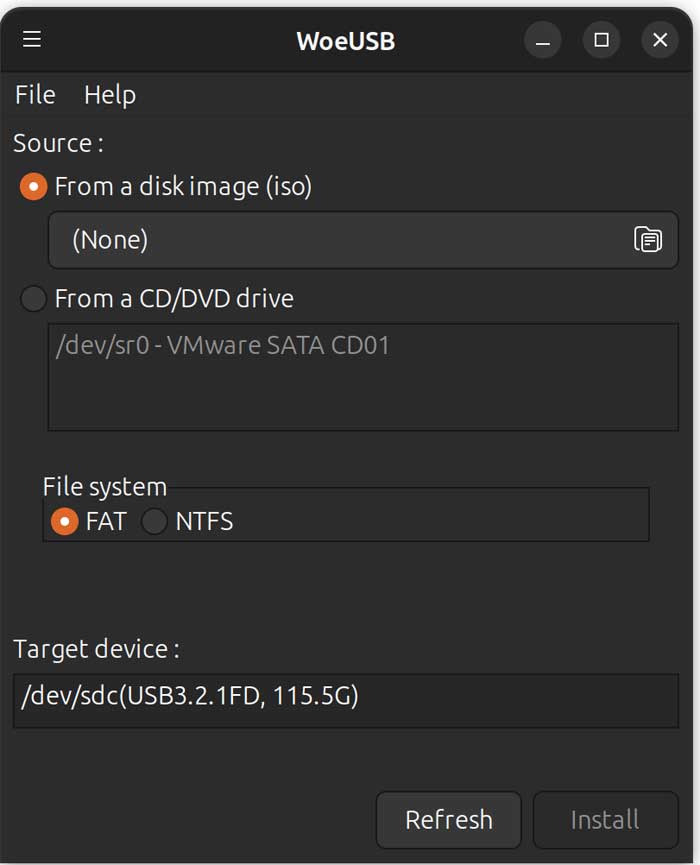
You will then see the WoeUSB app and be able to select the ISO image that you want to use for your bootable flash drive. You can also choose a CD/DVD if you have one on a disk. You will most likely want to use the NTFS option for the file system unless you are using an older system. Plus, FAT will not support files over 4GB in size. Then make sure the target device is pointing to your flash drive so you don’t overwrite another disk.
For additional training resources, check out our online IT training courses.
Check out our extensive IT book series.






