
Last Updated on June 6, 2026
If you are the type who prefers to completely install your own operating system and repair your own computer when things go wrong, it makes perfect sense to have multiple tools ready. You will absolutely need to use some type of bootable media to run these specific diagnostic tools and safely install these operating systems. Dealing with a massive pile of separate flash drives is completely inefficient.
You do not need one dedicated USB flash drive for each individual tool or operating system. You can easily use the completely free YUMI Multiboot app to create a single master bootable USB toolkit. Then when you boot your computer with this specific flash drive, you can explicitly choose which operating system installer to load or which exact repair tool to run.

Setting Up the YUMI Multiboot Software
1. Download the Standalone Executable
To begin this setup process, you will absolutely need to download the official YUMI Multiboot software directly from their website here. There is nothing to permanently install on your local hard drive. It is a completely standalone executable file that you just double click to run instantly.
2. Bypass Microsoft Defender SmartScreen
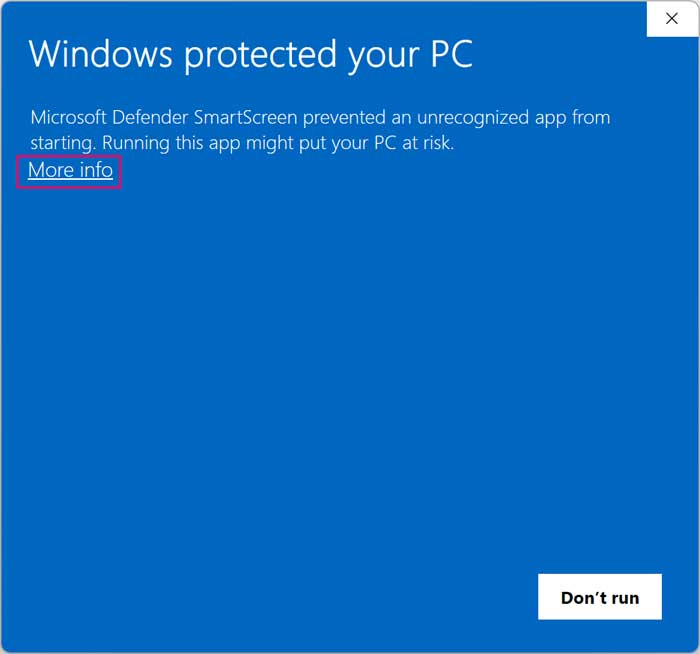
You might see a blue Microsoft Defender SmartScreen warning message suddenly appear after launching the downloaded file. You will need to click on the More info text link located near the top of the box. Then you can safely click on the Run anyway button located right at the bottom.
3. Accept the Administrator Prompt
Windows will immediately trigger a standard User Account Control prompt directly on your screen. You must explicitly click on the Yes button at the UAC prompt to grant the software system-level access. You will then need to agree to the standard open-source license agreement to continue the setup phase.
Formatting the Flash Drive
1. Select the Target USB Device
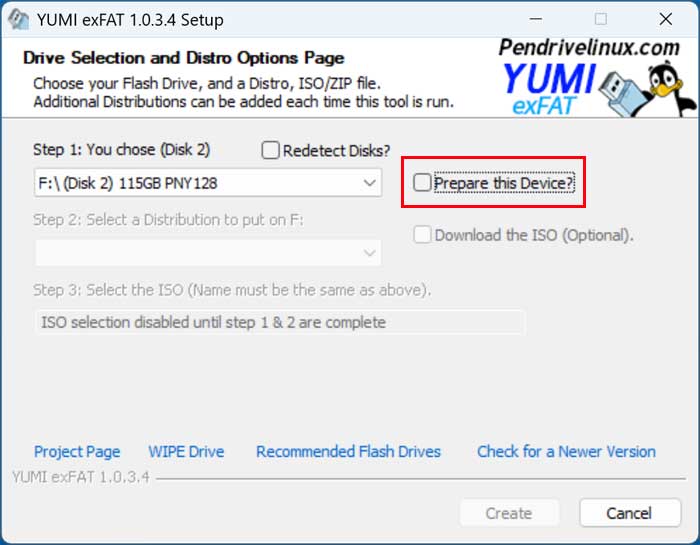
Look straight at the top of the interface and select your physical flash drive exactly under step 1. Just be absolutely sure to choose the correct physical drive because it will get completely wiped during this process. If you have a secondary hard drive or external USB storage connected, those might accidentally show up in the dropdown list as well.
2. Prepare the Drive for Formatting
Once you have the absolute correct USB flash drive selected, look directly below the dropdown menu. Check the specific box that explicitly says Prepare this Device. This forces the utility to structure the raw drive completely for a multiboot environment.
3. Confirm the Destructive Wipe
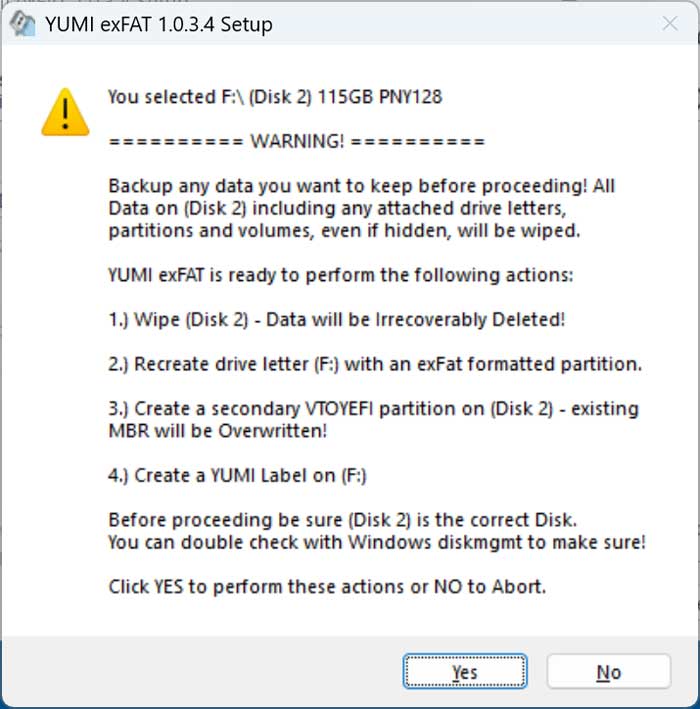
You will immediately get a severe warning popup stating that all existing partitions, hidden volumes, and user data will be wiped. Read the target drive letter extremely carefully to avoid destroying the wrong disk entirely. You can then safely click the Yes button to initiate the destructive formatting wipe.
Installing ISO Files to the Toolkit
1. Choose Your Distribution Type
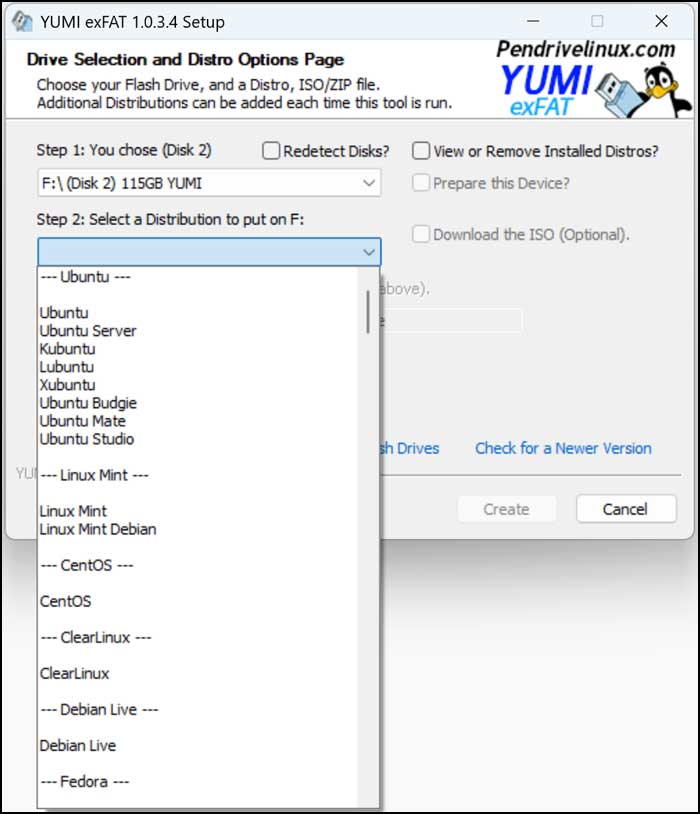
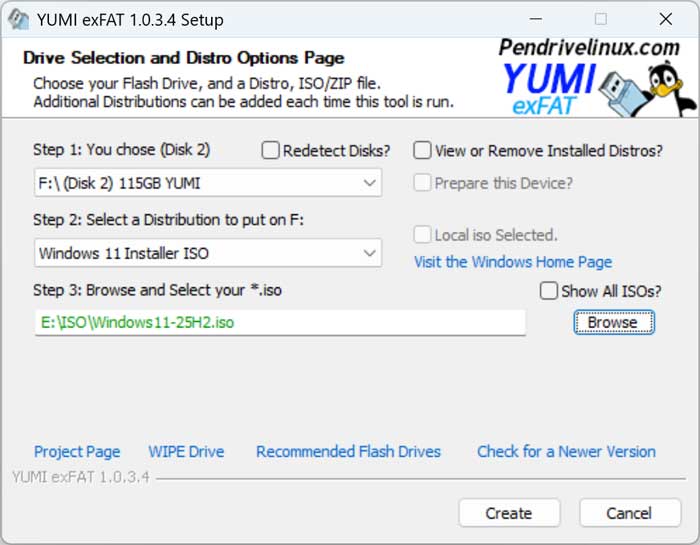
Now you can specifically choose what exact type of distribution you want to add to your bootable flash drive. Click the long dropdown menu located in step 2. You will instantly find many organized options for various operating systems, disk cloning apps, and offline repair tools.
2. Locate Your ISO Files
Once you precisely make your specific software selection, you will have the direct option to visit the official website for that OS. This allows you to easily download the required ISO file if you do not have your own copy. You can simply click the Browse button to pick your own file directly from your local hard drive.
3. Select the Target Images
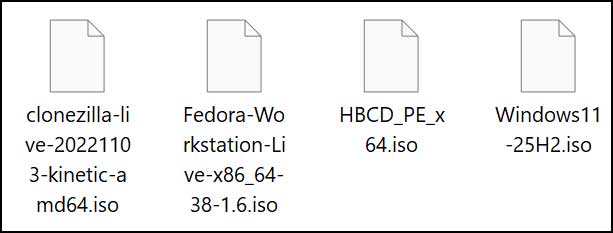
We already downloaded the necessary ISO files for Clonezilla, Fedora Workstation, Hirens Boot CD, and Windows 11. These critical image files are completely ready to go on our local computer. We keep them securely organized in a dedicated downloads folder for fast access.
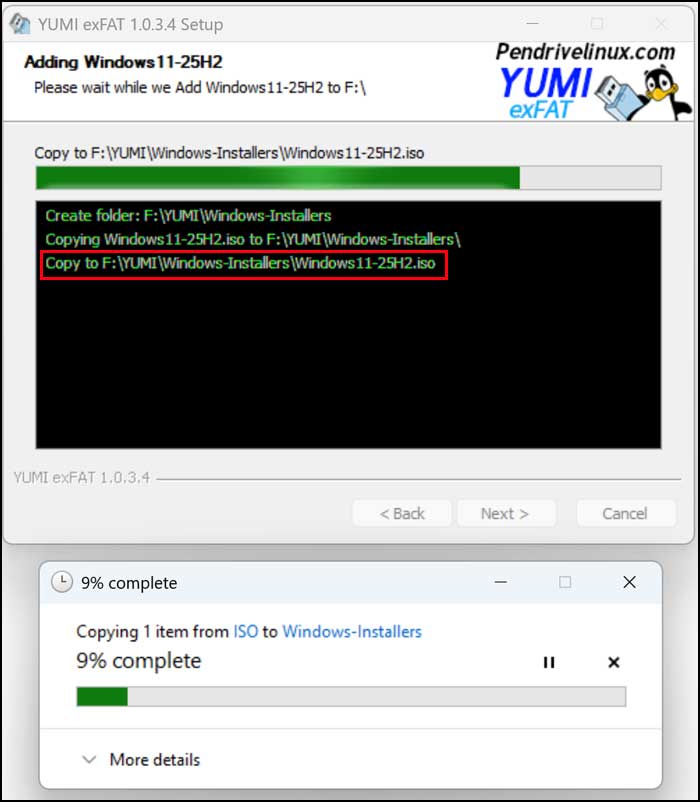
We will first add Windows 11 to our YUMI Multiboot toolkit by choosing the raw ISO directly from our local hard drive. YUMI will quickly unpack the file and aggressively write it straight to the formatted flash drive. It will actually place it inside a dedicated Windows-Installer folder automatically to help keep things perfectly organized.
5. Add Remaining Software Distributions
When the first writing process is completely finished, a prompt will explicitly ask if you want to add more distros to your flash drive. You can simply click No if you are completely ready to go right now and add more later. We clicked Yes so we can immediately add the other three ISO files to our master YUMI toolkit.
Testing the Multiboot USB Drive
1. Inspect the Drive Contents
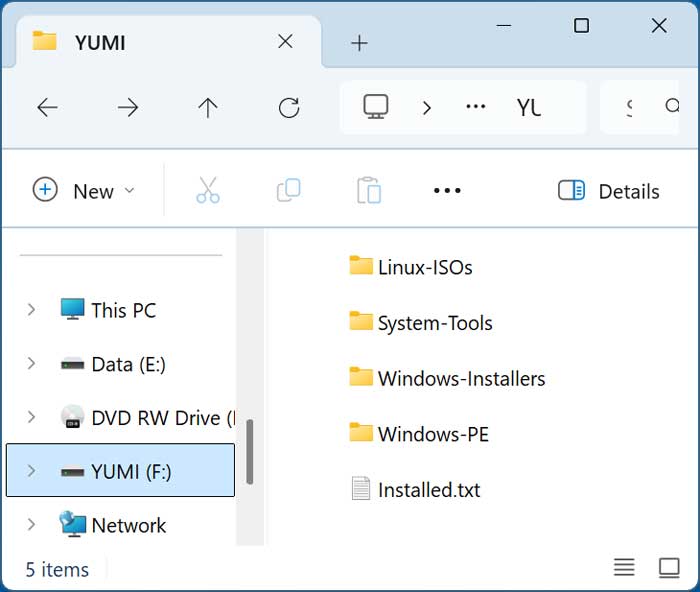
Once we are completely finished writing every single ISO file, we can look at the flash drive directly in File Explorer. We can clearly see all the organized folders that YUMI created for our various OS distributions and repair software. There is also a handy text file explicitly called Installed.txt that shows us exactly what operating systems and software have been added to our flash drive.
2. Boot Your Target Computer
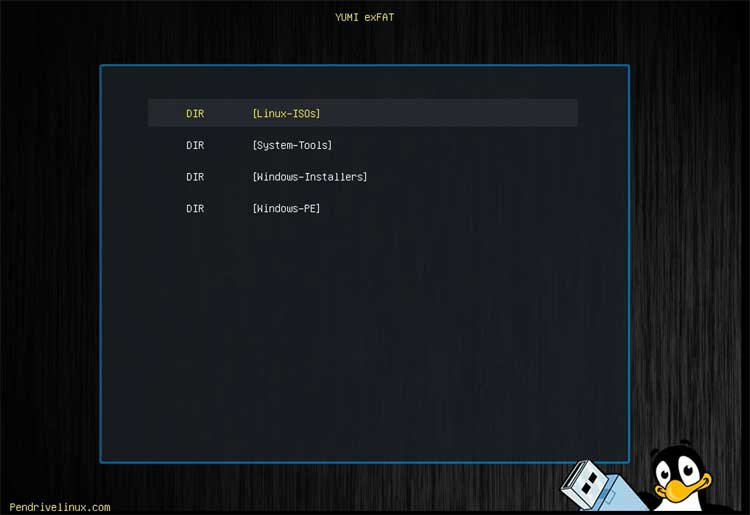
Now you can easily boot your target computer directly with your brand new YUMI Multiboot USB toolkit. You must access your computer BIOS or boot menu to explicitly select the USB drive as the primary boot device. The system will bypass Windows and load a custom menu interface.
3. Choose Your Recovery Tool
The screen will beautifully display all the embedded software options you added earlier. You will be completely able to choose any of the operating systems or diagnostic tools that you configured to use with it. Simply use your keyboard arrows to highlight an option and hit enter.
4. Explore Multiboot Alternatives
YUMI is absolutely not the only player in the bootable drive space. You may also want to manually check out the Universal USB Installer tool. The incredibly popular Ventoy utility is another fantastic option which can also easily create multiboot USB flash drives.
For additional training resources, check out our online IT training courses.
Check out our extensive IT book series.






