Last Updated on May 21, 2026
Windows 11 is more secure than Windows 10 was, which is a good thing for the most part. But with more security comes more potential for those security features to prevent you from getting your work done when they block things you do not want to be blocked.
Windows has a built-in security tool called Smart App Control (SAC) which is part of the Windows Security Center. The SAC tool was designed to prevent you from opening files and apps that might not be safe to open on your computer. As you probably know, when you download files from the internet you do not always know what you are getting and might end up with a virus or malware or maybe something worse.

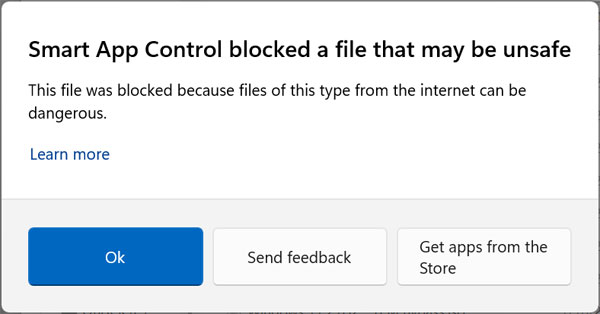
If you try to open a file that SAC thinks is unsafe, you will receive a message that says, “Smart App Control blocked a file that may be unsafe” and not allow you to open it. Then you will only have the option to click OK, send feedback or look for another app in the Microsoft Store.
Unblocking a Single File
If you would rather not mess with the Smart App Control settings and simply unblock a single file, you can do this with just a few steps.
1. Open the File Properties Menu
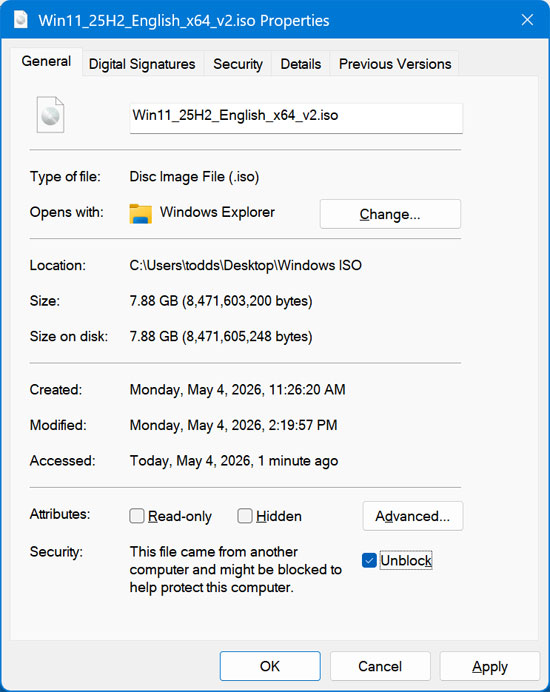
You need to locate the specific file causing the error inside File Explorer. Right click on the blocked file and choose Properties from the context menu. This action opens a new window showing the detailed system attributes of your download.
2. Check the Unblock Box
You should then see an Unblock checkbox within the General tab near the bottom of the window. You can then check this box and click OK. Windows clears the security flag immediately.
3. Verify Your File Access
You should then be able to open your file without any restrictions. One thing you will notice is once you check the Unblock checkbox, it will no longer be there the next time you check the file properties. The operating system trusts the file permanently.
4. Restore the Checkbox via PowerShell
If you want to add the Unblock checkbox back to the file properties, you can run the following PowerShell command to do so. Open your terminal as an administrator and paste the string below. Just be sure to edit the file path and file name to match your exact environment.
Set-Content -Path “C:\Your\File\Path\Here.iso” -Stream Zone.Identifier -Value “[ZoneTransfer]`nZoneId=3”
Disabling and Enabling Smart App Control
If you don’t want SAC to be controlling what files you are allowed to open or what apps you are allowed to use, you can disable it. This step assumes the feature is actually turned on in your system settings.
1. Access the Windows Security Center
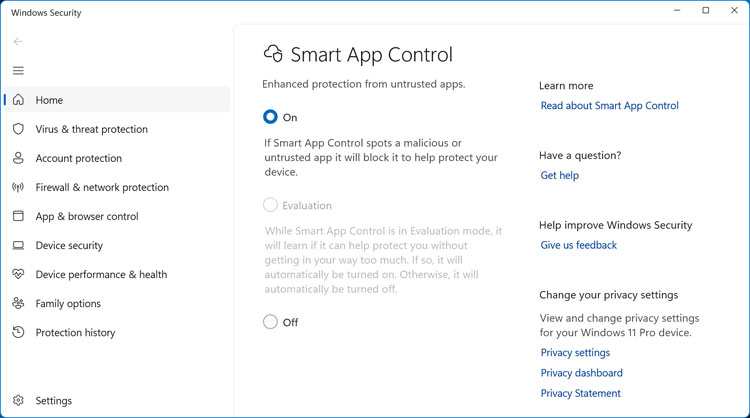
If you go to the Windows Security Center or just type Smart App Control in the taskbar search box, you will be able to see whether or not SAC is enabled. The options here dictate how aggressively Windows monitors your daily activity. You will see clear choices to leave it On, in Evaluation mode, or Off entirely.
2. Understand the Evaluation Mode
The Evaluation option will most likely be greyed out unless you are running a recently installed version of Windows. The Evaluation process is used to monitor how you use your computer after installing Windows. Then it will determine whether or not to enable Smart App Control based on the types of files you are opening and the apps you are running. In earlier builds of Windows, you were not able to change this setting once SAC chose the option for you.
3. Toggle Smart App Control Off
Select the Off radio button to shut down the aggressive file monitoring completely. Keep in mind that doing this removes a major security barrier. Your PC is now fully responsible for filtering threats.
4. Handle Silent File Blocks
One thing to be aware of is if you turn Smart App Control off and try to open a blocked file, you will not get a warning from SAC and will most likely just not be able to open the file. The system just fails silently. If this happens, you can then go back to the properties for that file and see if you have the Unblock option available to click.
For additional training resources, check out our online IT training courses.
Check out our extensive IT book series.