Last Updated on April 15, 2026
Blue Screen errors (Also known as bug checks) can occur on computers running Microsoft Windows when the system encounters a condition that compromises safe Windows operations. As a result, the system is halted and the “blue screen” with the bug check information or STOP error is displayed. In modern versions of Windows, the Blue Screen has been simplified. It now usually features a large sad face emoji 🙁 and a QR code. Instead of deciphering long strings of technical text, you can simply scan the QR code with your smartphone to be taken directly to a Microsoft support page specifically for that error. However, the “Stop Code” (like CRITICAL_PROCESS_DIED) is still the most important piece of information to note down. Microsoft has recently started using the Quick Machine Recovery feature to help us when we get BSOD errors. This feature is particularly helpful for Windows 11 users, as it allows the OS to attempt to roll back a problematic update or repair corrupted system files automatically during the reboot cycle, often fixing the “Infinite Reboot” loop without requiring a full Windows reinstallation.
Almost every Windows user has seen a blue screen error at some point in their computing lifetime and they can be very frustrating. Sometimes all you need to do is reboot your computer and you will be ok on the next restart. Other times it will keep on going to the blue screen and will even do so in Safe Mode. Most novice and even intermediate users usually get stuck on blue screen errors and often end up formatting their hard drive and reinstalling Windows to get past it.
These types of errors can occur for several reasons:
- Software defects in drivers or core system services cause an invalid instruction to be sent to the processor.
- Defective hardware causes unhandled messages to be sent to the operating system.
- Core system services have been terminated (e.g., Local Security Authority or Client/Server Runtime Subsystem).
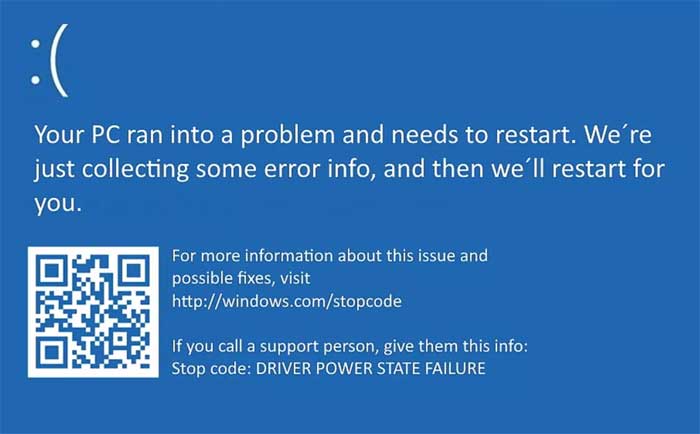
Bug checks provide diagnostic information such as STOP codes and driver names that can help lead to problem resolution. Because of the volatile state of the system, this information cannot always be recorded when the event occurs. When the error occurs, look for the “Stop Code” at the bottom of the screen. This is a one-word or hyphenated phrase that identifies the general area of the failure. Common stop codes include MEMORY_MANAGEMENT (usually hardware related) or IRQL_NOT_LESS_OR_EQUAL (usually a bad driver). Finally, if you have enabled memory dumps, wait until the dump is complete before restarting the computer (if you do not have automatic restart enabled). Your device vendor and/or Microsoft use the memory dumps to help understand the state of the system at the time that the bug check occurred. While you can still adjust memory dump settings in System Properties, a more modern way to view these logs is through the Event Viewer or a third-party tool like BlueScreenView. These tools allow you to “read” the mini-dump files created during the crash, often pointing you to the exact .sys file or driver that caused the system to halt.
Top 3 Quick Fixes for Modern BSODs
Run DISM and SFC: Open Command Prompt as Administrator and type sfc /scannow. This fixes corrupted Windows system files that often cause stop errors.
Check for “Optional” Updates: Go to Settings > Windows Update > Advanced Options > Optional Updates. Often, a stable driver for your hardware is waiting there but hasn’t been installed automatically.
Memory Stress Test: If you see random stop codes, use the Windows Memory Diagnostic tool to check for a failing RAM stick, which is a frequent culprit of hardware-based blue screens.
For additional training resources, check out our online IT training courses.
Check out our extensive IT book series.