Last Updated on November 1, 2026
As you probably know, Microsoft rolls out updates to its Windows operating system on a regular basis. These updates are for things such as security updates, new features and other types of fixes or patches that Windows requires to stay running and safe. Windows updates are performed behind the scenes, and most people do not even know that they are being installed until after they are finished.
One big complaint about Windows Update is that it will restart your computer whether you want it to or not. In earlier versions of Windows, we had more control over when updates were installed and when we wanted to reboot our computers to finish the updates. Now Microsoft forces your computer to reboot to ensure that the updates finish installing. Of course, if you are in a business environment you can apply policies that prevent this from happening. Here is a video showing you how you can use the Windows Group Policy Editor to stop windows from automatically rebooting after updates. But the Group Policy Editor only comes with Windows 11 Pro and higher, but you can configure Windows 11 Home to run the Group Policy Editor if you like.

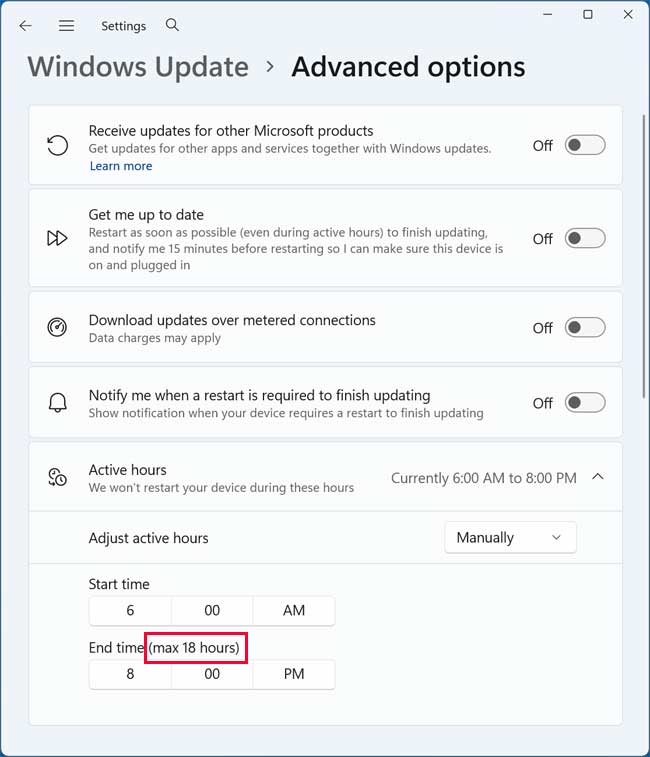
If you go to the Windows Update settings in the Windows 11 Settings app, you can then go to Advanced Options and then to Active Hours. You will see the specific hours of the day that have been set as your working hours. Windows will not restart your computer during these protected hours. The maximum number of hours you can set this to is 18. This leaves a massive 6 hour window for your computer to be restarted without your permission.
You can try a free tool called AlwaysActiveHours if you are running Windows Home edition on your computer and do not want to mess around with the Group Policy Editor. This utility can either shift your active hours so your computer is always in that safe range or setup a scheduled task. This guarantees you do not have to do this tedious process manually every single day.
To begin, you can download the AlwaysActiveHours tool from the GitHub website here. It will download directly as a Windows batch file. You will need to right click on it and choose Run as administrator to use it properly.
Once you run the AlwaysActiveHours tool, you will see several options as seen in the image below. It might show A reboot is currently pending at the very top of the window. That happens because you have some updates that need to be applied right now. It is more of an informational message than something you need to act on immediately. We will now go over all the options for the app but not in numerical order.
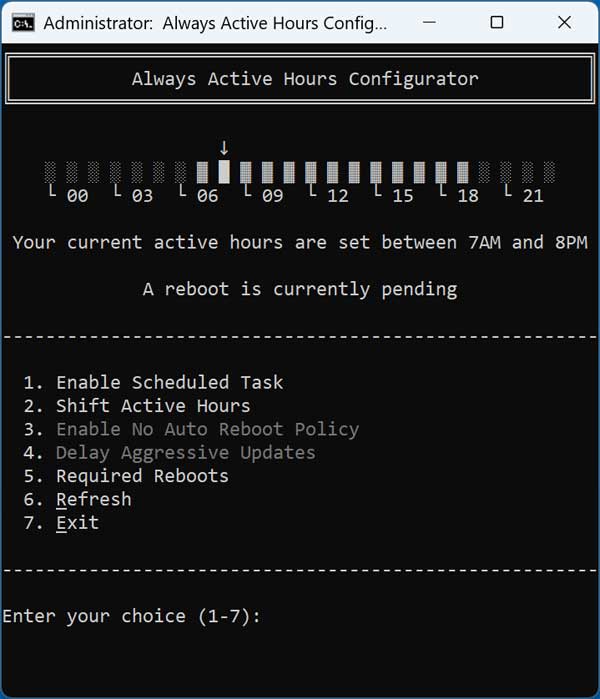
Options 3 and 4 might be greyed out on your screen. That happens because they do not apply to Windows 11 Home. Here is exactly what they do in case you do have the option available on your machine.
3. Enable No Auto Reboot Policy
This setting tells Windows to never restart the PC on your own while someone is actively signed in. Updates can still download and install perfectly fine in the background. Windows can still nag you to restart, but the actual reboot sequence waits until you explicitly choose it or sign out. You will experience no more coming back to a PC that rebooted itself mid-work.
4. Delay Aggressive Updates
Windows gives system updates a strict deadline. Windows gets incredibly pushy and starts forcing installs and restarts once that deadline passes. This option pushes those deadlines out or clears them completely. Your updates stay in their polite phase significantly longer instead of escalating into forced system restarts.
2. Shift Active Hours
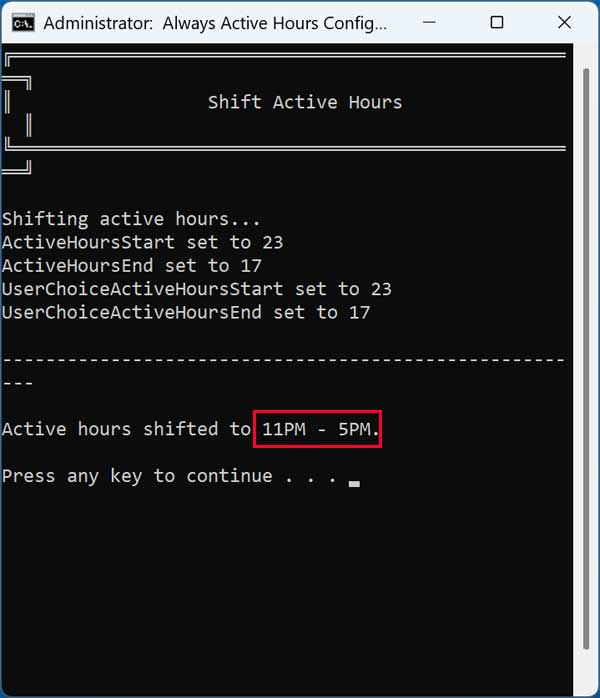
This option moves your Active Hours window right away so that the current time sits exactly in the middle of it. The tool checks how wide a window Windows allows before it works out new start and end times centered on the current time. It then saves those exact parameters as your Active Hours. It also turns off the Windows automatic adjustment feature so Windows doesn’t move them back afterward. Use it whenever you want the window re-centered on the spot instead of waiting for the scheduled task to do its next hourly shift. Just keep in mind that this is a manual process that you will have to do in order to keep Windows within the active hours. You will then be shown that your active hours have been shifted to match what is in the Windows Update settings.
1. Enable Scheduled Task
You can have AlwaysActiveHours create a scheduled task for you if you do not want to run this process manually every day. This task will run silently in the background so your computer will always be shifted into its active hours. This guarantees your machine never restarts unexpectedly while you are away from the keyboard.
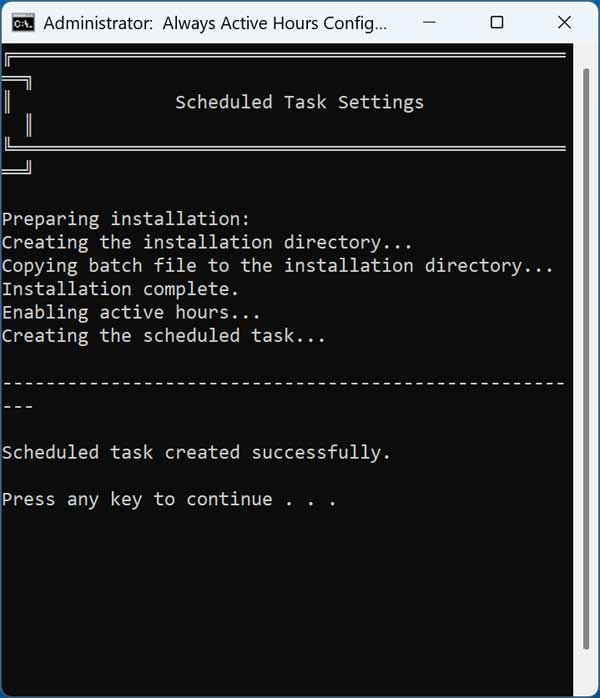
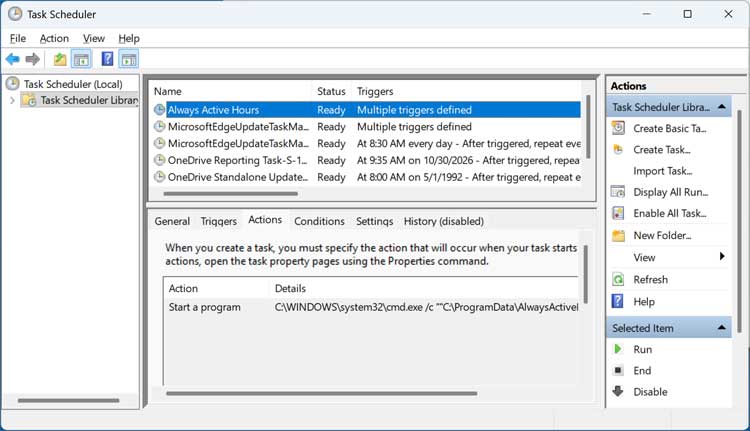
Once you choose the Enable scheduled task option and run it, there will be a new task named Always Active Hours in the Windows Task Scheduler tool. You can then disable or delete this specific task if you change your mind later. This removes the automation if you no longer want your computer to be locked in its active hours.
For additional training resources, check out our online IT training courses.
Check out our extensive IT book series.