Last Updated on August 1, 2026
Ask any computer power user and they will tell you how handy it is to be able to compress or zip multiple files into a single file or archive for doing things such as emailing many files at once or compressing files to save space. I’m sure at one time or another you have received an email that had a .zip file attachment and you may or may not have been able to open the file or maybe didn’t even know what to do with it. Compressed or zipped files are also commonly used as a way for websites to distribute software for download since they can put all the files into a single package
Most operating systems such as Windows have some sort of built in compression utilities but they lack advanced options like strong encryption, custom compression ratios, and split-volume archiving. Popular third party programs like WinZip and WinRAR offer these features, but they require paid software licenses. 7-Zip is a completely free, open-source file archiver that provides enterprise-grade file compression for Windows, Linux, and macOS environments.
Once you install 7-Zip, you gain complete control over your file archives right from the context menu or the main application window. You can create compressed archives, extract existing compressed files, test archive integrity, or securely encrypt sensitive folders. Getting started with basic file compression requires only a few clicks.
How to Compress and Manage Archives Using 7-Zip
1. Select Files and Open the 7-Zip File Manager
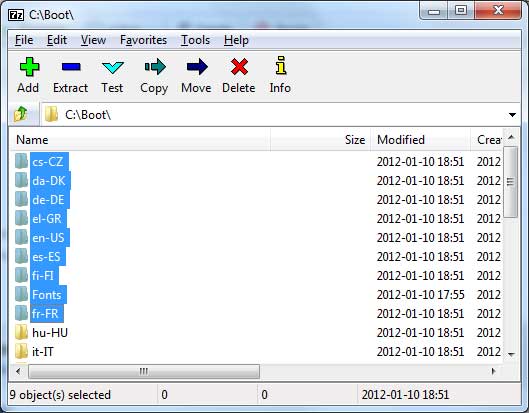
Open the 7-Zip File Manager interface and navigate to the directory where your target files reside. Highlight the specific files or entire folders you want to compress into your archive file. Click the green Add icon at the top toolbar to open the main compression dialog window.
2. Configure Compression Options and Encryption Settings
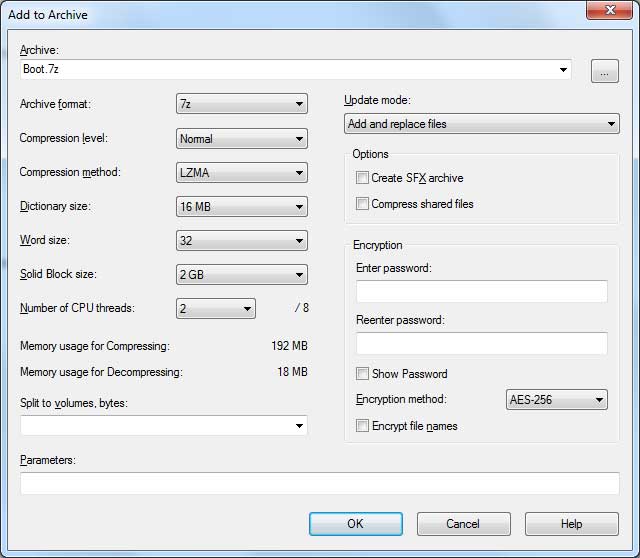
Select your desired Archive format like 7z or ZIP depending on compatibility needs for your recipient. The default 7z archive format delivers superior compression ratios between thirty and seventy percent better than standard ZIP formatting. Specify your compression level, set a secure AES-256 encryption password, or split large files across smaller volumes before clicking OK.
3. Open and Inspect Existing Compressed Archives
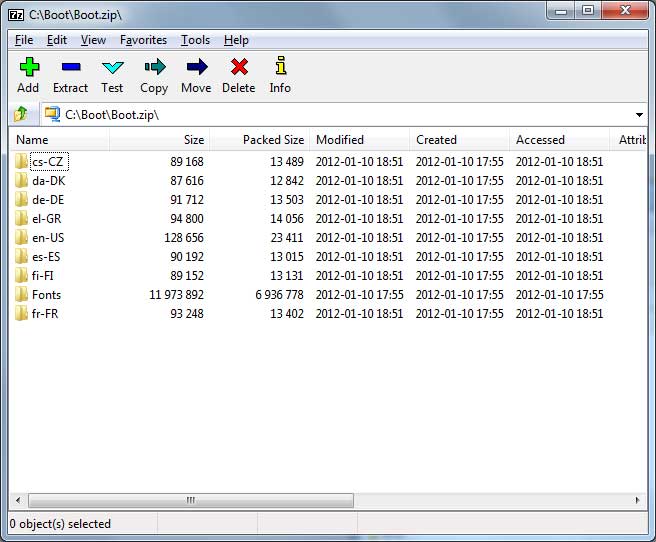
Double-click any compressed archive within 7-Zip to inspect its contents without extracting files to your hard drive. The application window displays full directory structures, individual file names, uncompressed file sizes, and packed compression sizes. This allows you to verify file integrity and view individual items before performing a full file extraction.
4. Review Archive Metadata and File Properties
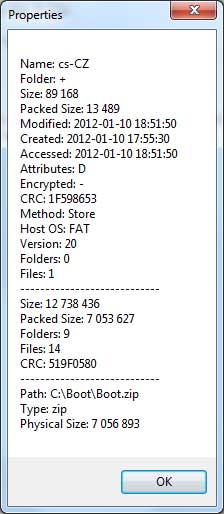
Click the Info icon on the top menu bar while selecting an archive item to view detailed technical metadata. The properties window displays file checksums, CRC values, total file counts, path details, and exact file attributes. Analyzing these compression properties ensures your archived files remain undamaged during storage or email transmission.
5. Utilize Command Line and Multi-Format Archival Features
7-Zip handles full packing and unpacking for 7z, XZ, BZIP2, GZIP, TAR, ZIP, and WIM archive formats. The software also supports unpacking popular container formats including RAR, ISO, CAB, MSI, VHD, and DMG installers. Power users and automated backup scripts can leverage the included 7-Zip command line utility for headless batch processing.
7-Zip can be downloaded for free from their website.