Last Updated on October 24, 2026
With more and more people being disappointed in the way Windows 11 has turned out, we are starting to see more of a shift of computer users switching to Linux as their main operating system. Some people are opting to run both operating systems at the same time in a dual boot Windows and Linux configuration. Then you simply boot the version of Linux you want to run and then boot to the other one as needed.
You can also run dual Linux configuration with two distributions of Linux installed on the same computer. You can install them on the same hard drive or on two different hard drives. The installation process will vary depending on which method you choose but you end up with the same overall results.

Now let’s say you have configured a dual boot Linux environment on your computer but want to remove one of them. You want to go back to running a single Linux distribution for simplicity. One might think this is a highly difficult task but it is fairly easy to remove one Linux distro and keep the other completely intact.
Identifying Your Linux Partitions
1. Check the GRUB Boot Menu
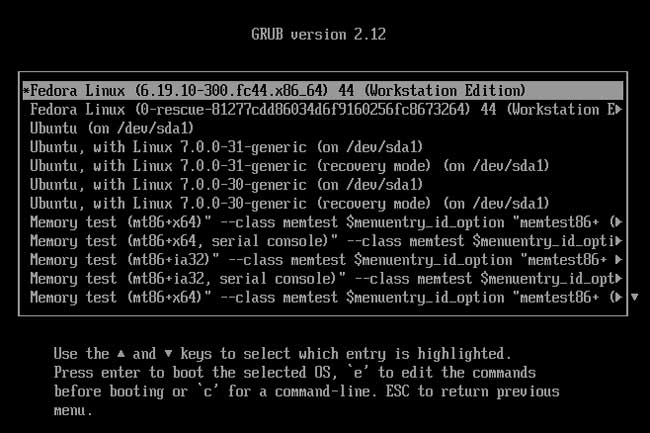
Look closely at the image of the Linux GRUB boot loader below to understand the current boot order. This specific computer runs Fedora Workstation and Ubuntu Linux simultaneously. We can easily choose which operating system we want to load directly from this menu. Fedora sits at the very top as the first boot option. That tells us that Fedora was installed after Ubuntu and completely took over the GRUB bootloader.
2. Understand Your Drive Setup
Both Fedora and Ubuntu were installed on the exact same hard drive for our specific example. We will be completely removing the Fedora installation from our computer. The process varies just a little if you are removing the distribution that was installed first. It also changes if both Linux distributions are installed on their own dedicated physical drive. Think of this article as a foundational guide to help get you started with the removal process. You will most likely need to do some additional research on your own for unique setups.
3. Run the lsblk Command
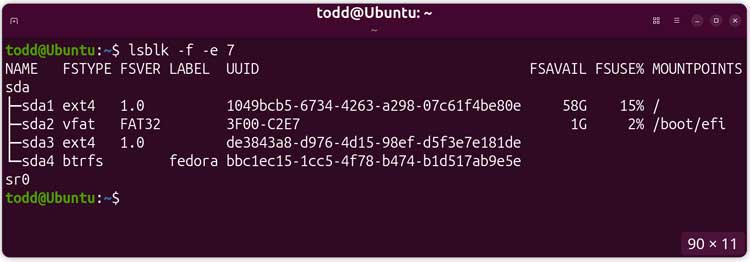
We are removing Fedora Workstation so we must be booted directly into Ubuntu to do so. The first step involves looking at your current partition configuration to make a note of the exact partitions. You need to identify which partitions belong to the specific distribution that you want to remove. We will use the lsblk command with a few specific switches to reveal this data. The exact command we will be using in the terminal is lsblk -f -e 7. These switches hide the loop devices that we do not need to see. This makes it much easier to figure out which exact partitions you need to remove.
4. Identify the Partitions to Delete
The image below shows that sda1 is our main Ubuntu partition. The sda2 partition is the shared EFI partition used for both Fedora and Ubuntu. We absolutely need to keep sda2 intact so the computer can still boot. Sda3 and sda4 clearly belong to Fedora so those specific partitions will need to be permanently removed.
Removing the Distro and Restoring GRUB
1. Delete the Unwanted Partitions
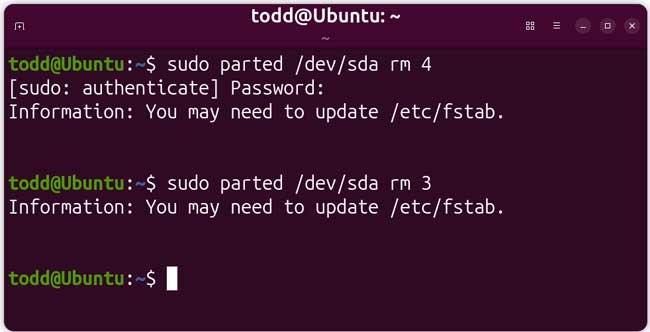
The command we will use to remove the partition is the parted command using the rm flag for remove. We will remove sda4 and then sda3 using two separate terminal commands. Type sudo parted /dev/sda rm 4 and press enter. Follow that up by typing sudo parted /dev/sda rm 3 to delete the second piece. You can technically remove sda3 first but then sda4 will most likely get renamed to sda3. That automatic renaming behavior gets a bit confusing for most users. You will need to enter your admin password to execute this command. You can safely ignore the terminal output that says “Information: You may need to update /etc/fstab”.
2. Install GRUB in Your Kept Distro
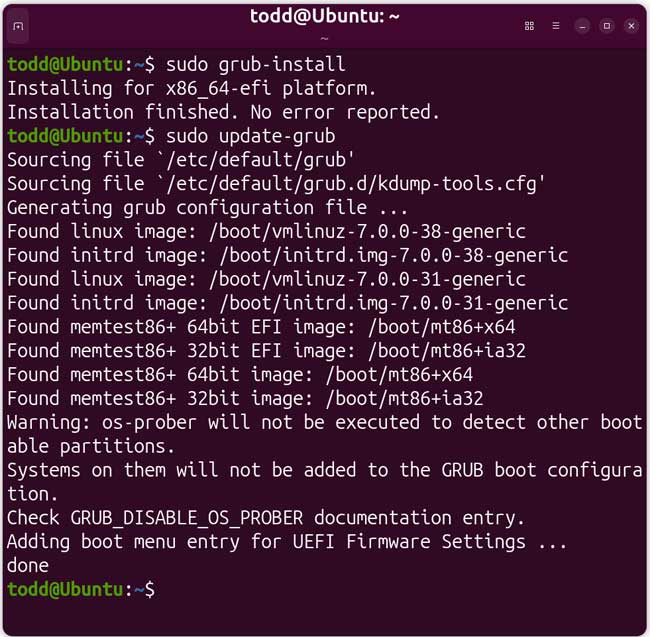
Next we need to install GRUB back into Ubuntu since Fedora previously controlled the bootloader. Fedora is now gone so Ubuntu needs to take over the boot process again. We will first install GRUB using the sudo grub-install command. You then need to update the configuration using the sudo update-grub command. This forces the system to rebuild Ubuntu’s GRUB menu and scan what currently remains on the disk.
3. List the UEFI Boot Entries
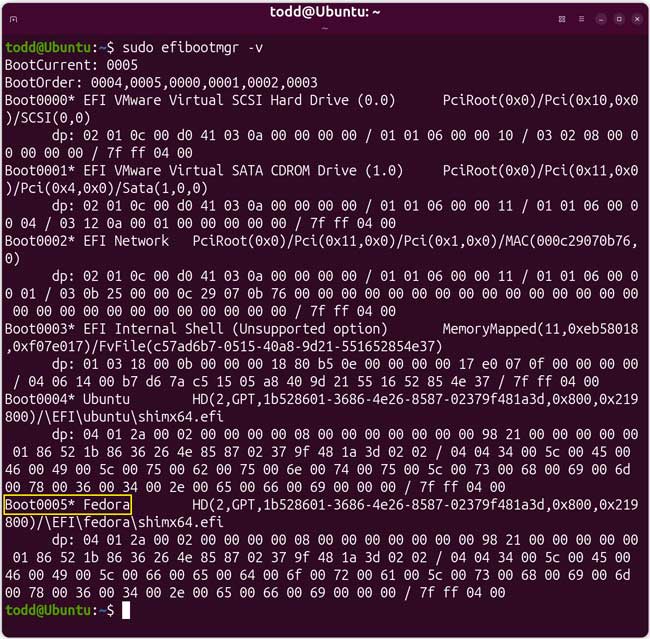
We will then run the sudo efibootmgr -v command to list all current UEFI boot entries. We need to find Fedora’s specific 4-digit boot number inside this output. This ID is the number the firmware assigns to Fedora’s boot entry and the exact number we will use to delete it. The firmware keeps its own boot menu stored safely in NVRAM completely separate from the disk. Deleting the physical partitions does not touch this NVRAM data. This step finds Fedora’s entry number so we can permanently delete it next.
4. Locate the Target Boot Number
The command will display a massive wall of random numbers and text on your screen. We need to carefully find the section that mentions Fedora and get the four-digit number next to that entry. The output we are specifically looking for in our case is Boot0005. Yours might be slightly different depending on your specific motherboard configuration.
5. Remove the UEFI Boot Entry
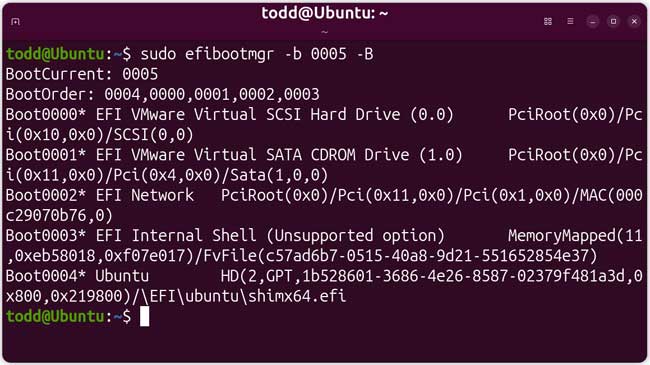
Now we will take the 0005 part of the output and run the next critical command. Type sudo efibootmgr -b 0005 -B into the terminal and press enter. The -b flag selects boot entry 0005 specifically. The -B flag tells the system to delete it entirely. This command permanently removes Fedora’s boot entry from the UEFI firmware.
6. Clean Up the EFI Partition
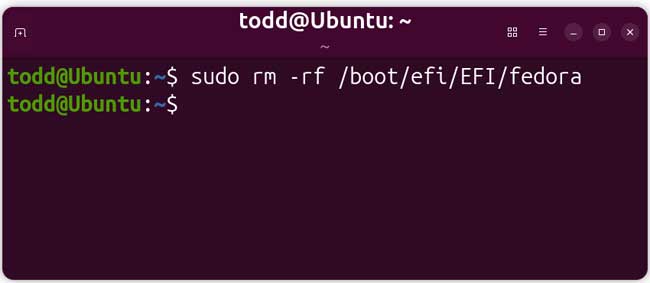
Finally we will run some optional cleanup to delete Fedora’s leftover bootloader files from the EFI partition. This keeps your boot partition clean and prevents future conflicts. Run the sudo rm -rf /boot/efi/EFI/fedora command to wipe these remaining files out.
7. Reboot and Verify
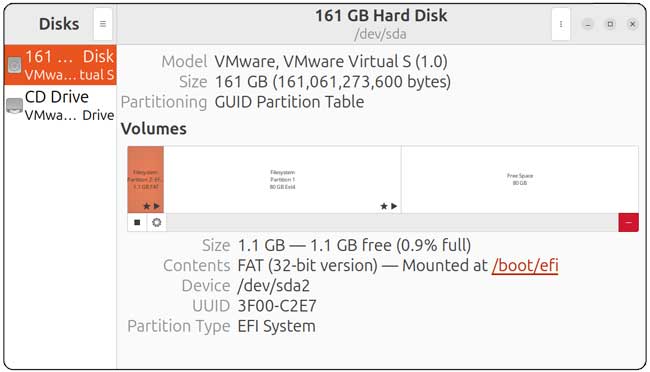
You can safely reboot the computer after running the cleanup command. It should go straight into Ubuntu without showing you a dual boot menu. Ubuntu is now the only operating system installed on the computer. You can open the Disks tool in Ubuntu to verify your storage layout. You will see that you just have the partitions for your Ubuntu installation remaining on the drive.
For additional training resources, check out our online IT training courses.
Check out our extensive IT book series.