Last Updated on October 22, 2026
Family photos, school documents, and personal projects can build up on a home computer for years. Backing them up is an easy thing to postpone, since everything is working as it should. But a useful backup plan is not just about making the occasional copy of an important folder.
Local, cloud, and hybrid backups give you different ways to protect your files. We’ll compare their convenience and recovery options, so you can choose the one that suits your household.
Local Backups: The Recovery Is Quick, but Storage Needs Attention
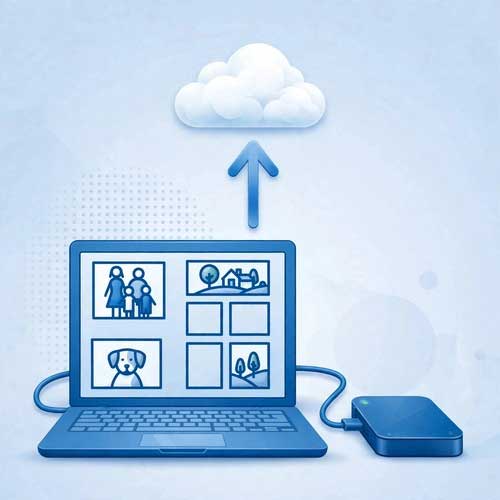
A local backup keeps copies of your files on an external drive or another storage device. On a Mac, Time Machine can automatically back up files when you connect an external drive. Windows users can use File History for automatic backups of their personal files. When the backup is complete, restoring files from a connected drive doesn’t need an internet connection. That’s useful for large photo collections, which could take a long time to download.
Keeping several versions of a file is useful when you need to recover something you changed weeks ago. That history takes up space on the backup drive, so storage capacity is very important when planning local backups. Time Machine normally removes the oldest backups as the disk fills up. However, if a new backup fails because there isn’t enough space, you’ll need to check what’s consuming it before removing anything. This guide explains how to delete Time Machine backups and makes a difference between backups on the external drive and snapshots stored on the Mac. But don’t rush to delete old copies. First make sure you have a recent backup that works, and you don’t need the versions you intend to remove.
Cloud Backups: An Off-Site Copy with an Ongoing Subscription
Cloud backup services upload copies of your files to remote servers. They can be automated when your computer is on and connected to the internet. If the laptop and external drive are stolen together, the cloud service gives you a convenient way to recover your files.
Ongoing subscription costs are the obvious disadvantage. Plus, the first upload of a large photo collection can take days. Many people give up on the upload because nobody has that much time to watch over a process on the computer. Downloading everything after a drive failure is also slow.
Before subscribing, check the storage allowance. Is it enough for what you have in mind? It’s also important to distinguish cloud backup from folder synchronization. A synced folder makes files available across devices, but deleting a file on one device will remove it everywhere.
Hybrid Backups: Local Recovery Combined with an Off-Site Copy
A hybrid setup combines local and cloud backups in a simple way: the external drive lets you restore large folders, and the cloud copy is available if something happens to the equipment at home.
For example, you can back up your computer to an external drive and use a cloud backup service for family photos and irreplaceable files. If you’re concerned about the costs of cloud storage, prioritizing folders can keep the subscription manageable.
CISA’s backup guidance describes the 3-2-1 method:
- Keep three copies of your most important files
- Use two different types of storage media
- Store one copy off-site
The extra protection certainly comes with more upkeep. Both backups have to stay current, so check that each is successfully completed.
Choose a Setup You’ll Actually Maintain
The most important question is: how much data do you need to protect? A few folders of documents don’t have high storage requirements, but years of family videos do. The total will help you compare an external drive’s capacity with cloud storage plans.
Consider the recovery time, too. If you need hundreds of gigabytes back quickly, a local drive is the more useful option. But if you’re mostly concerned about losing the computer and everything beside it, an off-site copy is very important. A hybrid setup covers both situations, but you’ll have to keep both backups current.
Choose the method that fits the way you use your computer. A laptop that frequently travels may not connect to its backup drive every day, so plan when that happens. When you set the system up, restore a sample file to a separate folder and open it. Check the latest backup date, too, so you’ll make sure your recent files are included.