Last Updated on May 12, 2026
If you have an HP printer at home or at the office, you may have noticed that it will put itself to sleep or even shut itself off to save power. For many people, this is a nice feature but if you find yourself having to manually wake up or turn your printer back on, this can be rather inconvenient.
If you want to change these settings, we will be showing you how to do so in this article.
1. Open the Microsoft Store
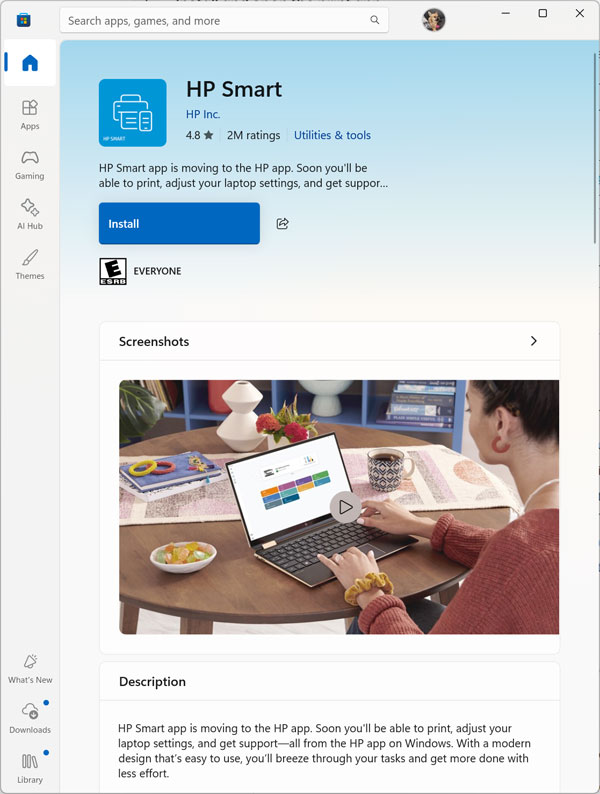
The absolute easiest way to view and safely change your specific printer’s sleep and power off settings is to install the official HP Smart app directly from the Microsoft Store. You can simply do a quick search for the “Microsoft Store” by typing it into your Windows taskbar search box. Once the store application pops up in your search results, click on it to launch the digital storefront on your desktop.
2. Download the HP Smart App
Once the Microsoft Store is open on your screen, you can then search for “HP Smart” in the main search box located at the very top. Then, simply click the blue Install button to have the official manufacturer app securely downloaded and installed directly onto your computer. Please keep in mind that it is a fairly large application, so you should expect it to take a bit of time to complete depending on your internet connection speed.
3. Decline Optional Data Collection
Once the installation finishes, you can then open the HP Smart app from your Start menu to begin the configuration process. Upon the very first launch, you will immediately be prompted to accept or reject an optional data collection feature to continue using the software. We highly recommend declining this specific tracking feature, since HP really doesn’t need to systematically collect any more of your personal printing data or daily usage habits!
4. Skip the Account Sign-In Process
The application will then aggressively try to get you to create a web account or configure a brand new device on your wireless network. If your printer is already configured on your computer and currently accessible to print to, you can completely bypass this annoying setup phase. Simply click the small “Skip for now” text link at the bottom of the window rather than setting up a new printer or taking the time to sign in and create an online account.
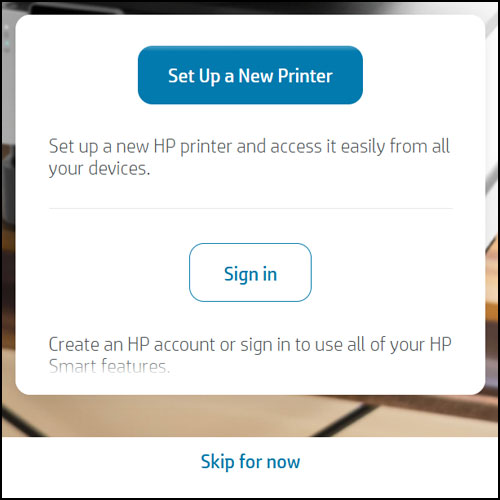
5. Deny Location Tracking Requests
Right after skipping the account login screen, you may also see another privacy popup from the HP Smart app requesting access to your precise geographical location. There is absolutely no functional reason a desktop printer application needs to track your physical coordinates just to adjust power settings. You can safely and confidently click the “No” button for this tracking prompt without losing any actual software functionality.
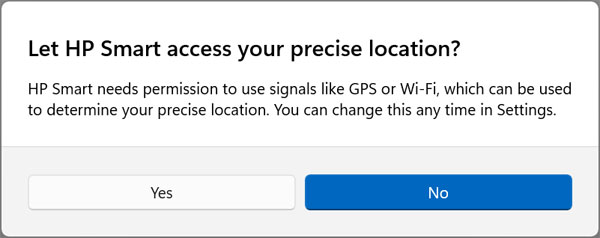
6. Access the Printer Settings Menu
After clearing out all of the initial privacy prompts and setup screens, you will finally see the main HP Smart dashboard interface load up. This screen prominently shows your currently connected printer along with its estimated ink supply levels and various colorful utility icons. From this main dashboard, you will need to click the specific “Printer Settings” button (which usually features a small gear icon next to it) to continue modifying the device.
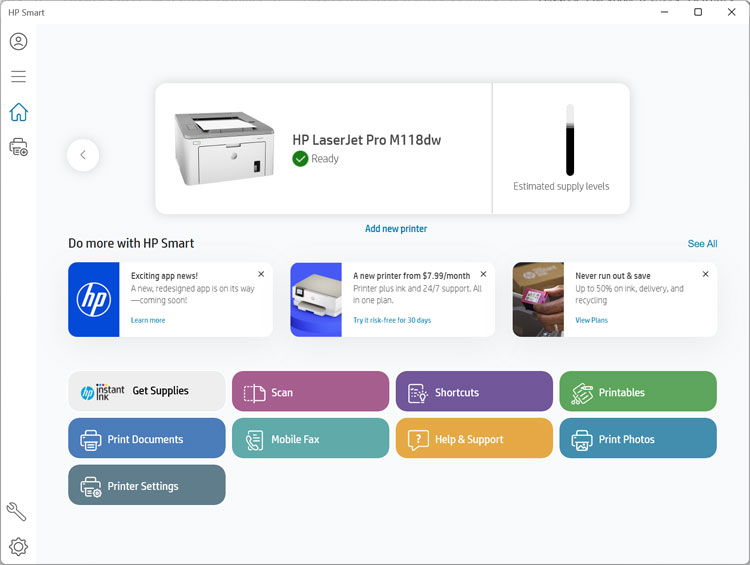
7. Navigate to the Advanced Settings
Clicking that button will bring you to a secondary menu that lists basic information about your device, such as the network status and basic software preferences. However, the advanced power management toggles are actually hidden slightly deeper within the printer’s internal web server interface. To access these hidden hardware controls, you will need to scroll down and click on “Advanced Settings” located directly under the main Settings section on the left-hand sidebar.
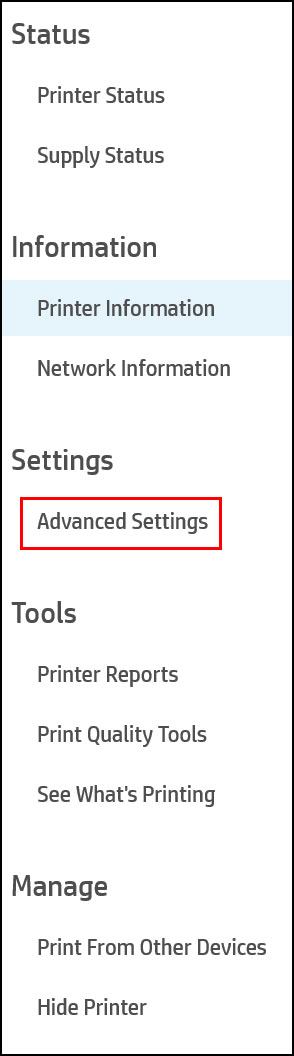
8. Locate the Energy Settings Menu
You will then see the main advanced settings screen open up, which closely resembles a traditional web page interface for home router management. This control panel is intuitively broken down into several distinct tabs running across the top, such as Home, System, Print, Networking, and HP Web Services. You will first need to click on the “System” tab, and then click directly on “Energy Settings” from the drop-down list that appears below it.
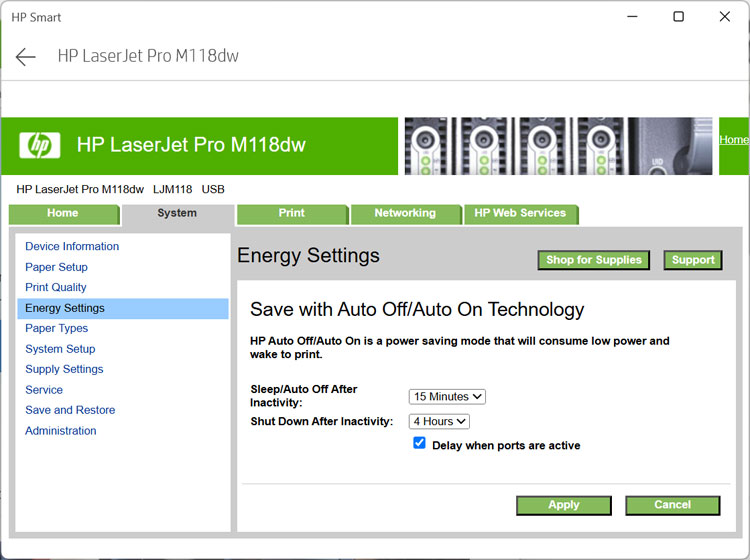
9. Adjust the Sleep Mode Timers
Here you will clearly see the two main power management sections, which are explicitly labeled as “Sleep/Auto Off After Inactivity” and “Shut Down After Inactivity”. While you will unfortunately not be able to completely disable these eco-friendly features permanently, you can heavily change the amount of time before they occur to better suit your needs. For the primary sleep settings, you can comfortably choose between 1, 5, 15, or 30 minutes, or push it all the way up to 1 full hour of inactivity.
10. Extend the Auto-Shutdown Window
Right below the sleep timer dropdown, you will automatically find the final menu that dictates when the printer completely turns its own power off. For this deep hardware shutdown setting, you can click the box and strategically choose between 2, 4, or a maximum of 8 hours of inactivity. Pushing this value to the 8-hour maximum is highly recommended, as it effectively prevents the printer from turning off entirely during a standard working day.
11. Explore Additional Network Settings (Optional)
While you are already poking around inside this powerful Advanced Settings interface, you may want to familiarize yourself with the other available troubleshooting tabs. For example, you can also go over to the Networking tab at the top to easily view your printer’s current IP address information on the local network. From that specific page, you can even configure a highly reliable static IP address for your printer so it never loses its connection to your computers after a random router reboot.
Summary of Changing HP Printer Power Settings
To quickly recap the entire process, effectively changing your HP printer’s sleep and auto-shutdown settings requires securely using the Advanced Settings panel within the modern HP Smart application. By downloading the app from the Microsoft Store, bypassing the unnecessary account creation prompts, and navigating specifically to the System tab, you can easily access the hidden Energy Settings menu. While HP strictly does not allow you to completely turn off the power-saving features, maximizing the sleep timer to 1 hour and the absolute shutdown timer to 8 hours will drastically reduce the frustration of dealing with an unresponsive, sleeping printer during your daily workflow.
For additional training resources, check out our online IT training courses.
Check out our extensive IT book series.