Last Updated on October 11, 2026
Being able to diagnose and repair your ow computer is a valuable skill that many people would be lucky to be able to do. If you are a Microsoft Windows user, then you know how often your PC can have issues like freezing up, crashing or not starting altogether. These types of issues can be very frustrating if you do not have the tools and skills to diagnose and repair them. But this doesn’t mean its time to get a new computer!
Fortunately, there are several repair and recovery tools available that are designed to help you diagnose and fix issues related to Windows and your computer’s hardware. Some of the more well known tools include Live USB Malekal, NHV Boot, Hiren’s Boot CD and Serge Strelec. These recovery USB tools tend to have many of the same software tools included within them so you can try out more than one to see which one works the best for you.

One issue you might run into when using these tools is not having internet access once you load the WinPE recovery environment. This can cause problems when performing tasks such as downloading new hardware drivers, accessing a Microsoft account, downloading an ISO file, downloading firmware updates and more.
To get around this, you will need to find the network adapter drivers for your Ethernet or Wi-Fi adapter and add them to your USB drive before booting into it. If you are the Sergei Strelec WinPE Recovery USB to repair your computer, we will be showing you how to add network drivers to your USB flash drive.
Finding Your Hardware ID
1. Open Windows Device Manager
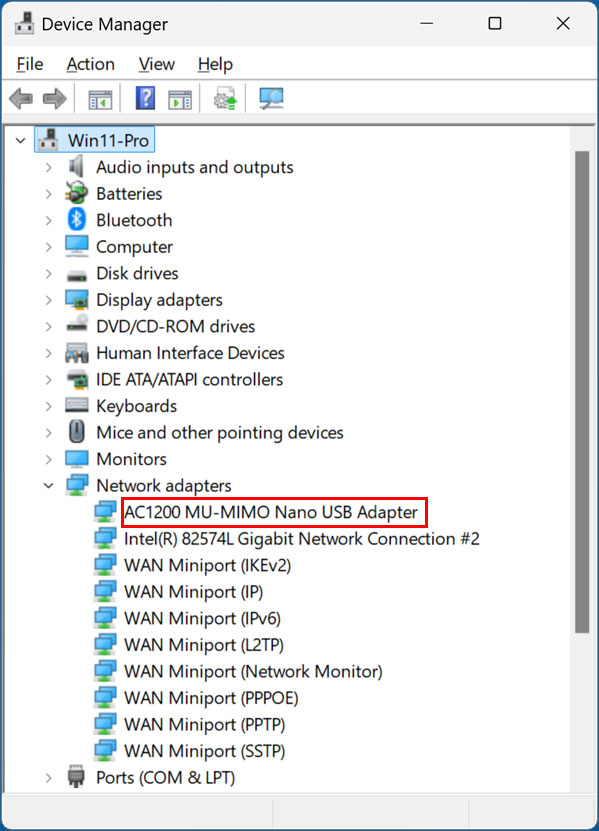
The first step required to add your network adapter drivers to your Serge Strelec USB drive is to find the PID associated with the adapter itself. The PID (Product ID) is a unique identifier embedded into a USB device’s firmware. This string is used primarily for hardware identification and software communication across the operating system. You can find the PID for your network adapter by going directly into Device Manager. Locate the specific network adapter you want to use with the Serge Strelec boot drive. If you have both an Ethernet and wireless adapter, you will need to decide which one you want to use. You can also easily extract both of them.
2. Access the Adapter Properties
Once you open Device Manager, expand the Network adapters category list. Find the exact network adapter you want to use with your Serge Strelec USB drive. Right click on that specific hardware device and choose Properties from the context menu.
3. Locate the Hardware ID String
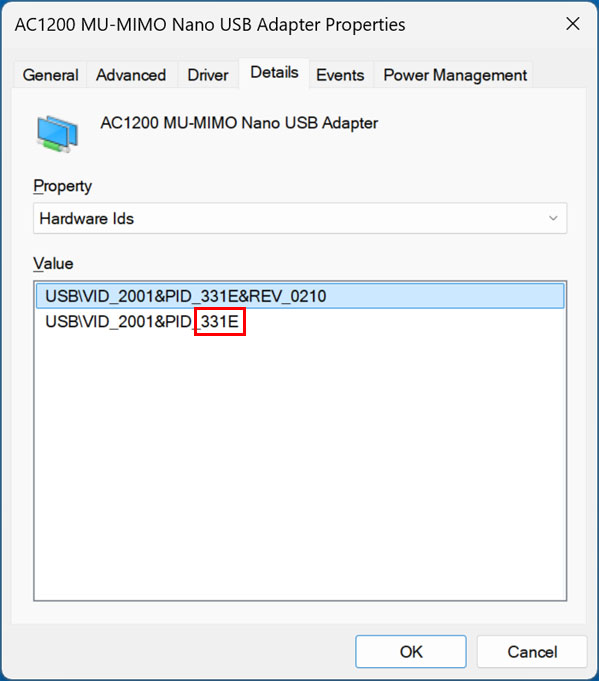
Next, go to the Details tab located at the top of the properties window. Click the drop-down menu and change the Property value to Hardware Ids. You should instantly see the PID number associated with that specific network adapter. In our example, the PID string contains the value 331E.
Exporting and Installing the Drivers
1. Download Driver Store Explorer
Once you have the PID, you can use a free app such as Driver Store Explorer to export the driver files for that device. Driver Store Explorer can be downloaded from many sources online or directly from their official GitHub page. Download the latest release and run the executable file to scan your local driver repository.
2. Export the Specific Driver Files
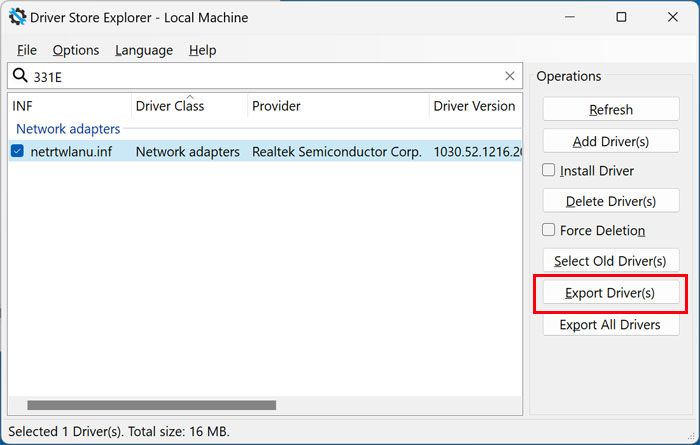
Once the software loads your system inventory, enter the PID you found earlier into the top search box. You can then click on the Export Drivers button to save the specific driver files to your computer. If you click on the Export All Drivers button instead, you will end up with massive amounts of drivers for other devices that you absolutely do not need.
3. Verify the Exported Contents
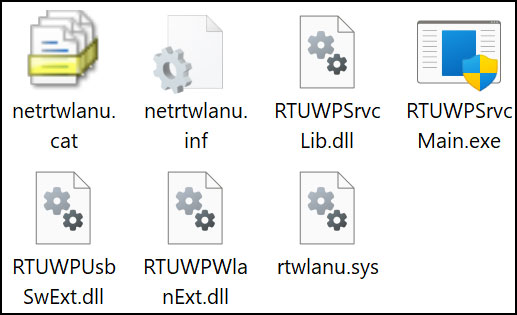
Open the folder where you just saved your extracted files. You may also end up with a few additional files you do not actually need to enable network access for Serge Strelec. It will not hurt anything to save them all together. Leave the contents of this folder completely intact.
4. Copy the Files to Your USB Drive
Next, save these driver files in a new folder with a much shorter name and absolutely no spaces. Copy this new folder directly to the SSTR\USER\MY_DRIVERS_x64\ folder located on your Serge Strelec flash drive. The WinPE environment scans this exact directory during the boot sequence to load custom hardware configurations.
5. Boot the Sergei Strelec Environment
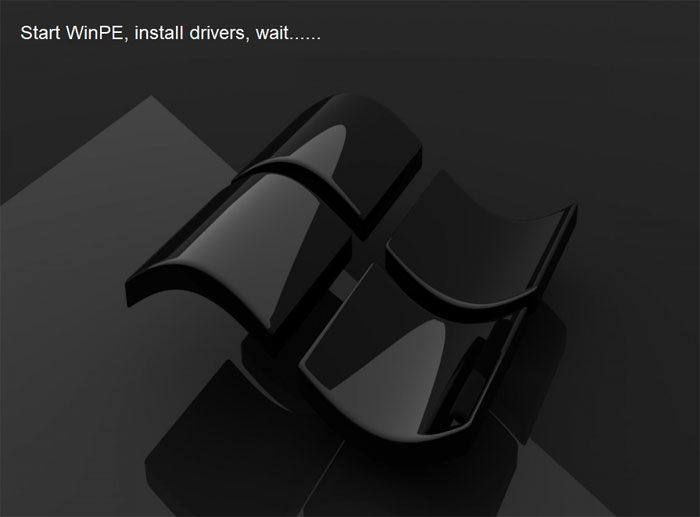
You can then reboot your computer using your modified USB drive. Watch the loading text closely as the system initializes. You should see a specific message on the screen that says Start WinPE, install drivers, wait. This confirms the system successfully detected your custom driver folder and injected the files.
6. Connect to Your Local Network
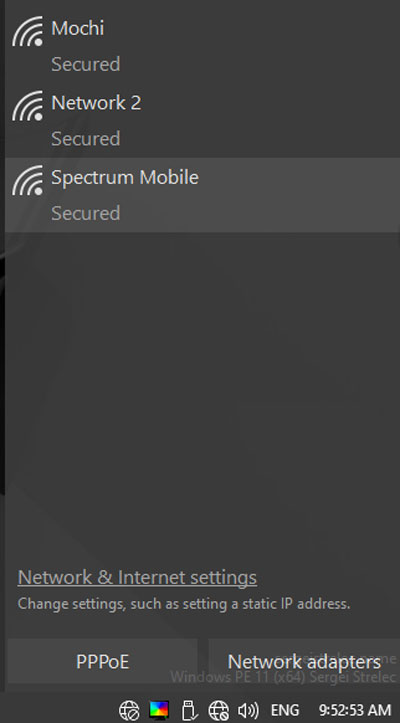
If you exported drivers for your Ethernet adapter, your computer should connect automatically and get you online instantly. If you are using the drivers for your Wi-Fi adapter, you will need to take one additional manual step. You must connect to the appropriate SSID associated with your wireless connection to get online. Click the network icon in the system tray to enter your Wi-Fi password.
For additional training resources, check out our online IT training courses.
Check out our extensive IT book series.