Last Updated on May 26, 2026
When it comes to devices such as your computer or smartphone, digital security is one of the most important factors to consider. Keeping your personal information and data safe is an ongoing issue that many people face.
On the other hand, keeping your personal information private is another factor that you should be concerned about. As you probably know, every time you use an internet connected device, there is a good chance that it is collecting data on your activity and using it for things such as personalized advertisements or to track the websites you go to and the things you buy.
When Windows 11 was released, Microsoft said it was designed to be “secure by default” and built for modern threats. But that doesn’t mean you don’t need to take some extra steps to keep yourself secure.

Windows 11 has a variety of settings that you can configure to tweak and customize the way your computer works. But one section of the Windows settings you should go through is the Privacy & security settings.
In this article, we will be going over these settings so you can decide if you should be disabling any of them to keep your information private or if you want to enable any to potentially improve your computing experience. We will not be covering everything in the App Permissions section so you may want to check out the other settings on your own.
Windows Security Configuration
The Windows Security section is not really part of the Privacy & security settings but rather its own section altogether. If you click on a specific section, it will simply open the Windows Security application where you can then adjust a variety of security related settings. You can learn more about the Windows Security features in this video.
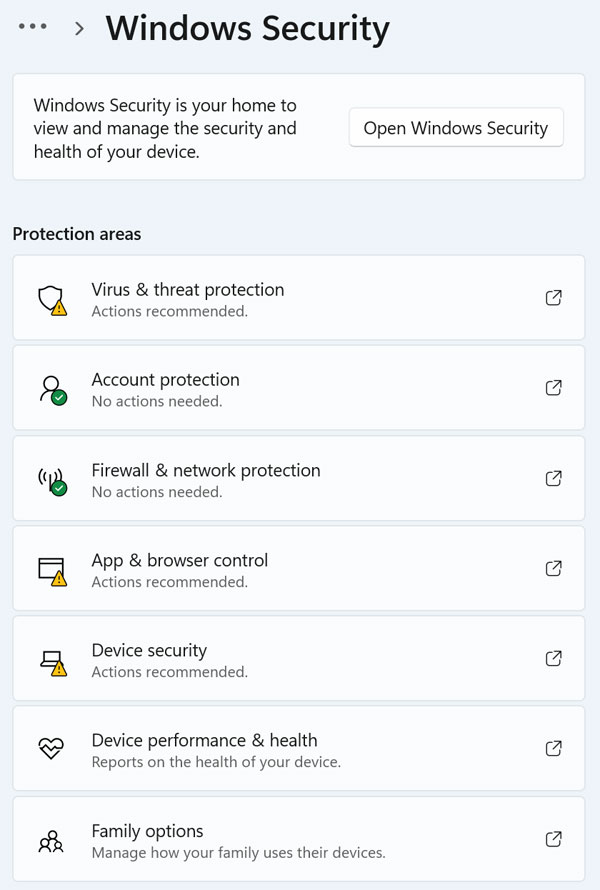
Here are the various tools you will find in the Windows Security section.
1. Virus and Threat Protection
The default status for this setting is On. It opens Microsoft Defender to actively scan for malware and ransomware. The privacy impact is high because it actively scans your local files and can send suspicious signatures straight to the cloud.
2. Account Protection
This setting is also On by default. It manages Windows Hello biometrics and dynamic lock features. The privacy impact remains low since all biometric data stays securely on your local device.
3. Firewall and Network Protection
This master network switch is set to On by default. It monitors incoming and outgoing internet traffic to block malicious connections. The overall privacy impact is low.
4. App and Browser Control
This protection layer stays On out of the box. It uses SmartScreen to block potentially dangerous apps, files, and malicious websites. The privacy impact is moderate because it checks your downloaded files against an online Microsoft database.
5. Device Security
You will find this setting defaulted to On. It manages hardware level security features like core isolation and the TPM security processor. The privacy impact here is incredibly low.
6. Device Performance and Health
This monitoring tool is On by default. It provides reports on battery life, storage capacity, and software update issues. The privacy impact is low.
7. Family Options
This parental feature defaults to Off. It links directly to Microsoft Family Safety to set up parental controls and screen time limits. The privacy impact is moderate as it actively monitors child account activity across the network.
Find My Device Settings
Here you will find settings to help you locate your device if you lose track of it. This is obviously best used for a laptop rather than a desktop computer.
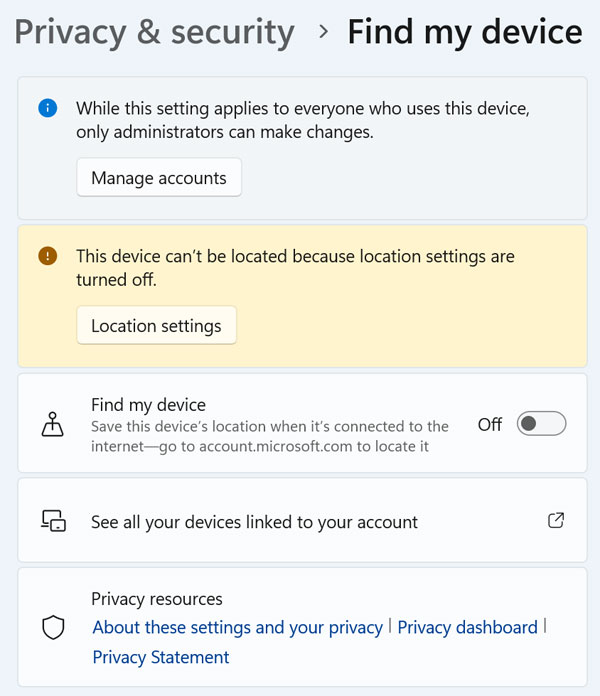
1. Find My Device
The default state for this feature is Off. It acts as the master toggle to save the physical location of your device to your Microsoft account. The privacy impact is high because Microsoft actively tracks the hardware using internet signals.
2. See All Your Devices Linked to Your Account
There is no default setting for this specific button. It provides a direct link to the Microsoft website where you can manage your hardware. You can track or lock your connected machines from that secure dashboard.
Recommendations and Offers
Just like anything else these days, Windows will try and offer you recommendations as to things it thinks you want or may like as you use your computer. And unfortunately try and show you ads at the same time!
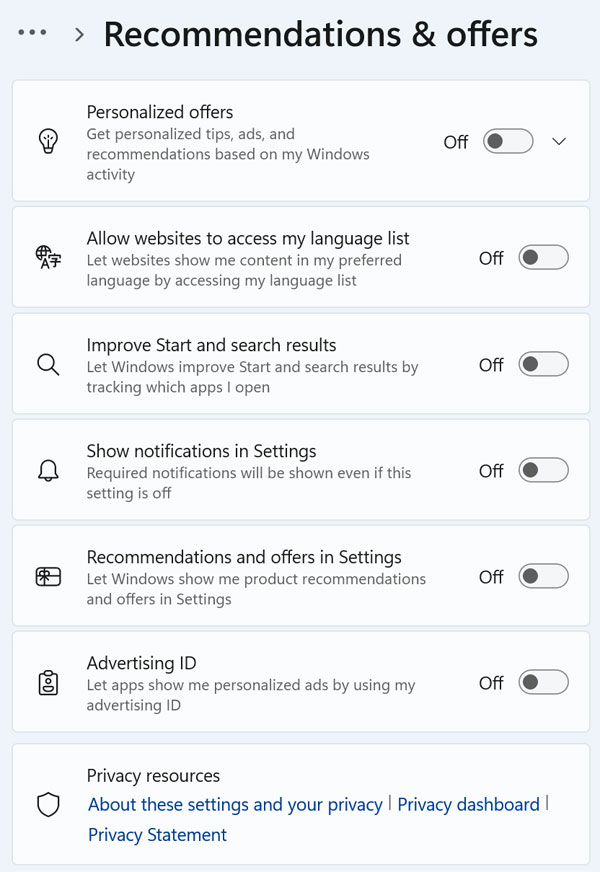
1. Personalized Offers
This targeted setting is On by default. It uses your Windows activity to show targeted ads and tips throughout the operating system. The privacy impact is extremely high. You should disable it to stop background tracking.
2. Allow Websites to Access My Language List
This setting ships with the On position selected. It lets websites read your installed OS languages to automatically serve native content. The privacy impact is moderate due to slight browser fingerprinting risks.
3. Improve Start and Search Results
Microsoft turns this feature On by default. It tracks exactly which apps you open to prioritize them in your menus. The privacy impact is moderate. Turn it off to keep your app history totally private.
4. Show Notifications in Settings
You will see this alert toggle set to On. It displays pop ups within the Settings app promoting Microsoft services or configurations. The privacy impact is low. It is mostly just an annoyance.
5. Recommendations and Offers in Settings
This defaults to On. It shows suggested configurations or product ads directly inside your Settings menus. The privacy impact is low. Toggle it off to clean up your user interface.
6. Advertising ID
This is perhaps the worst privacy offender. It defaults to On. It assigns a unique identifier to your user profile so third party apps can serve you personalized ads. The privacy impact is very high. Disable it immediately.
Speech Recognition Preferences
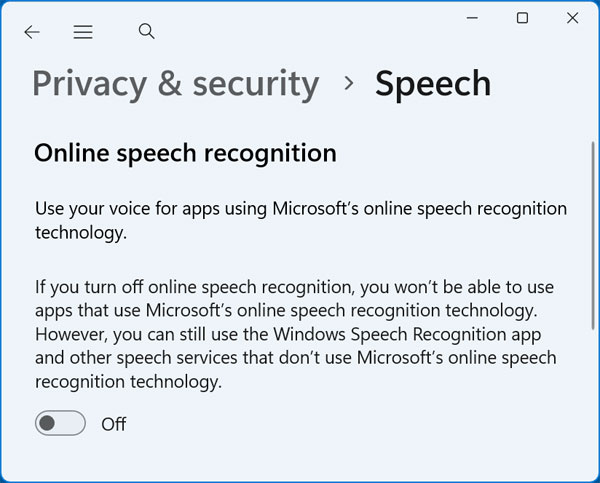
This is a fairly basic setting and you will only really need to enable this if you plan on using the Microsoft voice to text dictation feature.
1. Online Speech Recognition
This feature is turned Off out of the box. It sends your voice input to Microsoft servers for cloud processing and dictation. The privacy impact is high because raw voice snippets literally leave your local machine.
Inking and Typing Personalization
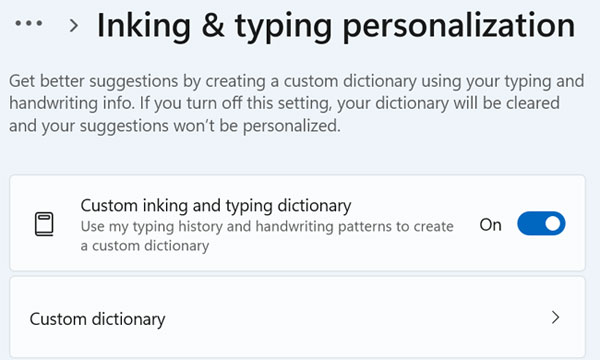
This is used to track what you type and ink (if you use a stylus) to create a dictionary of words based on your activity.
1. Custom Inking and Typing Dictionary
This dictionary feature defaults to On. It builds a local file of your frequently used words, slang, and handwriting style to improve autocorrect. The privacy impact is low because the data remains local to your device.
2. Custom Dictionary
This is not a toggle switch. It is a shortcut menu that allows you to view or erase your locally saved word list. You can click into it to wipe out past typing history.
Diagnostics and Feedback
Microsoft will want to send diagnostic data (telemetry) back to their servers to help make Windows better. Whether or not this actually helps or if this is what they are really using it for is up for debate!
1. Diagnostic Data
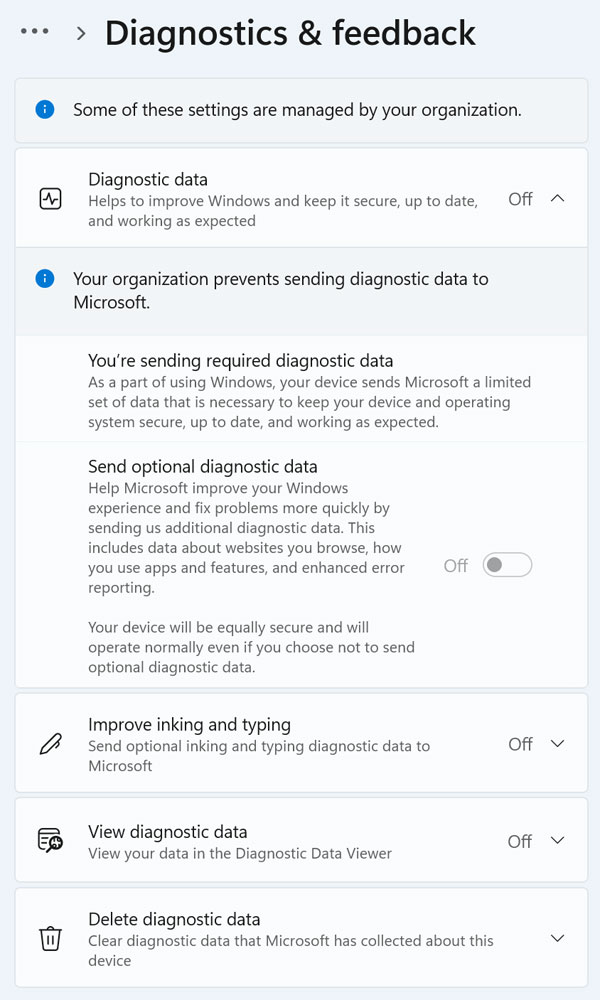
This setting defaults to Required Only. It shows if you are sending basic or optional telemetry to Microsoft. Required data is mandatory to keep the OS functioning. Optional data includes detailed app usage and browser history. The privacy impact is incredibly high if Optional is enabled.
2. Improve Inking and Typing
This option defaults to Off. It sends random samples of your typing and handwriting to Microsoft. They use this data to improve their global language models. The privacy impact is high. Keep it turned off.
3. View Diagnostic Data
This diagnostic viewer tool defaults to Off. It acts as a toggle that lets you install a specific viewer tool. This application shows you exactly what telemetry files are being sent over the network.
4. Delete Diagnostic Data
There is no default state for this action button. It simply sends a request to wipe the telemetry Microsoft has already collected. This forces the company to purge data about this specific device from their active servers.
Windows Search Indexing
Windows uses what is called indexing to create a database of the files on your computer to allow for faster search results when you search for files and folders in File Explorer.
1. Indexing Status
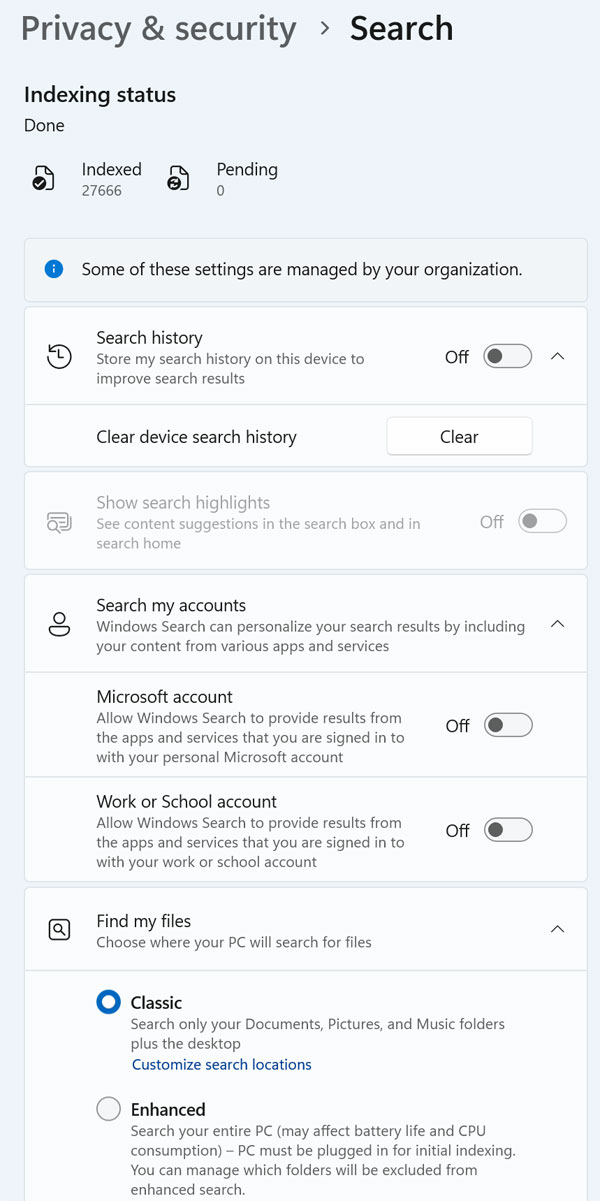
This acts as a basic visual indicator. It shows exactly how many local files are currently indexed for quick searching. There is no privacy toggle here.
2. Search History
Microsoft turns this local history tracker On by default. It stores your local search queries to suggest them later. It includes a button to clear the cache instantly. The privacy impact is moderate.
3. Show Search Highlights
This feature is fully On by default. It pings Bing to show trending news, holidays, or images directly in your search box. The privacy impact is moderate since it sends background requests to external Bing servers.
4. Search My Accounts
You will find this setting toggled On. It allows Windows Search to index and find files inside your connected Microsoft, Work, or School cloud accounts. The privacy impact is moderate.
5. Find My Files
The default mode for this is set to Classic. It chooses between Classic mode, which only searches common folders like Documents and Desktop, or Enhanced mode, which searches the entire hard drive. The privacy impact is low. Check out this video which explains the differences and how to adjust them.
Location Privacy Controls
Many Windows apps will use your computer’s location to provide location based services, such as local search results, weather updates, and maps. If you are using the Maps app then you most likely want to allow it to access your location but you should check other apps to make sure they are not using your location for no reason.
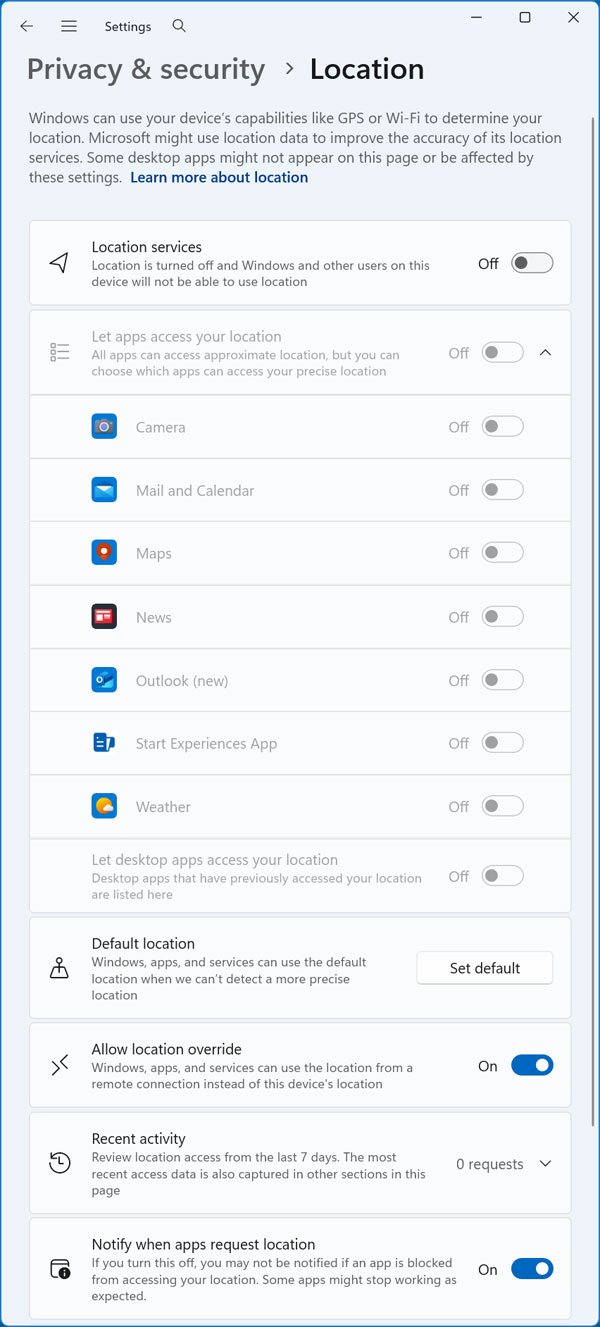
1. Location Services
This is the master switch allowing the operating system to use GPS or Wi-Fi positioning. It defaults to Off on most desktops. The privacy impact is very high. Disable it unless you absolutely need map routing.
2. Let Apps Access Your Location
This section is active if the master location switch is enabled. It provides granular toggles allowing specific apps like Camera, News, and Weather to pinpoint your physical location. Turn off any apps that do not require mapping data.
3. Default Location
There is no default position for this setting. It allows you to manually set a zip code or static address. This acts as a firm fallback when a precise GPS signal cannot be found.
4. Allow Location Override
This feature defaults to On. It permits a remote desktop connection to use the host computer’s location instead of its own. The privacy impact is moderate.
5. Recent Activity
This is a plain text log rather than a toggle. It shows exactly which apps recently requested your location data in the background. Check this list to audit sneaky applications.
6. Notify When Apps Request Location
This visual alert system is On by default. It displays a small target icon in your taskbar whenever an app is actively checking your location. Leave this turned on for better transparency.
Account Info Access
Keeping your account secure is very important so you should be sure not to allow any unnecessary access to it if it’s not absolutely necessary.
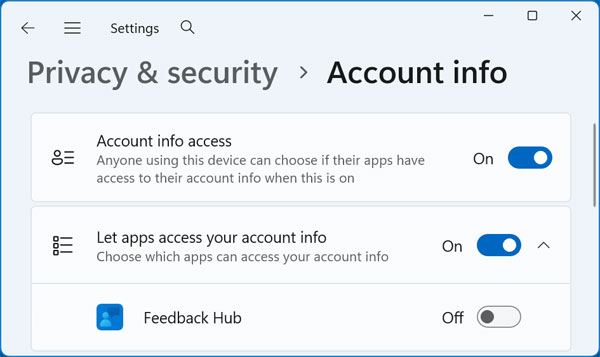
1. Account Info Access
This master privacy switch defaults to On. It allows installed applications to see your Microsoft account name and profile picture. The privacy impact is moderate.
2. Let Apps Access Your Account Info
This menu provides granular toggles to allow or block specific software. You can stop tools like the Feedback Hub from accessing your identity data. Revoke permissions for any app you do not explicitly trust.
Passkeys and Passwordless Logins
Passkeys settings let you manage secure, password free sign ins, using your device (like a PIN, fingerprint, or face) instead of traditional passwords to access apps and websites.
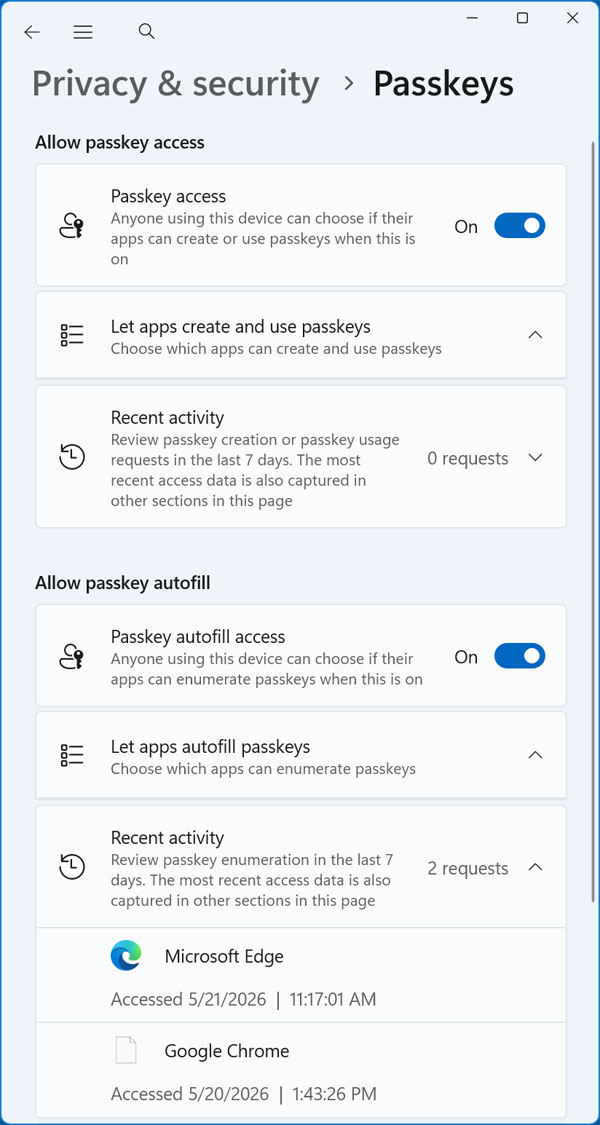
1. Passkey Access
This master switch defaults to On. It allows the device to generate and store cryptographic passkeys for passwordless logins. The privacy impact is highly positive as it increases local security immensely.
2. Let Apps Create and Use Passkeys
This acts as a dedicated dropdown menu. It allows you to manage which specific apps have permission to generate new passkeys. Check this list to audit your secure authentications.
3. Recent Activity Usage
This is a secure system log. It details exactly when passkeys were recently created or utilized by your browser. Monitor this log for unauthorized login attempts.
4. Passkey Autofill Access
This feature is turned On out of the box. It allows Windows to automatically prompt you with saved passkeys when it detects a compatible login screen. It streamlines your web authentication workflow.
5. Let Apps Autofill Passkeys
This provides granular control over your passwordless logins. It lets you decide which apps are permitted to trigger the automatic passkey prompt. Disable the autofill rights for insecure browsers.
6. Recent Activity Autofill
This is another system log. It shows exactly when the autofill feature was recently triggered on your machine. Review these timestamps to ensure nobody else is using your local credentials.
For additional training resources, check out our online IT training courses.
Check out our extensive IT book series.