
Last Updated on May 8, 2026
As you probably know, Microsoft is always updating Windows 11 to add new features to keep it up to date and to also keep it secure. Windows 10 was supposed to be the last version of Windows but obviously that didn’t happen!
Two Windows 11 features that are very interesting and that you have probably been waiting for are the ability to create your own user profile folder name and skip the major 3 step Windows update process that occurs during the Windows 11 installation process.
Create a Custom User Profile Folder Name During Setup
When you install Windows 11, it will create a user profile folder name under C:\Users named after the email address you sign into Windows with during the installation process. So, if you are using an email address of ToddSimms@gmail.com, it will create a user profile folder called tsimms which may or may not be what you want. Windows uses the first five characters from your email address.
With newer builds of Windows 11, you can now specify what you want your user folder to be called during the installation process at the same step where you can name your computer (assign a hostname). You can use up to 16 characters plus a few specific special characters.
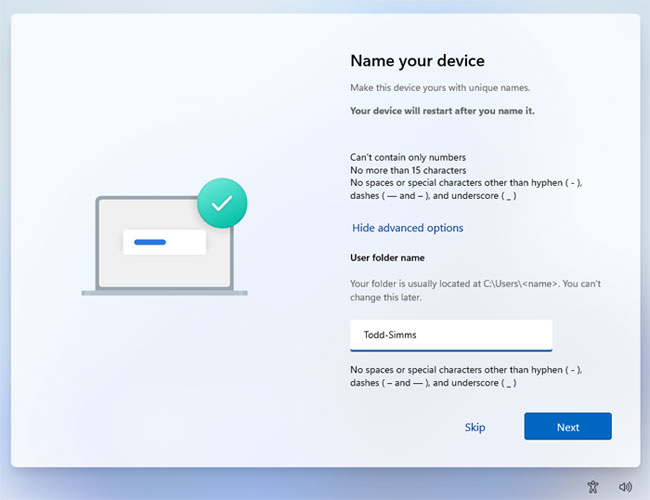
Once you choose this folder name and finish the installation, you cannot change the folder name. There is a way to rename your user profile folder in Windows after it’s installed but it’s risky. Here is a video showing you how to do it.
Once the Windows installation is complete, you can then open File Explorer and see your user profile folder with the name you created during the setup process.
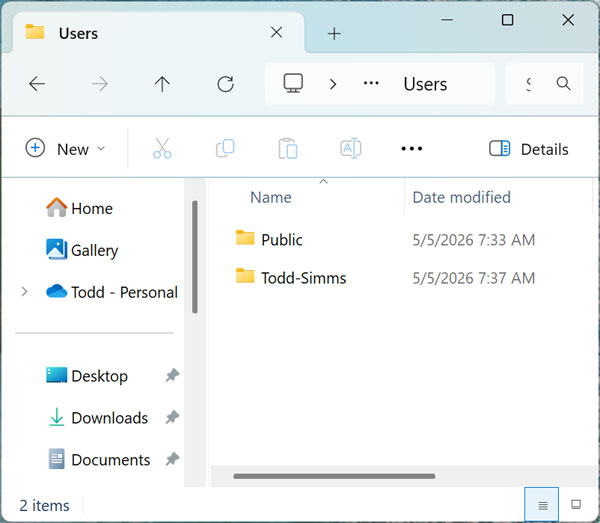
Here is a video showing the custom user profile folder naming process.

Skipping Windows Updates During the Windows Setup Process
The other exciting change to the Windows 11 installation process is the ability to skip the long update process that you have to wait for when installing Windows.
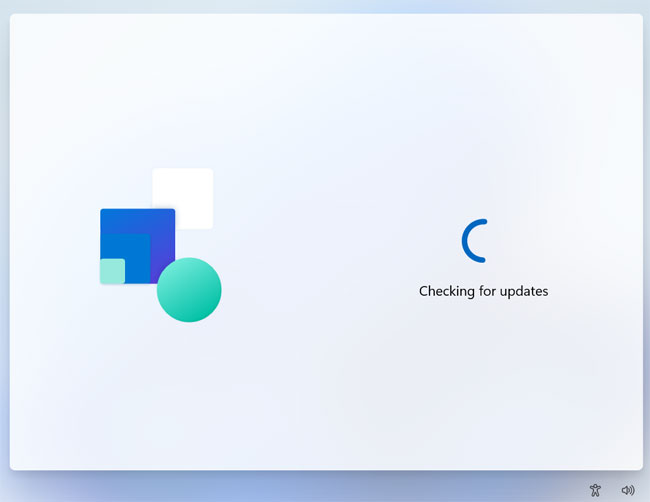
There are a few times when Windows will perform updates during the setup process and you cannot skip them all, but you can skip the main one. The image below shows one of the shorter update screens that you will still see during the installation.
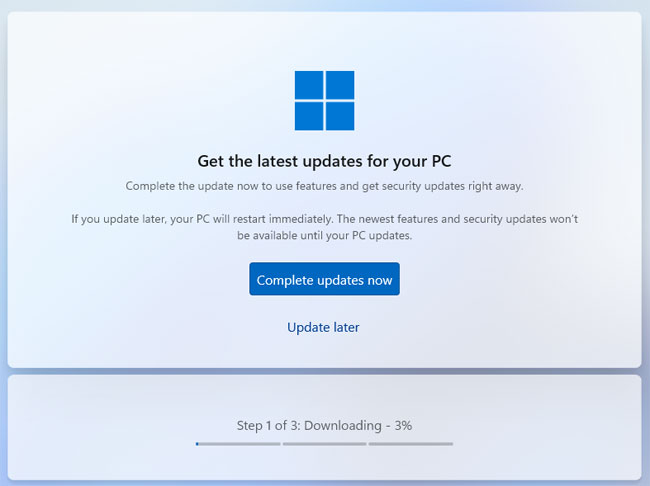
The next image shows the main update screen that has 3 steps that can take quite a bit of time to complete, depending on the number of updates that are available.
Now you can see that there is a link that says Update later that you can click on to skip this process.
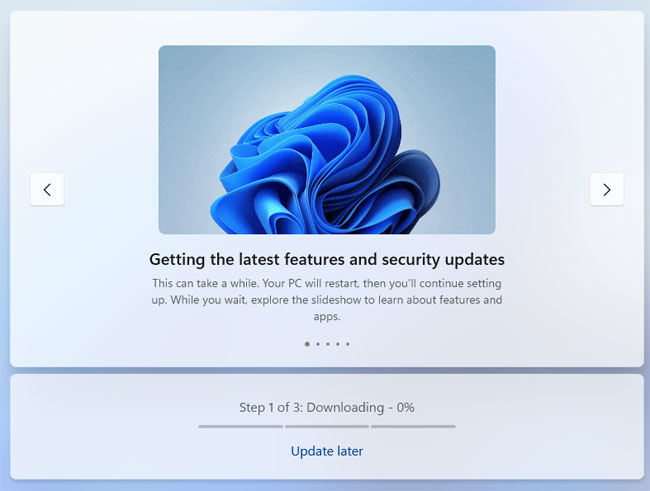
When you click on Update later, you will have the option to continue with the updates by clicking the Complete updates now button or you can click Update later once again to move on to the next step in the Windows installation process.
Here is a video showing the update later process in action.

Why These Windows 11 Setup Changes Matter
1. Taking Control of Your Directory Paths
Having a clean, predictable user profile folder isn’t just about making your C: drive look organized. It actually prevents broken file paths when you are migrating older legacy software, writing custom scripts, or setting up local servers. By forcing Windows to use your preferred name from the very beginning, you avoid massive registry headaches down the road.
2. Knowing When to Skip the Updates
Choosing to bypass the massive three-step update screen is an absolute lifesaver if you are just setting up a temporary virtual machine or testing a new hardware build. However, once you reach your working desktop, you should immediately run the updater manually. Leaving a fresh operating system install unpatched on a public Wi-Fi network is a massive security risk.
3. Speeding Up Your Deployment Process
Both of these new installation tweaks show that Microsoft is finally listening to technicians who deploy multiple machines a week. Saving twenty minutes on forced background downloads and avoiding risky registry hacks to rename user folders makes the entire setup phase much smoother. Hopefully, Microsoft continues adding more of these bypass options in future insider builds.
For additional training resources, check out our online IT training courses.
Check out our extensive IT book series.






