
Last Updated on May 3, 2026
Copying and pasting text, images and files in Windows is one of the most common tasks people perform while using their computer on a daily basis. There are several ways to copy and paste such as using Ctrl-C and Ctrl-V or right clicking and choosing copy and then right clicking again and choosing paste.
Let’s say you wanted to paste text or images into a file but didn’t want to have to create that file first and then paste the information into it. This might not seem possible, but you can actually copy text and images and then paste them as files using the free Windhawk app.
Software Needed to Paste Text and Images as Files
1. Installing Windhawk and the Required Mod
To be able to paste text and images as files, you will first need to download and install the free Windhawk app from their website.
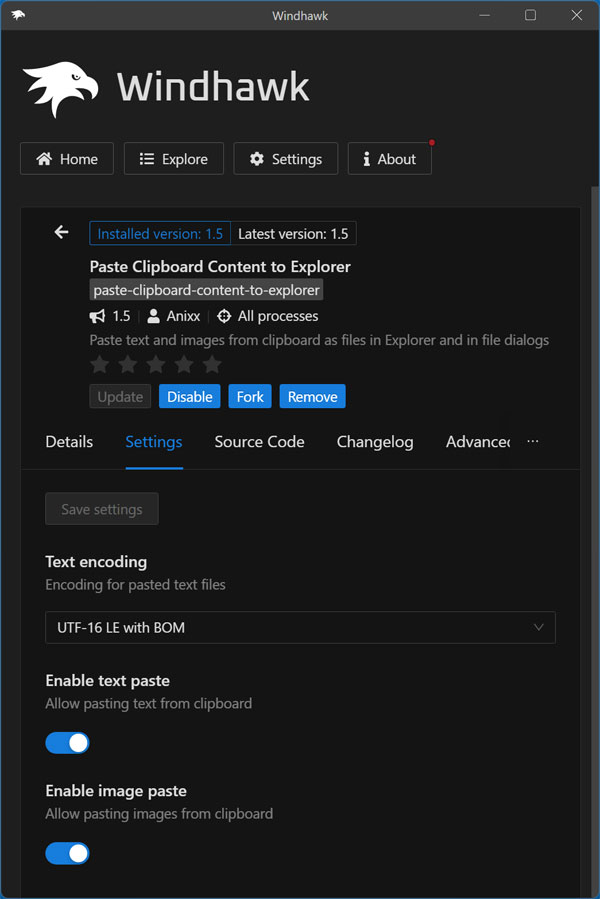
Then you will need to go to the Explore section and search for Paste Clipboard Content to Explorer in the search box. When you find it, simply click on the Details button.
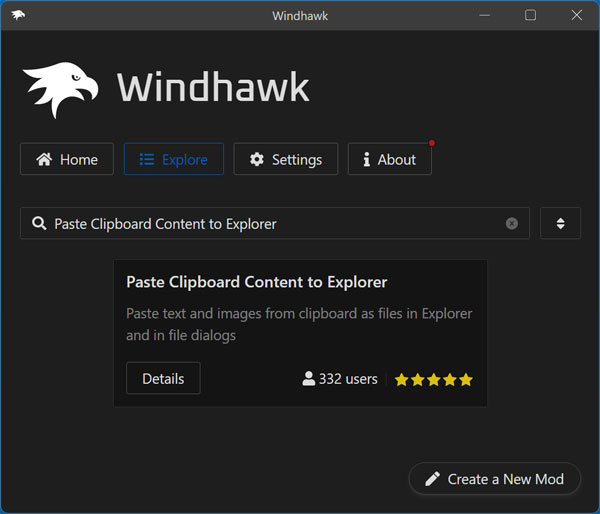
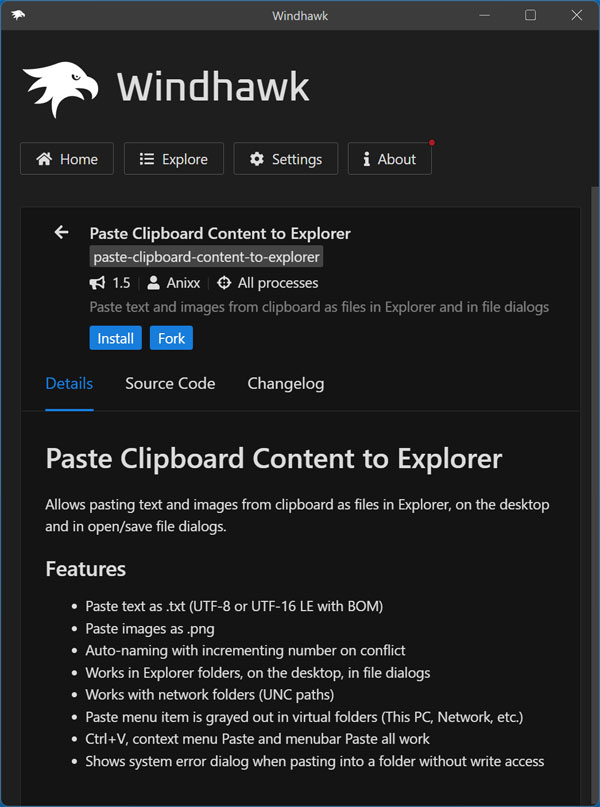
Then you will have the option to install the mod by clicking on the Install button. You can also read about what the mod will do in the Details section. This process will install the Paste Clipboard Content to Explorer mod into Windhawk. A mod in the Windhawk app is a lightweight add‑on that tweaks how Windows or a specific app behaves by applying focused changes on top of the system, rather than altering it directly.
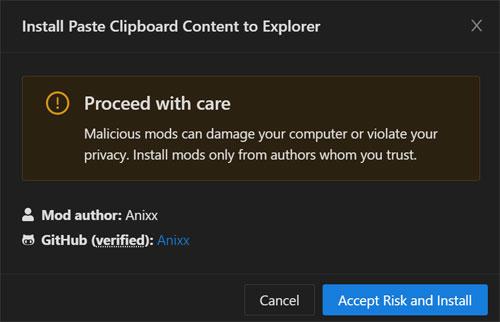
Any time you install a mod in Windhawk, you will receive a warning that says “Proceed with care. Malicious mods can damage your computer or violate your privacy. Install modes only from authors whom you trust”.
For the most part you should be ok with installing mods in Windhawk but you may want to see how many others are using the mod and check the average rating (number of stars) to be sure it’s not some new mod that nobody is using.
2. Configure the Paste Clipboard Content to Explorer Mod
Once you have the mod installed, you will then be able to configure a few settings to fine tune how the mod works. Many Windhawk mods will have some type of configuration options but others will not.
If you click on the Settings tab, you will see that you can enable or disable the text paste or image paste options as needed. The Text encoding option lets you choose the character encoding (for example UTF‑8 or ANSI) that File Explorer should use when pasting text-based clipboard content, preventing garbled characters or incorrect symbols, especially with non‑English text or special characters.
3. Using the Paste Clipboard Content to Explorer Mod to Paste Text as a File
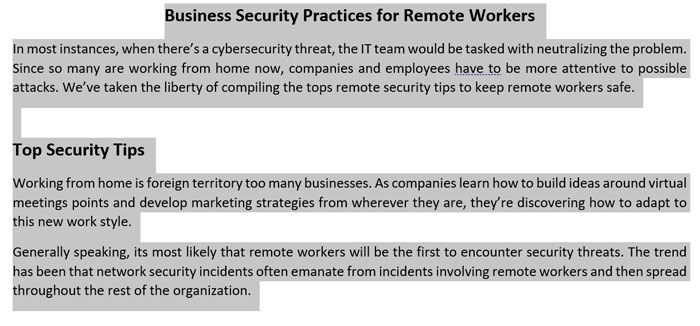
To paste text as a file, you will first need to highlight your text in whichever application you choose. Then you can copy the text using the method of your choosing. For our example, we will be copying some text from a Word document that has some bold formatting.
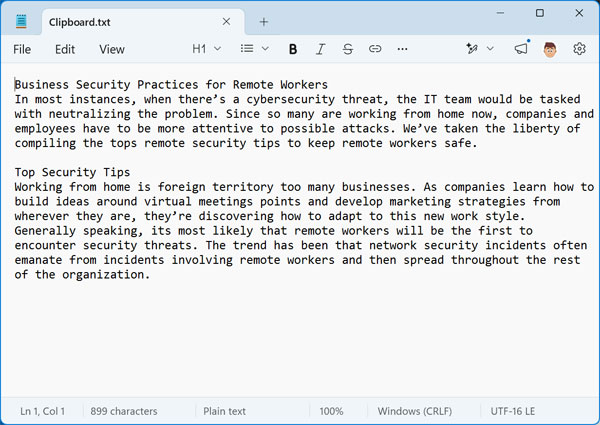
To paste the text as a file, simply open File Explorer to the folder you want to have the file created (or even your desktop), and press Ctrl-V or right click and choose Paste and the text will be added to a new Notepad file called Clipboard.txt.
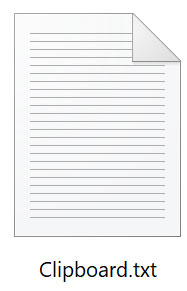
If you paste other text into the same folder, it will create new files such as Clipboard (1).txt and Clipboard (2).txt etc.
When we open our new text file, we can see that the text is there but not the formatting. This is one of the downsides to this process even though the newer Notepad app does have some formatting features.
4. Using the Paste Clipboard Content to Explorer Mod to Paste Images as a File
The process of pasting an image as a file works the same way. You can copy an image from an email, website, a screenshot etc. and then paste it as an image file.
For our example, we will copy an image from the same Word document as shown below.
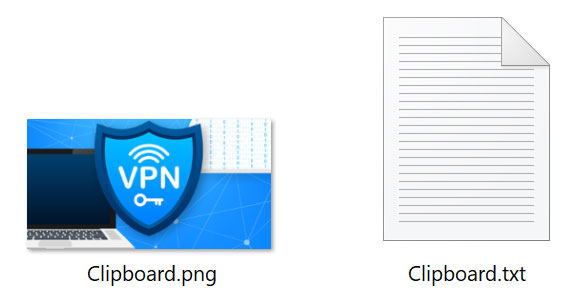
Once we paste the image as a file it will be called Clipboard.png and saved as a PNG file. . If you have the option to show thumbnails in File Explorer, it will even show a preview of the file.
Why This Clipboard Mod Changes Your Workflow
Skipping the “Save As” Menu
Normally, saving a quick snippet of code or a meme from the web takes multiple tedious steps. You have to open an app like Paint or Notepad, paste the content, and manually navigate through the traditional “Save As” dialogue box.
By using this specific Windhawk mod, you bypass that clunky process entirely. It essentially turns your Windows clipboard into a direct file-creation tool, which is a massive time-saver for researchers, students, and IT professionals.
Easily Reverting the Changes
If you ever decide you no longer want your standard Ctrl-V shortcut to create text files, reverting the change is incredibly simple. You do not need to mess with the Windows Registry or delete any core system files to undo it.
Just open the main Windhawk interface, find the active “Paste Clipboard Content” mod, and click the Disable or even the Remove button. Your Windows Explorer right-click menu and pasting behavior will instantly return to their factory defaults.
Pasting Clipboard Files FAQ
Can I change the default image format from PNG?
Currently, the mod defaults to saving images as a standard PNG file to preserve the highest visual quality of your copied pictures. If you specifically need a JPEG or GIF, you will still need to open the newly created PNG file and convert it using a photo editor.
Does this change how physical files are copied?
No, it does not interrupt your normal workflow. If you highlight a physical file (like an MP3 or a Word document) on your hard drive and copy it, hitting paste will simply duplicate that file like it normally would. This mod strictly targets raw text and raw image data stored in your active clipboard memory.
Will this mod slow down my computer?
Windhawk is designed to be a very lightweight background application. Because it applies focused tweaks directly to the Windows shell rather than running a heavy standalone program, you should not notice any performance drops or battery drain on your laptop.
For additional training resources, check out our online IT training courses.
Check out our extensive IT book series.






