If you are running a Windows Server at your workplace or even at home I’m sure you have noticed that the Server Manager console starts up every time you boot your server. Unlike the Initial Configuration Tasks window that also pops up, there isn’t a Don’t show this window at login box to check.
There are a couple of ways you can prevent this window from opening when you boot your Windows server in case you don’t want to have it open on each startup. One way is a registry edit and the other is a simple checking of a checkbox.
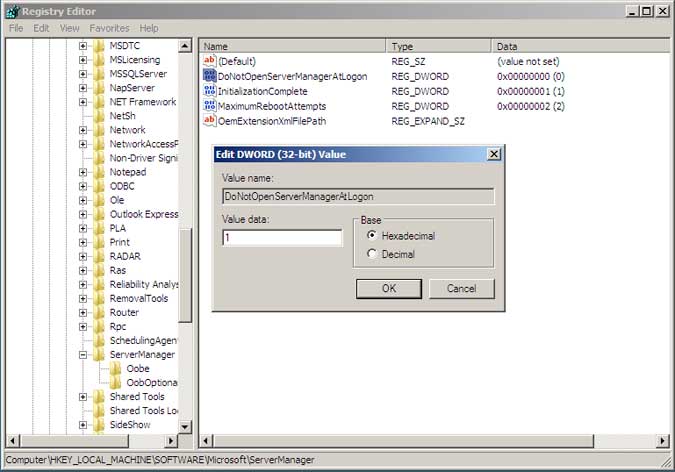
For the registry edit open the Windows registry editor by clicking on Start and typing in regedit in the search box.
For Windows Server 2008 SP2 browse to the following key.
- HKEY_LOCAL_MACHINESoftwareMicrosoftServerManager
- Then change the value of DoNotOpenServerManagerAtLogon key from 0 to 1.
For Windows Server 2008 R2 browse to the following key.
- HKEY_CURRENT_USERSoftwareMicrosoftServerManager
- Then change the value of DoNotOpenServerManagerAtLogon key from 0 to 1.
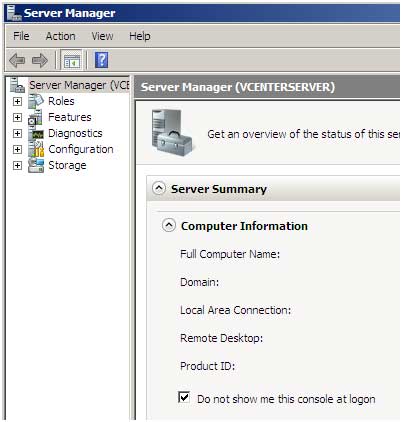
Another way to change this setting is to find the checkbox that says Do not show me this console at login under Server Summary > Computer Information and put a check in the box.
For additional training resources, check out our online IT training courses.
Check out our extensive IT book series.