
Last Updated on October 7, 2026
Customizing Windows is one of the first things people do when they get a new computer or reinstall Windows. And one of the more common things to do is to set a custom background photo for your desktop. You can easily use one of the built in Windows images or upload a favorite photo of your own.
There is also an excellent option to set a background photo slideshow so that you can have it automatically cycle through multiple photos on a set interval. This ensures that your background always changes and keeps your desktop looking fresh throughout the workday.

The problem with this native feature is that you can only choose one specific folder to have it pull these images from. If you have organized your photos into various subfolders, the images hidden inside those secondary folders will simply not be used by the modern settings app. We will be showing you exactly how to bypass this limitation and make the Windows background photos slideshow use images in subfolders.
The Modern Windows Settings Limitation
1. Open Personalization Settings
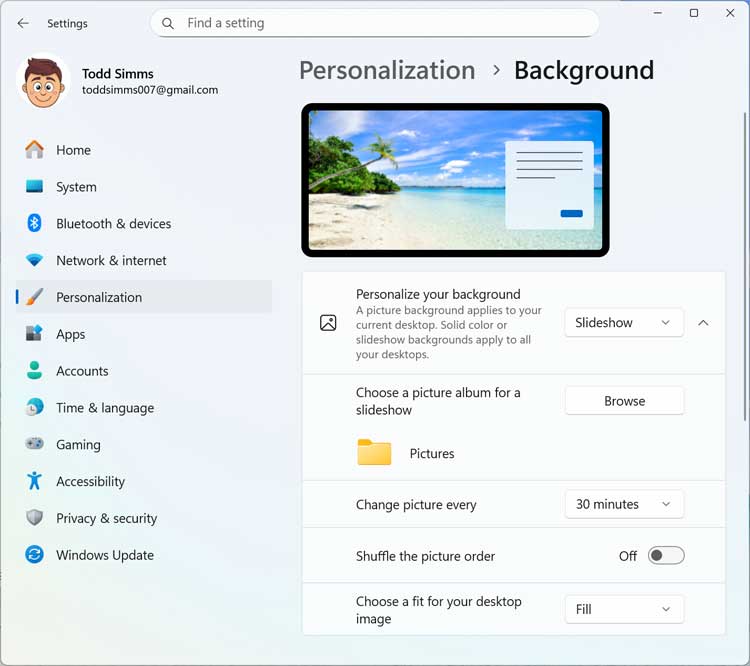
To configure the standard background photos slideshow, you can go to the Windows settings app. Navigate directly to the Personalization section and then click on Background. Then, in the Personalize your background section, you can choose Slideshow from the dropdown menu.
2. Browse for Your Image Folder
Next, you can click on the Browse button to select the specific folder from your Pictures directory. This folder should contain the images you want to use for the slideshow. The system expects all your photos to sit right at the root level of this chosen directory.
3. Understand the Subfolder Restriction
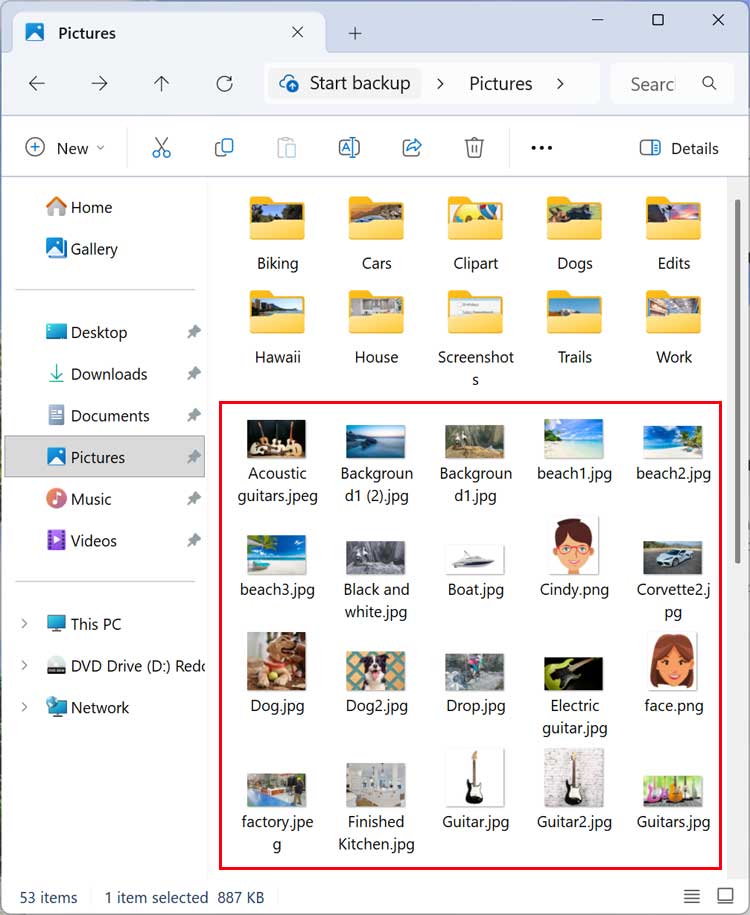
Like we mentioned earlier, the modern Windows 11 interface will only use the standalone images placed directly in that root folder. It will completely ignore any images placed inside subfolders. So in our case, it will only use the individual files that are shown with the red box around them in the image below, ignoring folders like “Biking” or “Cars.”
Enabling Libraries in File Explorer
1. Show Hidden Libraries
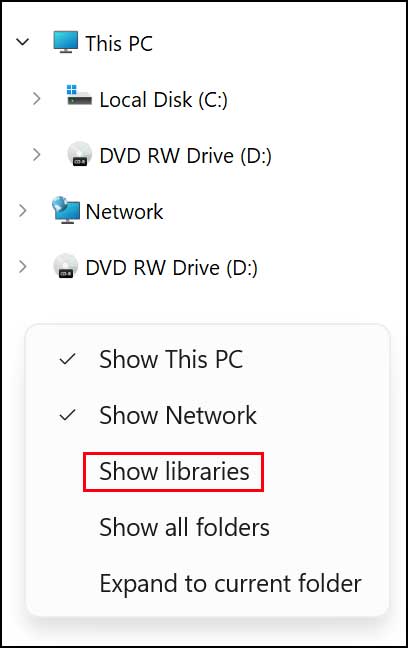
To get around this restriction and allow subfolders to be used for the background photos slideshow, we will first need to enable the hidden Libraries feature. To do this, simply right-click on a blank area on the left side navigation pane of File Explorer. From that context menu, choose the Show libraries option.
2. Verify the Pictures Library
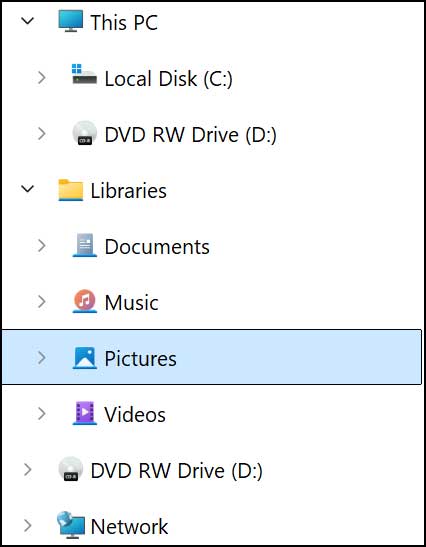
Once enabled, you will then see your classic Windows libraries appear on the left side navigation pane. They will sit right alongside your standard drives and quick access pins. You should clearly see the dedicated Pictures library listed in this new section.
Using the Classic Desktop Background Tool
1. Launch the Run Dialog Box
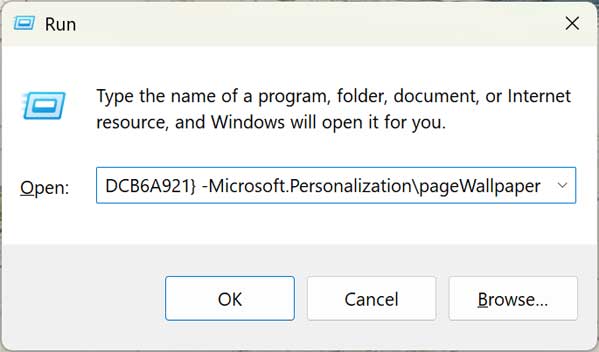
Next, we will need to open a Run dialog box by typing run directly into the Windows taskbar search box. Click the app icon to open the prompt. Then you can copy the exact text string below and paste it into the Run box.
shell:::{ED834ED6-4B5A-4bfe-8F11-A626DCB6A921} -Microsoft.Personalization\pageWallpaper
Once pasted, go ahead and click the OK button.
2. Configure the Legacy Slideshow Menu
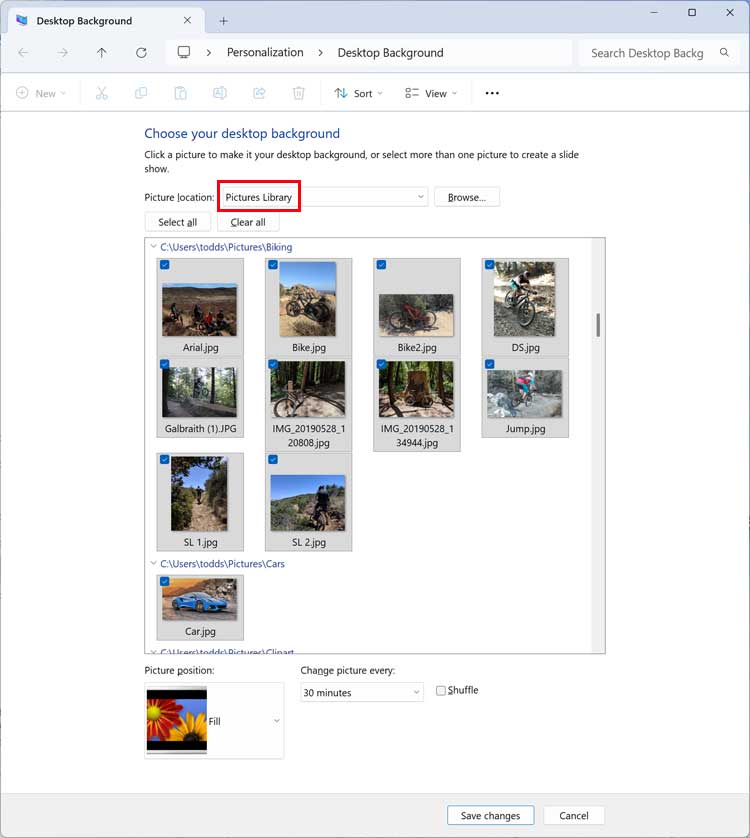
This command will then force open the classic desktop background configuration tool from older versions of Windows. This legacy menu will actually allow you to choose which specific photos will be used for your background slideshow. Because you are using the Libraries view, it will automatically select all the images within the subfolders contained in your main Pictures folder.
3. Finalize Your Photo Selection
Now you can either use all the photos found in the subfolders or manually deselect any specific photos. Just uncheck the boxes for the images you do not want to use for your background photo slideshow. Save your changes at the bottom of the window to activate your new dynamic desktop.
If you find that you cannot remove your Windows desktop background photo history, then check out this article.
For additional training resources, check out our online IT training courses.
Check out our extensive IT book series.






