
Last Updated on June 10, 2026
When it comes to available email accounts, you have a lot of options such as Gmail,, Yahoo, Proton, Outlook, iCloud and so on. And when it comes to email desktop clients, you have many options as well. If you are a Microsoft Windows user, you may have used the legacy Windows Mail app that you can use for your email, calendar and contacts.
This has now been replaced by the Outlook for Windows app app. This updated software is meant to be a much more modern email client that closely resembles the premium Outlook desktop client that comes bundled with Microsoft Office 365 accounts. In this article, we will be showing you exactly how to add email accounts, calendars, and contacts directly to the new Outlook for Windows app.

1. The Windows 11 Settings Change
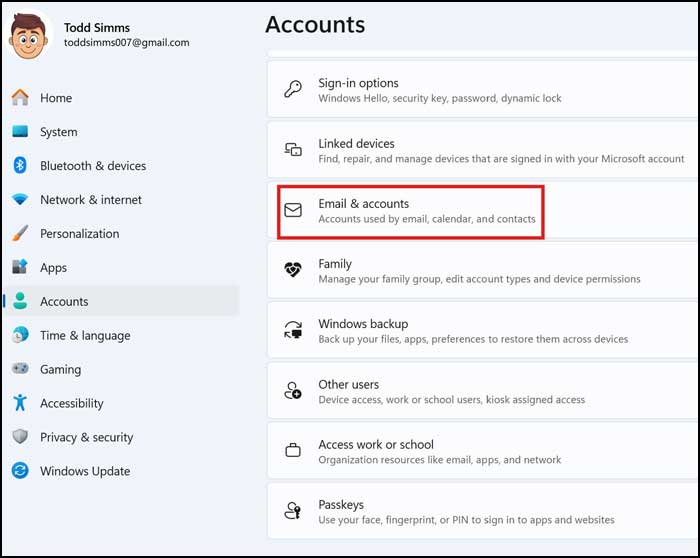
Up until the Windows 11 25H2 update, you could go to the Windows settings app to manage your connected accounts. Under the Accounts section, there was a dedicated area called Email & accounts where you could easily configure your system-wide email addresses. This option is no longer there. Microsoft has completely streamlined the entire process. Now, you need to add your email accounts right from the Outlook for Windows app itself.
How to Add a Gmail Account to Outlook
1. Enter Your Gmail Address
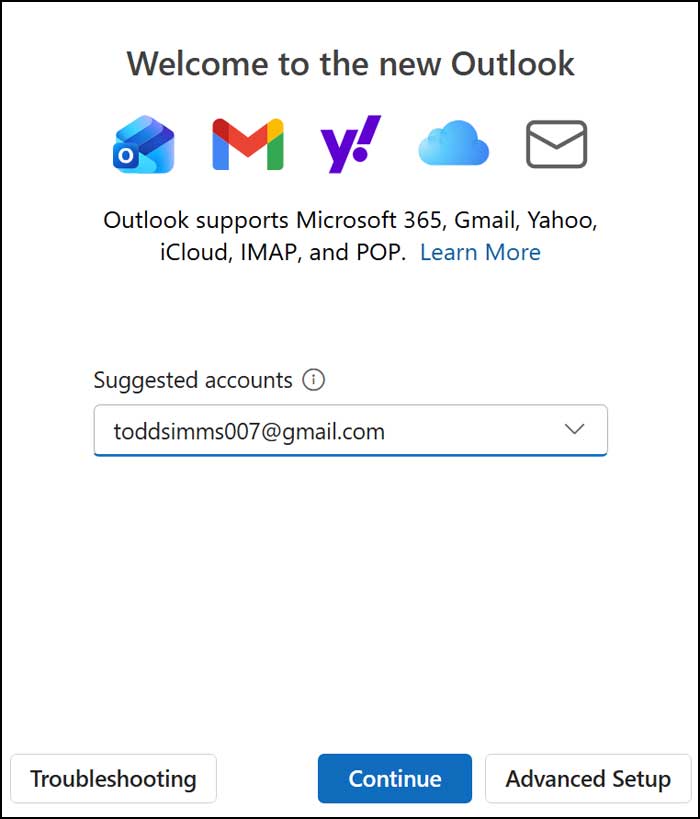
If you have not yet added an email account to Outlook for Windows, the software will automatically prompt you to do so the very first time you open it. It will also most likely suggest adding the default email account that you use to log into Windows with, which is tied to your main Microsoft account. If this is the one you want to add, you can simply continue on with the process. Otherwise, you will need to manually type in the specific email address you wish to add into the provided text box.
2. Sign In via Web Browser
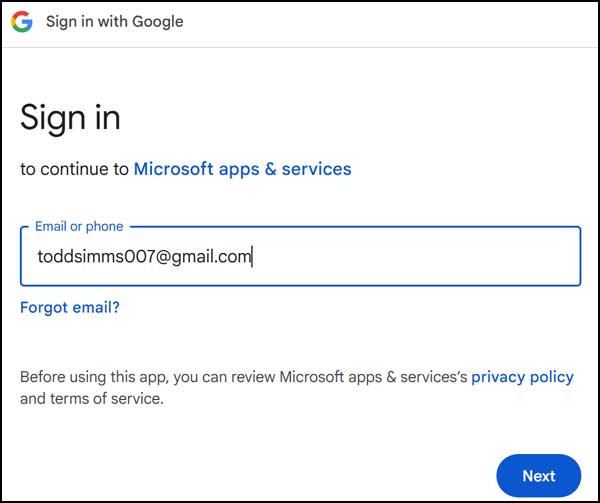
For our first example, we will be adding a standard Gmail account to Outlook. When doing so, you will actually be taken outside the app to your default web browser. Here you will then need to securely sign in with your Google account credentials. Type your password carefully.
3. Complete Two-Factor Authentication
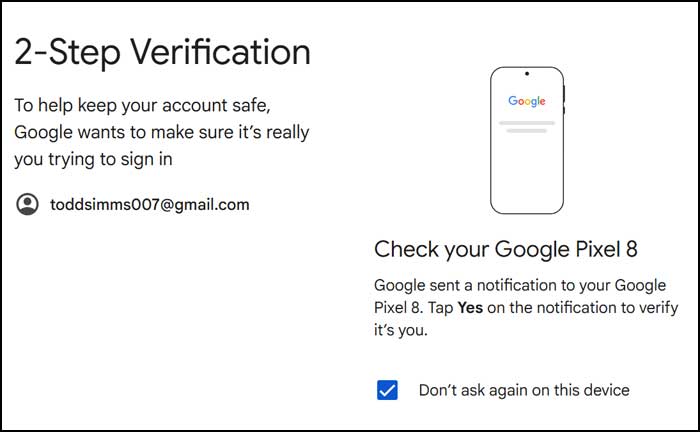
You will most likely need to provide some type of two-factor authentication to allow Outlook to access your Gmail account. Check your mobile device. This step can vary depending on exactly how you have your personal Google account security configured. Approve the login prompt to proceed.
4. Grant Microsoft Access Permissions
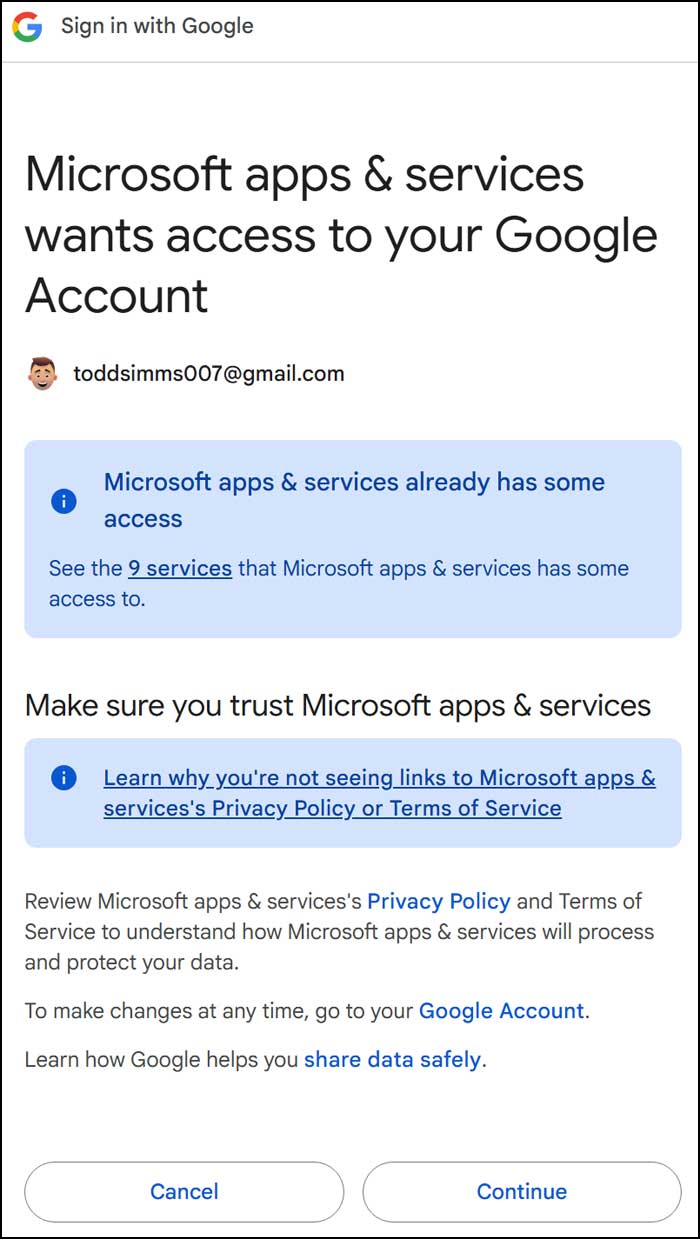
After passing the security check, you will also need to explicitly agree to the permissions that Microsoft needs in order to connect your Gmail account to Outlook. Read the data sharing prompt. Simply click Continue to accept these terms and link the services together.
5. Wait for Data Synchronization
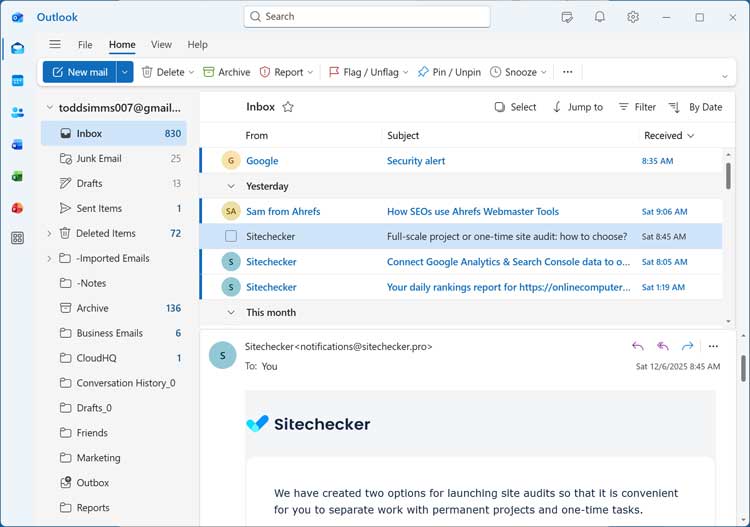
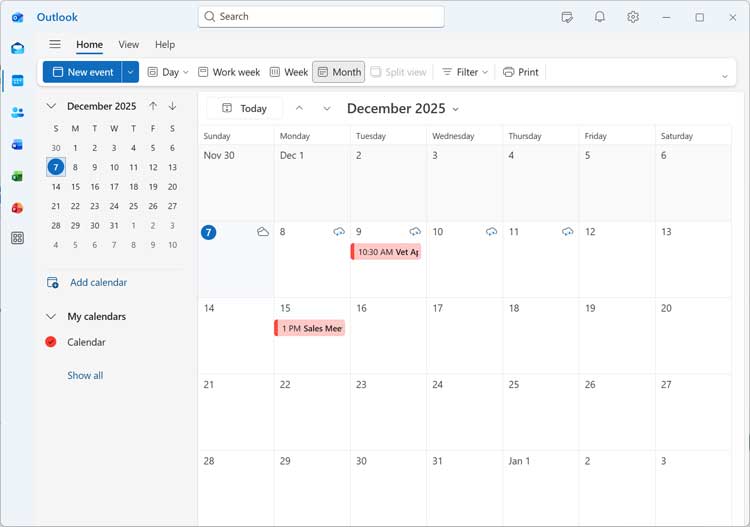
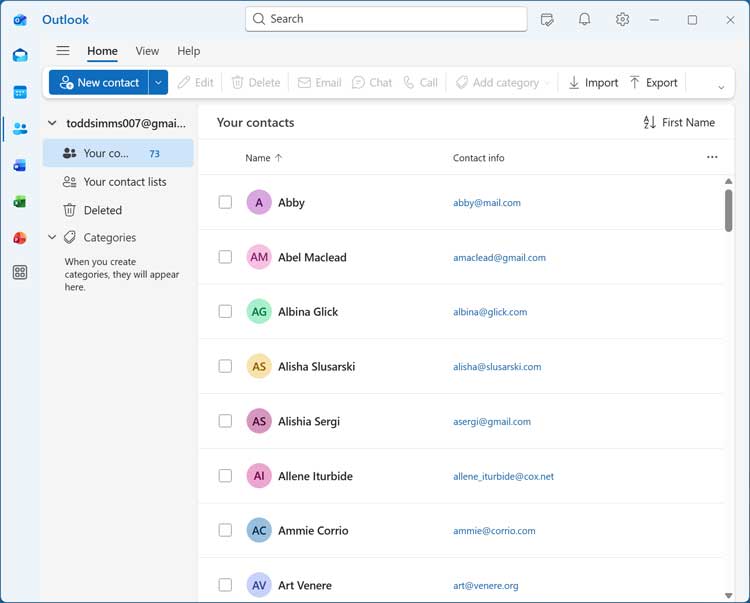
Once your account is successfully configured, your email messages, calendar events, and contacts should then begin to import directly into Outlook. Watch the loading bar. If you have a massive inbox with a lot of email, this synchronization process can take several minutes to fully complete. Do not close the application.
How to Add a Secondary Microsoft Outlook Account
1. Open the Outlook Settings Menu
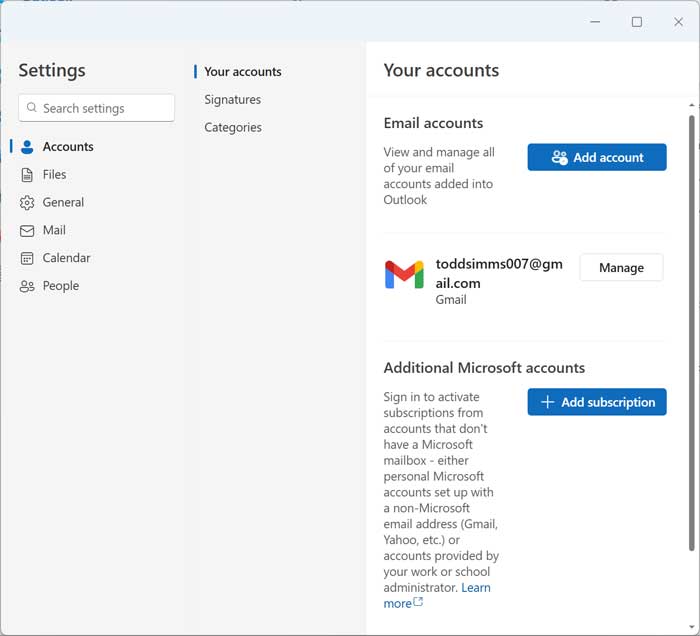
We will now add a standard Microsoft Outlook email account to the app to show you how the process can vary compared to linking a Google account. Look at the top right corner of the window. If you click on the Settings gear icon, you can then navigate over to the Accounts section.
2. Add a New Email Address
From there, click the Add account button to add a brand new email address to your Outlook interface. A new dialog box will pop up on your screen. You will also see any other accounts that you have previously configured listed safely right here.
3. Type Your Outlook Credentials
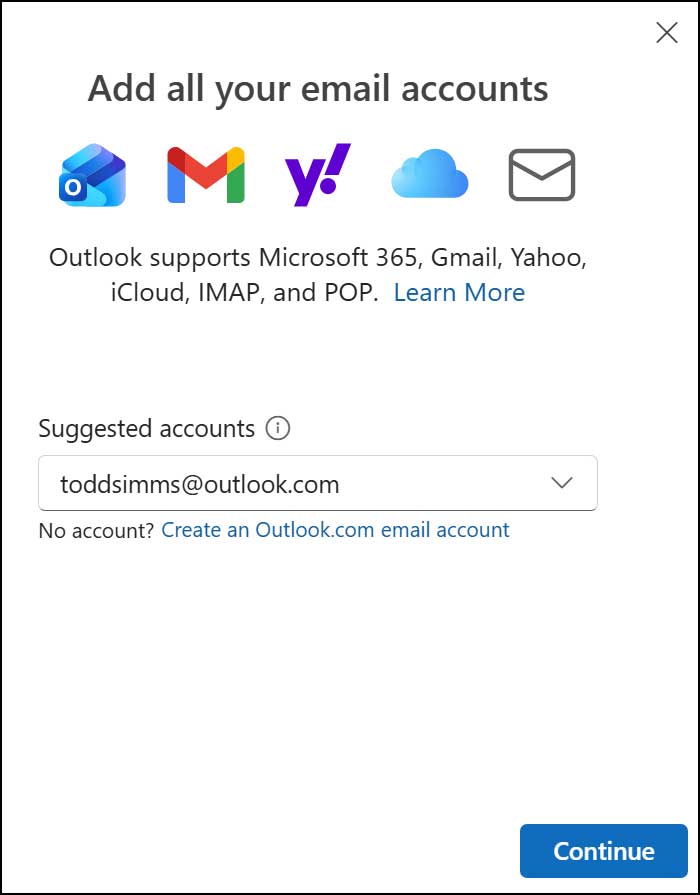
Once you click on the Add account button, you will see a very familiar welcome screen appear. This is where you can type in the exact email address for the new Microsoft account you wish to add. Press continue to move forward.
4. Authenticate Your Microsoft Login
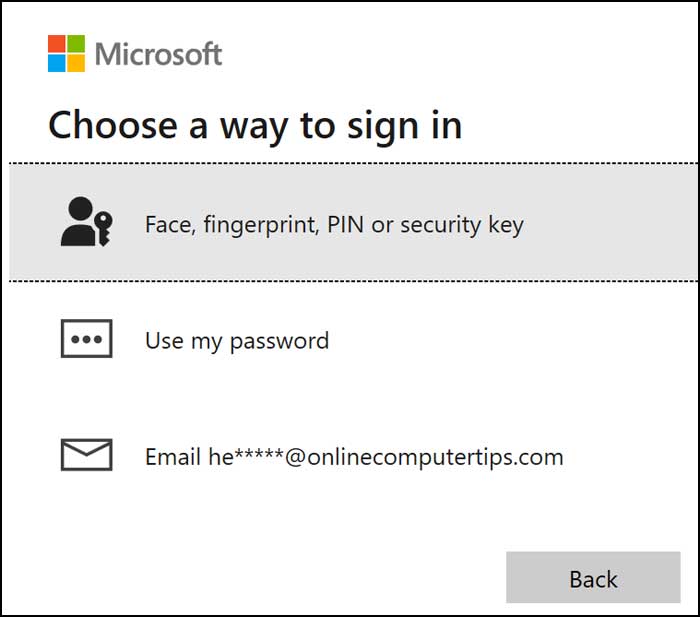
Depending on how you have your Outlook.com email account configured, you may see several different ways to authenticate and connect it to the Outlook for Windows app. Pick your preferred security method. You might use an authenticator app or receive a text message code.
5. Configure Windows Hello Login
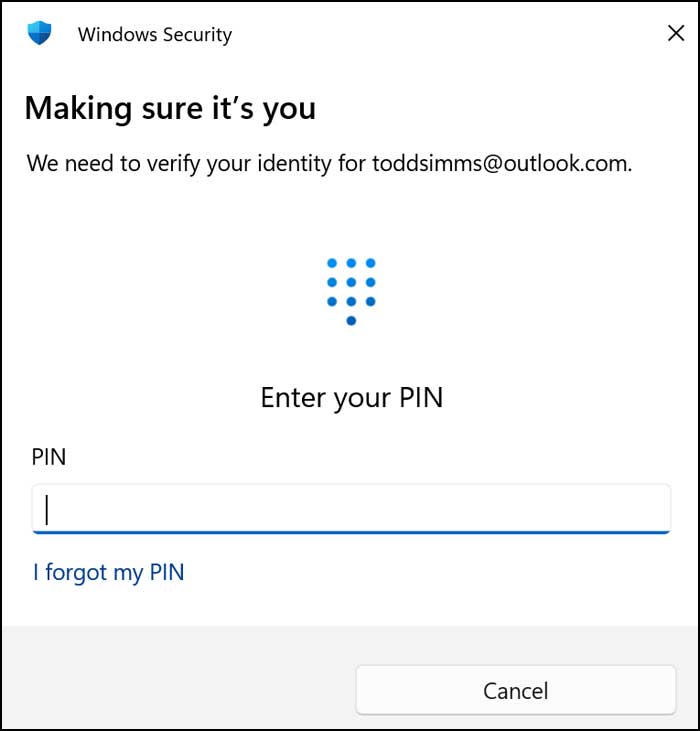
You may then be asked to configure Windows Hello with your newly added account for faster logins. If you click Ok, then you will be prompted to enter the PIN that you currently use to log into your local computer with.
Managing Multiple Accounts in Outlook
1. View Your Configured Accounts
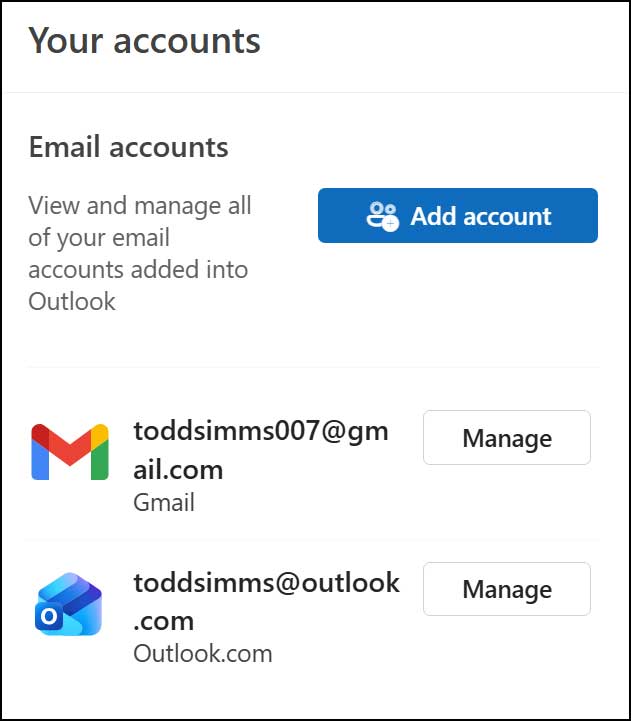
Once you have added your Outlook.com account, it will be listed right alongside your other accounts in the Accounts settings section. Review the list carefully. You can then do things such as add a custom description for the inbox or completely delete the account from here if needed.
2. Toggle Between Different Inboxes
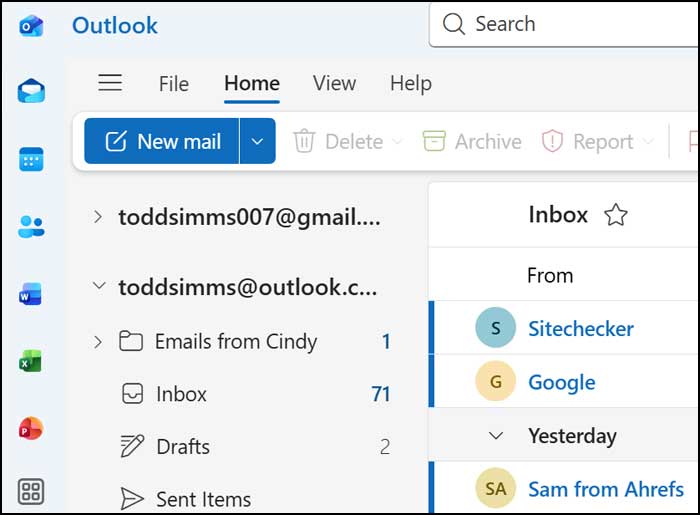
Now that we have a second account fully added to Outlook, we will see it listed along with the first one in our main navigation pane. Look at the left sidebar. You can easily toggle between them from the sidebar to view the individual email inboxes, calendars, and contacts for each profile.
For additional training resources, check out our online IT training courses.
Check out our extensive IT book series.






