Last Updated on May 29, 2026
Since many of us use our personal computers daily at home or at the office, it makes sense that we would want them running at their best and not bogging us down. If you are a Microsoft Windows user, then you know that sometimes it takes some tweaking to get your computer running smoothly so you can get your work done.
There are ways you can adjust your settings and make other adjustments from within Windows itself to speed things up such as cleaning out temporary files or disabling unnecessary apps and services from starting with your computer.

But if you really want to get things running faster, you can try a Windows optimization app. In this article, we will be showing you how to tweak, speed up and optimize your computer for free with Winboosty.
To begin, you will first need to download the Winboosty app from their website. It’s a standalone app so there is nothing to install.
The first time you run it you may get prompted by the Windows Defender Smart Screen Filter and will need to click on More info and then on Run anyway to continue.
You will then see the main Winboosty interface with various categories. Within these categories you will find what are known as boosts which are what you select to tweak or adjust various Windows settings.
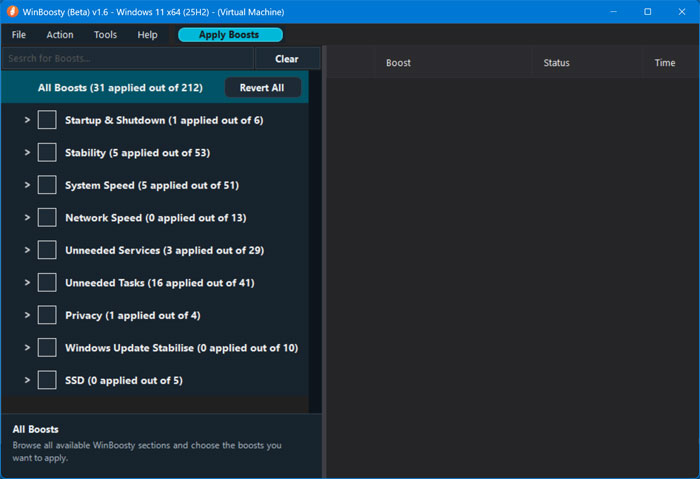
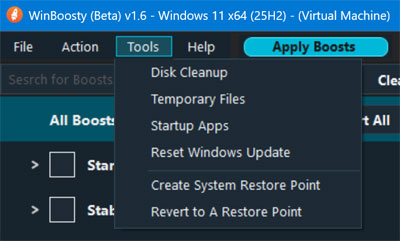
At the top of the app, you will have some menus with additional options or tools. If you were to click on the Tools menu, you would see various ways you can do things such as remove temporary files, adjust your startup apps, and most importantly, create a system restore point. You should definitely create a system restore point before applying any of these changes to your computer.
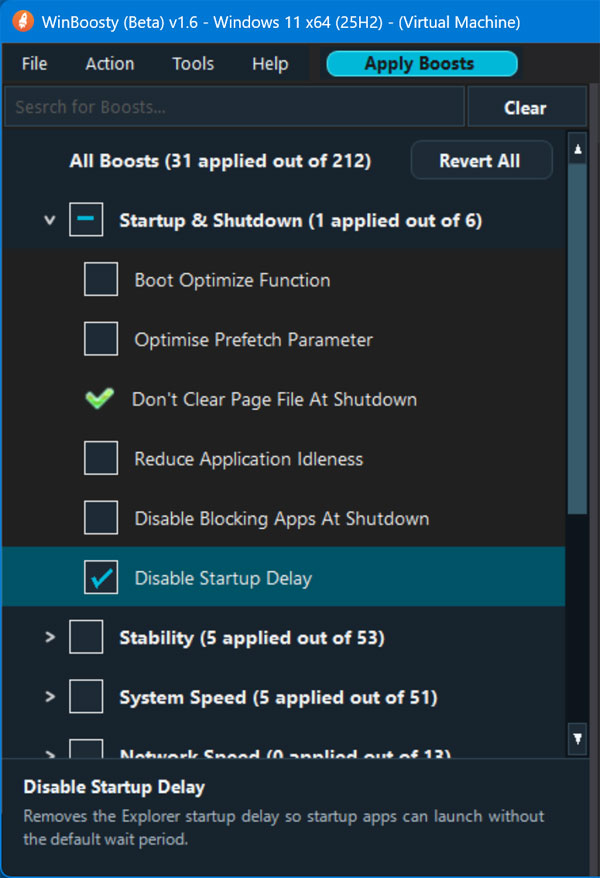
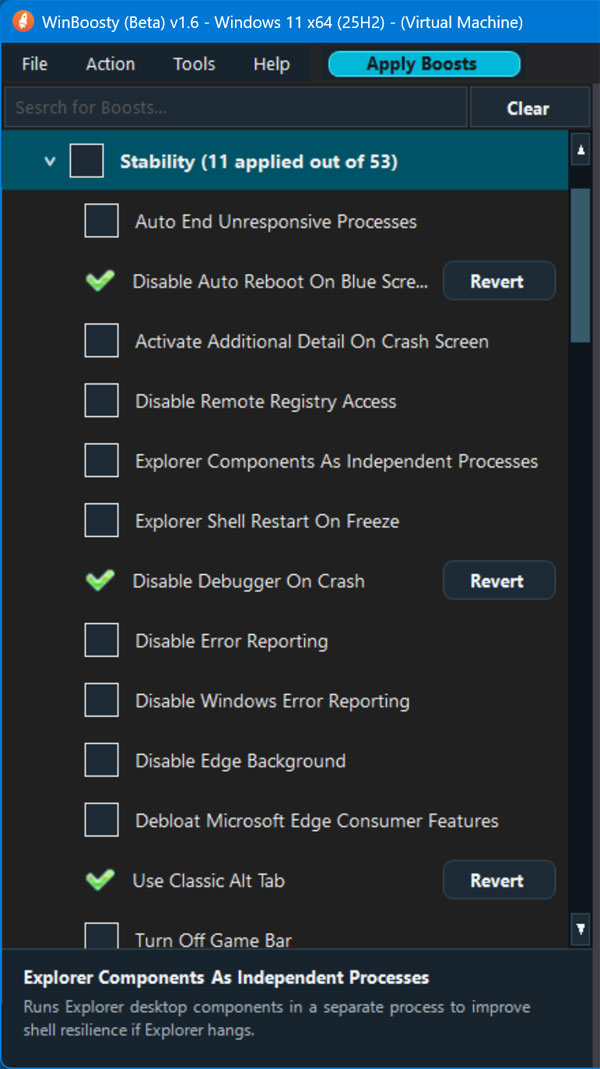
As you scroll through the categories, you will notice that some of the boosts have a green checkmark next to them. This means that they have already been applied to your computer and might have also been applied manually by you or by some other configuration change. When you choose a boost in the app, it will be marked with a blue checkmark.
Here is a comprehensive listing of all the Winboosty categories and their associated boosts.
Startup & Shutdown
Settings related to Windows startup, sign-in, shutdown, and restart behavior.
| # | Boost | Description |
| 1 | Boot Optimize Function | Enables Windows boot layout optimization to help legacy boot/startup performance. |
| 2 | Optimize Prefetch Parameter | Enables boot prefetching only so Windows can pre-load startup data without application-launch prefetching. |
| 3 | Don’t Clear Page File At Shutdown | Prevents Windows from wiping the page file during shutdown, which can reduce shutdown time. |
| 4 | Reduce Application Idleness | Reduces current-user desktop wait timers so hung apps and hooks are closed sooner during shutdown or sign-out. |
| 5 | Disable Blocking Apps At Shutdown | Prevents apps from blocking or delaying shutdown when Windows is trying to close. |
| 6 | Disable Startup Delay | Removes the Explorer startup delay so startup apps can launch without the default wait period. |
Stability
Settings intended to make Windows feel cleaner, steadier, and less interrupted.
| # | Boost | Description |
| 1 | Auto End Unresponsive Processes | Automatically ends hung applications instead of waiting indefinitely when Windows is shutting down or signing out. |
| 2 | Disable Auto Reboot On Blue Screen | Stops Windows from automatically restarting after a blue-screen crash so the error can be reviewed. |
| 3 | Activate Additional Detail On Crash Screen | Shows technical crash parameters on Windows blue-screen errors and removes the simplified sad-face crash screen. |
| 4 | Disable Remote Registry Access | Sets a winreg registry flag intended to restrict remote registry access; this does not disable the Remote Registry service. |
| 5 | Explorer Components As Independent Processes | Runs Explorer desktop components in a separate process to improve shell resilience if Explorer hangs. |
| 6 | Explorer Shell Restart On Freeze | Enables AutoRestartShell so Windows can restart Explorer automatically if the shell stops responding. |
| 7 | Disable Debugger On Crash | Disables automatic debugger launch after application crashes, avoiding extra crash-handling overhead. |
| 8 | Disable Error Reporting | Disables legacy Windows error reporting prompts and reporting UI. |
| 9 | Disable Windows Error Reporting | Disables Windows Error Reporting crash telemetry. |
| 10 | Disable Edge Background | Turns off Microsoft Edge Startup Boost so Edge processes are not kept running in the background for faster launch. |
| 11 | Debloat Microsoft Edge Consumer Features | Disables Microsoft Edge promotional, recommendation, and telemetry-related consumer features via policy. |
| 12 | Use Classic Alt Tab | Enables the classic Alt-Tab switcher instead of the newer thumbnail-based switcher. |
| 13 | Turn Off Game Bar | Disables Game Bar and Game DVR capture values for the current user. |
| 14 | Turn Off App Recommendations | Disables Windows consumer features policy used for promoted apps, suggested apps and recommendations. |
| 15 | Turn Off Aero Snap | Disables automatic window snapping and arranging when dragging windows to screen edges. |
| 16 | Turn Off Aero Shake | Disables Aero Shake, which minimizes other windows when one window is shaken. |
| 17 | Disable Feedback Reminders | Disables Windows feedback notification reminders. |
| 18 | Disable Feedback Prompt Frequency | Stops Windows from periodically asking for feedback. |
| 19 | Disable Auto Download And Update Map Data | Prevents Windows Maps from automatically downloading or updating offline map data. |
| 20 | Disable News And Interests In Taskbar | Hides the News and Interests taskbar entry. |
| 21 | Disable News and Interests Feed | Disables the taskbar News and Interests feed. |
| 22 | Disable Tailored Experience Based On Diagnostic Data | Prevents Windows from using diagnostic data to personalize tips, ads and recommendations. |
| 23 | Disable Tailored Experiences | Disables tailored experiences based on diagnostic data. |
| 24 | Disable Storing Of User Activities | Disables local Activity History and Timeline activity publishing. |
| 25 | Disable Activities Feed | Turns off Windows Activity Feed and Timeline activity publishing through system policy. |
| 26 | Disable Uploading Of User Activities To Microsoft | Prevents Activity History data from being uploaded to Microsoft. |
| 27 | Disable Automatic Maintenance | Disables scheduled Automatic Maintenance tasks that normally run while the system is idle. |
| 28 | Disable Background Running Apps | Disables the global background-apps setting so supported apps cannot continue running in the background. |
| 29 | Hide Task View Button | Hides the Task View button from the taskbar. |
| 30 | Hide People Button | Hides the People button from the taskbar. |
| 31 | Hide Meet Now Icon | Hides the Meet Now taskbar icon. |
| 32 | Disable Microsoft Defender Automatic Sample Submission | Turns off Microsoft Defender MAPS reporting and automatic sample submission policy settings. |
| 33 | Disable Welcome Experience Ads | Disables Windows welcome experience promotional content after updates and sign-in. |
| 34 | Disable General Tips and Ads | Disables general Windows tips, suggestions and promotional content from Content Delivery Manager. |
| 35 | Disable Settings Ads | Disables suggested content and promotional recommendations shown in Windows Settings. |
| 36 | Disable Let’s Finish Setting Up Your Device | Suppresses the Windows prompt that suggests finishing device setup after sign-in or updates. |
| 37 | Disable Advertising ID | Disables the Windows advertising ID policy so apps cannot use it for personalized advertising. |
| 38 | Disable Windows Content Delivery | Turns off Windows Content Delivery Manager content such as suggestions, promoted apps and other consumer content. |
| 39 | Disable OEM App Suggestions | Stops OEM-preinstalled app suggestions from being shown or restored by Windows content delivery. |
| 40 | Disable Microsoft Preinstalled App Suggestions | Stops Microsoft preinstalled app suggestions from being shown or restored by Windows content delivery. |
| 41 | Prevent Preinstalled Apps From Returning | Prevents Windows from re-enabling suggested preinstalled apps after updates or account setup. |
| 42 | Disable Silent App Installs | Prevents Windows from silently installing suggested apps in the background. |
| 43 | Disable Suggested Content Channel 338387 | Disables a Windows Content Delivery suggested-content channel used for promotional and recommendation content. |
| 44 | Disable Suggested Content Channel 338388 | Disables a Windows Content Delivery suggested-content channel used for tips, suggestions or recommendations. |
| 45 | Disable Suggested Content Channel 353698 | Disables a Windows Content Delivery suggested-content channel used for tips, suggestions or recommendations. |
| 46 | Disable System Pane Suggestions | Disables suggestion hints in system panes. |
| 47 | Disable Internet Access for Windows Media DRM | Blocks Windows Media DRM from using the internet for license-related access. |
| 48 | Disable Microsoft Account Sign-In Nag | Disables Windows prompts encouraging Microsoft account sign-in or account setup. |
| 49 | Disable Windows Media Player Diagnostics | Turns off Windows Media Player usage tracking and diagnostic reporting. |
| 50 | Disable Text Suggestions For Software Keyboard | Disables cloud-backed text suggestions for the software keyboard. |
| 51 | File Explorer Separate Process | Runs File Explorer windows in a separate process to improve shell resilience if Explorer hangs. |
| 52 | Enable End Task With Right Click | Enables the taskbar right-click End Task option for quickly closing unresponsive apps. |
| 53 | Disable Remote Assistance | Blocks incoming Remote Assistance invitations and help requests. |
System Speed
General Windows performance and responsiveness settings.
| # | Boost | Description |
| 1 | Optimize Refresh Policy | Sets NoSimpleNetIDList, a legacy Explorer network-list setting; performance impact on modern Windows is uncertain. |
| 2 | Speed Up Taskbar Previews | Reduces the general mouse hover delay to 100ms, which can also make taskbar previews appear sooner. |
| 3 | Speed Up AeroSnap Thumbnails | Reduces the taskbar thumbnail preview hover delay. |
| 4 | Optimize Response Speed Of Menu Display | Reduces the menu show delay so menus open faster. |
| 5 | Increase Icon Cache | Increases Explorer’s icon cache size to reduce repeated icon rebuilding. |
| 6 | Speed Up Foreground Programs | Sets ForegroundLockTimeout to 0 so windows can come to the foreground immediately; this may make focus stealing more likely. |
| 7 | Speed Up AeroPeek | Removes the Aero Peek desktop preview hover delay. |
| 8 | Disable Memory Pagination | Keeps core Windows kernel and driver code in physical memory instead of paging it to disk, which can help systems with enough RAM. |
| 9 | Speed Up Processor Performance | Sets Win32PrioritySeparation to favor foreground application scheduling and responsiveness. |
| 10 | Disable Window Min Max Effect | Disables DWM window minimize and maximize animations for a quicker, less animated desktop response. |
| 11 | Speed Up Disk IO When Idle | Enables the legacy OptimalLayout setting for idle disk-layout processing; performance impact on modern SSD systems is uncertain. |
| 12 | Disable Autoplay | Disables AutoRun and AutoPlay behavior for selected drive types to reduce unwanted launch prompts. |
| 13 | Speed Up IO Subsystem | Reduces AutoChk timeout so disk checks wait less time during boot. |
| 14 | Disable Windows Recall Snapshots | Disables Windows AI data analysis policy used for Recall snapshot processing. |
| 15 | Disable Copilot | Disables Windows Copilot policy support and hides the Copilot entry point where this policy applies. |
| 16 | Disable NTFS Last Access Update | Disables NTFS last-access timestamp updates, reducing metadata writes during file and folder access. |
| 17 | Optimize Memory Default Settings | Sets IoPageLockLimit, a legacy memory-management value whose effect on modern 64-bit Windows is uncertain. |
| 18 | Disable Startup Sound | Disables the Windows startup sound. |
| 19 | Disable Low Disk Checks | Stops Explorer from showing low disk space warning checks. |
| 20 | Disable Smooth Scrolling | Disables smooth scrolling animation to reduce UI animation overhead. |
| 21 | Disable Auto Update StoreApps | Prevents Microsoft Store apps from automatically downloading app updates. |
| 22 | Disable Storage Sense | Disables Storage Sense through Windows policy so automatic temporary-file and cleanup runs do not occur in the background. |
| 23 | Disable Telemetry Data Collection | Sets Windows diagnostic data collection to the most restricted policy value supported by the edition. |
| 24 | Disable Allowing Device Name within Telemetry Data Collection | Prevents the device name from being included in Windows diagnostic data collection. |
| 25 | Disable Internet Search Results | Turns off Bing/web search and location-backed search values used by Windows Search for the current user. |
| 26 | Disable NTFS 8.3 Names | Disables creation of legacy 8.3 short file names on NTFS volumes, reducing extra file-system metadata work. |
| 27 | Optimize File Allocation Size | Sets the contiguous file allocation size value used by the file system. |
| 28 | Disable Tracking Of Shell Shortcuts | Stops Windows from using original-path, search-based, and NTFS tracking methods when resolving broken shell shortcuts. |
| 29 | Disable Comprehensive Resolve Shell Shortcuts | Stops Windows from performing extra search-based resolution for broken shell shortcuts. |
| 30 | Disable Search Box Suggestions | Disables recent search suggestions in the File Explorer search box and prevents those entries being saved. |
| 31 | Disable Search Highlights | Turns off Search Highlights in the Start menu search box and Search home to reduce dynamic web content in Windows Search. |
| 32 | Turn Off Search Indexer | Turns off search indexer to increase system performance, while still allowing searching. |
| 33 | Disable Cortana | Sets the AllowCortana policy to 0, disabling Cortana where this legacy Windows Search policy applies. |
| 34 | Disable Cortana Web Search | Prevents Windows Search and Cortana from using web search results. |
| 35 | Disable Cortana Web Search On Metered Connections | Prevents Windows Search and Cortana from using web results over metered network connections. |
| 36 | Disable Desktop Shell Web Search | Disables web search integration from Windows desktop and shell search results. |
| 37 | Disable Power Throttling | Turns off Windows Power Throttling so background apps are less likely to be CPU-throttled for power saving. |
| 38 | Disable Fullscreen Optimizations | Uses Windows GameConfigStore compatibility values to prefer exclusive fullscreen behavior and reduce fullscreen-optimization handling for the current user. |
| 39 | Disable Desktop Icon For Windows Spotlight | Hides the Windows Spotlight desktop icon from the desktop. |
| 40 | Disable Explorer OneDrive Ads | Turns off File Explorer sync provider notifications, including OneDrive promotional messages. |
| 41 | Adjust Visual Effects For Performance | Disables selected animations, shadows, thumbnails and visual effects to reduce Explorer and desktop rendering overhead. |
| 42 | Activate Ultimate Power Plan | Activates WinBoosty’s Ultimate Performance power plan to favor maximum performance over power saving. |
| 43 | Prioritize CPU for Foreground Applications | Sets multimedia system responsiveness to 0, favoring foreground apps and games over background tasks. |
| 44 | Enable ‘No Lazy Mode’ | Enables the NoLazyMode multimedia system profile flag to avoid selected lazy/background performance behavior. |
| 45 | Enable ‘Always On’ | Enables the AlwaysOn multimedia system profile flag to favor consistent performance behavior. |
| 46 | Open File Explorer to This PC | Sets File Explorer to open to This PC by default. |
| 47 | Enable Long File Paths | Enables support for long file and folder paths. |
| 48 | Enable Detailed File Operation Dialogs | Always show detailed copy and move dialog progress information. |
| 49 | Remove File Explorer Home from Navigation Pane | Hides File Explorer Home from the left navigation pane for the current user. |
| 50 | Remove File Explorer Gallery from Navigation Pane | Hides File Explorer Gallery from the left navigation pane for the current user. |
| 51 | Disable File Explorer Automatic Folder Type Discovery | Forces a generic folder template to prevent automatic folder type detection in File Explorer. |
Network Speed
Settings related to network performance and connection behavior.
| # | Boost | Description |
| 1 | Optimize LAN Connection | Stops Explorer from automatically crawling network locations, which can reduce LAN browsing delays. |
| 2 | Optimize DNS Parsing | Tunes DNS Client cache timing values to reduce stale or negative DNS cache delays. |
| 3 | Optimize Ethernet Performance | Sets the legacy MaxConnectionsPerServer registry value to 0; performance impact on modern Windows is unclear. |
| 4 | Optimize Network Forwarding Ability | Enables TCP window scaling and SACK-related options to improve behavior on higher-latency or higher-throughput connections. |
| 5 | Optimize Network Transfer Performance | Raises LanmanWorkstation request and thread limits used by SMB client file-transfer workloads. |
| 6 | Optimize WINS Name Querying | Reduces the NetBIOS/WINS name query timeout so failed legacy name lookups return faster. |
| 7 | Detect Blackholes MTU Discovery | Enables Path MTU Discovery and black-hole router detection so TCP can adjust packet size when network paths drop oversized packets. |
| 8 | Optimize TTL Settings | Sets the default IP packet TTL to 64 hops for outgoing TCP/IP traffic. |
| 9 | Mark All Networks As Paid | Marks Default, 3G, 4G, Ethernet and Wi-Fi network cost values as metered, reducing automatic or background downloads such as Windows Update traffic. |
| 10 | Disable Nagle Algorithm | Enables TCPNoDelay for Microsoft Message Queuing traffic to reduce packet send delays. |
| 11 | Disable Network Throttling | Sets NetworkThrottlingIndex to 0xFFFFFFFF, disabling multimedia network throttling to favour higher throughput. |
| 12 | Disable Network Bandwidth Allocation | Sets the QoS NonBestEffortLimit policy to 0 so policy-based QoS does not reserve non-best-effort bandwidth. |
| 13 | Increase SMB I/O Stack Size | Raises the SMB server IRP stack size, which can help file sharing workloads that hit insufficient-resource errors. |
Unneeded Services
Service-related settings for reducing background activity where appropriate.
| # | Boost | Description |
| 1 | Geolocation Service | Disables the Windows Geolocation Service used by apps and Windows features for location access. |
| 2 | AppReadiness Service | Disables App Readiness, which prepares Store apps at first sign-in or when new apps are added. |
| 3 | WAP Push Message Routing Service | Disables the device-management WAP Push message routing service, which is not normally needed on personal desktops. |
| 4 | Downloaded Maps Manager | Disables the Downloaded Maps Manager service used by apps that access offline map data. |
| 5 | Diagnostic Execution Service | Disables the service used to run Windows troubleshooting and diagnostic actions. |
| 6 | Diagnostic Policy Service | Disables Diagnostic Policy Service; Windows problem detection, troubleshooting and resolution will no longer function. |
| 7 | Diagnostic Service Host | Disables Diagnostic Service Host, used to run diagnostics in a Local Service context. |
| 8 | Diagnostic System Host | Disables Diagnostic System Host, used to run diagnostics in a Local System context. |
| 9 | Connected User Experiences and Telemetry | Disables the Windows telemetry service that supports diagnostic data and connected experience reporting. |
| 10 | Distributed Link Tracking Client | Disables Distributed Link Tracking Client, which maintains NTFS file links locally and across networks. |
| 11 | File History Service | Disables File History Service, which copies user files to a backup location. |
| 12 | HV Host Service | Provides an interface for the Hyper-V hypervisor to provide per-partition performance counters to the host operating system. |
| 13 | Network Connectivity Assistant | Disables DirectAccess and network connectivity status support used mainly in managed enterprise environments. |
| 14 | Program Compatibility Assistant Service | Disables Program Compatibility Assistant Service, which detects known compatibility issues in installed and running programs. |
| 15 | Retail Demo Service | The retail demo service controls device activity while the device is in retail demo mode. |
| 16 | Shared PC Account Manager | Disables Shared PC account and profile management, normally only useful on shared or kiosk-style Windows devices. |
| 17 | Windows Error Reporting Service | Disables the service that collects and submits crash/error reports and may provide solution responses. |
| 18 | Problem Reports Control Panel Support | Disables the service that supports viewing and managing Windows problem reports through Control Panel. |
| 19 | Windows Event Collector | This service manages persistent subscriptions to events from remote sources that support WS-Management protocol. |
| 20 | Windows Media Player Network Sharing Service | Disables Windows Media Player network sharing, which shares media libraries with other devices on the network. |
| 21 | Windows Search Indexer | Disables Windows Search indexing, property caching and indexed search results. |
| 22 | Windows Insider Service | Disables the Windows Insider Service used to support Insider preview builds and enrollment features. |
| 23 | Xbox Live Auth Manager | Provides authentication and authorization services for interacting with Xbox Live. |
| 24 | Xbox Live Game Save | Disables Xbox Live cloud save synchronization for games that use Xbox services. |
| 25 | Xbox Accessory Management Service | Disables Xbox accessory management support for connected Xbox controllers and accessories. |
| 26 | Xbox Live Networking Service | This service supports the Windows.Networking.XboxLive application programming interface. |
| 27 | Routing and Remote Access | Offers routing services to businesses in local area and wide area network environments. |
| 28 | Remote Registry Service | Disables the Remote Registry service, which allows remote users to modify registry settings on this computer. |
| 29 | UPnP Device Host | Disables hosting for UPnP network devices on this PC, reducing background network discovery and device-hosting activity. |
Unneeded Tasks
Scheduled-task settings for reducing recurring background activity where appropriate.
| # | Boost | Description |
| 1 | Device Information | Disables the Device Information task that collects device metadata for Microsoft diagnostics and experiences. |
| 2 | Consolidator | Disables the Customer Experience Improvement Program Consolidator task that collects and uploads usage data. |
| 3 | Kernel CEIP Task | Disables the Customer Experience Improvement Program kernel telemetry task. |
| 4 | Bluetooth SQM Task | Disables the Customer Experience Improvement Program Bluetooth SQM telemetry task. |
| 5 | CEIP Uploader | Disables the Customer Experience Improvement Program upload task used to submit collected usage data. |
| 6 | Device User | Disables the Device User task that collects user and device information for Microsoft diagnostics and experiences. |
| 7 | DmClient | Disables the SIUF feedback task that launches Windows feedback prompts. |
| 8 | DmClientOnScenarioDownload | Disables the SIUF scenario-download feedback task used by Windows feedback prompts. |
| 9 | MapsToast | Disables the Maps toast task used for offline maps notifications. |
| 10 | MapsUpdate | Disables the Maps update task used for offline maps updates. |
| 11 | Disk Diagnostic Data Collector | Disables the DiskDiagnostic data collector task used for disk diagnostic telemetry. |
| 12 | Disk Diagnostic Resolver | Disables the Disk Diagnostic resolver task used by Windows to process disk diagnostic events and related reports. |
| 13 | Disk Footprint Diagnostics | Disables the DiskFootprint diagnostics task that analyses disk usage and storage footprint information in the background. |
| 14 | Power Efficiency Diagnostics | Disables the Power Efficiency Diagnostics task that periodically analyses the system for power and energy efficiency issues. |
| 15 | Compatibility Appraiser | Disables the Application Experience Compatibility Appraiser task that scans apps and drivers for Windows compatibility telemetry. |
| 16 | Compatibility Appraiser Exp | Disables the experimental Compatibility Appraiser task when present. |
| 17 | Program Data Updater | Disables the Application Experience ProgramDataUpdater task that collects program compatibility data. |
| 18 | Application Impact Telemetry Agent | Disables the legacy Application Impact Telemetry task used by Windows Application Experience to collect application compatibility and usage information. |
| 19 | Application Compatibility Database Merge | Disables the Application Experience task that maintains merged application compatibility database data in the background. |
| 20 | Autochk Proxy | Disables the Autochk Proxy scheduled task, which participates in Autochk and diagnostic data collection. |
| 21 | RecommendedTroubleshootingScanner | Disables the Recommended Troubleshooting scanner task. |
| 22 | Scheduled | Disables the scheduled Windows Diagnosis task used for troubleshooting and diagnostic checks. |
| 23 | SilentCleanup | Disables the automatic Disk Cleanup SilentCleanup task. |
| 24 | Speech Model Download | Disables the SpeechModelDownloadTask that downloads speech model updates. |
| 25 | UsbCeip | Disables the USB CEIP task that collects USB reliability and usage telemetry. |
| 26 | XblGameSaveTask | Disables the Xbox Live Game Save background scheduled task. |
| 27 | XblGameSaveTaskLogon | Disables the Xbox Live Game Save logon scheduled task. |
| 28 | StartupAppTask | Disables the StartupAppTask that warns users when too many startup apps are enabled. |
| 29 | OfficeClickToRunServiceMonitor | Disables the Office Click-to-Run service monitor task that reports ClickToRun service crash and error data. |
| 30 | Office Telemetry Agent Fallback | Disables the Microsoft Office telemetry fallback task used to collect Office usage and reliability data. |
| 31 | Office Telemetry Agent Log On | Disables the Microsoft Office telemetry logon task that can run when a user signs in. |
| 32 | Office 2016 Telemetry Agent Fallback | Disables the Microsoft Office 2016 telemetry fallback task used to collect Office usage and reliability data. |
| 33 | Office 2016 Telemetry Agent Log On | Disables the Microsoft Office 2016 telemetry logon task that can run when a user signs in. |
| 34 | Office 15 Subscription Heartbeat | Disables the Office 15 subscription heartbeat task used by older Office versions to periodically check subscription state. |
| 35 | FamilySafetyMonitor | Disables the Family Safety monitoring task. |
| 36 | FamilySafetyRefreshTask | Disables the Family Safety refresh task. |
| 37 | WERQueueReporting | Disables the Windows Error Reporting QueueReporting task for queued crash/error reports. |
| 38 | Windows Error Details Update | Disables the Error Details task used by Windows Error Reporting to update extra error-reporting details. |
| 39 | Cloud Experience Host Create Object Task | Disables the CloudExperienceHost task used by Windows cloud setup and out-of-box-experience components. |
| 40 | MareBackup | Disables the Application Experience MareBackup task used by compatibility/appraiser components. |
| 41 | PcaPatchDbTask | Disables the Program Compatibility Assistant database patch task. |
Privacy
Settings related to Windows privacy and data access.
| # | Boost | Description |
| 1 | Disable Location For This Device | Denies location access through the Windows location device-access privacy setting. |
| 2 | Disable Local Search History | Stops Windows Search from saving local search history for the current user, reducing recent-search suggestions. |
| 3 | Disable Cloud Clipboard | Disables clipboard sync across devices through Windows policy so clipboard contents are not shared through a Microsoft account. |
| 4 | Disable Clipboard History | Disables Windows clipboard history through policy so Win+V history is not retained. |
Windows Update Stabilize
Settings related to Windows Update behavior and update delivery.
| # | Boost | Description |
| 1 | Update Only from Microsoft Servers, No Peer-to-Peer | Disables peer-to-peer Delivery Optimization so updates download from Microsoft sources only. |
| 2 | Disable Automatic Updates to Speech Models | Stops Windows from automatically downloading updated speech recognition and speech synthesis model data. |
| 3 | Enables Feature Upgrade Deferral | Enables the legacy Windows Update feature-upgrade deferral policy. |
| 4 | Defers Feature Upgrades by 1 Month | Sets the legacy feature-upgrade deferral period to 1 month; newer Windows Update for Business policies use days-based deferral instead. |
| 5 | No Deferral for Regular Monthly Updates | Sets the legacy quality-update deferral period to 0 months. |
| 6 | Stop Windows Update from Downloading Device Metadata | Prevents Windows from downloading device metadata and device icons from Microsoft. |
| 7 | Prevent Forced Driver Updates Being Downloaded in Quality Updates | Prevents Windows Update quality updates from including driver updates. |
| 8 | Disable Automatic Download and Installation of Store Apps | Prevents Microsoft Store apps from automatically downloading and installing updates in the background. |
| 9 | Disable Automatic Windows Update Checks – Allows Manual Checks | Stops Windows Update from checking automatically while still allowing manual update checks. |
| 10 | Disable Updates for Other Microsoft Products | Stops Windows Update from also receiving updates for other Microsoft products. |
SSD
Storage-related settings intended for SSD-based systems.
| # | Boost | Description |
| 1 | Disable Prefetcher | Disables Windows Prefetcher by setting EnablePrefetcher to 0, reducing prefetch activity that is less useful on SSD-based systems. |
| 2 | Disable Boot Optimize Function | Disables the legacy boot optimization setting used by Windows defrag/boot layout optimization, which is usually unnecessary on SSDs. |
| 3 | Enable Large System Cache | Enables the large system cache memory setting, favoring file-system cache behavior over the default desktop memory balance. |
| 4 | Disable Swapfile Control | Changes Windows swapfile control behavior for SSD-focused setups. This affects swapfile.sys, which is separate from the normal page file. |
| 5 | Clear Manual Paging File Configuration | Clears the PagingFiles multi-string value, removing explicit page-file entries from the registry. |
Once you go through all the boosts and make your selections, you can click on the Apply Boots button to have them all applied to your computer. You will then see which boosts were applied in the right pane of the app.
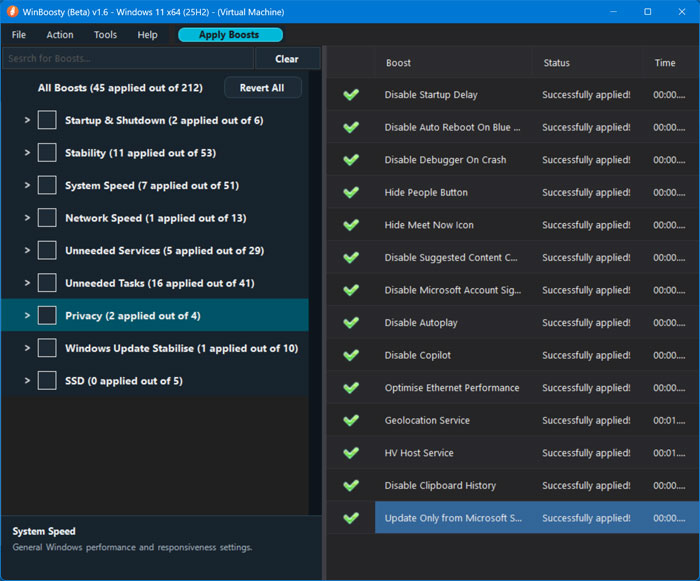
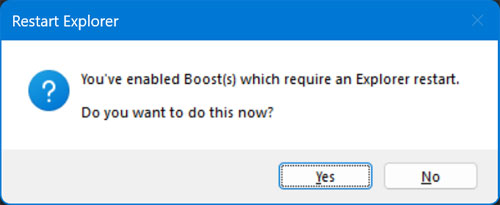
You will most likely also see a message telling you that you have enabled boosts which require an Explorer restart. You can click the Yes button to have Windows Explorer restarted for you. You can also reboot your computer to accomplish the same goal.
Now when you go back through the boost categories, you will see green checkmarks next to the boosts that you have applied to your computer. Then you will have a Revert button next to that in case you want to undo that particular change.
For additional training resources, check out our online IT training courses.
Check out our extensive IT book series.