Last Updated on June 15, 2026
There are several reasons you might have gotten locked out of your computer, and when this happens, it can be a daunting feeling. It may be something as simple as you forgot your password and as complex as your user account was hacked. And if you only have one Windows user account, you most likely will not have another person who can help you out.
If you are using a local user account, then there are some ways you can reset or remove your password. But if you are using a Microsoft account to log into Windows, then you usually need to reset that by logging into the Microsoft account website. But what if you don’t know your Microsoft account password and do not have access to any of the recovery methods to reset it?

This is where a tool such as PassFab 4WinKey can help you out. This password recovery tool will allow you to change and remove passwords for both local and Microsoft user accounts. You will need to either use this software before you forget your password as a backup or you will need to use a different computer to configure your flash drive since you will not be able to use it on a computer you are locked out of.
Creating the Password Reset Drive
1. Download and Start the Recovery Tool
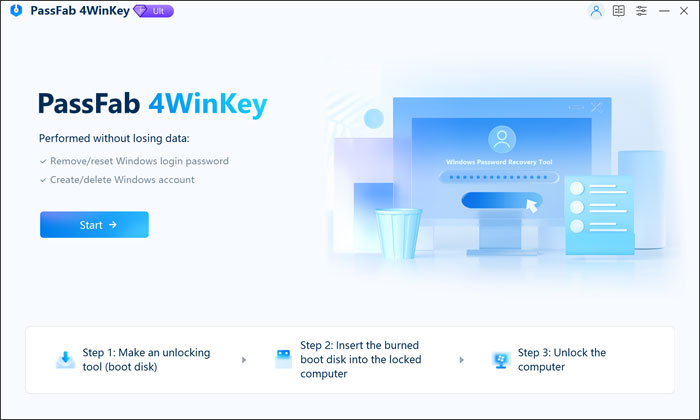
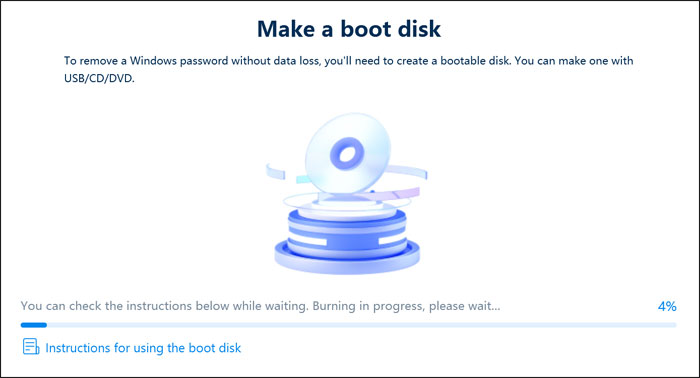
Once you download and run the software, it will immediately have you create your recovery USB flash drive. All you need to do is insert your flash drive into an available port. Click the Start button to initiate the process.
2. Download the Required ISO File
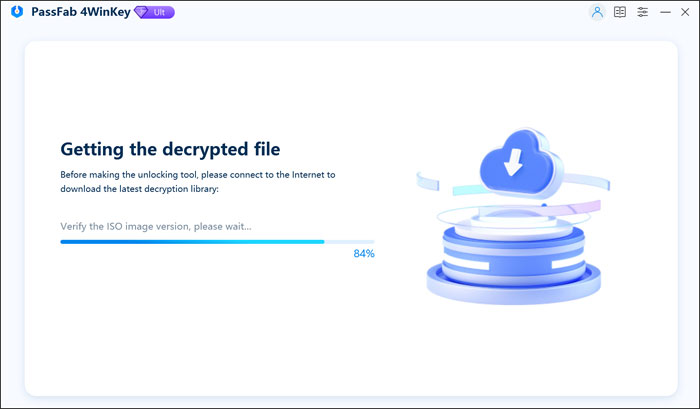
4WinKey will then download the ISO file needed to create your bootable USB flash drive. This system image contains the necessary operating system files to bypass your lock screen. Wait for the progress bar to hit one hundred percent.
3. Select the Correct Target Drive
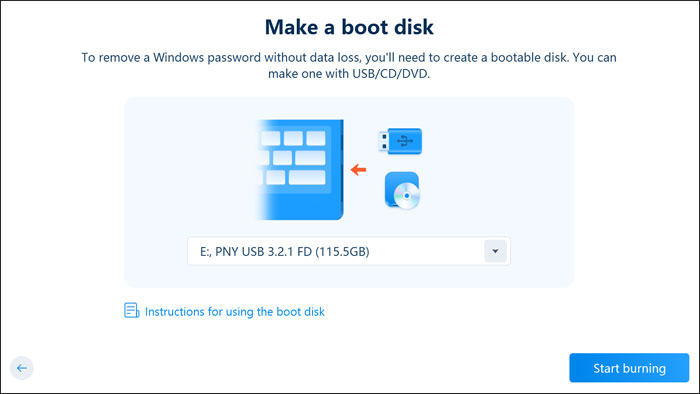
You will then need to make sure you have the correct flash drive selected to avoid losing any data that might be on that drive. You can select the drive from the dropdown list. It might also be a good idea to remove any other flash drives to avoid accidental data loss.
4. Confirm the Drive Format Warning
You will then get a warning telling you that everything on the flash drive will be erased. Make absolutely sure there is nothing on it that you need to keep. Then the boot disk creation process will begin, and this should only take a minute or two.
Bypassing the Windows Lock Screen
1. Boot From the Flash Drive
Next, you will need to boot your computer with the newly created flash drive to start the password recovery process. You may need to press a specific key to change the boot order one time or go into the BIOS/UEFI and change the boot order from there.
2. Choose the Interface Resolution
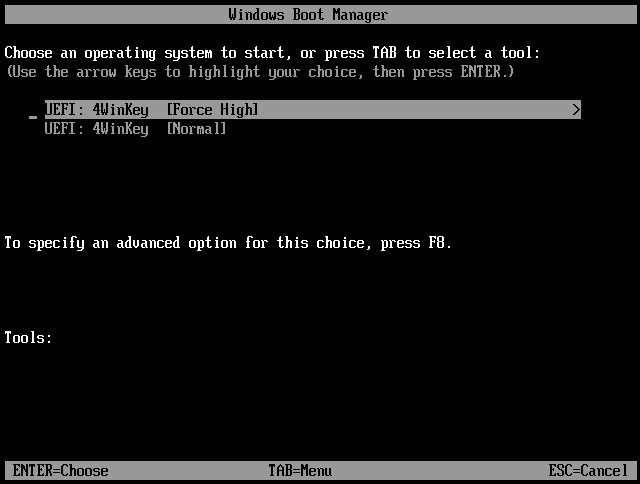
Once you have your computer booted with the flash drive, you will have the option to choose between Force High and Normal. Force High is the default and will give you a higher resolution interface while working with the tool. If you try Force High and the graphics do not look right, you can reboot and try the Normal selection.
3. Select Your Windows Installation
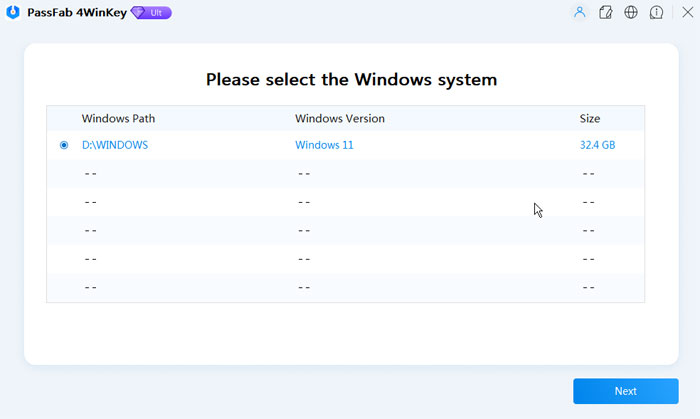
You will then need to choose your Windows system from the list to continue. If you only have one version of Windows on your computer, you will have only one choice. If you are using a dual boot configuration, you will most likely see another and will need to select the one you are locked out of. You might also notice that your Windows drive is not using the letter C. This is normal and nothing to worry about.
4. Locate Your Locked User Account
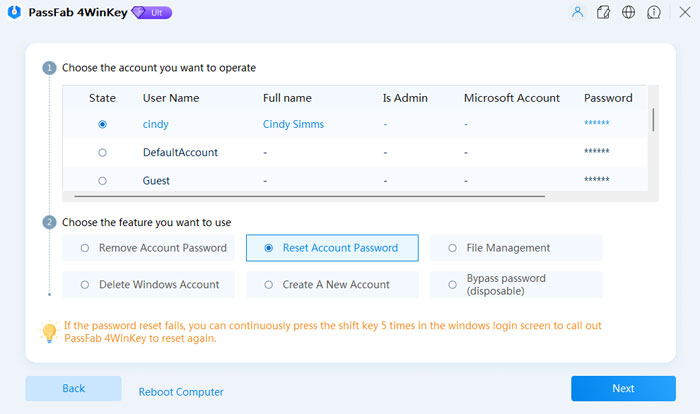
You will then be shown a listing of all the user accounts on your computer. You will most likely see some that you did not know existed such as DefaultAccount or Guest. This is normal as well.
Now you will need to find the user account that you want to reset the password for. As you can see in the image below, you can also do things such as create a new account or delete an existing account.
You will most likely want to either remove the password or reset it so that choice is up to you. For our example, we will reset the password for a Microsoft account. This process works the same way for local accounts.
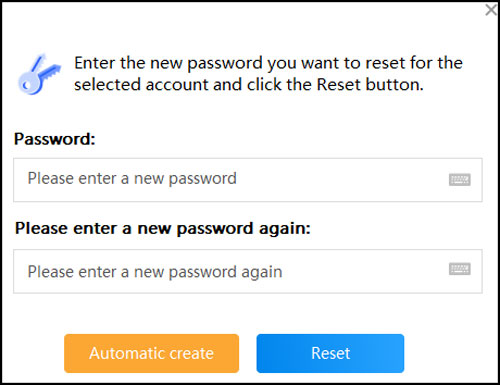
5. Input the New Account Password
We will then need to enter a new password for this account as well as type it in again to confirm it. If you are resetting the password for a Microsoft account, this will not affect the password used to log into the Microsoft website. If you have forgotten that web password as well, you will need to take the appropriate steps to recover it through Microsoft directly.
6. Reboot and Log In
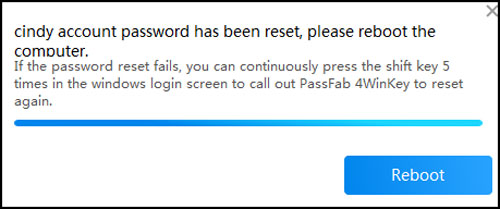
Once the password has been changed, you will be prompted to reboot your computer. Remove the flash drive from the USB port. You can then log in with your previously locked out account using your newly created password.
For additional training resources, check out our online IT training courses.
Check out our extensive IT book series.