Find out what is filling up your hard drive
Have you ever wondered what kinds of files were taking up all the space on your hard drive or where all these space hogging files were located? Many people tend to fill up their hard drives with files they don’t need and when it comes time to free up some space they don’t know where to begin to look for places to cleanup.
As hard drives grow larger, it becomes easier to forget just how quickly space can disappear through everyday use. Temporary downloads, duplicate files, old installers, and forgotten folders quietly accumulate in the background, often without any warning signs until the drive is nearly full. When storage runs low, computers can slow down, updates may fail, and saving new files becomes a hassle. The real challenge isn’t just deleting things—it’s knowing what can be safely removed and where the biggest space drains are hiding, which is why visual tools that break down disk usage can make the cleanup process far less overwhelming.
WinDirStat is a classic disk usage statistics utility that pioneered the ‘Treemap’ visualization of hard drive data. While it hasn’t received a major update in several years, it remains a favorite for power users who appreciate its clear, color-coded legend of file types. In 2026, it serves as an excellent diagnostic tool for identifying forgotten media collections or bloated log files, though users with high-speed SSDs may notice it takes significantly longer to scan than modern MFT-based alternatives. It also has the ability to clean up files to recover hard drive space. This can come in very handy if you are getting low on space and need to do some cleanup before your computer’s performance begins to suffer.
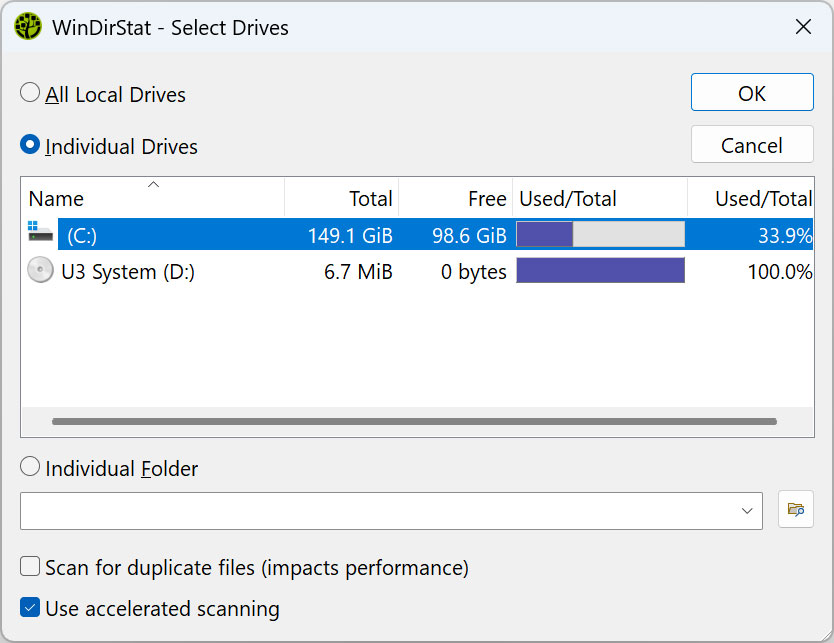
Once you download and run WinDirStat you can choose which drives you want it to scan for disk usage statistics. If you only have one hard drive then that will be all that is shown in your list of drives. It will also most likely ask you if you want to run it as administrator for better performance.
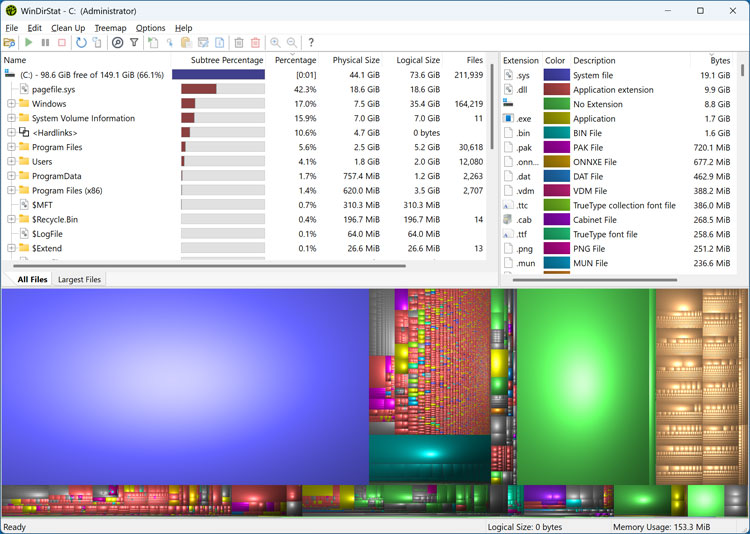
After the scan it will show you the results in 3 different views. The directory list shows the folders and subfolders and can be sorted by any of the column types such as percentage or size etc. The treemap view shows the whole contents of the directory tree straight away. The extension list acts as a legend and shows statistics about different file types on your computer.
The strength of WinDirStat is its visual Treemap. Each colored rectangle represents an individual file.
Size matters: The larger the rectangle, the larger the file.
Color coding: The legend on the right tells you what file type each color represents (e.g., blue might be .MP4 video files, while red might be .ISO disc images).
Spotting the ‘Hogs’: If you see a massive solid block of a single color, you’ve likely found a single large file, often an old backup or a high-definition movie, that is a prime candidate for deletion to free up space instantly
If you want to free up some space you can click on the folder you want to delete and remove it right from the WinDirStat directory. Just be sure it’s something you want to delete and is safe to delete. This is done from the Clean Up menu and you have the option to send it to the Recycle Bin or to delete it permanently.
Other useful tools include the ability to copy the path to the folder location you have highlighted as well as open a Windows Explorer or a command prompt window at the folder location.
WinDirStat is free, open-source software and can be downloaded from its official website. It remains fully functional on Windows 11, though it may require ‘Run as Administrator’ to accurately scan system-protected folders. If you find the scanning process too slow for your modern NVMe drive, we highly recommend checking out our guide on WizTree, which offers a similar visual treemap but completes scans in a fraction of the time. You may also want to try TreeSize Free to see what it can find.
For additional training resources, check out our online IT training courses.
Check out our extensive IT book series.