
Last Updated on October 9, 2026
Backing up your computer is one of the most important file management tasks you should be performing on a regular basis. There are many backup applications you can use to do this and of course Windows itself has its own backup tool called File History. But there is more than one way to backup your files. If you prefer to synchronize files and folders then you have a bit more control over how you can protect your data.
If you are just looking to synchronize a folder with another then this is where a file sync tool can come in handy. In this article, we will be showing you how to backup and synchronize your files and folders for free with the FreeFileSync application. This tool offers multiple ways to keep the contents of two or more folders in sync with each other so your files are always up to date.

Setting Up FreeFileSync Connections
1. Add Source and Destination Folders
Once you download and install FreeFileSync, you simply need to add the source and destination directories. You can do this by either browsing to them manually or dragging and dropping the folders into the app itself. The interface makes it incredibly easy to link local hard drives to external backup drives.
2. Configure the Comparison Method
At the top of the app is the Compare button that is used to logically compare the source and destination folders. If you click the blue gear icon next to the Compare button, you will be able to choose from three different options. File time and size compares files by last modified date and file size. This is fast and reliable for everyday backups and syncing. File content compares the actual contents (bytes) of each file. This is slow but most accurate and is used to verify files are truly identical. File size compares size only. This is fast but least reliable because files can match in size while still being entirely different.
3. Apply Filtering Rules
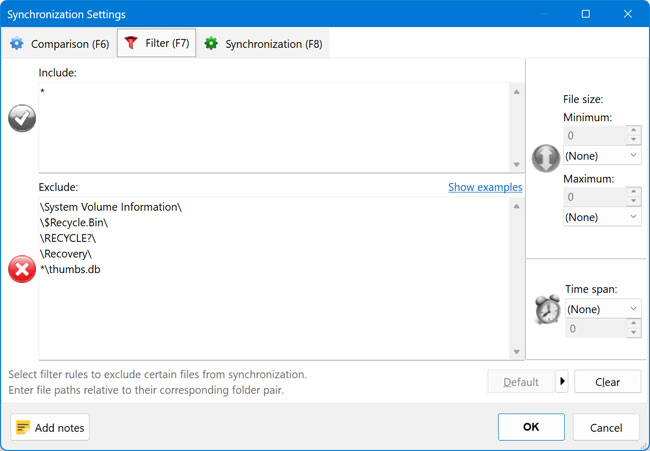
The red filter funnel in FreeFileSync limits what you see in the comparison results. It filters the file grid to show only the currently selected items or categories, hiding everything else. This affects only the visual view, not the files or the actual sync behavior. This is more of an advanced feature, and you may find yourself not needing to use it.
Running the Folder Comparison
1. Start the Comparison Scan
Once you have your directories configured and compare method selected, you can click the Compare button to start comparing both folders. The software immediately scans both locations to build a detailed index.
2. Review the Comparison Results
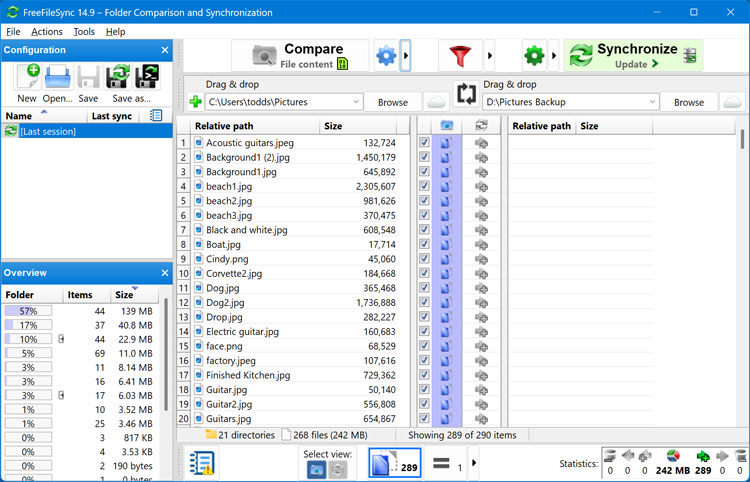
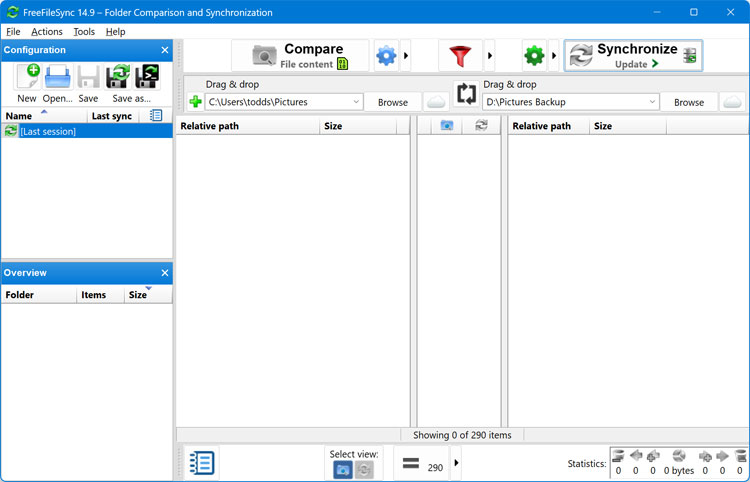
As you can see in the image below, we have multiple files on the left (source) and nothing on the right and that is because the destination folder is completely empty. When we say source and destination folders, these terms don’t really apply when doing mirroring rather than just updating. The software clearly highlights exactly what needs to be moved.
Choosing a Synchronization Method
1. Select the Sync Type
Before clicking the Synchronize button, you will need to determine what type of sync you want to perform. Two-way syncs changes in both directions. Newer files on either side overwrite older ones on the other side. Mirror makes the right side an exact copy of the left. It permanently deletes anything on the right that doesn’t exist on the left. Update copies new or changed files from left to right only. It never deletes files on the right side.
2. Execute the Synchronization
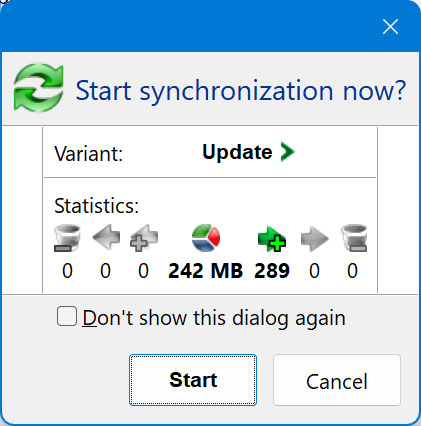
For our example, we will use the Update option just to copy everything from the left folder to the right. Once we click on the Synchronize button, we will be prompted to click the Start button to continue. It will also show the total size of the files being transferred as well as exactly how many of them there are. You can also see the number of files at the bottom of the main screen before clicking the Synchronize button.
3. Review the Completion Log
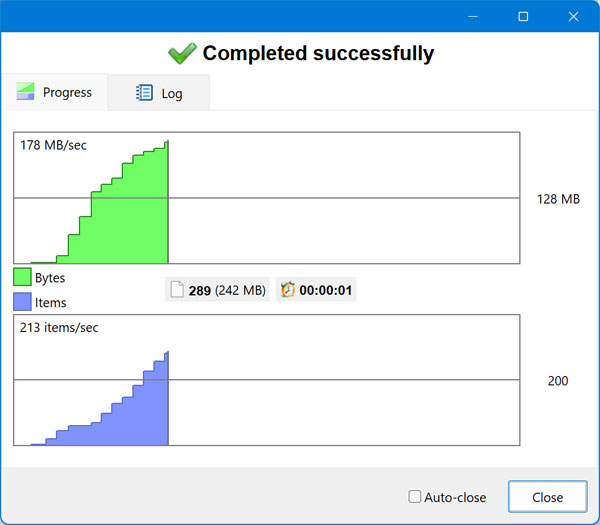
Once the folders have been fully synced, you will see a completion screen telling how many bytes were transferred and how long it took. There is also a Log tab you can click on for more technical details. This log is crucial for troubleshooting failed transfers.
4. Verify Identical Folders
Now when we click the Compare button again, it shows both sides as completely blank. This happens because both folders now have identical contents. The software confirms your backup was 100% successful.
Updating and Automating Sync Jobs
1. Add New Files to the Source
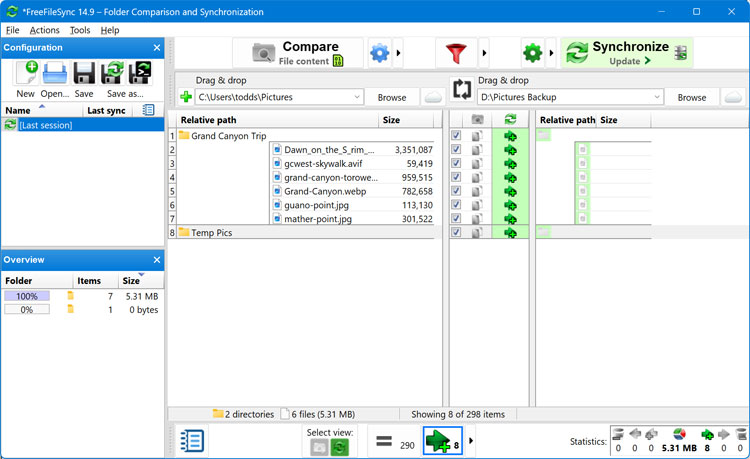
Now we will add some new files and folders to the source side and click the Compare button again. As you can see, it found the two folders and the files that were inside the Grand Canyon Trip folder. The Temp Pics folder is completely empty. If you were to hover your mouse over the grey file icons on the right, it would show the names of the files on the left indicating that they are missing and need to be synchronized.
2. Test the Mirror Function
Now let’s say we deleted some files on the right or left side and changed the sync option to Mirror. It would then delete those exact same files on the other side so that both folders match up perfectly. This is the best way to maintain a true 1:1 backup drive.
3. Save Your Sync Configuration
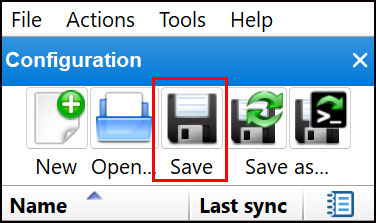
Once you have a sync job configured, you can save it as a .ffs_gui file that you can then load into FreeFileSync as needed to have all the settings saved and ready to run. To do so, simply click the Save button in the top toolbar, give the file a descriptive name and choose where to save it. Then you can click the Open button to load the sync job as needed in the future.
Automate Backups with RealTimeSync
1. Understand RealTimeSync
One nice feature of FreeFileSync is the bundled RealTimeSync tool. RealTimeSync continuously monitors the source and destination folders, watching for files that are added, changed, or removed on either side. When new files appear or existing ones are updated, it automatically runs the configured sync after things settle, keeping both locations up to date without any manual action.
2. Save a Batch Job
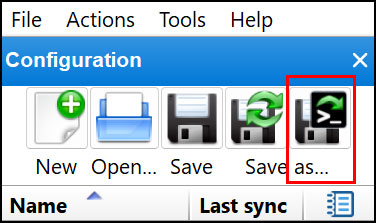
One thing to keep in mind when using RealTimeSync is that it will use the exact sync settings that were configured in the sync job that you load into it. So, it can use the two-way, mirror, and update setting that you have saved in your job. To save your job settings to be used with the RealTimeSync tool, click the Save as batch job button and give the file a name.
3. Configure the RealTimeSync Trigger
Now you will need to open the RealTimeSync tool and go to the File menu and choose Open and load your saved batch file. It will then load the specific folders from your job, and you can choose to remove any folder you do not want it to watch or add other folders. If you add a folder that is not in the sync job, it will just act as a trigger to run the batch job but will not have any files synced to it since it’s not part of the originally configured synchronization job.
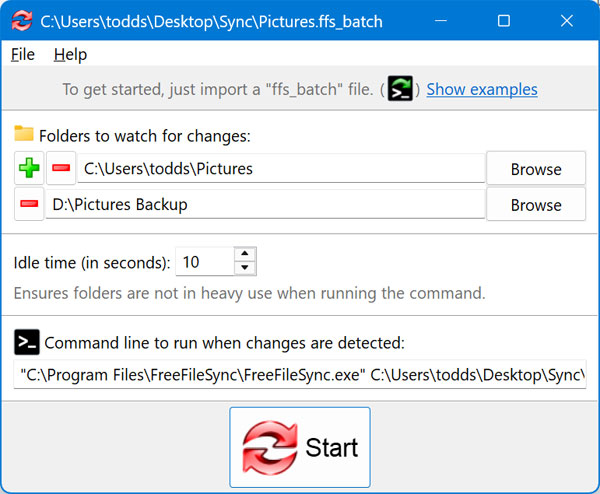
4. Monitor the System Tray
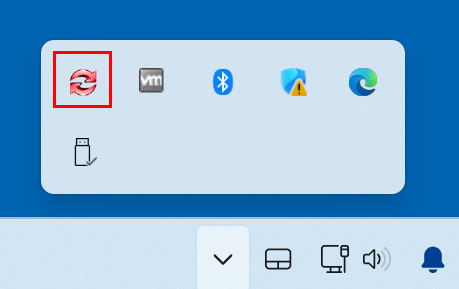
The RealTimeSync app will then be running silently in the Windows system tray monitoring the configured folders for changes. It uses virtually zero system resources while waiting for file modifications. If you want to try out some other file and folder synchronization apps, you may want to take a look at Syncthing, AOMEI Backupper or Bart Free File Synchronization.
If you want to try out some other file and folder synchronization apps, you may want to take a look at Syncthing, AOMEI Backupper or Bart Free File Synchronization.
For additional training resources, check out our online IT training courses.
Check out our extensive IT book series.






