Last Updated: April 10, 2023 — Verified for Windows 11 compatibility.
An ISO file is essentially a digital duplicate of an entire optical disc, packaged into a single file. While many people think of them as similar to a ZIP file, they are actually sector-by-sector images that preserve the exact structure of a CD or DVD, including bootable information. Today, they are primarily used for distributing operating systems like Windows or Linux, and for creating system recovery discs.
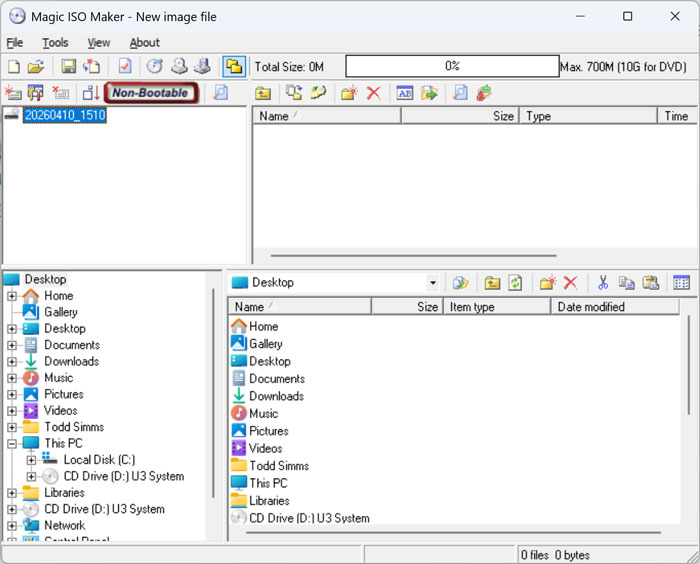
Magic ISO is a powerful and easy to use CD image file editing tool. It can create, edit and extract ISO files. It can also make image files from CDROMs or your hard drive as well as handle bootable information. It can process almost all CDROM image files including ISO and BIN files.
Magic ISO allows you to add, delete, rename and extract files within image files. You can also convert image files to the standard ISO format and you have the ability to create ISO image files from a CDROM.
Magic ISO Features
- Process almost all CD-ROM image file(s) including ISO and BIN
- Ability to directly add/delete/rename/extract file(s) within image files
- Convert image files to the standard ISO format
- Supports ISO 9660 Level1/2/3 and Joliet extension
- Duplicate disc to ISO file from CD-ROM
- Windows Explorer is embedded in Magic ISO
- You can convert almost all image file formats, including BIN, and save it as a standard ISO format file
- Edit ISO file in many format (such as Nero burning ROM, Easy CD Creator, CDRWin, CloneCD, BlindWrite, etc)
- Select some files or directories, and then create the ISO based on these files
- Make bootable ISO files
- Since Windows 10 and 11 now have native support for ISO files, you can double-click them to ‘Mount’ the image as a virtual drive without needing any third-party software for simple viewing.
Burning Discs on Windows 11
If you are using Magic ISO on a modern computer, you might notice that it doesn’t always recognize your burner or crashes during the process. To fix this:
- Use Compatibility Mode: Right-click the Magic ISO icon, go to Properties > Compatibility, and set it to Windows 7.
- External Drives: If you are using an external USB DVD burner, make sure it is plugged in before opening the software so Magic ISO can detect the hardware interface correctly.
- Run as Admin: Always run the program as an administrator to give it the low-level hardware access required for disc burning.
Magic ISO is available for download as a trial version. Note that the trial has a 300MB file limit. For larger projects, or if you find the interface dated, modern alternatives like AnyBurn or ImgBurn offer similar features with better support for current hardware.
Recommended Modern Apps
If Magic ISO doesn’t meet your needs for modern 64-bit systems, these apps are currently supported and highly recommended:
- ImgBurn: The gold standard for disc image burning and creation.
- AnyBurn: A lightweight and very easy-to-use tool for all disc image tasks.
- BurnAware Free: A great all-around burning suite for data, audio, and video discs.
For additional training resources, check out our online IT training courses.
Check out our extensive IT book series.