Last Updated on April 13, 2026
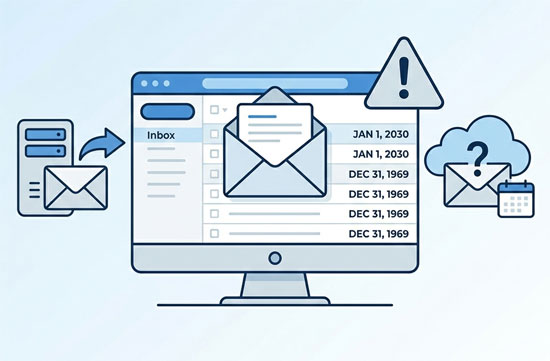
You just moved your company’s email to Microsoft 365 or Google Workspace. Everything looks fine, until someone opens Outlook and notices that every single email from the past five years shows yesterday’s date. Thousands of messages, all stamped with the migration date. The actual timeline? Gone.
This is one of the most common side effects of email migration. And it hits harder than most people expect.
What Actually Goes Wrong
Every email carries multiple date stamps in its technical headers. The original “Date” header, set when the message was first sent, is always there and intact. But during migration, the receiving server (or the migration tool itself) adds a new “Received” header with the current transfer timestamp.
Here’s the catch: most email clients don’t display the original send date. They display the last “Received” timestamp. So after a migration, Outlook shows the transfer date for every single message. The original date hasn’t been deleted or modified. The client just reads the wrong one.
This happens whether you’re moving from an old Exchange server to Microsoft 365, switching from a hosting provider to Google Workspace, or importing PST archives into Office 365. The tools involved are well-known: imapsync, Google Data Migration Service, BitTitan MigrationWiz, CloudM Migrate. They all add transfer timestamps during the process.
How Each Email Client Reacts
Microsoft Outlook
Outlook gets hit the hardest. It sorts and displays by the last “Received” timestamp by default. After migration, your inbox looks like every email arrived on the same day.
You can add a “Date Sent” column to the view. But that doesn’t change the sort order, doesn’t work on Outlook mobile, and most users won’t even know the option exists.
Apple Mail (macOS and iOS)
Apple Mail uses the file creation date on the IMAP server, not the send date. After migration, that creation date is the transfer date.
On a Mac, you can adjust the display columns to partially work around it. On an iPhone or iPad? No such option. You’re stuck with wrong dates and no way to change the view.
Thunderbird
Thunderbird has a bug, documented since 2007 and still open, where the received date column doesn’t work correctly for IMAP folders. An add-on called “IMAP Received Date” exists, but it only patches the display. The underlying data stays wrong.
eM Client
eM Client replaces original dates with the import date when you bring in PST files. Once that’s done, the chronological order of your mailbox is broken.
Gmail Web
Gmail is usually not affected. It uses its own internal date system that ignores “Received” headers. But if the migration tool corrupts that internal date (and some do), Gmail shows wrong dates too.
Why the Usual Fixes Don’t Work
Changing the sort column in Outlook? Only works on desktop. Doesn’t carry over to mobile or Outlook Web Access.
Reinstalling Outlook? Changes nothing. The problem isn’t in the software, it’s in the email headers stored on the server.
Re-migrating everything? Expensive, time-consuming, and often produces the exact same result because the tool adds new transfer headers again.
The real problem is server-side. The email metadata contains the wrong timestamp, and until that gets corrected, every client keeps showing the wrong date.
Fixing It at the Source
Redate.io takes a different approach. Instead of working around the display, it corrects the date metadata directly on the mail server. The service connects to your mailbox, identifies emails with wrong email dates after migration, and restores the original date information for each affected message.
Once corrected, Outlook, Apple Mail, Thunderbird and every other client displays the right dates again. Nothing to install, nothing to configure on each device. The scan is free, so you can see exactly how many emails are affected before deciding to fix them.
After years of forum threads full of dead-end workarounds, that’s a relief.