Last Updated on March 15, 2026
As you probably know, computers are prone to having issues from time to time such as random crashing or freezing, blue screen errors (BSOD), malware infections, disk errors and more. And if you are the type who likes to try and fix your own PC rather than pay someone else to do it, you will need the proper tools to handle the task.
Fortunately, there are many all-in-one USB boot disk tools you can use to help diagnose and repair your computer when it’s giving you problems or won’t even boot at all. You may have heard of some of these tools such as Hiren’s Boot CD or Live USB Malekal. But in this article, we will be talking about a lesser-known repair tool called ANHDV Boot which might just be the ultimate PC repair & system rescue toolkit.

ANHDV Boot comes in two versions, the free and then the premium version which requires either a yearly subscription or a one-time lifetime payment. In this article, we will be discussing the free version of ANHDV Boot.
To begin, you will need to download the zip file from the ANHDV Boot website here. There is a password that you will need to use in order to open or extract the zip file which is shown under the download links.
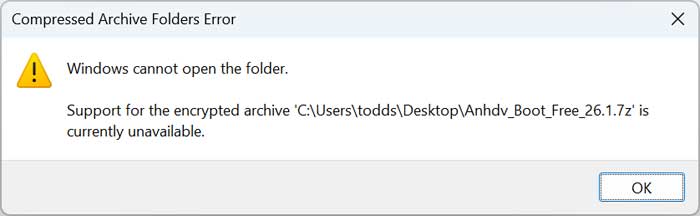
If you try and open the zip file using File Explorer in Windows, you will get an error message telling you that it is encrypted and can’t be opened. This is because of the password assigned to the zip file.
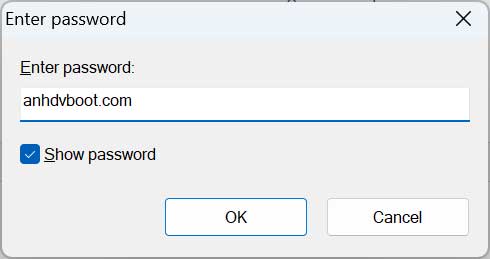
You can use a free tool such as 7-Zip to open and extract the contents of the zip file. You will then be prompted to enter the password for the file to continue.
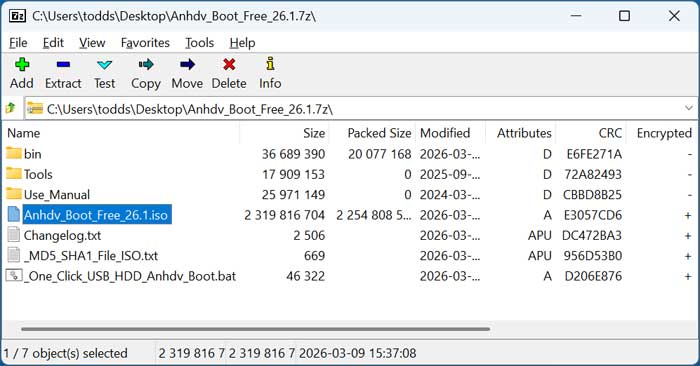
Once you have the zip file open, you will see the main ISO file along with some other files and folders. You can even find USB flash drive creation tools if you need something to create your flash drive with. You will need to extract the ISO image file from the zip file before creating your drive.
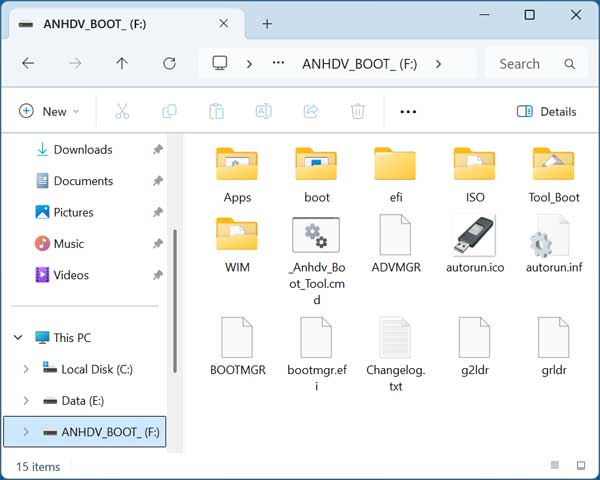
Once you have your USB flash drive created, you can then view the contents of the drive to see what types of files and folders it contains.
Now you will need to boot your computer to the ANHDV flash drive and you will then be taken into the WinPE mode of the app and see a desktop with several tools and other apps that you can use to repair and modify your computer as needed.
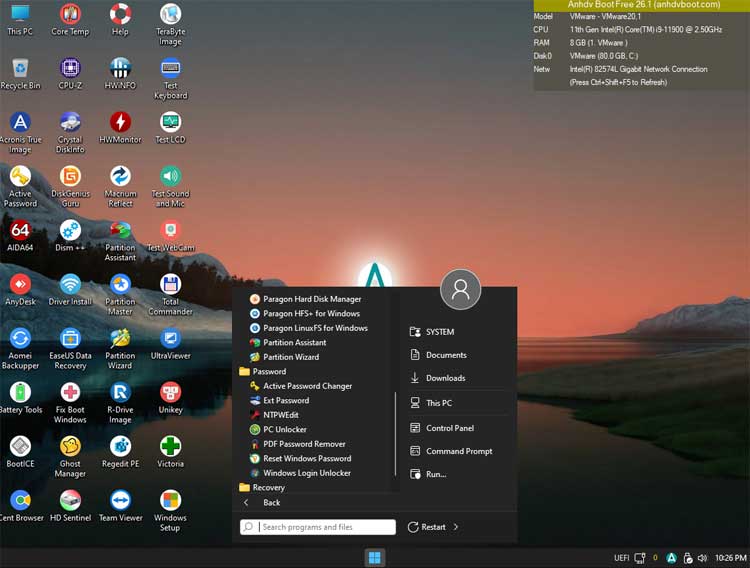
There is also a Windows 11 style start button that you can click on to open additional tools that are broken down into various categories. You can also open tools such as the Windows command prompt and Control Panel from this menu.
Here is the current list of tools and apps available on the ANHDV toolkit as of the writing of this article.
AppsPE
- WinHex
- NT6 Repair
- RegeditPE
- BootICE
- Everything Search
- Restart Explorer
- EasyUEFI
- Help
- Produckey
- Total CMD
- WinNT Setup
- USB Tree View
- Show All Partition
- Wincontig
- Set PageFile
- NTBOOT AutoFix
- Bkav FixAttrb
- Reload Apps Shortcut
- On-Screen Keyboard
- SpaceSniffer
- Multi monitor
- System Dism ++
- Set Temp Folder
- EasyBCD (*)
- WinDirStat
- 78setup
- NT6 Fast Installer
- Eject Safe USB (*)
Backup
- Macrium Reflect
- Onekey Ghost
- Aomei Backupper
- TeraByte Image for Windows
- Hasleo Backup Suite
- Acronis True Image 2014
- Norton / Broadcom Ghost
- R-Drive Image
- Acronis True Image
- Acronis True Image 2021
Internet
- AeroAdmin
- TeamViewer (*)
- DNS Jumper
- FileZilla (*)
- AnyDesk
- Remote Desktop
- Tiny PXE Server (*)
- Cent Browser
- AweSun
- iperf (*)
- IDM PE Network
- UltraViewer (*)
- Connect to Server (*)
Antivirus – Office – Multimedia
- VLC Player
- Web CureIt
- SoftMaker Work
- FSCapture
- Microsoft Safety Scanner
- Free ISO Burner
- Kaspersky Virus Removal Tool (*)
- SoftMaker Excel
- UltraISO
- PowerTool (Antivirus / Rootkit / Bootkit)
- oCAM (*)
- Unikey
- SoftMaker PowerPoint
Recovery
- GetDataBack
- Active@ DiskImage
- MiniTool Power Data Recovery
- EaseUS Data Recovery Wizard
- R-Studio (*)
- DiskGetor Data Recovery
- iCare Data Recovery
- Active@ File Recovery
- Partition Find and Mount
- Stellar Data Recovery
- Double Driver
- 7 Data Recovery Suite
- Active@ Partition Recovery
Partition / Disk Management
- Paragon Linux for Windows (*)
- EaseUS Partition Master
- NTFS to FAT32 Wizard
- MiniTool Partition Wizard
- AOMEI Partition Assistant
- Paragon APFS for Windows (*)
- Partition Guru (DiskGenius)
- Paragon Hard Disk Manager (*)
- AOMEI Dynamic Disk Manager
- Paragon HFS+ for Windows (*)
Hard Disk – SSD – Hardware Test
- CrystalDiskMark
- HD Tune Pro
- SSD-Z
- Active@ KillDisk
- Victoria
- HDD Scan for Windows
- WD Data Lifeguard Diagnostics
- CrystalDiskInfo
- HP USB Format Tool
- RAID Reconstructor (*)
- SSD Life
- Hard Disk Unlock / Turn Off BitLocker (*)
- Active@ DiskEditor
- HDD Low Level Format Tool
- UltraBook
- Check Disk GUI
- HD Sentinel
- AS SSD Benchmark (*)
Info and Test
- GPU-Z
- Battery Info View
- AIDA64
- Keyboard Test
- HWiNFO
- FurMark
- CPU Burner
- Audio Test
- CoreTemp
- TechPowerUp
- HWMonitor
- IsMyLcdOK (Monitor Test)
- BatteryMon
- MemTest64
- WebCam Test (*)
- CPU-Z
- HCI MemTest
Password
- PDF Password Remover
- Active@ Password Changer
- ExtPassword (*)
- PC Unlocker
- Reset Windows Password (*)
- NTPWEdit
- Windows Login Unlocker
DOS Software – UEFI Boot
- Partition Wizard 9.1 (*)
- KonBoot
- MemTest Pro
DOS Software – Legacy Boot
- MHDD 4.6
- Partition Table Doctor 3.5
- HDD Regenerator 2011
- Gold Memory
- Paragon Hard Disk Manager
- WD Data Lifeguard Diagnostics 5.27
- Norton Ghost 11.5
- Victoria 3.5
- EZ Monitor 2.0 (LCD Test)
- TeraByte Image for DOS
- KonBoot 2.5
- HDAT2
- MemTest
- Active@ Password Changer 6.0
- Partition Guru (DiskGenius)
- Plop Boot Manager 5.0
- NTLDR Missing Fix
As you can see, there should be almost anything you need available with the ANHDV toolkit to help you fix a broken or non-booting computer.
For additional training resources, check out our online IT training courses.
Check out our extensive IT book series.