
Many computer users find themselves frustrated by the idea that cloud storage requires a complete overhaul of their filing system. If you have spent years organizing your documents into specific folders on your hard drive, the last thing you want to do is move everything into a new Google Drive folder just to keep it backed up. Fortunately, the Google Drive for Desktop application is much more flexible than people realize, allowing you to bridge the gap between your local files and the cloud without moving a single document.
In this article, we will be going over how to configure a local folder to be synchronized with the Google Drive website as well as how to manage your list of computers and devices within the Drive website itself to clean things up and keep yourself more organized.
Adding a Local Folder to Sync with Google Drive
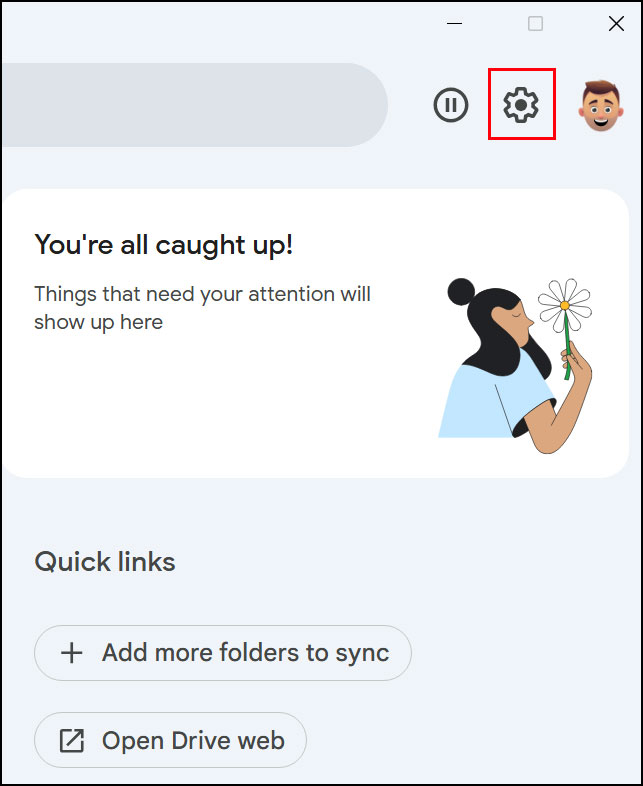
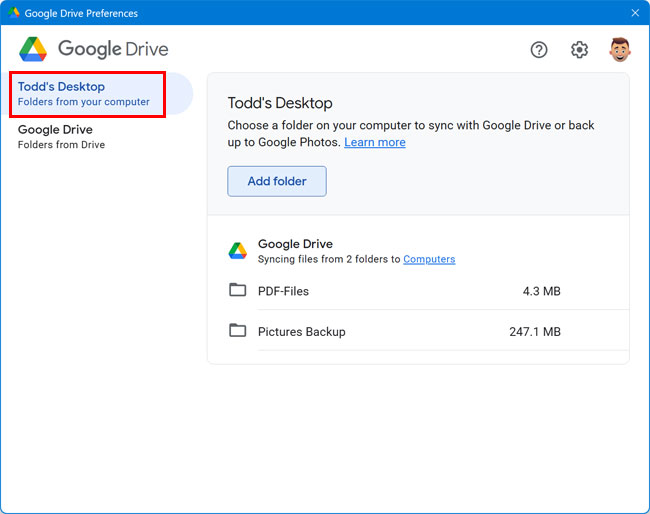
To begin syncing a specific folder from your computer, you need to access the preferences within the Google Drive app. You can find this by clicking the small Google Drive icon located in the system tray near your clock or by opening the Google Drive client from your shortcut. Then you will need to click the gear icon and select Preferences and will then see a section dedicated to your computer. Click the Add folder button to add a folder and navigate to the directory you want to back up to the cloud.
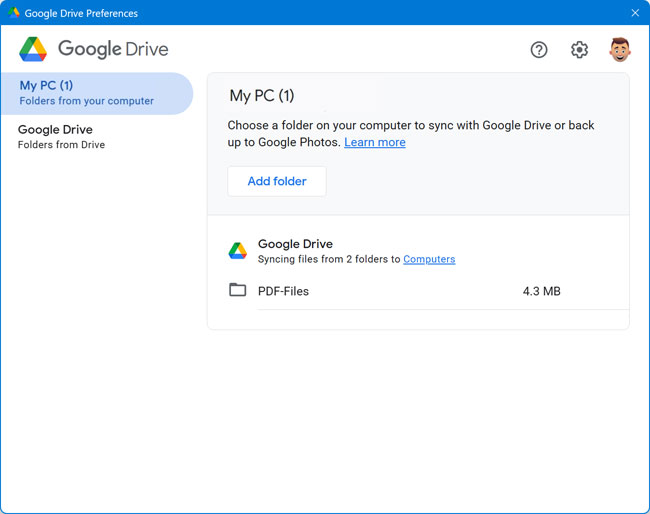
Then you will need to browse to the location of the folder that you want to add to your online Google Drive account. After you select your folder, Google will ask if you want to sync with Google Drive. If the folder contains photos, you also have the option to back them up to Google Photos, which places them directly into your picture timeline. This is a great way to ensure your local work stays untouched while the cloud maintains a perfect mirror of your progress.
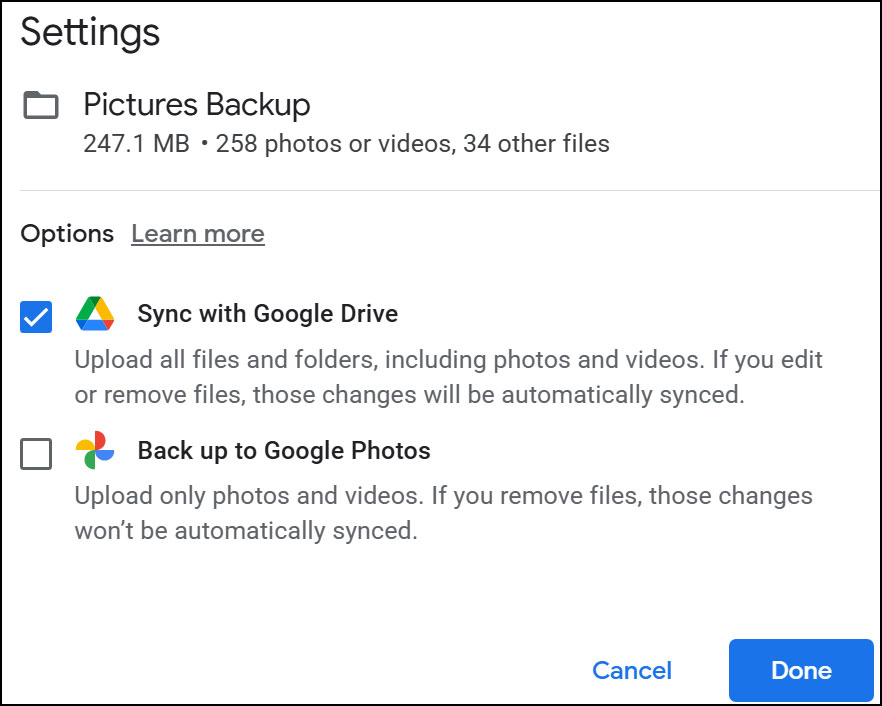
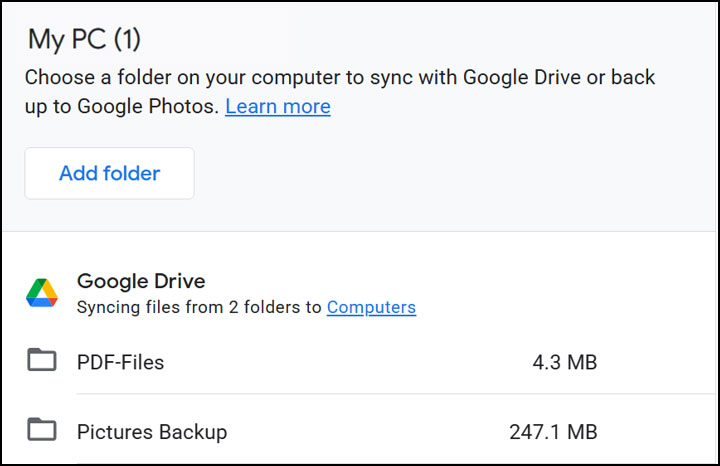
If you do choose the Google Photos option, every time you add photo or video files to that folder, they will be synced to your Photos account as well. Other documents such as Word or Notepad files will not be synced to Photos.
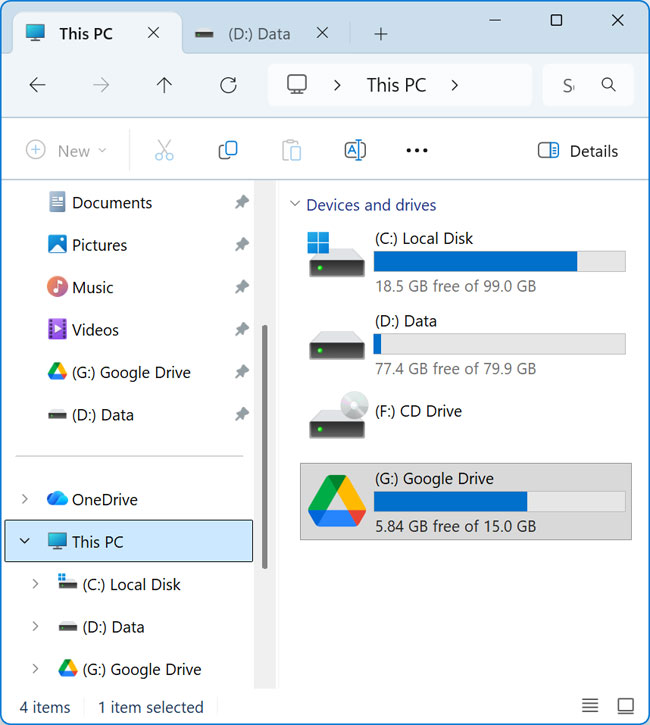
You should not confuse this with the standard Google Drive repository on your computer which is typically assigned the letter G. This is the location where you can put files and folders and have them directly synchronized to your online Drive account. The Google Drive default G letter can also be changed if needed or changed to a specific folder.
Managing Your Google Drive Attached Computers
As you use Google Drive across different devices, your account starts to build a history of every machine you have ever logged into with the Drive desktop client. If you go to the Google Drive website and look at the sidebar, you will find a tab specifically for computers. Clicking this often reveals a list of current and past PCs that might be cluttered with names like Work Laptop, My PC and so on.
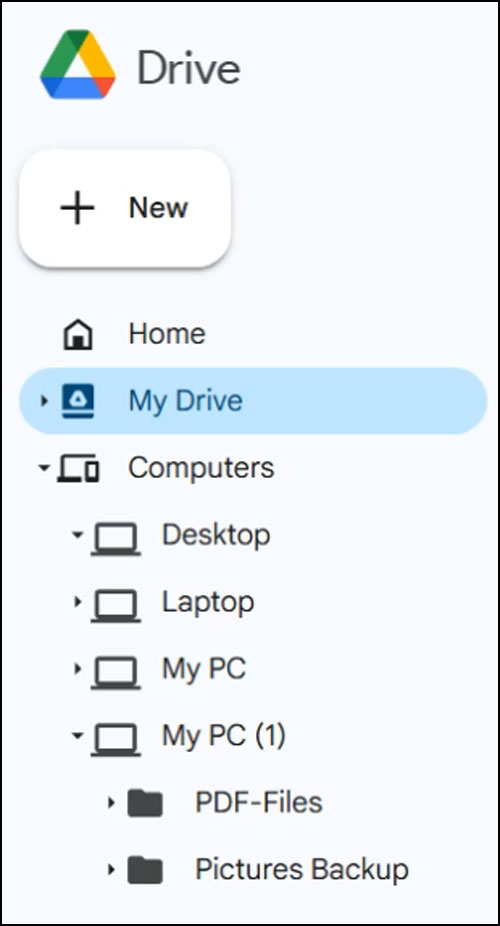
To make this list easier to read, you can right click any active device and choose to rename it to something recognizable like Home Office or Kitchen Laptop. If you see an old computer that you no longer own or use, you can right click it and move it to the trash to clean up your workspace. This doesn’t delete the files from your physical hard drive, but it does stop the website from tracking a device that is no longer in use. This will also delete the files from your online Drive account so keep that in mind.
If the computer you are deleting is still online and connected, you will receive a popup message on that device telling you that the computer and files will be deleted from the Drive website. You can confirm this or deny it which will try and re-sync the computer and its files to your account.
Once you delete computers that are no longer needed and rename devices to make them easier to identify, you will notice that your Google Drive online account is much easier to manage.
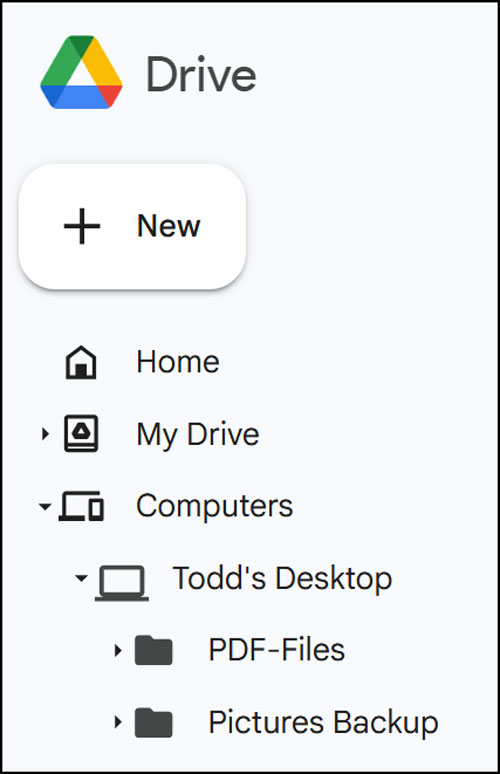
You will also notice that your computer name has been updated in the Drive client when you go back to the preferences.
Google Drive Streaming vs. Mirroring
One of the most important settings to understand is how Google handles the files on your hard drive. Within the same preferences menu where you added your folders, you can choose between streaming and mirroring. Streaming is the default and most popular option because it keeps your files in the cloud and only downloads them when you need to open them, which saves a massive amount of disk space.
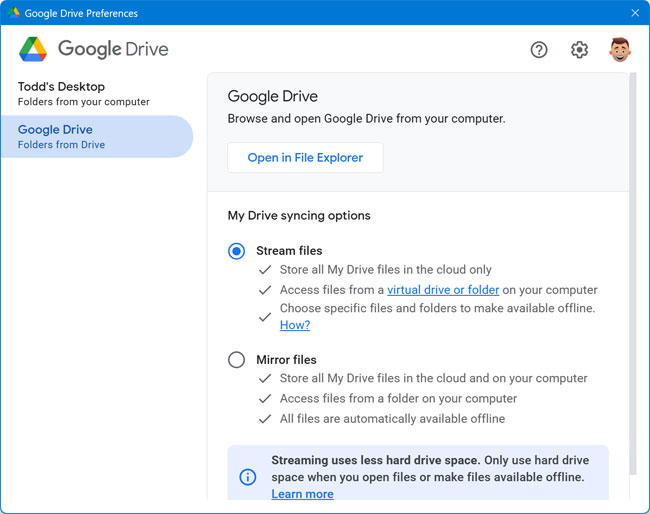
Mirroring is the alternative, which keeps a complete copy of every file on both your computer and the cloud. This is ideal for people who need to work offline frequently, such as on an airplane or in areas with poor internet, but it does require enough local storage to hold everything you have stored in your Drive account.
By taking these steps to customize which folders sync and how your devices are labeled, you turn a basic storage tool into a professional backup system. It allows you to keep your files exactly where you want them on your computer while enjoying the peace of mind that comes with cloud redundancy. Keeping that computer list tidy and choosing the right sync method ensures that your digital life stays organized and your hard drive stays clear of unnecessary clutter.
For additional training resources, check out our online IT training courses.
Check out our extensive IT book series.






