Last Updated on May 2, 2026
With computers getting more advanced and Microsoft adding more features to Windows (especially AI), it has become a bit more challenging to diagnose and repair your computer when it crashes. Sure, we now have the Windows Quick Machine Recovery Repair (QMR) feature but that has not proven to be the breakthrough Microsoft thought it would be.
This is where a third-party repair and recovery USB toolkit can help you out. You have many choices when it comes to these tools including Live USB Malekal and Medicat. But there is also a tool called Hiren’s Boot CD that has been around for years and offers a variety of tools to help you recover data, repair disks, reset passwords and more.
Even though it has CD in the name, Hiren’s is still a tool most commonly used on a USB flash drive since it’s too big to fit on a CD but will still fit on a DVD. You will need to download the Hiren’s ISO file from their website and then create a bootable USB drive using your favorite bootable USB drive creator app.
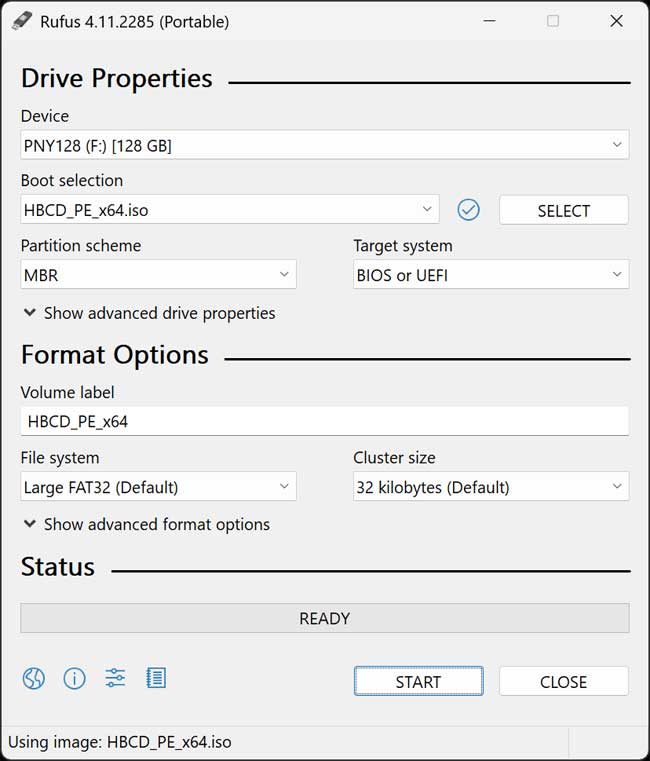
One app you can use to make your flash drive is called Rufus and it’s one of the more popular apps used to create things such as bootable Windows or Linux installation flash drives. Rufus is easy to use and all you need to do is choose your USB flash drive, browse to your Hiren’s ISO file and configure a couple of options and click on the Start button.
What options you choose to create your flash drive will vary depending on what type of computer you will be using it. When we say what type we mean its age, if it is using BIOS or UEFI, if it has secure boot enabled and so on. You may have to do a little research on your end to figure this out, but most people use MBR for the partition scheme and FAT32 for the file system.
One thing you may want to do is press Alt+E on your keyboard before starting the process with Rufus. This enables Dual UEFI/BIOS mode (sometimes called hybrid mode) in Rufus. When this is enabled, Rufus changes how the flash drive is created so it can boot on both legacy BIOS systems and modern UEFI systems from the same USB drive.
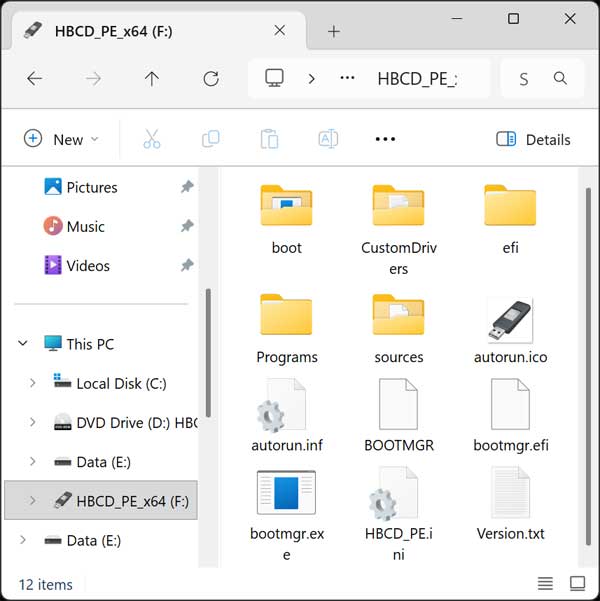
Once you have your flash drive created, you can open it in File Explorer and see what types of files and folders it contains.
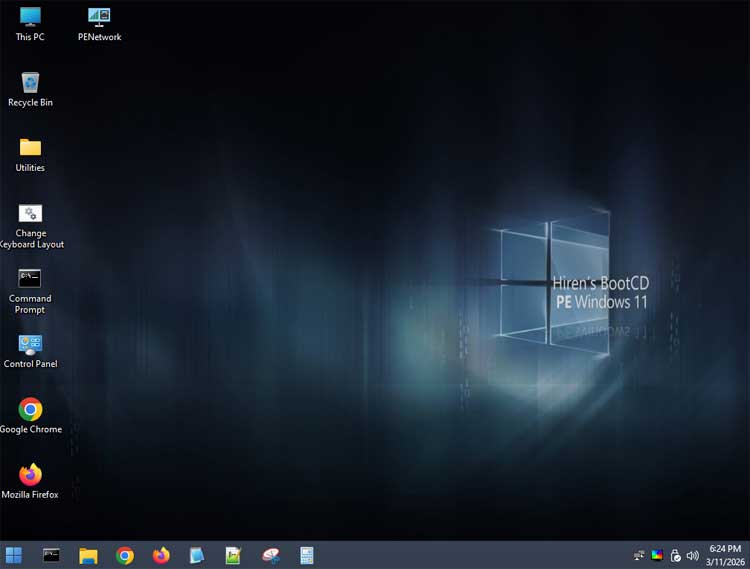
You can then boot the problematic computer with the flash drive to load the Hiren’s Boot CD interface which consists of its own custom desktop, taskbar and start menu.
If you click on All Programs, you will see all the available tools that come with the tool broken down into categories.
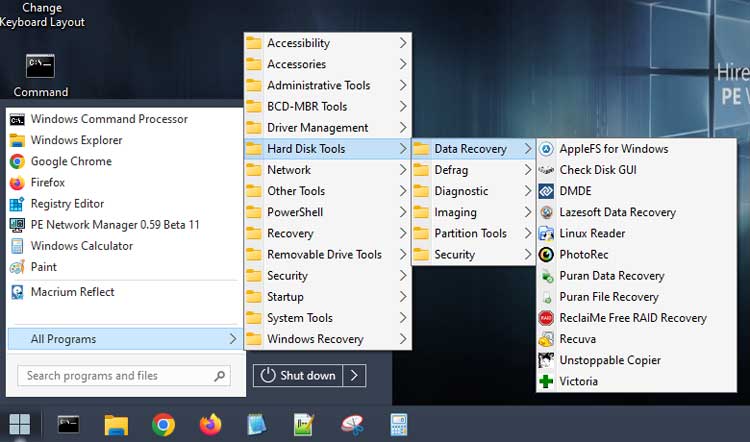
Here is a list of the tools you will find broken down into categories. Of course, this list can change with new releases.
BOOT / MBR TOOLS
- BootIce
- EasyBCD
HARD DISK TOOLS – DATA RECOVERY
- CheckDisk GUI
- Lazesoft Data Recovery
- Puran Data Recovery
- Puran File Recovery
- Recuva
- DMDE
- ReclaiMe
- PhotoRec
- Unstoppable Copier
- Victoria
- DiskInternals Linux Reader
- Paragon AppleFS for Windows
HARD DISK TOOLS – DEFRAGMENTATION
- Defraggler
HARD DISK TOOLS – DIAGNOSTICS & HEALTH
- GSmartControl
- HDDScan
- HDTune
- WD Data Lifeguard Diagnostics
- CrystalDiskInfo
- TestDisk
HARD DISK TOOLS – IMAGING & BACKUP
- Acronis Cyber Protect
- AOMEI Backupper
- Lazesoft Disk Image & Clone
- Macrium Reflect PE
- Runtime DriveImage XML
- Drive Snapshot
HARD DISK TOOLS – PARTITION MANAGEMENT
- AOMEI Partition Assistant
- Macrorit Partition Extender
- Macrorit Partition Expert
- DiskGenius
- EaseUS Partition Master
HARD DISK TOOLS – SECURITY
- HDD Low Level Format Tool
- Eraser
- VeraCrypt
WINDOWS RECOVERY
- Lazesoft Windows Recovery
FILE & UTILITY TOOLS
- FSViewer
- FreeOffice
- Sumatra PDF
- 7‑Zip
- ExamDiff Pro
- HxD Hex Editor
- Notepad++
- WinMerge
- VLC Media Player
- TreeSize
- IrfanView
- NVDA
REMOVABLE DRIVE TOOLS
- CDBurnerXP
- Rufus
- ImageUSB
SECURITY – ANTIVIRUS
- ESET Online Scanner
- McAfee Stinger
SECURITY – KEY & PASSWORD TOOLS
- ShowKeyPlus
- Lazesoft Password Recovery
- NT Password Edit
- Windows Login Unlocker
SYSTEM INFORMATION & UTILITIES
- CPU‑Z
- GPU‑Z
- HWiNFO
- Speccy
- WinNTSetup
- Attribute Changer
- Change Keyboard Layout
- Dependency Walker
- Registry Backup
- Regshot
- Sysinternals Suite
- PowerShell Core
- Aqua Key Test
- ImDisk Virtual Disk Driver
- Total Commander
NETWORK & REMOTE ACCESS
- Aero Admin
- Google Chrome
- Mozilla Firefox ESR
- PENetwork
- AnyDesk
- WinSCP
- PuTTY
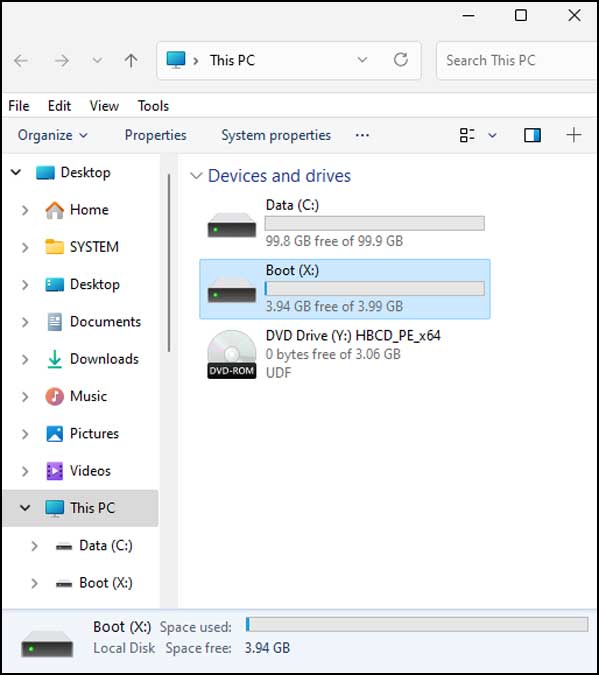
One thing you will notice when browsing the files on your computer after booting your PC with Hiren’s is that you will have a drive called Boot most likely with the drive letter X. This is not actually your Windows drive but rather a temporary RAM disk and is used so it can keep the internal hard drive completely offline which allows you to fix issues that would not be possible if Windows was running off the C drive.
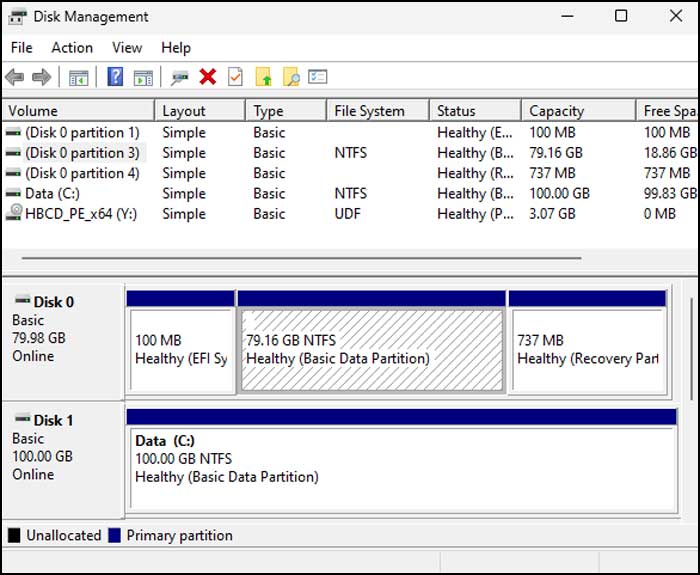
If you have a secondary drive installed in the computer, it will most likely show up and even have the drive letter C assigned to it as seen in the image below with the Data drive.
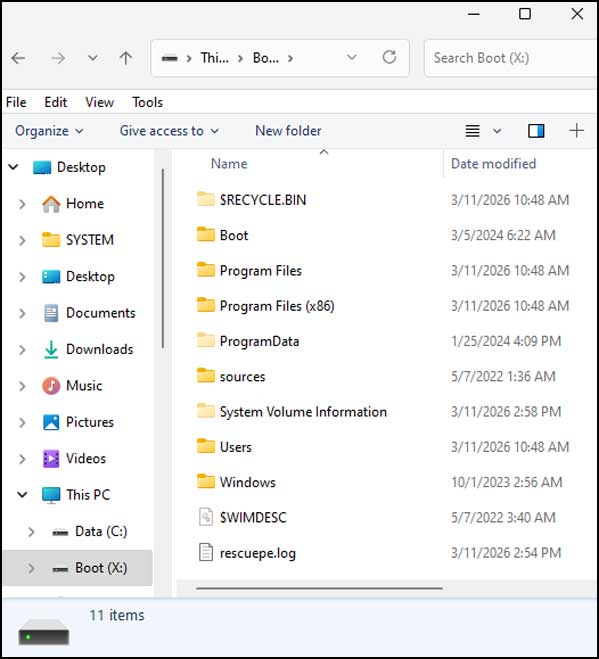
If you open the Boot drive, you will see what appears to be a real Windows drive even though it’s not your actual C drive.
You can however, go into Disk Management and see your Windows drive and even assign it a drive letter and access it if needed.
As you can see, Hiren’s Boot CD is a powerful tool that you can use to recover and repair your computer when it decides to stop working so give it a shot!
For additional training resources, check out our online IT training courses.
Check out our extensive IT book series.