
Last Updated on April 30, 2026
Since everyone has a video camera in their pocket (aka smartphone), it seems like we always have way more pictures and videos than we have time to watch them. When it comes to editing videos, many people only have the need to do simple edits such as trimming the beginning or ending of a video, so they only have the footage they need.
Rather than try and learn expensive and complicated software such as Adobe Premiere or even the cheaper and easier to use Premiere Elements, you can actually trim your videos for free using the built in Windows Photos app.

Opening Your Video with the Photos App
When you double click a video file such as a MP4 or AVI file, Windows will most likely open it using the Media Player or Legacy Media Player program. This is fine to watch your video but it does not have any built in editing tools.
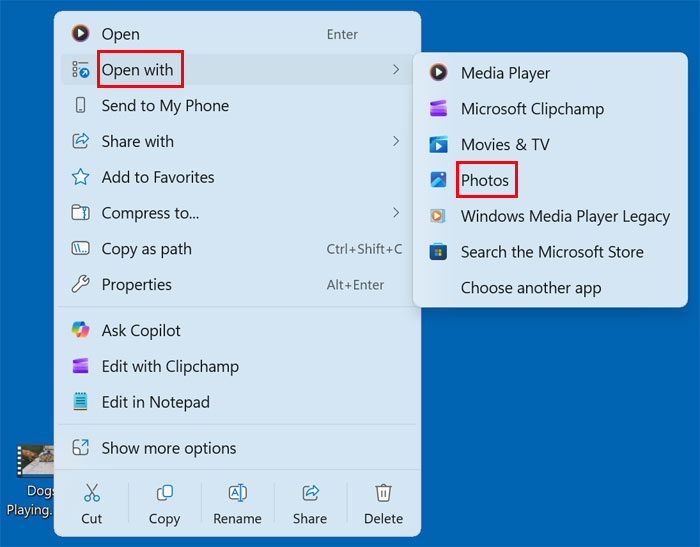
What you can do instead is right click your video file and choose Open with and then select Photos from the list. If you don’t have Photos as an option, you should be able to click on Choose another app and find it that way. If you do need to use this method, just be sure to click the Just once button otherwise it will open your video with Photos every time if you click the Always button.
Trimming Your Video in the Photos App
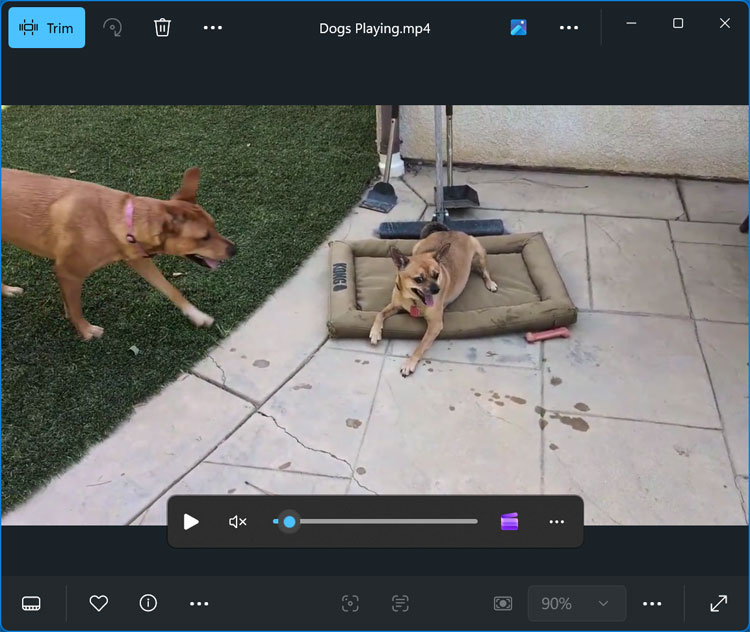
Once you have your video open in Photos, you can then play it just like you can in any other video player since the Photos app is not just for images but can also play videos.
You can also do other things from here such as delete or share the video, open it in the Clipchamp video editor, add it to your favorites, copy it to your OneDrive account and more.
At the top left of the Photos app, you will see a Trim button that you can click on to start trimming your video.
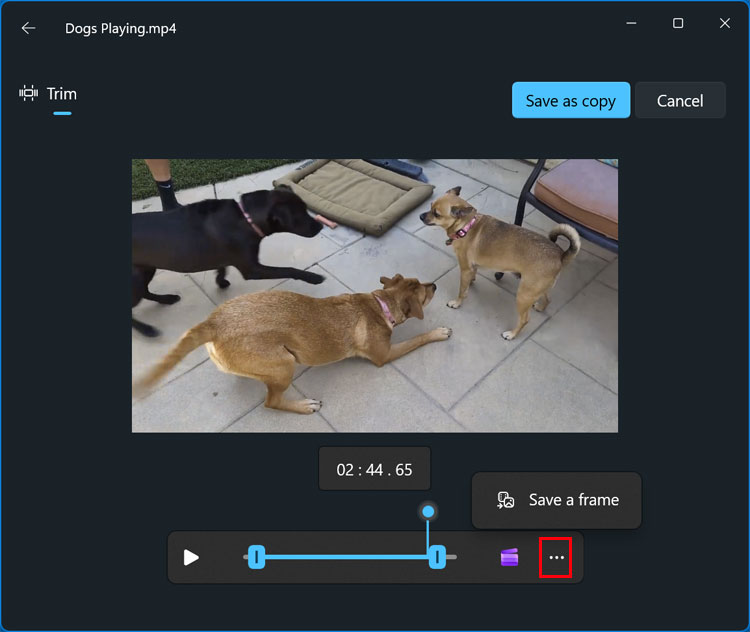
The trim feature looks similar to the playback screen but with less options. You can click on the edit in Clipchamp button here as well and even click the ellipsis (…) and then on Save a frame which will take a snapshot of the current video frame on the screen and save it as an image file.
With the Photos trim feature, you can either trim the beginning or ending of the video but not cut out a section in the middle and have the two remaining clips stitched together.
To trim the beginning or end, simply drag the slider to where you want the video to be cropped. In the example below, we are trimming part of the video from the beginning and the end. You can also see it shows a preview where the marker is on the timeline and also a time stamp.
Saving your trimmed video
Once you have your video edited the way you like, you can then click on the Save a copy button to save your work. Photos will add the word Trim to the end of your existing video name so you don’t overwrite the original file.
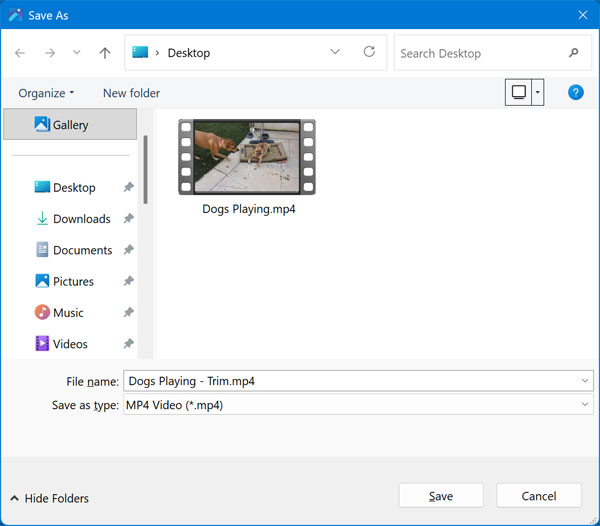
You can however give the video the same name as before and overwrite it, so you do not have an edited version and unedited version.
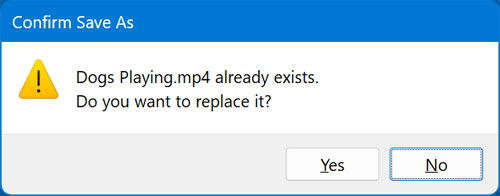
If you do this, you will get a message asking you if you want to replace the exiting file. You can click the Yes button to confirm this. You can also choose a different folder to save your file in if you want to keep the original name but not overwrite your original video.
Common Questions and Helpful Tips
What if I need to cut a section out of the middle of my video?
The built-in Photos app is only designed for basic “top and tail” trimming. If you need to cut out a boring section from the middle of a clip and merge the remaining video together, you will need a true timeline editor. Fortunately, Microsoft includes a free web-based editor called Clipchamp in modern versions of Windows. You can access it directly by clicking the “Edit in Clipchamp” button at the top of the Photos app.
Why is my video taking so long to save?
When you trim a video and click save, Windows has to “render” or re-encode that new video file. If you are trimming a massive 4K resolution video file on an older laptop with a weak processor, this saving process can take several minutes. Be patient and do not close the Photos app until the progress bar completely finishes.
Will trimming the video in the Photos app reduce its quality?
No. The Windows Photos app is designed to match the export settings to your original file. If you import a 1080p high-definition video, the newly trimmed copy will also save as a 1080p high-definition video without any noticeable loss in visual quality or audio sync.
For additional training resources, check out our online IT training courses.
Check out our extensive IT book series.






