
Last Updated on June 7, 2026
Just like you can do with your TV, you can turn off your computer when you are not using it. But the main difference is that you need to properly shut down your computer to avoid corrupting the operating system. And by operating system, I mean Windows, MacOS, Linux and the like. You can’t simply just press the power button and turn it off like you can with other devices.
Even your smartphone has a shutdown process and doesn’t just turn off like a TV would. When you shut down your computer, Windows begins a controlled process that safely closes everything and powers off the computer. In essence, the system safely closes all programs, stops background processes, saves settings, shuts down the operating system, and then tells the hardware to power off. When you restart a Windows computer, the system closes all programs, shuts down Windows completely, reinitializes the hardware, and then immediately starts the operating system again. In this article, we will show you how to properly restart and shut down your computer plus some other tech tricks you might be interested in learning about.
Powering Down from the Start Menu
1. Access the Windows 11 Power Menu
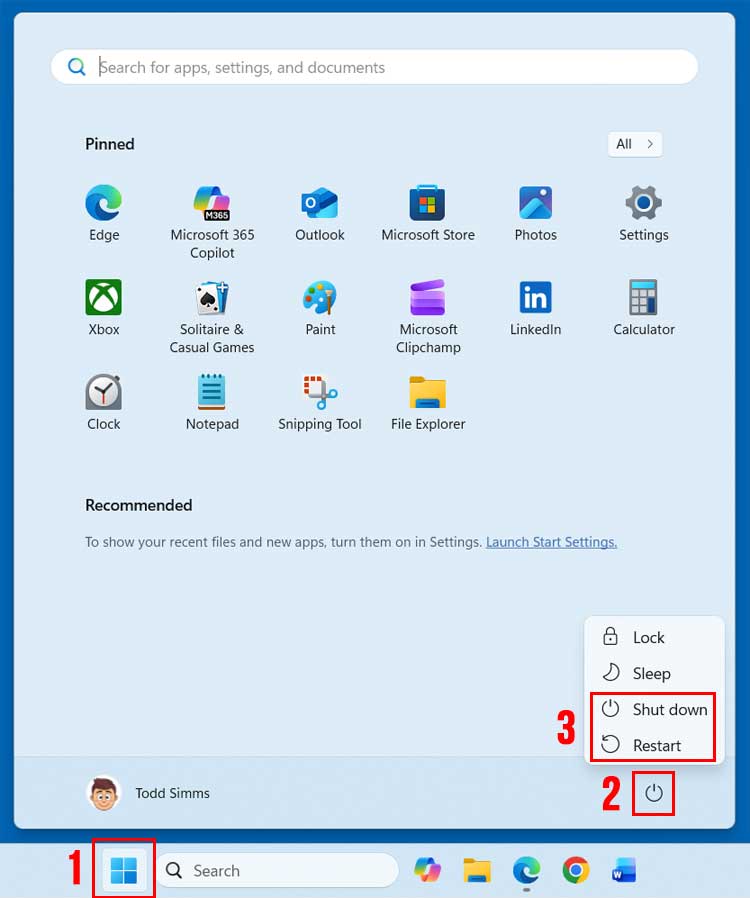
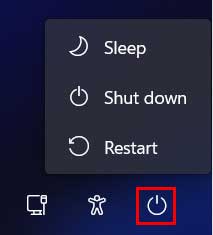
Both the shutdown and restart process are easy to do and done from the same place on your computer. To shut down a Windows 11 computer, click on the Start button and then you will see the power icon over to the right side of the Start menu. Then you can click on that to see your power options.
2. Understand Sleep and Lock Modes
As you can see in the image below, there are also options to lock the computer which leaves all your programs and files open but simply keeps anyone from using the computer until it’s unlocked with your PIN or password. Then you have the sleep option which is when Windows saves your current session into memory, powers down most hardware to conserve energy, and keeps just enough power to quickly resume where you left off.
3. Locate the Windows 10 Power Options
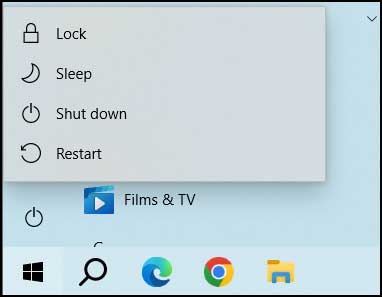
The image below shows the power options for a computer that is running Windows 10. The layout is vertical instead of horizontal, but the core functionality remains exactly the same. You click the power icon above the Start button to reveal the menu.
4. Switch Between User Accounts
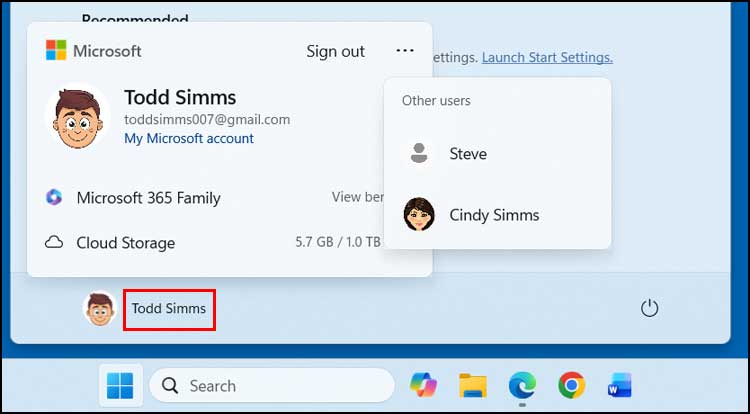
If you don’t want to shut down the computer but rather just log off your user account, you can click on your username and choose Sign out. Or you can click the ellipsis (…) and log in with a different user account if you have any others configured on your computer. This keeps the machine running for the next person without exposing your personal files.
5. Shut Down from the Login Screen
When you turn on your computer, you will also have power options at the lower right corner of the log in screen. This way if you need to shut down or restart your computer again, you do not need to log in first. This is incredibly useful if the system is stuck installing background updates.
Shutting Down via Command Prompt
1. Open the Text Interface
The Windows command prompt is a text-based interface that lets you run commands to manage files, configure system settings, and perform administrative tasks without using the graphical interface. You can use the command prompt to also shut down and restart your computer. Open your search bar and type cmd to launch the application.
2. Execute the Shutdown Command
Here are the commands you can use to shut down or restart your computer. The options after the shutdown command are switches that let you configure how the shutdown command works. To shut down the computer immediately, type shutdown /s /f /t 0 into the window and press Enter.
3. Execute the Restart Command
To restart the computer instead of powering it off, you only need to change one letter in the syntax string. Type shutdown /r /f /t 0 to force a reboot. The /r switch tells the system to restart, while the /f forces running applications to close, and the /t 0 sets the timer to zero seconds.
4. Cancel a Pending Shutdown
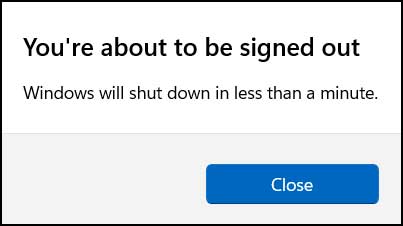
When you shut down or restart a computer from the command line, you will get a popup message on your screen letting you know that the computer will be shutdown or restarted if you chose a time longer than 0 seconds in the /t switch. This is just an informational message and clicking the Close button will not cancel the shut down or reboot. If you want to cancel the shutdown or restart process, you will need to type shutdown /a from the command prompt before the time period passes.
Advanced Power Button Tricks
1. Force a Complete Cold Boot
When you click the shut down or restart button your computer, you can hold down the Shift key on your keyboard to change how the process works. When you hold down Shift and click Shut down, Windows performs a full shutdown instead of using Fast Startup. Normal shutdown saves part of the system state (kernel session and drivers) to disk so the next boot is faster. Shift forces Windows to clear everything and power down completely, giving you a “cold boot” the next time you start up.
2. Access the Advanced Startup Menu
When you hold down Shift and click Restart, Windows boots into the Advanced Startup Options menu. From here, you can access troubleshooting tools, Safe Mode, UEFI firmware settings, and system recovery options. It’s the quickest way to get into recovery mode without needing installation media.
3. Power Down Linux Machines
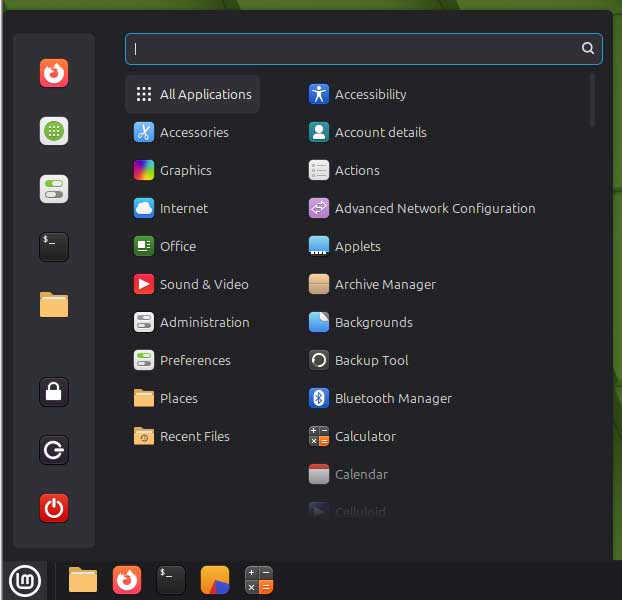
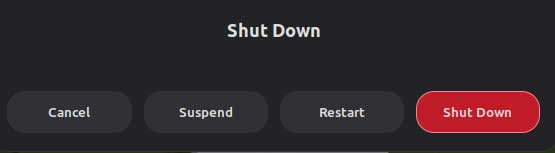
If you are not using Windows but rather Linux, you will have similar shut down and restart options. But these can vary a bit since there are so many versions of Linux that you can run on your computer. Most popular distributions place the power icon in the bottom right corner of the primary taskbar.
For additional training resources, check out our online IT training courses.
Check out our extensive IT book series.






