Last Updated on June 13, 2026
USB devices are very common amongst PC users. Whether you are running Windows, Linux or macOS, you will more than likely be connecting USB devices such as external hard drives, flash drives, printers, webcams, microphones and more to your computer. You may think that all USB types, ports and devices are the same, but there are actually many different USB standards and performance levels available with these devices and also the ports on your computer.
Whether you bought your computer from the store or have built your own computer, it’s a good idea to know about the specific USB types, ports and devices. In this article, we will be explaining the various USB standards so you will have a better idea of what type of performance to expect from your USB devices. For the most part, we use USB flash drives to install Windows and other operating systems on our computer.
USB Generations and Transfer Speeds
1. The Early Days of USB 1.0 and 1.1
USB 1.0 came out in January of 1996 but was not widely adopted because of its severe limitations and lack of hardware support. USB 1.1 came out later in August of 1998 and started the massive takeover of USB being used for computer peripherals. This Full Speed standard capped out at 12 Mbps. It was primarily used for basic input devices like computer keyboards, mice, and older low-bandwidth peripherals.
2. The High Speed Era of USB 2.0
USB 2.0 was officially released in April of 2000 and completely changed how we connect devices. This High Speed standard bumped the data transfer rate up to a theoretical 480 Mbps. Manufacturers quickly adopted this connection for flash drives, desktop printers, and flatbed scanners. You will still find USB 2.0 ports on many modern motherboards today reserved specifically for basic mouse and keyboard connections.
3. The SuperSpeed Boost of USB 3.0 and 3.1
USB 3.0 came out in November of 2008 and introduced the SuperSpeed standard. This connection handles up to 5 Gbps, making it perfect for external SSDs and modern storage devices. The subsequent USB 3.1 Gen 2 update doubled this performance to 10 Gbps. These SuperSpeed+ ports easily handle high-speed external storage arrays and demanding video peripherals without bottlenecking the system.
4. High-Performance USB 3.2 and USB 4
We also have newer standards built specifically for extreme data transfer tasks. USB 3.2 offers SuperSpeed++ performance pushing up to 20 Gbps for high-performance external SSDs. USB 4.0 came out in September of 2019 but is not as widely used as USB 3 because it’s made for high performance devices and has had a slow adoption rate. This newer standard pushes up to 40 Gbps and is commonly used for high-end laptops, high-resolution displays, and external GPUs.
USB Cable Types and Connectors
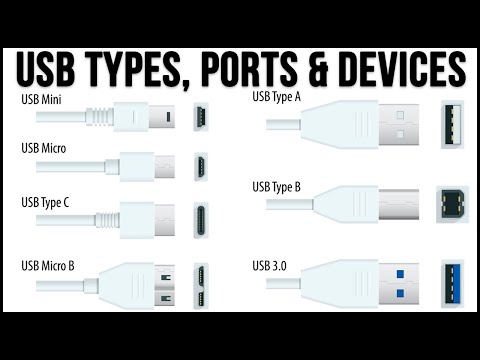
There are also many USB cable and port types to be aware of when shopping for USB devices. As you can see in the graphic below, there are several types of USB connections you can have on your computer with the most common being USB type A. Many computers, especially laptops will now come with a USB type C connection which is commonly used with smartphones.

Here is a breakdown of the USB types and ports showing their speed and what types of devices they are commonly used with.
1. Understanding USB Type-A Connections
USB Type-A is the traditional rectangular connector you see on almost every desktop computer. The older USB 1.1 versions handle 12 Mbps for keyboards and mice. The USB 2.0 versions push 480 Mbps for flash drives and general peripherals. The modern USB 3.0 and higher Type-A ports handle anywhere from 5 to 40 Gbps for external SSDs and powered hubs.
2. The Legacy USB Type-B Standard
USB Type-B uses a squarer shape with slightly beveled top corners. The USB 1.1 and 2.0 versions of this cable are almost exclusively used for printers and older scanner devices. The upgraded USB 3.0 Type-B version features a blue connector and handles 5 Gbps. This faster connection is typically found on large desktop external hard drive enclosures.
3. Portable Devices Using USB Mini-B
The USB Mini-B connector was popular in the early days of portable electronics. The USB 1.1 version handled basic data transfers for older portable cameras. The USB 2.0 version pushed 480 Mbps and became the standard charging cable for early MP3 players and digital cameras. This connection type is largely obsolete today but still appears on legacy hardware.
4. The Smartphone Era of USB Micro-B
USB Micro-B replaced the Mini-B standard to accommodate much thinner mobile devices. The USB 2.0 version handles 480 Mbps and became the universal charging standard for Android smartphones and tablets for nearly a decade. The wider USB 3.0 Micro-B version handles 5 Gbps. You will often see this wider connector shape on portable external hard drives.
5. The Modern Standard of USB Type-C
USB Type-C is the newest reversible connector designed to replace all previous shapes. Budget smartphones and basic peripherals use it at USB 2.0 speeds of 480 Mbps. Modern devices and high-speed peripherals utilize it for 5 to 10 Gbps transfers. High-end laptops and external GPUs use the USB 4 standard over Type-C to hit 40 Gbps. This standard also incorporates Thunderbolt compatibility for faster data and display transmission.
As you can see, there is quite a bit to the USB standard. You should always try and match the devices you attach with the types of USB ports and connections on your computer. This ensures you get the absolute best performance for your specific devices.
For additional training resources, check out our online IT training courses.
Check out our extensive IT book series.