Last Updated on May 31, 2026
Reset lost Windows passwords with PCUnlocker
Forgetting your Windows password is one of the most stressful experiences a user can have, especially today where complex requirements are the norm. While most people now use a Microsoft Account or Windows Hello (PIN/Fingerprint) to log in, many still rely on Local Accounts or find themselves locked out of a secondary “Admin” profile. This is where specialized recovery tools become essential.
And when need to remember something of course there will always be a time when you forget the something you needed to remember! Plus having multiple passwords that are increasingly complex makes it easier to forget these passwords. So what happens when you forget the password to your computer and are the only one who logs into it? For most people they panic but if you have some specialized password recovery software handy you don’t have to really worry about it.
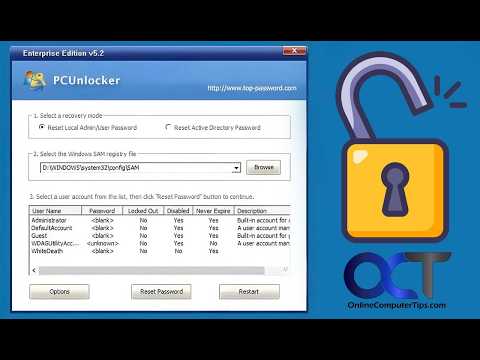
This is where the PCUnlocker Windows password reset software comes into play. It’s a user password resetting utility that can reset the password on any Windows user account. It’s really easy to use and gets the job done in only a few minutes. Before using any password reset utility, it is important to understand the current security environment.
1. Microsoft Account Limitations
If you log in with an email address, tools like PCUnlocker cannot “reset” the password because it is stored directly on Microsoft’s servers. You must use the “I forgot my password” link on the login screen or navigate to it using another device. Bypassing a cloud-linked Microsoft account requires active online verification. PCUnlocker strictly targets offline local accounts stored on the physical hard drive.
2. BitLocker Encryption Roadblocks
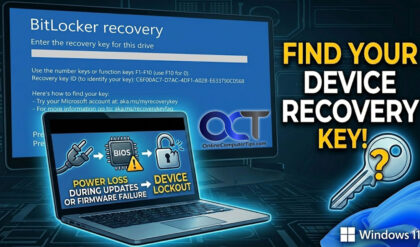
Most modern Windows 11 laptops ship with BitLocker turned on by default. If your drive is encrypted, PCUnlocker will not be able to “see” your Windows installation or the SAM file until you provide the exact BitLocker Recovery Key. You must suspend BitLocker or supply the numerical key to unlock the raw storage drive first. However, for Local Offline Accounts, these tools remain the absolute fastest way to regain access to your desktop.
How to Boot and Use PCUnlocker
1. Create a Bootable USB Drive
After downloading the ISO, you should use a tool like Rufus to create a bootable USB drive. In 2026, most PCs use UEFI instead of the old legacy BIOS architecture. To boot from the USB, you typically need to hold the Shift key while clicking Restart from the Windows login screen. You then navigate to the Use a device menu and select your USB flash drive to force the system to boot the recovery environment.
2. Choose Your Account Recovery Mode
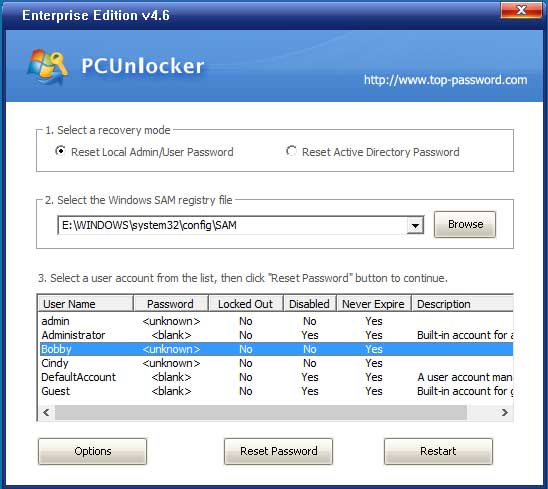
After your computer boots to the PCUnlocker software you will be presented with three distinct choices you will have to make. The first is whether you will be unlocking an admin or local user password or if you will be resetting an Active Directory password. For most cases it will be the admin/local user option. You only pick the alternative if you are on a Windows domain in which case you would most likely have your system administrator reset your password for you.
3. Target the Correct SAM Registry File
Next will be to select the SAM registry file and this should be automatically chosen for you. You shouldn’t need to change it manually. The SAM (Security Accounts Manager) file is a highly protected database that stores your local credentials. Since Windows protects this file while the OS is running, PCUnlocker uses a WinPE (Windows Preinstallation Environment) to bypass Windows security completely and modify the file directly. This allows it to clear the “Password” field or promote a standard user to an Administrator instantly.
4. Select the Specific User Account
Finally in step 3 you will need to choose which exact user account you want to reset the password for. If you have more than one they will be listed clearly here in the main window. You might also notice the hidden Administrator account as well which is usually disabled by default. You will also be able to see which accounts are locked out, disabled or have a completely blank password.
5. Explore Advanced Boot Options
If you change your mind and don’t want to reset any passwords simply click on the Restart button to reboot your computer. Make sure it is not set to boot from your CD or USB drive anymore so Windows loads normally. Clicking on the Options button will give you advanced choices that include Loading IDE, SCSI, SATA or RAID drivers. You also get the ability to mount a virtual drive, launch a command prompt or completely bypass the Windows password without changing it permanently.
6. Reset the Account Password
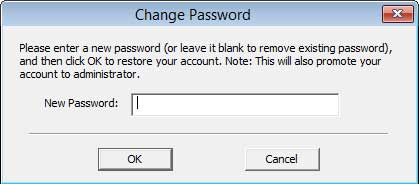
Once you select the user you want to reset the password for simply click on the Reset Password button. A small dialog box pops up asking for input. Enter the brand new password for that specific user and click OK to lock it in.
7. Reboot the Computer
You will see a success message saying that the password for that user has been successfully reset. You will click OK to close that prompt. Then click the Restart button and boot into Windows normally with your new password. You will be completely ready to go.
PCUnlocker Software Versions and Pricing
1. Review the Three Available Editions
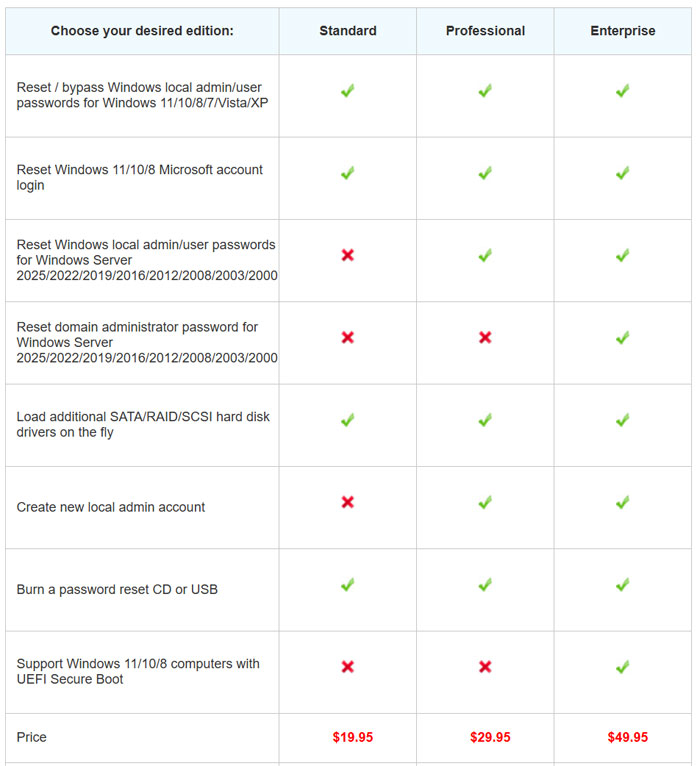
PCUnlocker comes in 3 versions and they are Standard, Professional and Enterprise. The Enterprise version supports UEFI Secure Boot which is practically mandatory for all modern computers. Here is a listing of what each version has along with their specific pricing models. You can check out PCUnlocker for yourself on their official website. You can also check out our online training courses for additional help.