Last Updated on October 18, 2026
As you probably know, in order to use a computer running Microsoft Windows, you will need to log in with some type of a user account. Microsoft prefers that you use a Microsoft online account to login with, but you can use a local account if you like (at least for now).
If you have multiple user accounts on your computer, you will see them all listed on the login screen so you can choose which one you want to log in with. But you may run across a situation where you are missing a user account on the log in screen when you start up your computer. In this article, we will show you how to fix this missing user account issue.
Identifying the Missing Profile Problem
1. Check the Default Login Screen
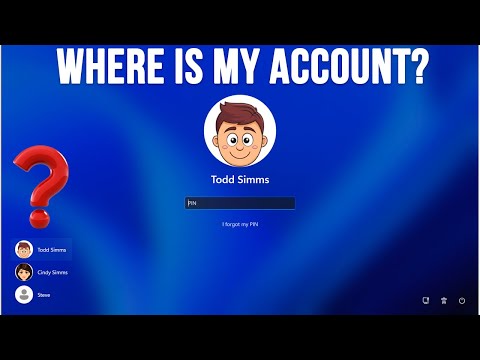
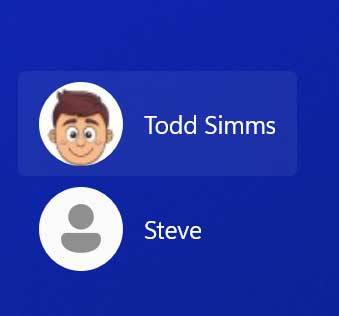
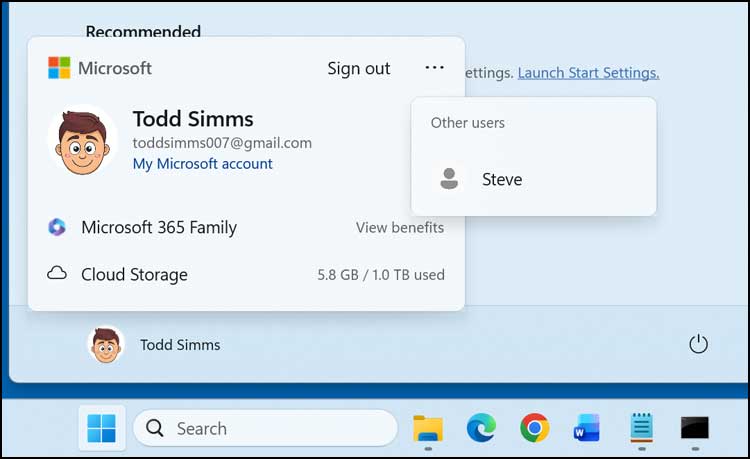
The image below shows the user accounts configured on the computer on the login screen but there should be another account called Cindy Simms. When we log in with Todd and click the Start button to switch accounts, we only see the Steve local account but not Cindy. This visual absence causes immediate panic for users.
2. Verify the Windows Settings
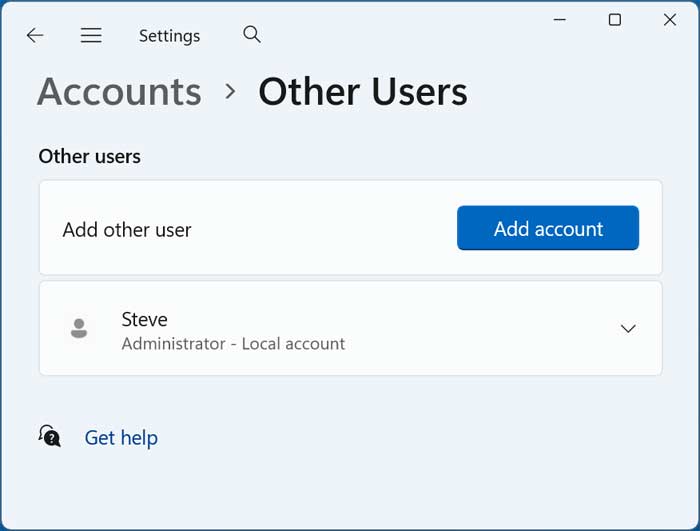
We will then go to the Windows settings and then to Accounts and then to Other Users. Yet we only see the Steve account here as well. The graphical interface completely fails to display the hidden profile.
3. Inspect the Local Users Folder
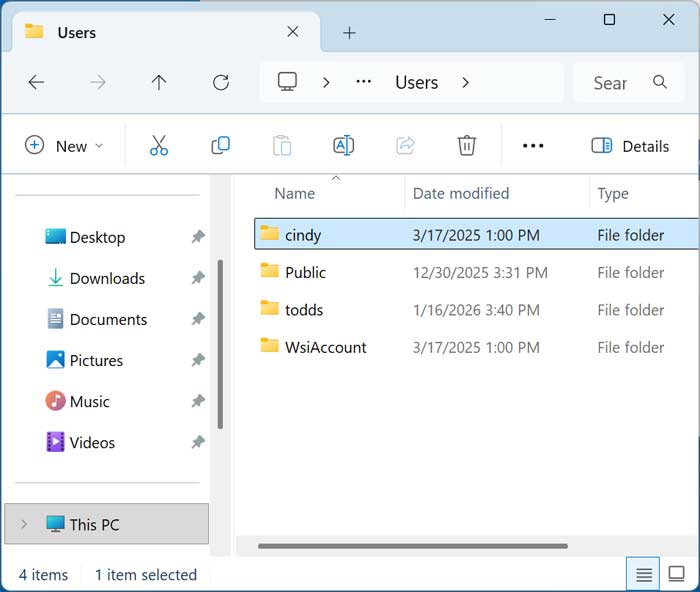
But if we go to the C:\Users folder, we can see that Cindy has a folder here with her documents and pictures etc. indicating that she should have a valid user account on the computer. This directory proves the data still exists safely on the hard drive. You just need to restore the system access.
Restoring the Hidden Account
1. Open an Elevated Command Prompt
To view the configured users on the computer, we will now open an administrative command prompt. To do so, type cmd in the taskbar search box and choose Run as administrator. You must run this specific tool with full administrative privileges to modify system accounts.
2. Run the Net User Command
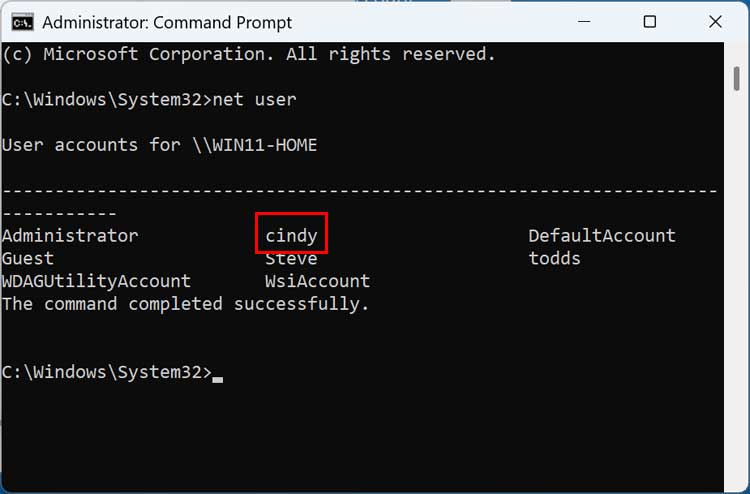
We will now use the net user command to view all the user accounts configured on this computer. As you can see in the image below, Cindy shows up in this list as well as some others that you normally do not see on the login screen such as Guest, DefaultAccount and WsiAccount. The terminal reveals every single profile registered in the database.
3. Execute the Activation Command
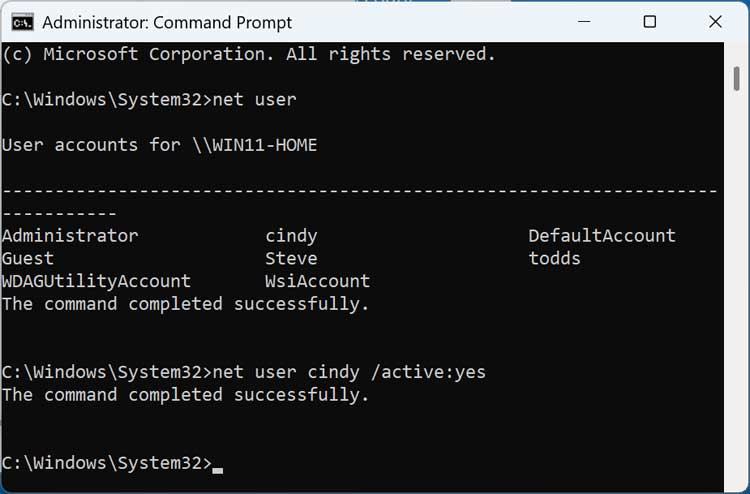
To enable Cindy’s account, we will use the net user username /active:yes command. So, for our situation, the command would look like this. Type net user cindy /active:yes and press enter. You should then get a response saying the command completed successfully.
4. Confirm the Login Screen Fix
Now when we log off the current user, we now see Cindy’s account on the login screen and she can now log into Windows and use the computer with her own account. The profile returns to its normal state. All personal files and desktop shortcuts remain exactly as they were before.

For additional training resources, check out our online IT training courses.
Check out our extensive IT book series.