File and folder permissions are essential for securing data in Windows and preventing unauthorized access. These permissions define what actions users can perform on files and folders, ensuring that sensitive information remains protected. While other operating systems like Linux and macOS also use permission systems, Windows relies heavily on NTFS (New Technology File System) for advanced security and functionality.
In this guide, we’ll explain what NTFS permissions are, how they differ from share permissions, and what’s new in Windows 11 and beyond.
What Is NTFS?
NTFS is the default file system for modern Windows versions, replacing the older FAT file system. It offers:
- Improved security through granular permissions
- Support for large storage media
- File system recovery features
- Long filenames and advanced metadata
- Ability to reconstruct files after hardware failures
NTFS is more robust than FAT and is essential for enterprise environments where security and reliability matter.
Why Permissions Matter
Permissions control who can read, modify, or delete files and folders. Without proper configuration, unauthorized users could access sensitive data or accidentally delete critical files. NTFS permissions allow administrators to enforce strict access control.
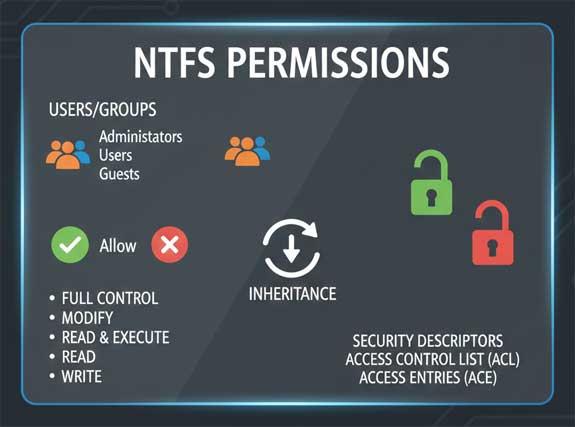
Standard NTFS Permissions Explained
Here are the core NTFS permissions and what they allow:
- Read
Users can view file contents and folder contents but cannot modify them. - Write
Users can create files and folders but cannot read files they didn’t create. - Modify
Combines Read and Write permissions. Users can also delete files and view subfolders. - Read & Execute
Includes Read permission plus the ability to run executable files and view subfolder contents. - List Folder Contents
Similar to Read & Execute but without the ability to execute files. - Full Control
Grants complete access: read, write, modify, delete, and change permissions. Users can also take ownership of files.
Share Permissions vs NTFS Permissions
Share permissions apply when a folder is shared over a network. They are simpler than NTFS permissions but work together to define access:
- Read
Users can view files and run programs. - Change
Users can add, modify, and delete files. - Full Control
Users can change permissions and take ownership.
Important: When both NTFS and share permissions apply, the most restrictive permission takes precedence.
What’s New in Windows 11 and Beyond?
Windows 11 continues to use NTFS but adds modern security features:
- Advanced Encryption Support
BitLocker integration for full-disk encryption. - Access-Based Enumeration (ABE)
Users only see files and folders they have permission to access. - Dynamic Access Control (DAC)
Allows administrators to apply conditional access policies based on user attributes. - Improved Audit Logging
Track permission changes and access attempts for compliance. - Integration with Microsoft Defender and Windows Hello
Adds biometric and multi-factor authentication for enhanced security.
Best Practices for Managing NTFS Permissions
- Use Groups Instead of Individual Accounts
Assign permissions to security groups for easier management. - Follow the Principle of Least Privilege
Give users only the permissions they need. - Regularly Audit Permissions
Remove unnecessary access to reduce security risks. - Combine NTFS and Share Permissions Wisely
Ensure consistency between local and network access.
Final Thoughts
NTFS permissions remain a cornerstone of Windows security. With Windows 11’s advanced features like Dynamic Access Control and BitLocker integration, managing permissions is more powerful than ever. Whether you’re securing a home PC or an enterprise network, understanding NTFS permissions is critical for protecting your data.
There are also NTFS special permissions that you might want to read up on.
For additional training resources, check out our online IT training courses.
Check out our extensive IT book series.