Last Updated on June 13, 2026
Remotely controlling computers over the network or the internet has been common practice for many years. In fact, there are multiple apps that are available to make these types of connections so you can offer remote support to others or unattended access to your own computer.
Google has their own remote access tool called Chrome Remote Desktop that you can configure and use for free, as long you have a Google account. So, if you have a Gmail email address or Android smartphone, you will definitely have a Google account. In this article, we will be showing you how to configure Chrome Remote Desktop for unattended access and remote support.
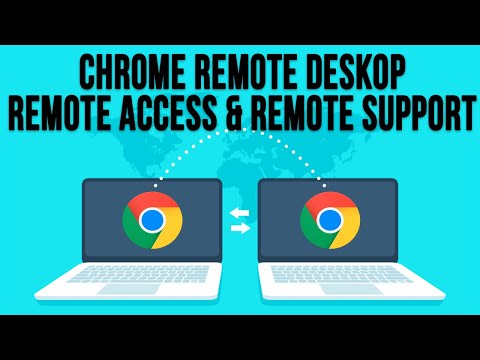
There is a difference between remote access and remote support when it comes to Chrome Remote Desktop. Remote access is when you connect to and control another computer over the internet or network without needing to have someone there to allow you in. Remote support on the other hand requires someone to be on the remote computer to give you the ID required for you to be able to access that computer.
The chart below shows the differences between remote unattended access and remote support. One important difference between the two is that if you want to use the unattended access feature, you will need to be logged into both computers with the same Google account.
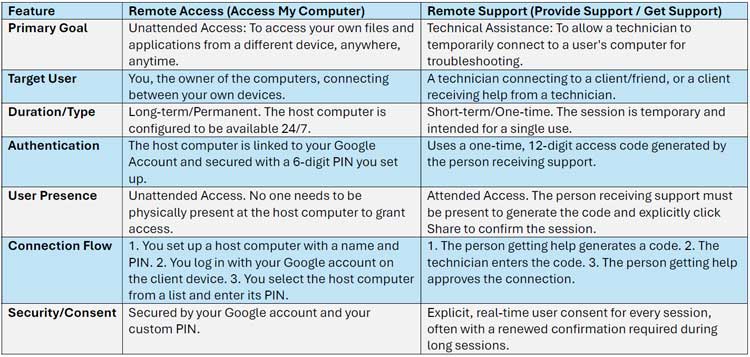
Remote Access vs Remote Support Differences
The primary goal of remote access is to reach your own files and applications from a different device anywhere at any time. The target user is you connecting between your own personal devices. This connection type is permanent and the host computer is available around the clock. Authentication is secured by your Google account and a custom 6-digit PIN. No one needs to be physically present at the host computer to grant you access.
Remote support has a completely different primary goal. It allows a technician to temporarily connect to a user’s computer for troubleshooting purposes. The session is strictly short-term and intended for a single use. It uses a one-time 12-digit access code generated by the person receiving the help. The person receiving support must be present to explicitly click the share button to confirm the session
Installing the Chrome Remote Desktop App
1. Visit the Remote Desktop Website
To begin, you will need to go to the Chrome Remote Desktop website and log in with your Google account if you are not already logged in. You will then see the option to access your computer or share your screen.
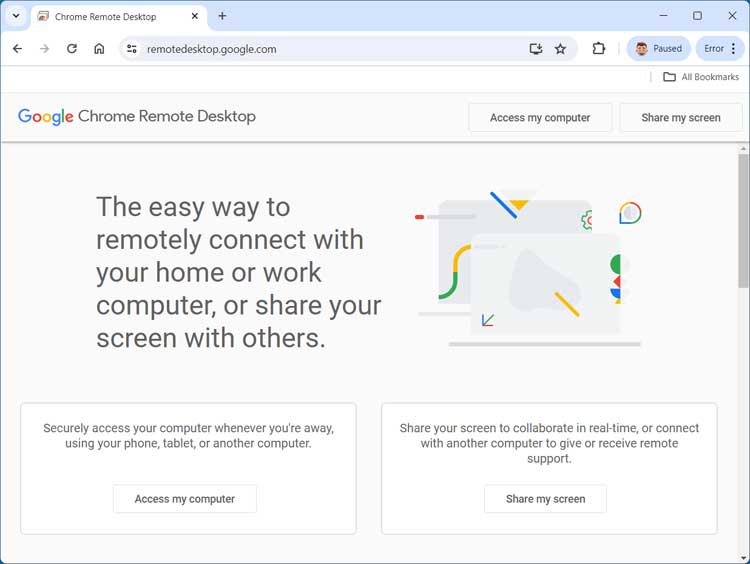
2. Install the Web Application
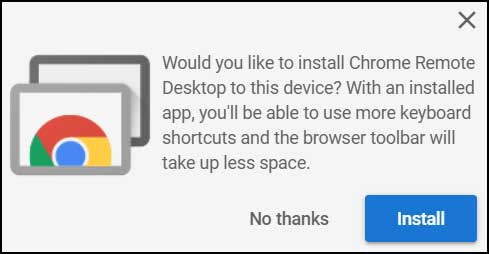
Whichever one you choose, you will need to install the Chrome Remote Desktop app on your computer. You may see a popup asking you if you want to install it. Click the blue install button to add it to your system.
3. Download the Host Installer File
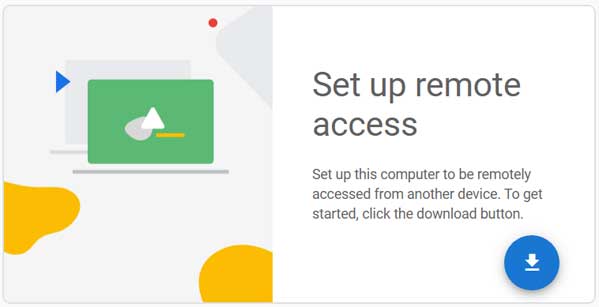
You may also see another section of the page with a blue down arrow that you can click on to download the Remote Desktop app. Click this arrow to grab the installer file. This prepares your system for incoming connections.
4. Run the Installation Process
It will then download a file named chromeremotedesktophost.msi (for Windows) that you can double click on to install the app. You can do the same by clicking on the Accept and Install button. You can also use Chrome Remote Desktop for macOS and Linux computers.

5. Turn on Remote Access
You may then be prompted to turn on remote access for your computer. Click the blue turn on button to activate the background service. This allows the host machine to actively listen for your connection requests.

6. Name Your Computer and Create a PIN
You will then be prompted to choose a name for this computer if you do not want to use the actual Windows computer name itself. You will then need to enter a PIN that will be used to access this computer. Make sure you memorize this PIN for later use.
Getting Remote Support
1. Navigate to the Remote Support Tab
Once you have Chrome Remote Desktop configured, you can then use it to get remote support from someone else. You can also connect to another person’s computer to give them support. This is perfect for helping friends or family members with computer issues.
2. Choose Your Support Role
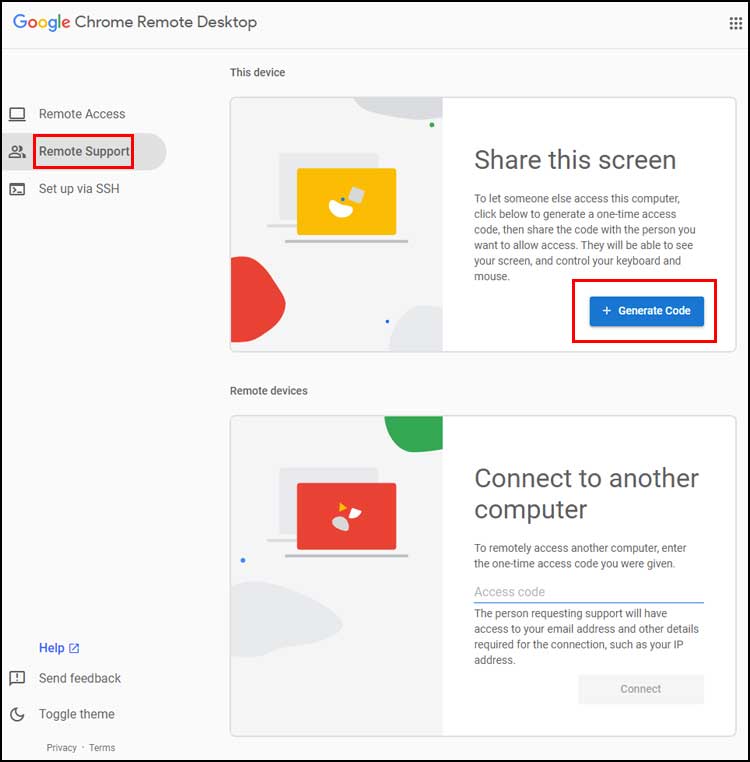
To do so, click on the Remote Support option at the left side of the page. You would then go to the Share this screen option to get support. Alternatively, use the Connect to another computer option to connect to someone else’s computer.
3. Generate an Access Code
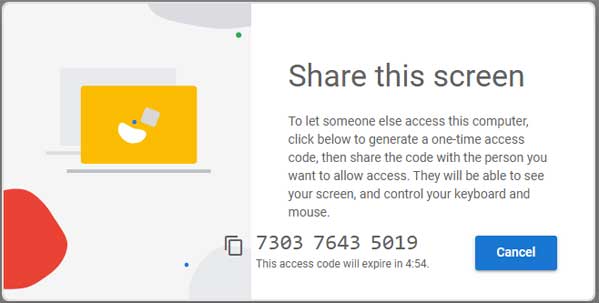
If you are the one getting support, you would click on the Generate Code button. You will then be shown an access code that you need to give to the person offering help. You must share this number within 5 minutes before it expires.
4. Enter the Code on the Connecting Computer
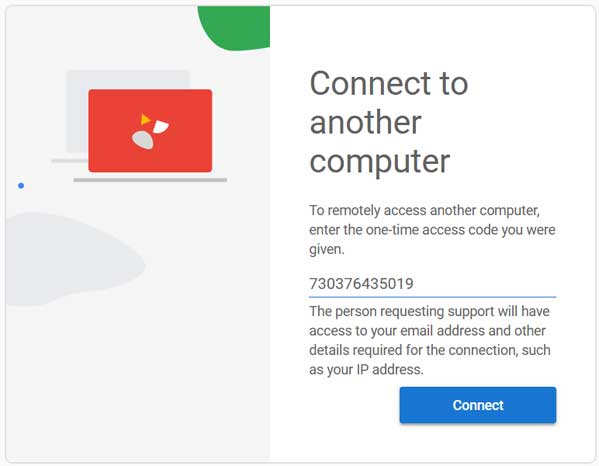
Then that person would enter the code on their computer in the Connect to another computer section. They will then click the Connect button to initiate the handshake. The software will attempt to bridge the two machines together over the internet.
5. Approve the Incoming Connection
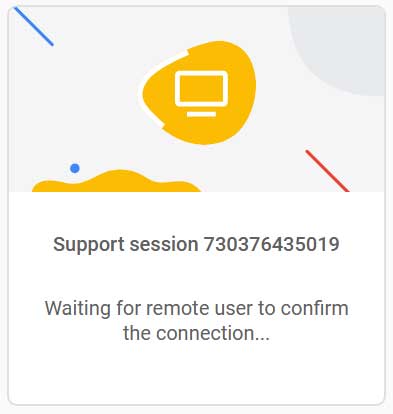
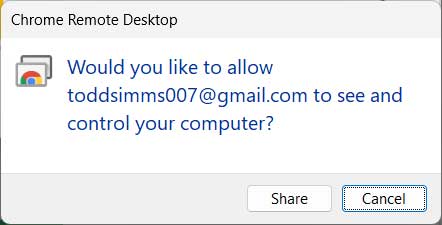
Then the user receiving support will need to approve the connection before the person offering support will be connected. A prompt will appear on their desktop asking for permission. They must explicitly click the share button to grant control.
6. Manage the Screen Sharing Session
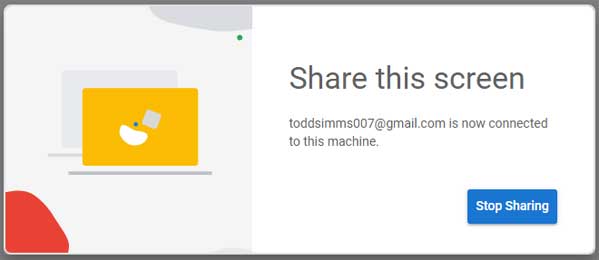
You will then see that your screen is being shared. You have the ability to stop the sharing via the Remote Desktop website. You can also stop it directly from the bar at the bottom of your screen over the taskbar.

7. Navigate the Shared Desktop Interface
Once connected to the remote computer, you will be able to use it as if you were sitting right in front of it. Your mouse and keyboard inputs pass directly through the network. The response time is usually very fast depending on your internet connection speed.

8. Adjust Remote Session Settings
If you click on the arrow to the right of the screen in the remote session, you will have several options. You can adjust how the remote desktop fits on your screen and change the video quality. You also get input controls such as sending Ctrl+Alt+Del to the other computer.
Setting Up Unattended Remote Access
1. Select the Configured Remote Computer
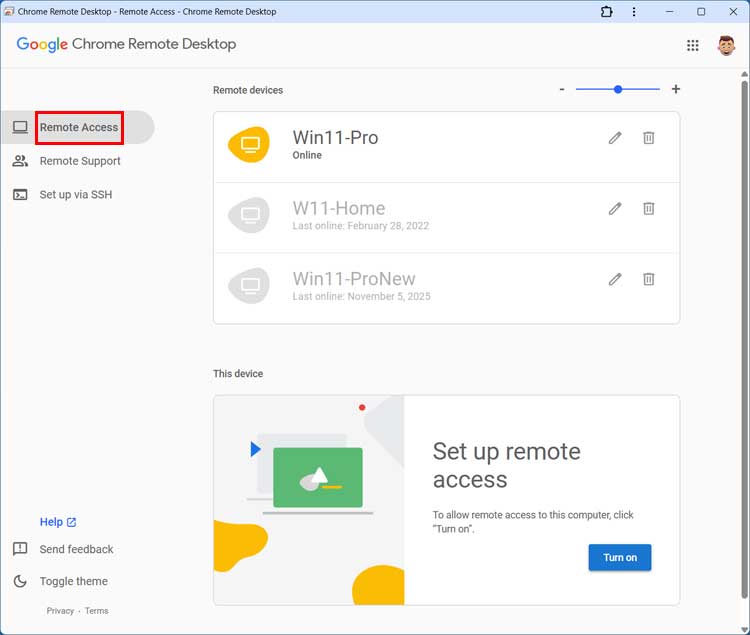
The process of connecting to a remote computer for unattended access is very similar to the process of providing remote assistance. When you click on the Remote Access section on the webpage, you will see any remote computers that you have configured for remote access.
2. Check the Online Status
If they are online, you will see that they appear in a different color (usually yellow). You can then simply click on the one you want to connect to. This completely bypasses the need for a human to accept the connection on the other end.
3. Enter Your Security PIN
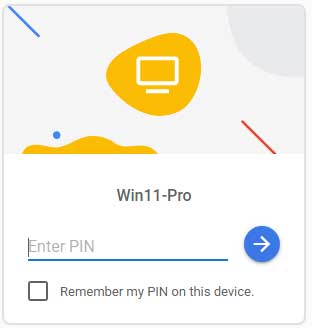
You will then need to enter the PIN that you configured for that remote computer to be able to connect. Type the numbers carefully into the prompt. Click the blue arrow button to authenticate the session.
4. Use Quick Assist as an Alternative
Once the connection is made, it will look the same as it did when you connected to another person’s computer to provide remote support. Another option for Windows users is the built in built in Quick Assist app that you can use to provide remote support to others. Both tools get the job done effectively.
For additional training resources, check out our online IT training courses.
Check out our extensive IT book series.