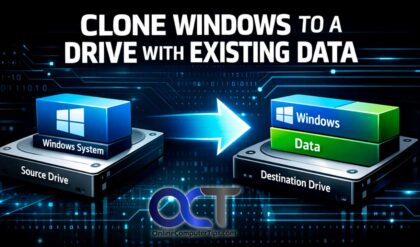
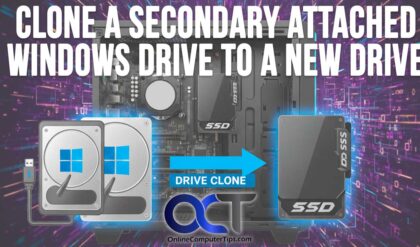
Cloning your Windows system drive is a fairly common practice these days. Many people are now upgrading to faster and larger NVMe type SSD hard drives and rather than reinstalling Windows, many like to just transfer Windows to their new hard drive. Or if you have built yourself a new computer and want to copy Windows, your files and your apps over to a new drive, you can use this method to do that as well.
There are many free disk cloning apps you can use to transfer Windows to a new hard drive, but some apps seem to work better in certain situations. If you are looking to clone your Windows system drive to multiple disks, you may want to try out the free RedoRescue app to do so. RedoRescue is a tool that is designed to create system image backups for Windows and Linux but can also be used to clone your OS drive. It works by making a system image backup of the OS drive and then restoring it to your new drive which will then make it bootable.

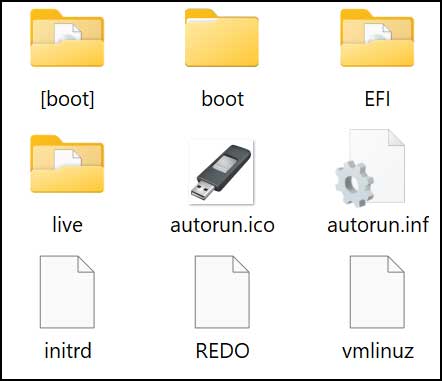
To use RedoRescue, you will first need to download the ISO file and then create a bootable flash drive with it. There are many bootable flash drive creation tools available such as Rufus and WinToUSB. Once you create your flash drive, you will see the RedoRescue files on the drive.
For our situation, we have a 150GB Windows drive that we want to clone to a new 250GB hard drive. But in order to do this, we will need to backup or Windows drive to a different drive first and then restore it to the new drive we want to use to boot Windows with. These drives can be locally attached or USB attached hard drives. So, this process requires three hard drives to complete compared to two with other methods. But it does come in handy if you want to have a copy of your original Windows drive to restore to multiple computers.
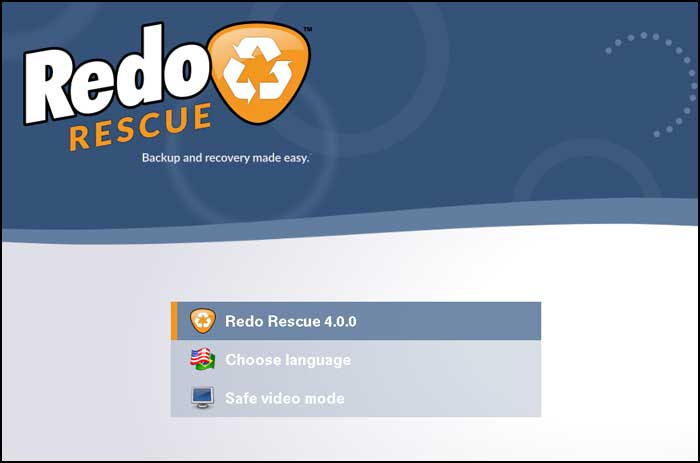
Once you boot with your RedoRescue flash drive, you can then press Enter for the first option to start the app.
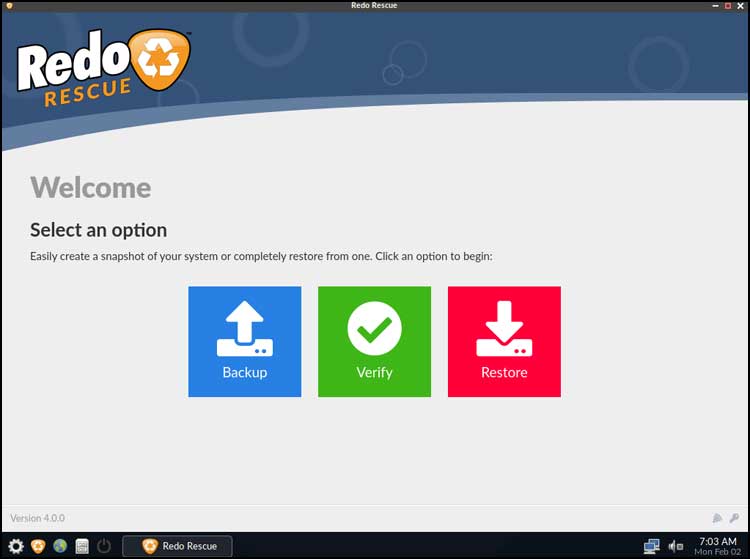
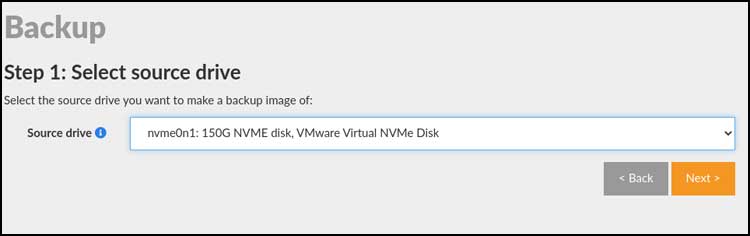
Next, we will choose the Backup option to back up the source drive to our backup drive. Our source drive is 150GB, our backup drive is 200GB and our destination drive is 250GB. Of course, you will need to make sure these drives have the space to keep your backups.
We will now choose the 150GB drive that has Windows installed on it for the source drive and click on Next.
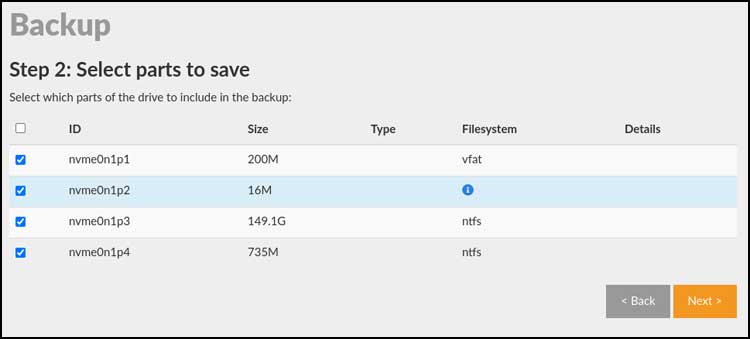
We will then be shown the partitions on the drive and will want to make sure that all of them are checked.
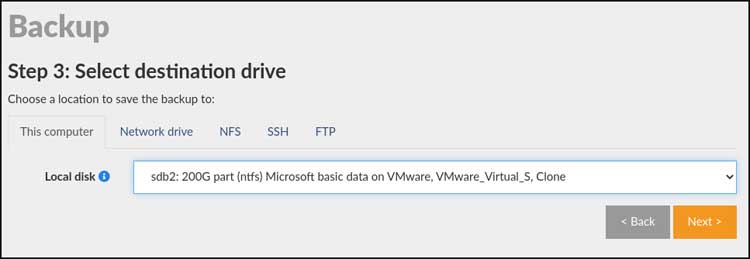
We will now choose the 200GB for the backup destination. This is not the disk we will be using to boot Windows but rather just the disk used to store the Windows drive backup image.
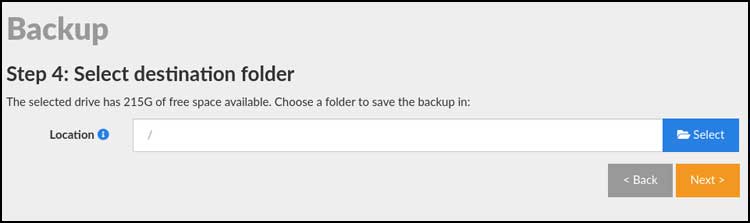
For the next step, you can choose or create a folder to store your backup image or just click on Next to have it kept in the root of the drive.
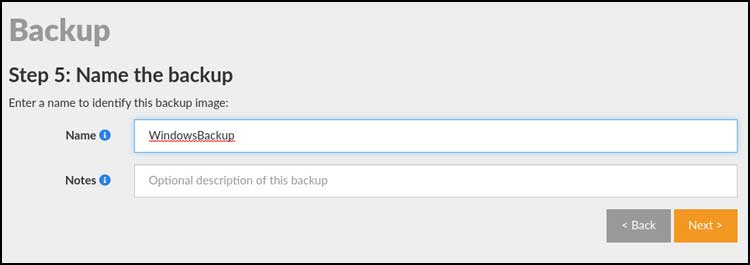
Then you can give the backup a name of your choice. We will call ours WindowsBackup.
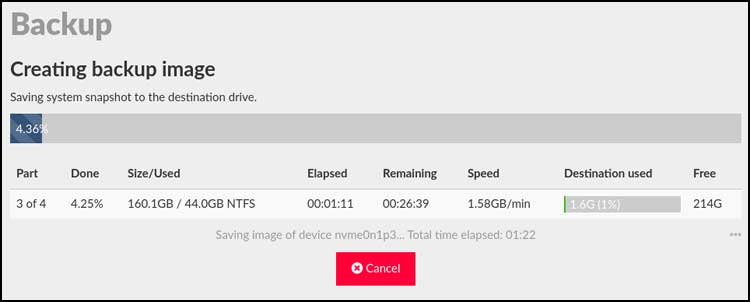
The backup process will then take several minutes to complete.
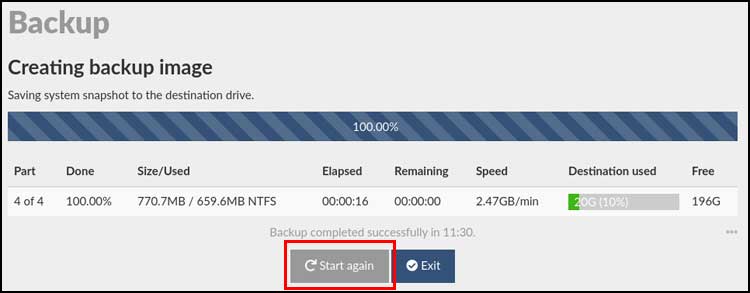
Once the backup job is finished, you can click the Start again button to then restore the backup to the new drive that will be used to boot the computer with.
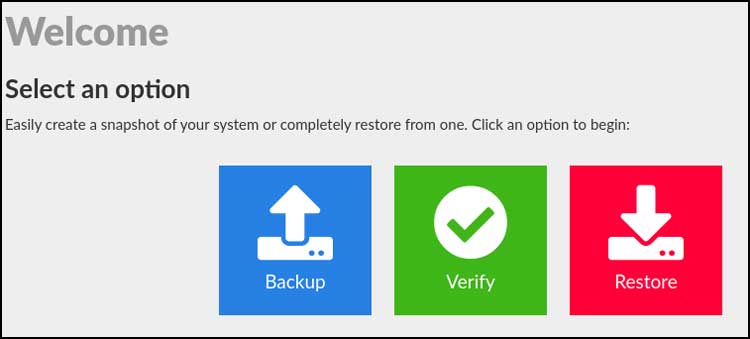
This time we will choose the Restore option.
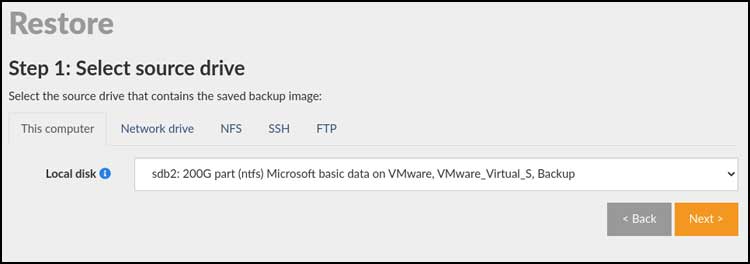
Now we will choose the 200GB drive that contains the backup image we just created for the source.
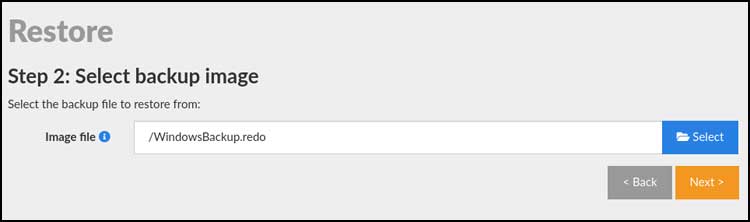
Then we will click the Select button and locate our WindowsBackup image file.
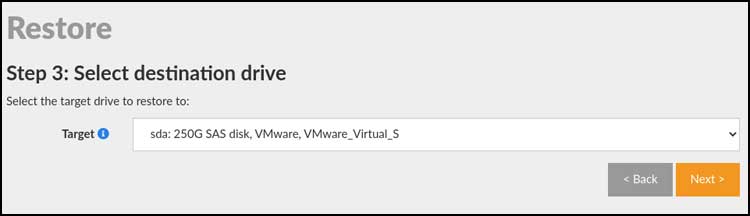
Now we will choose the 250GB drive that will act as the Windows clone.
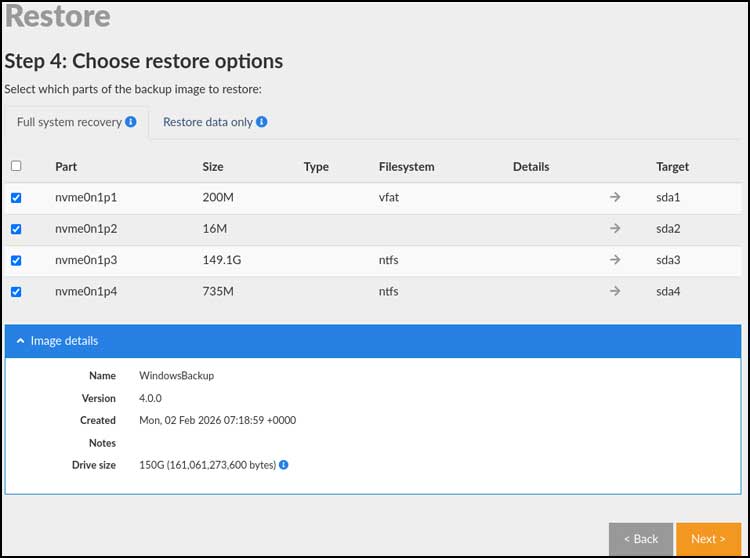
We will then be shown all partitions that will be restored and want to make sure they are all selected.
You will then be warned that all the data on the destination drive will be overwritten, and you will need to click on the Yes I’m sure button to continue.
The restore job will take several minutes to complete as well.
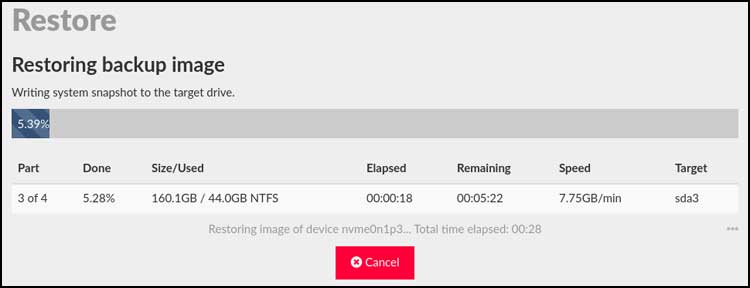
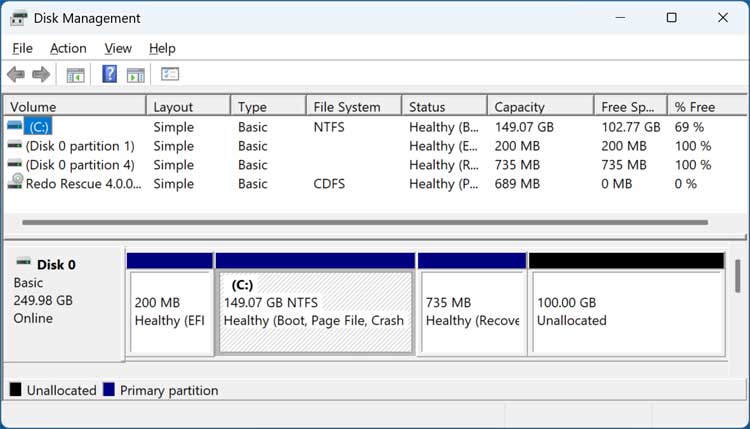
When the backup is complete, we can then click on the Exit button and then remove the old drive and boot up with the cloned hard drive. We will then open the Windows Disk Management tool to view the results.
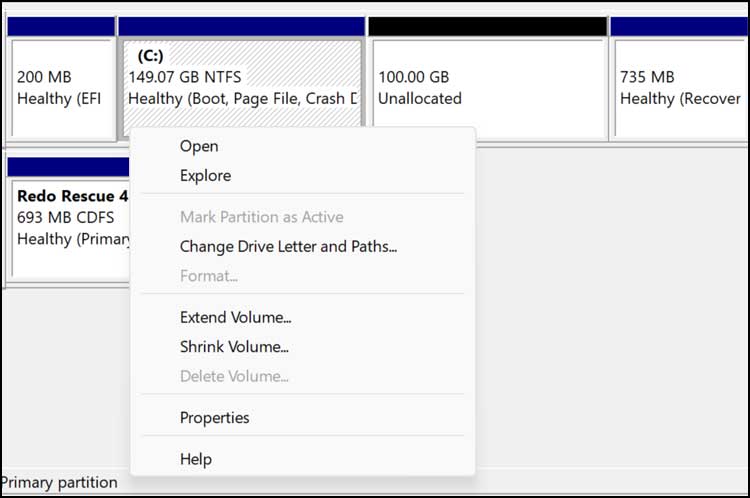
One issue you may run into when cloning/restoring to a larger drive is that RedoRescue will allocate only the space from the source drive to the destination drive. As you can see, our Windows partition is only 150GB and we have 100GB of unallocated space left.
We can then use this space for another drive or extend the Windows C drive to use the unallocated space for Windows. But as you can see in the image below, there is a 735MB recovery drive in the way of the C drive and the unallocated space.
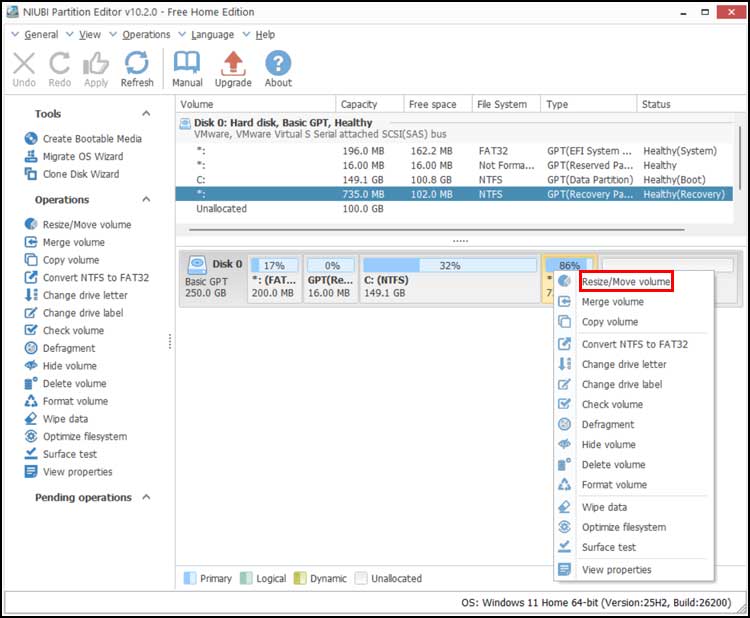
To get around this, we will be using the free NIUBI Partition Editor software to move the recovery partition to the right of the unallocated space.
We will be using the portable version of the app, but the installable version will work the same way. Once we open NIUBI, we can right click on the 735MB partition and choose Resize/Move volume
Then we will drag this partition all the way to the right and click the OK button.
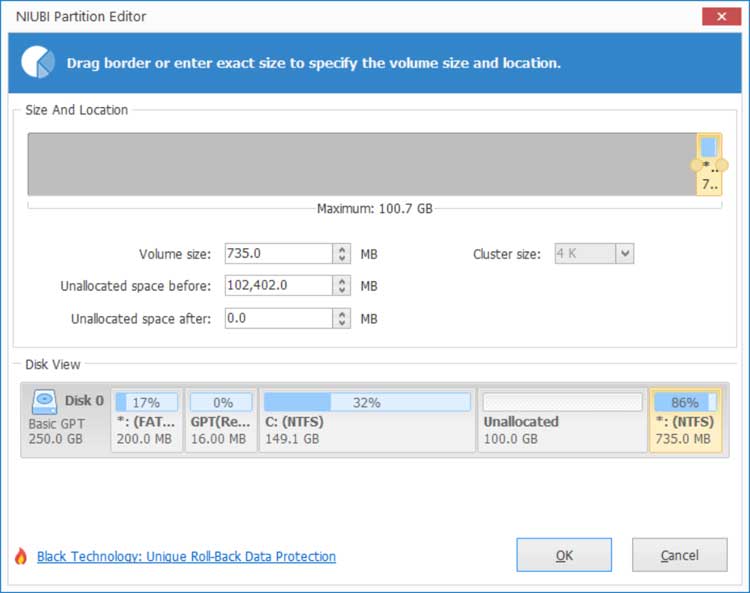
You will then need to click on the Apply button on the main screen after clicking the OK button to apply the changes. You can then extend the volume from within NIUBI Partition Editor, or you can go back to Disk Management and do it there.
Now you will have your new hard drive with the copy of Windows on it from your old drive ready to go.
For additional training resources, check out our online IT training courses.
Check out our extensive IT book series.