While the native Windows Task Scheduler has improved over the years, many IT professionals still find its interface overly complex and its reliability inconsistent for specific tasks like running batch files or background scripts. Splinterware’s System Scheduler offers a powerful, user-friendly alternative that simplifies the automation process. In Windows 11, it excels where the native tool often fails, particularly when it comes to handling interactive desktop tasks and complex window-monitoring scenarios. If you need something reliable to run your batch files or scripts etc. then you are most likely have wondered what other options are out there.
There are a variety of pay for and free task scheduling apps you can download and try to see if you can make your scheduling life easier but many of them are buggy themselves or too complicated to use. One program that is easy to use and works very well is called System Scheduler for Windows and there is a free version as well as a pay for version with additional features.
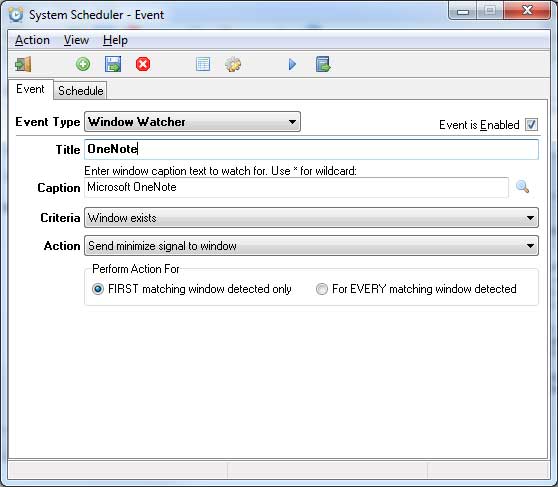
Beyond basic time-based triggers, System Scheduler features advanced automation tools like Window Watcher. This allows the software to ‘listen’ for specific application windows and trigger actions, such as sending key presses or closing the window, whenever they appear. This is an essential feature for current workflows, where you might need to automatically dismiss recurring error messages or interact with legacy software that doesn’t have a modern API.
One of the biggest hurdles in modern Windows automation is the User Account Control (UAC) prompt. System Scheduler Free allows you to schedule tasks that run in the user’s context, while the Professional version allows you to run tasks as a system service. This means your scripts can execute even when no user is logged in, making it an ideal tool for server-like tasks on a standard Windows 11 workstation.
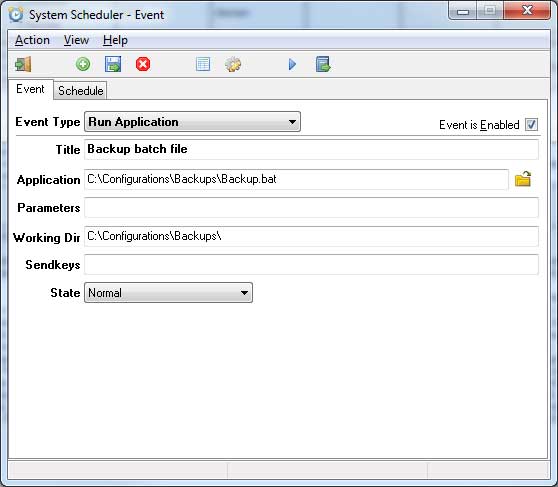
After you install and open System Scheduler you will be taken to the main interface where you can pick your types of job, configure them and then schedule them. If you are going to run an application then you will choose Run Application from the dropdown list and enter or browse to the path of the file you would like to execute. The Parameters section is used to add any additional switches to the program you are running. The Working Directory is typically the same directory as the program you are running but can be changed for various circumstances. Sendkeys are key presses you can have automatically sent to the program and you can also send mouse clicks if you like. The State section lets you choose how you want the program to be run such as minimized or maximized.
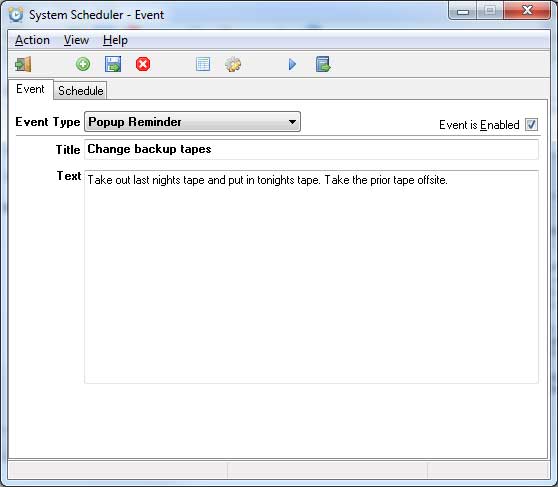
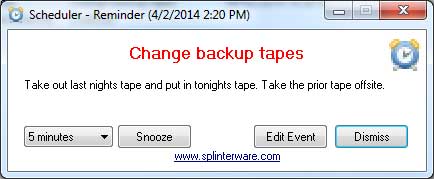
Popup Reminders are exactly that, reminders that pop up on your screen at scheduled times. If you use Microsoft Outlook it’s very similar to calendar reminders. After you configure the reminder and schedule it then it will popup on your screen and allow you to take action on that reminder. You can snooze the reminder for a set amount of time as well as edit the event or even dismiss it.
Window Watcher is used to send key presses or send a window a close signal to close running applications. This comes in handy for triggering actions or handling error messages while you are not at your computer. You enter in the name of the window that you want to act on and then decide on how you want that window to be acted upon.
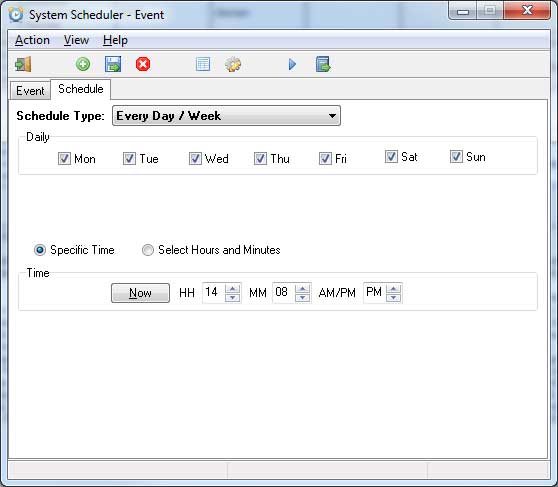
No matter which type of action you are taking whether it be running a program, setting a reminder or acting on a window they are all scheduled the same. The process is pretty much like the Windows Task Scheduler or any other scheduler where you choose the days and time you want the job to be run.
Once you have your jobs setup you can look at the System Scheduler List to get a view of all of the jobs in one place. You can also do things like run, delete, disable, duplicate and so on just by right clicking on the particular job.
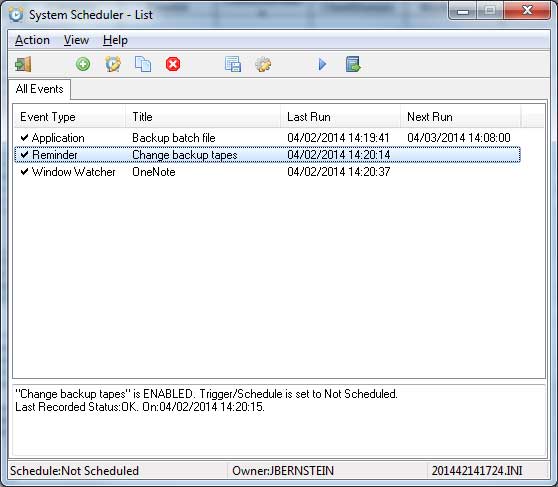
Clicking the gear icon will bring you to the preference where you can customize the program in a variety of ways in regards to reminders, running events, logging and if whether or not System Scheduler will run at the startup of your computer or not. There will also be an icon in your system tray that you can right click to perform many tasks as well. They have a free version and a paid for version with more features. You can download your own copy here.
For additional training resources, check out our online IT training courses.
Check out our extensive IT book series.