Internet speeds seem to be getting faster and faster as network technology improves over time. Long gone are the days of dial up internet and speeds are now being measured in gigabits per second rather than megabits per second it seems. And as you probably know, you can typically choose your internet speed based on how much you want to pay per month.
There are various speed testing websites you can visit to check the speed of your internet connection such as speedest.net which also have their own speed testing app and command line tool. Depending on the speed test site you use, your results will most likely vary a bit.
Windows 11 has a new feature where you can right click the network icon in the system tray, and you will have a popup notification style menu with an option that says Perform speed test. Then you can click on this option to be taken to the Bing online internet speed test website. But if you would rather use your own speed test website we will be showing you how to change the speed test website used with the Perform speed test system tray tool.

The image below shows the system tray Perform speed test option that you will see when you right click on your network or wireless icon in the system tray.
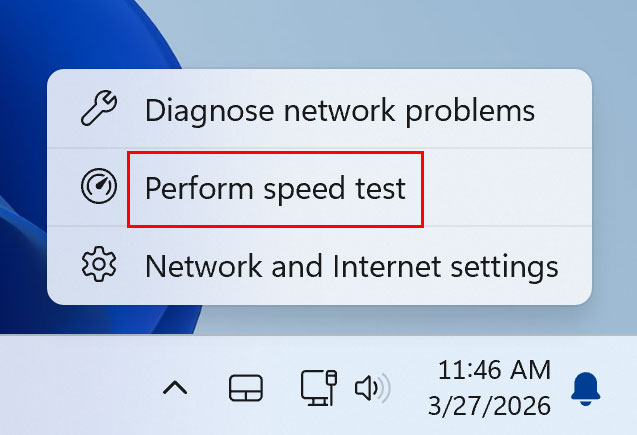
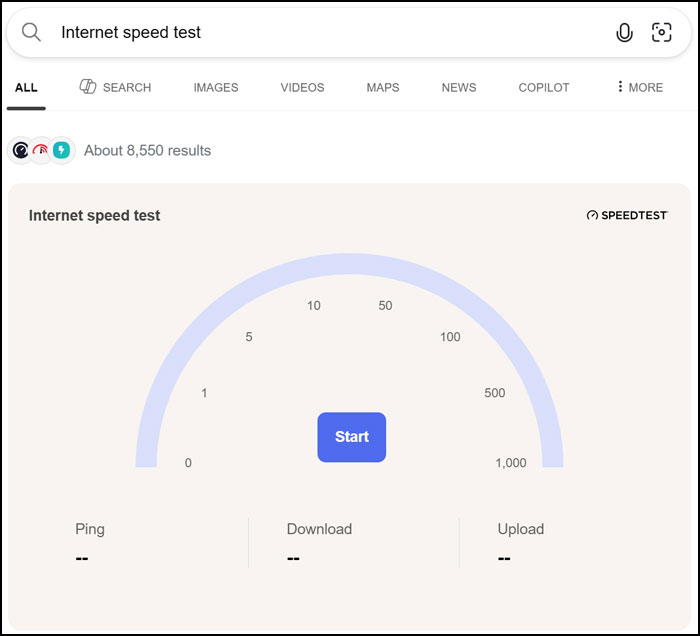
When you click on Perform speed test, you will be taken to the Bing internet speed test website where you can then click the Start button to begin your internet speed test.
To change the speed test website used with the system tray tool, we will be using the free Windhawk app. Windhawk is a free tool you can use to customize the way Windows looks and operates. It works by installing what are known as mods into the Windhawk app itself. You can download Windhawk from their website here.
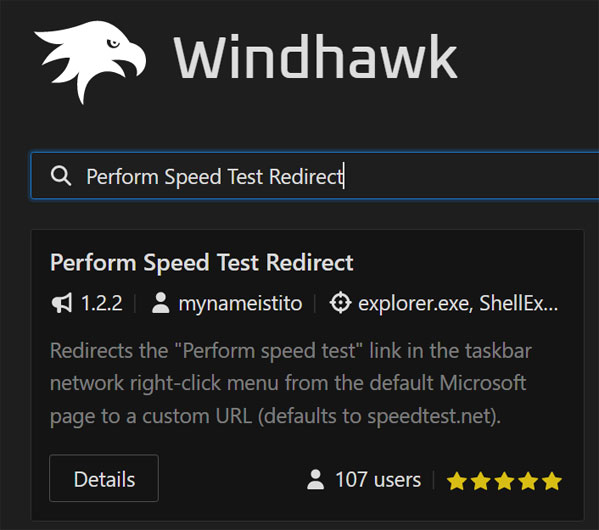
Once you have Windhawk installed, simply go to the Explore section and type in Perform Speed Test Redirect in the search box. When you find the mod, click on the Details button and then on the Install button.
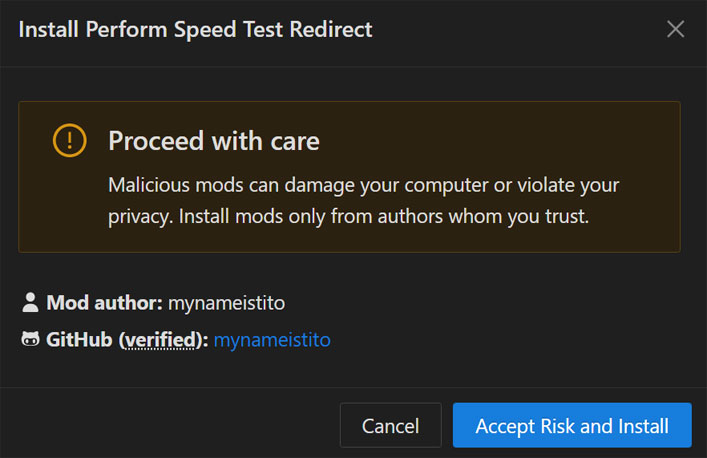
Any time you install a mod in Windhawk, you will be shown a warning saying Proceed with care and you will need to click the Accept Risk and Install button to continue.
Once the mod is installed, it will be listed in the Home section along with any other mods you have installed.
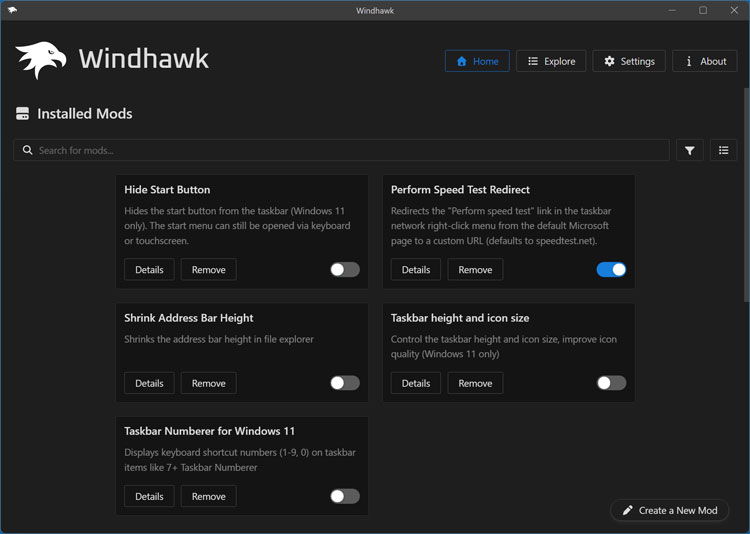
You can then click the Details button to go into the mod to enable or disable it, remove it or change any of its settings.
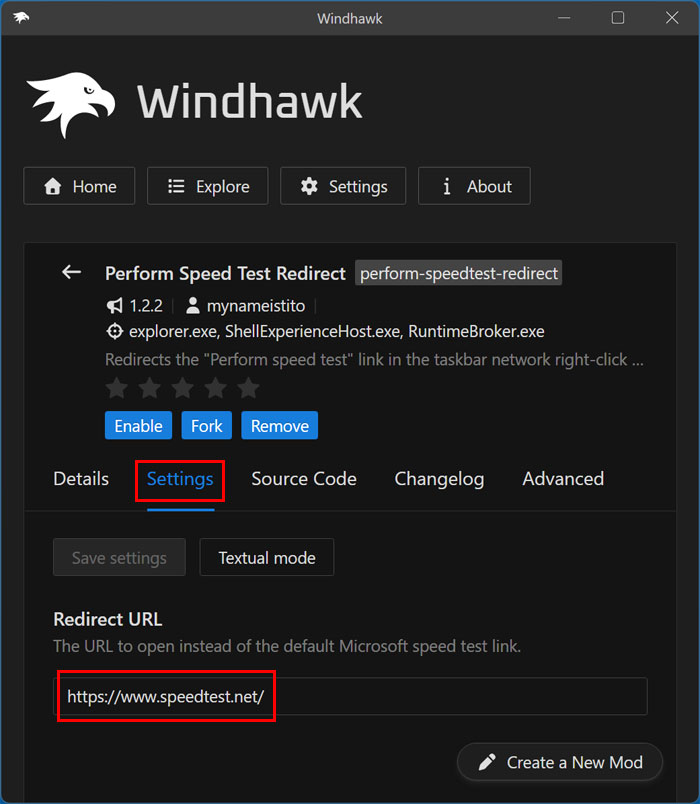
To change the system tray speed test default website, you can click on Settings and then in the box for Redirect URL, you can type in the address of any website you like. The default option is to use the speedtest.net website itself. It doesn’t even have to be an internet speed testing site if you don’t want it to be. Just be sure to click on the Save settings button after you make a change.
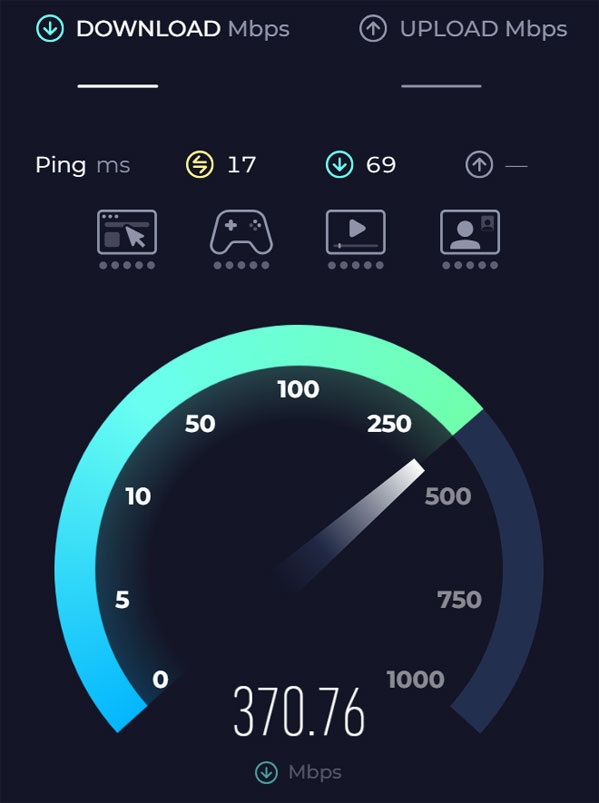
Now when we right click the network icon in the system tray and choose Perform speed test, we are taken to our new speed testing website.
You can then change it to other sites as needed and if you disable or remove the mod, it will default back to the Bing speed test website.
For additional training resources, check out our online IT training courses.
Check out our extensive IT book series.