With personal computers getting more advanced and more complex at the same time, it makes sense that anyone who likes to work on or repair their own computers has the proper tools to do so. There are many free and pay for apps out there which are designed to help you troubleshoot and fix common and not so common computer issues such as errors and BSODs.
If you are a Microsoft Windows user, then you have most likely had your share of PC issues. Many times, these problems can be so severe that you will need to completely reinstall Windows from scratch. Fortunately, there are tools you can use to try and repair Windows rather than have to resort to a complete reinstall. In this article, we will be showing you how to create the ultimate PC repair USB with NHV BOOT.
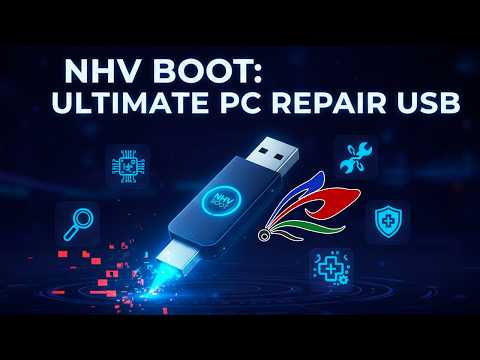
NHV BOOT is an all-in-one solution that contains multiple tools you can use to do things such as system recovery & repair, backup restore & data management, disk & storage tools, diagnostics & hardware testing, networking & remote tools, security tools, utility & convenience tools.
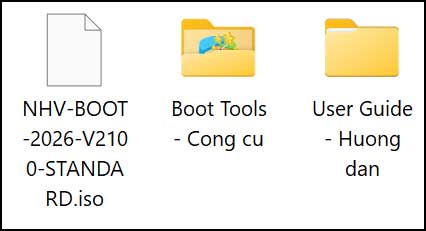
The first thing you will need to do is download the NHV BOOT zip file from their website here. Then once you extract the zip file, you will have the NHV BOOT ISO file and a folder with additional tools and another folder that contains documentation about the NHV BOOT tools. The ISO file will be over 3GB in size so make sure you have room on your hard drive to extract it.
Creating the NVH BOOT Flash Drive
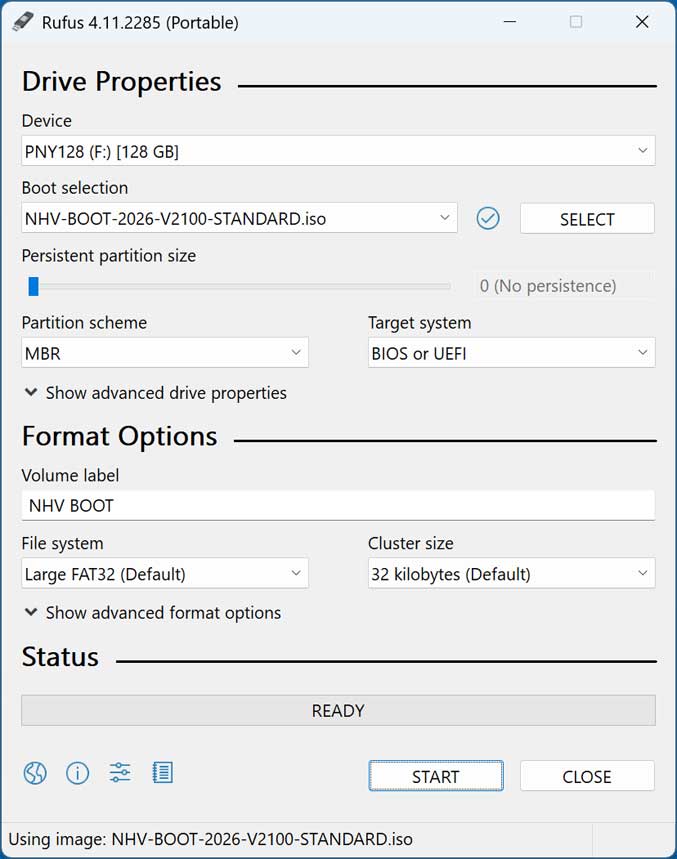
To create the NVH BOOT flash drive and make it bootable, you will need to use your favorite bootable flash drive creation tool. We will be using Rufus to create our flash drive, and you can find a copy of the Rufus software in the Boot Tools folder or download it yourself from the Rufus website.
Once you have Rufus running, all you need to do is select the flash drive you wish to use from the Device dropdown list. If you have more than one flash drive, make sure you choose the correct one since everything on the drive will be wiped during the creation process.
Then from the Boot selection section, click on the Select button to browse to the location of your NHV BOOT ISO file. You should be fine with the default settings for the rest of the selections. Then you can click the Start button to create your flash drive. You will know the process is complete when you have a green bar at the bottom with the word Ready in the middle of it.
Booting into the NVH BOOT Flash Drive Tool
Once you have your flash drive created, you can then set your computer to boot to the flash drive itself to start the NHV BOOT tool. When you boot to your NHV BOOT flash drive, you will see a Windows 11 logo but it’s not actually booting into Windows.
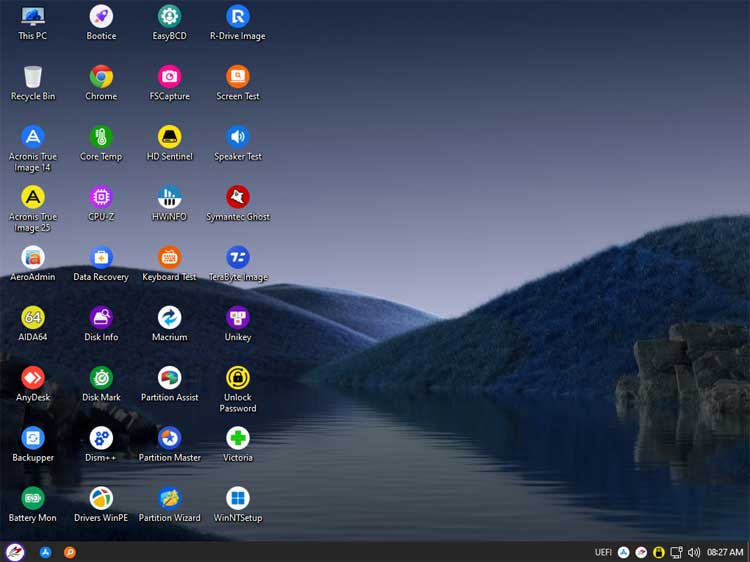
You will then be presented with a GUI that contains a desktop, “taskbar”, “start menu” and various icons.
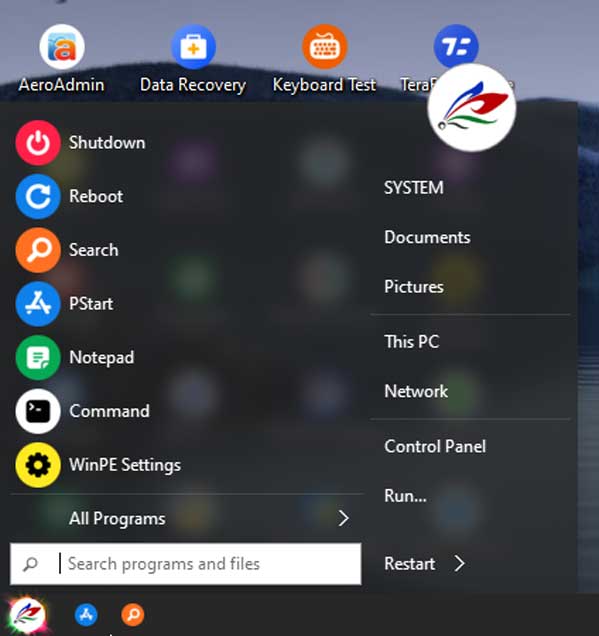
Clicking on the start button will bring up options such as shutdown, reboot, a search box and open a command prompt. If you were to click on the orange Search icon, that would open the Everything app to allow you to search for files on your hard drives.
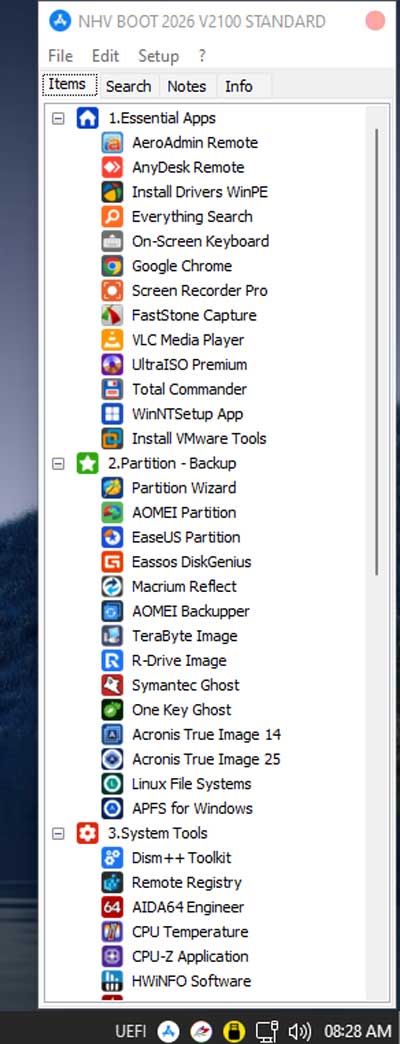
Clicking the PStart icon will open a list of the tools and utilities you can use to repair and configure your computer and show them to you in a categorized list. This might not be a complete list, and you may find other tools on the desktop that are not on this list.
Here are the categories available from this list.
- Essential apps
- Partitioning and backup tools
- System tools
- Diagnostic tools
- Data recovery
- Office applications
You may not find some of these tools useful for computer troubleshooting such office applications such as spreadsheet and presentation apps.
Since there are so many tools you can use with NHV BOOT, you will need to do some research on your part to find out what the not so obvious ones can do for you.
For additional training resources, check out our online IT training courses.
Check out our extensive IT book series.