Last Updated on August 2, 2026
Have you ever wondered what kinds of files were taking up all the space on your hard drive or where all these space hogging files were located? Many people tend to fill up their hard drives with files they don’t need and when it comes time to free up some space they don’t know where to begin to look for places to cleanup.
As hard drives grow larger, it becomes easier to forget just how quickly space can disappear through everyday use. Temporary downloads, duplicate files, old installers, and forgotten folders quietly accumulate in the background, often without any warning signs until the drive is nearly full. When storage runs low, computers can slow down, updates may fail, and saving new files becomes a hassle. The real challenge is not just deleting things, it is knowing what can be safely removed and where the biggest space drains are hiding, which is why visual tools that break down disk usage can make the cleanup process far less overwhelming.
WinDirStat is a classic disk usage statistics utility that pioneered the Treemap visualization of hard drive data. While it has not received a major update in several years, it remains a favorite for power users who appreciate its clear, color-coded legend of file types. In 2026, it serves as an excellent diagnostic tool for identifying forgotten media collections or bloated log files, though users with high-speed SSDs may notice it takes longer to scan than modern MFT-based alternatives. It also has the ability to clean up files to recover hard drive space, which comes in handy before computer performance suffers.
1. Launch WinDirStat and Select Storage Drives
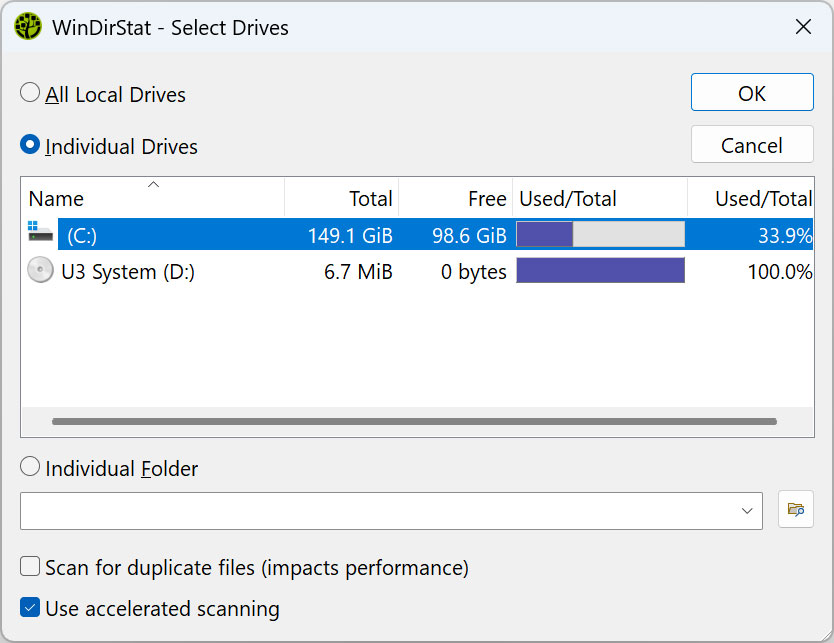
Once you download and run TreeSize Free, you can choose which drives you want it to scan for disk usage statistics. If you only have one hard drive then that will be all that is shown in your list of drives. Be sure to run the application with administrator privileges so the utility can accurately scan hidden system files and protected operating system folders.
2. Analyze the Three Diagnostic Interface Views
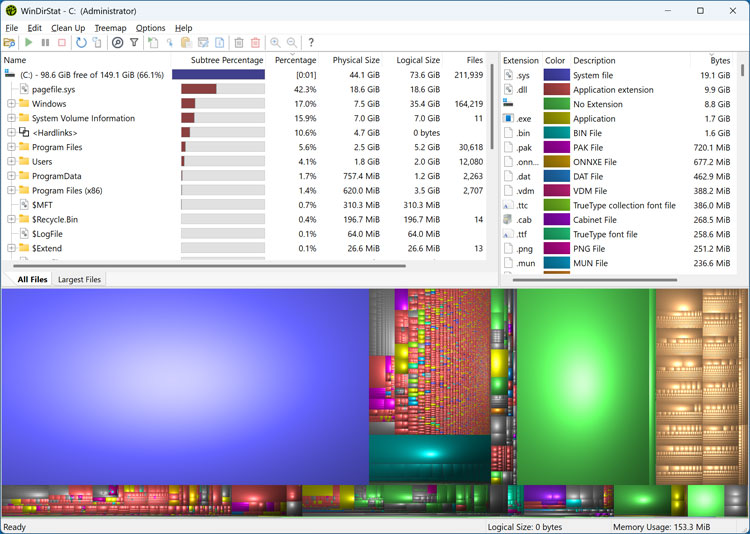
After the scan completes, the utility presents your drive contents in three distinct interface sections. The directory list shows folders and subfolders, which can be sorted by column types such as percentage or size. The extension list acts as a legend showing statistics about different file types, while the main visual pane maps out your entire file system structure visually.
3. Evaluate Rectangle Sizes in the Treemap
The primary strength of WinDirStat is its visual Treemap. Each colored rectangle displayed in the lower panel represents an individual file on your computer storage drive. The larger the rectangle appears on screen, the larger the file is on your physical disk.
4. Decode File Types Using Color Legends
Color coding helps you quickly identify what categories of files are clogging up your disk space. The extension legend on the right side tells you what file type each color represents in the visual map. For example, blue blocks might represent large MP4 video files, while red blocks might be ISO disc images or system archives.
5. Spot and Isolate Space Hogging Files
Spotting massive files becomes effortless when inspecting the visual block layout. If you see a massive solid block of a single color, you have likely found a single large file, such as an old system backup or a high-definition movie file. These large blocks are prime candidates for immediate deletion to free up substantial storage space instantly.
6. Delete Unwanted Files from the Interface
If you want to free up space, click on the file or folder you want to delete and remove it right from the WinDirStat directory tree. Always confirm that an item is safe to remove before executing the deletion command. You can trigger this action from the Clean Up menu, giving you the choice to send files to the Recycle Bin or delete them permanently.
7. Utilize Advanced Directory Navigation Tools
Other useful tools include the ability to copy the full file path of any directory you have highlighted. You can also open a standard Windows Explorer window or a Command Prompt terminal window pointing directly at the folder location. These shortcuts speed up manual file management when sorting through nested system folders.
8. Explore Modern Alternatives for Modern Drives
WinDirStat is free, open-source software and can be downloaded from its official website. It remains fully functional on Windows 11, though it may require running as administrator to accurately scan system-protected folders. If you find the scanning process too slow for your modern NVMe drive, check out WizTree, which offers a similar visual tree map while completing scans in seconds. You may also want to try TreeSize Free to analyze your storage usage.
For additional training resources, check out our online IT training courses.
Check out our extensive IT book series.