Last Updated on April 10, 2026
Folder Options (now known as File Explorer Options) allows you to customize how your files and folders appear. From showing hidden files to changing how search works, power users rely on these settings to tailor the Windows experience. If these options go missing, it is often due to a system policy change or, in some cases, the aftermath of a malware infection.
In older versions of Windows, these settings were found under the ‘Tools’ menu. In Windows 10 and 11, the interface has changed significantly. If you cannot find ‘Options’ in the new layout, or if the button is grayed out, you may need to apply a registry or policy fix to restore access
To check if your options are missing in modern Windows:
- Open File Explorer.
- In Windows 10, click the View tab and then click Options.
- In Windows 11, click the three dots (…) in the top toolbar and select Options. If the ‘Options’ item is missing from these menus entirely, proceed with the technical fixes below.
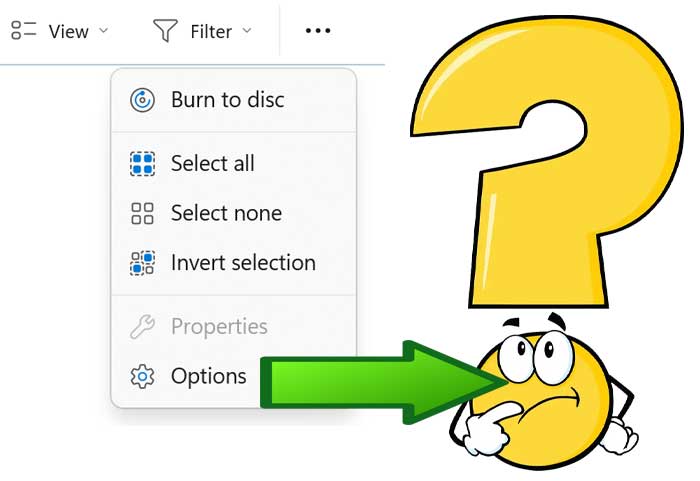
Try the following fixes to see if it works to get your Folder Options menu item back.
Restore Folder Options via Registry Editor
If a policy has disabled your folder options, you can often force them back on by editing the registry. Note: Always back up your registry before making changes.
Edit the registry to get the folder options back.
Go to Start, Run then type in regedit and click Ok.
Browse to the following key:
HKEY_CURRENT_USERSoftwareMicrosoftWindowsCurrentVersionPoliciesExplorer
Find the NoFolderOptions key and change the value to 0 assuming you have this registry key.
Restart your computer.
Restore via Local Group Policy Editor (Pro/Enterprise)
If you are using Windows Pro or Enterprise, the Group Policy Editor is the easiest way to undo a restriction. Here is a way to enable the Group Policy Editor on Windows Home editions.
Check your computer’s policy to make sure its not disabled.
Click on Start, Run and type in gpedit.msc and navigate to the following location:
User Configuration\Administrative\Templates\Windows Components\Windows Explorer.
On the right side, set Remove the Folder Options menu item from the Tools menu to Not Configured by double clicking it and setting the appropriate option.
Why do Folder Options disappear?
Most of the time, this happens on work or school computers where an IT administrator has locked down the system to prevent users from showing hidden system files. If this happened on a personal computer, it is a good idea to run a full system scan with your antivirus software, as some legacy malware variants disable these options to hide their own files from the user.
For additional training resources, check out our online IT training courses.
Check out our extensive IT book series.