Ever since Windows 11 was released, many people have been complaining about how it’s not as customizable as Windows 10 and how Microsoft has taken away some of the functionality that made Windows a great operating system. And now it seems as though many Windows users are switching to Linux for their main operating system.
But if you are not ready to give up on Windows just yet and still want to give Linux a try, you can actually run them both on your computer. In this video we will be showing you how to dual boot Windows and Install Linux on a secondary hard drive. If you only have one hard drive, you can still dual boot Windows and Linux but the process is a little different. You can check out this video for details on how to do it this way.

For our example, we will be dual booting Windows 11 and Ubuntu Linux since it is one of the more popular and easier to use versions of Linux. There are many other Linux “flavors” you can check out as well. No matter what method you use, always be sure to do a backup of your personal files first!
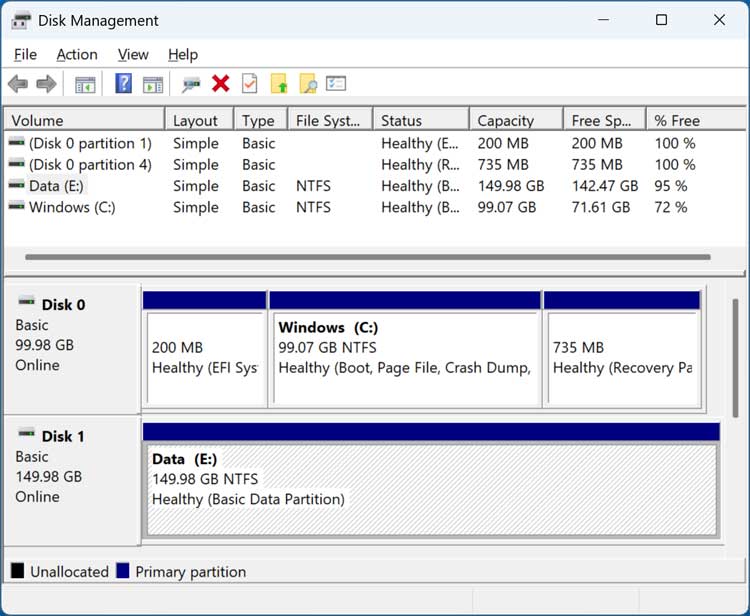
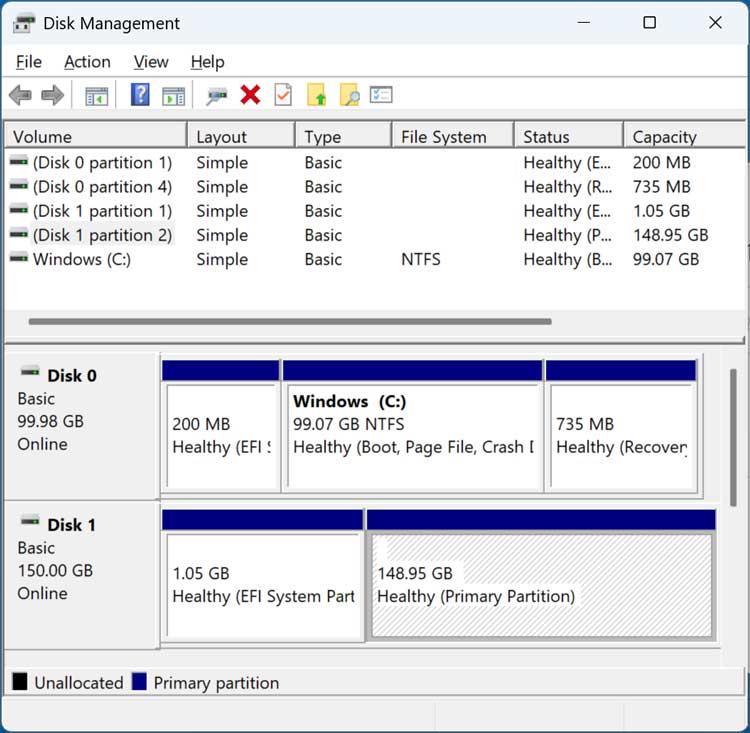
The image below shows the Windows Disk Management tool and you can see we have our main 100 GB Windows drive and also a 150GB secondary drive called Data. We will first be installing Linux on this secondary drive and keeping the files and folders that are on it. Then we will show you how to install Linux on this drive and wipe the existing contents.
To begin, you will need to download Linux and create a bootable flash drive using a tool such as Rufus, Ventoy, or WinToUSB. Then we will boot our computer using the Ubuntu flash drive. The next steps will vary if you are not using Ubuntu for your version of Linux.
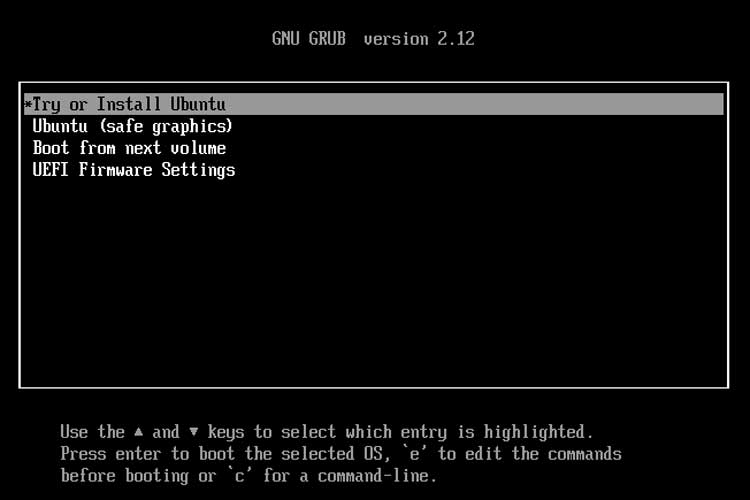
We will first see the Linux boot screen where we will choose the option to try or install Ubuntu. This will load Linux into memory and not actually install it so you can use the OS to try it out and see if you like it.
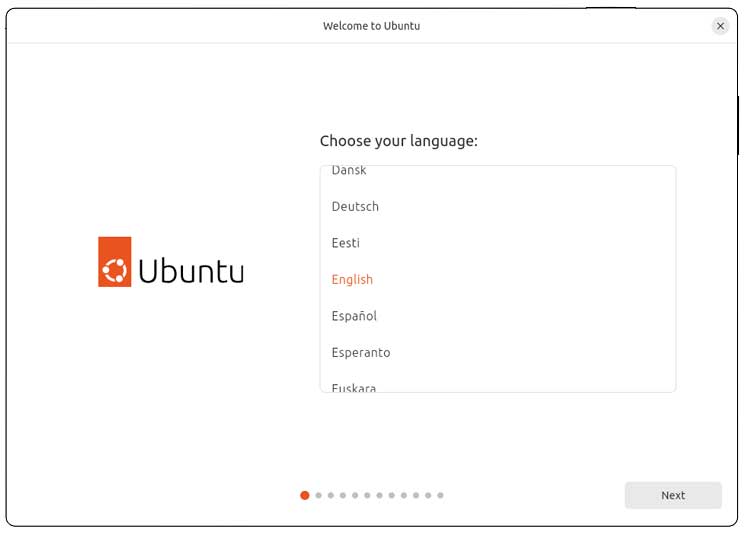
But when the Ubuntu desktop first loads, it may prompt you to start installing Linux. You can simply click on the X at the upper right to cancel the installation and go to the Ubuntu desktop.
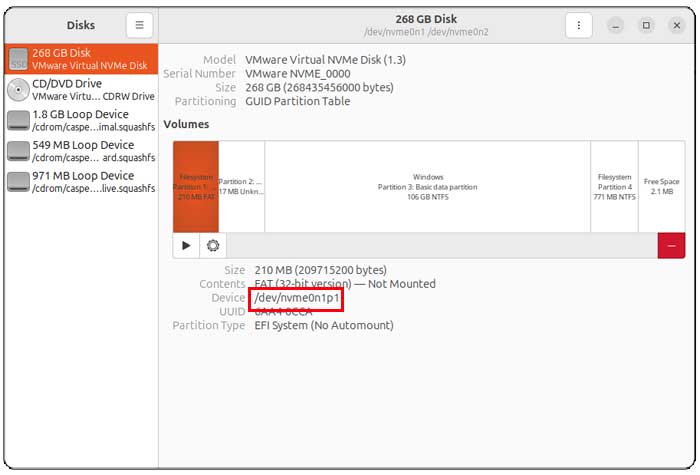
Now we will use the Linux Disks tool to see that our Windows drive is recognized. You may find that the total size is a little off when using this tool since it shows it as 106 GB when it’s really 100 GB.
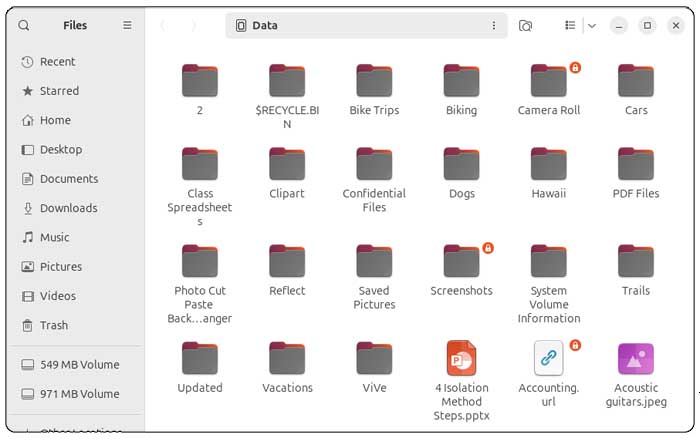
We can also open the Data drive that is our E drive in Windows to see the files contained on it.
Installing Linux on a Secondary Drive – Option 1
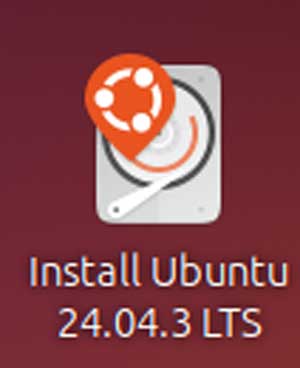
When you are ready to install Linux on your hard drive, you can double click the Install Ubuntu icon on the desktop.
Then you will be prompted to do things such as:
- Choose your language
- Enable any accessibility options
- Select a keyboard layout
- Configure your network/internet connection
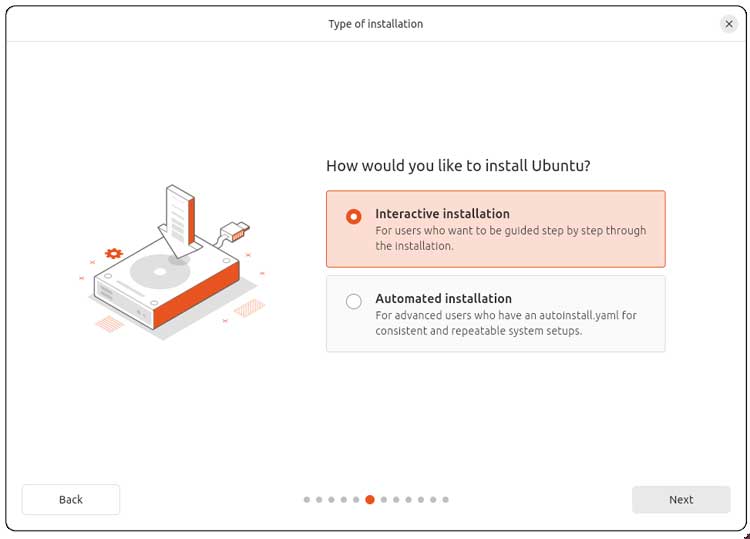
You will then get to a screen asking you how you would like to install Ubuntu. You will most likely use the interactive installation option since the automated installation option is used for those who have an autoinstall.yaml configuration file that can be used for automated installations (also called unattended installs).
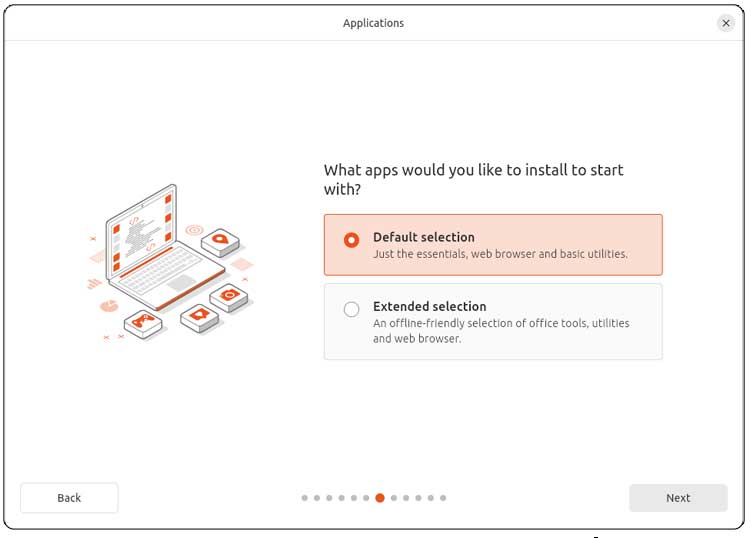
You can then choose between the default selection of apps or use the extended selection of apps that will install more programs such as office tools and a web browser.
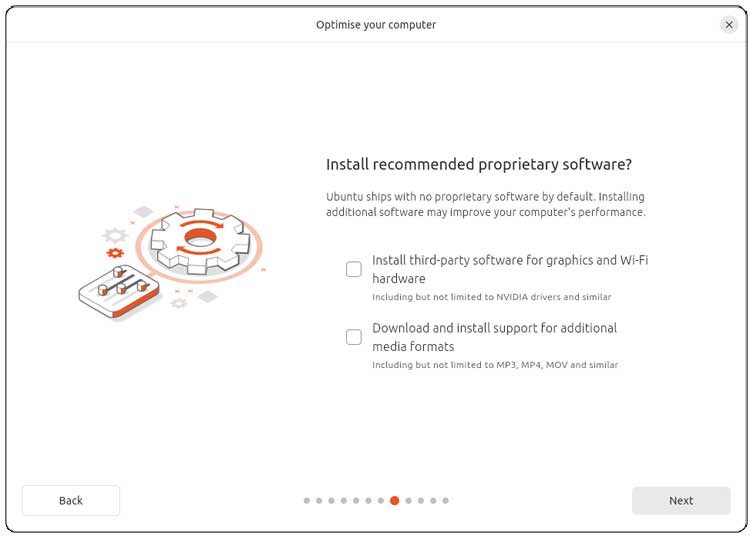
You may also see a screen asking if you want to install any extra software for things such as video and Wi-Fi adapters as well as extra fonts. You will most likely want to select these options.
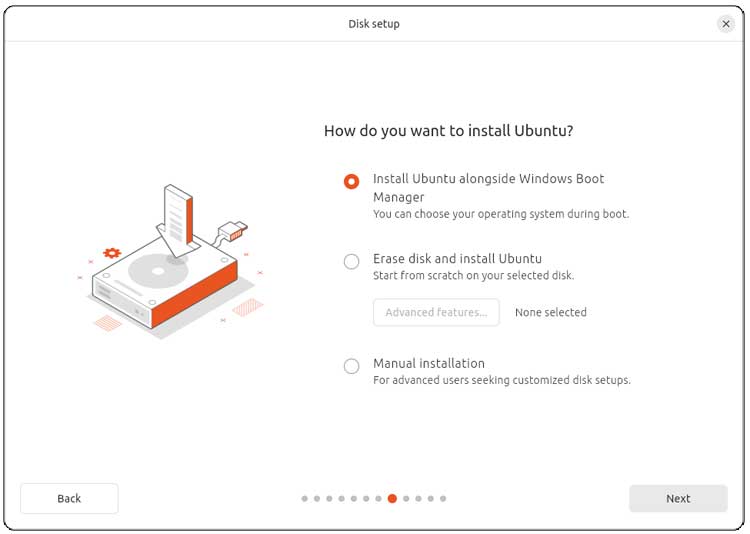
The next screen is where you need to be sure to make the right selection. The option for installing Ubuntu alongside the Windows boot manager will allow us to keep our existing files on the Data drive. This is the option we will be using for our first example.
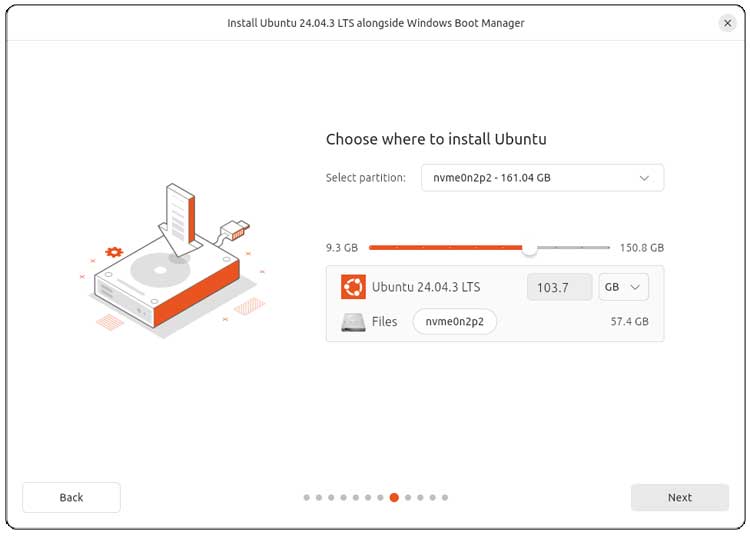
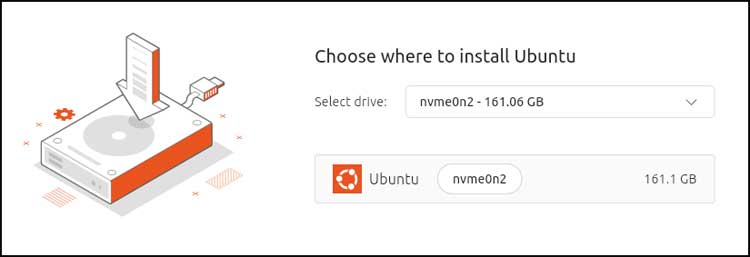
You will need to be sure you choose the correct drive from the dropdown, so you don’t install Linux on your Windows drive itself. It will give you a recommended size to use for Linux, but we will move the slider all the way to the right to use the entire drive.
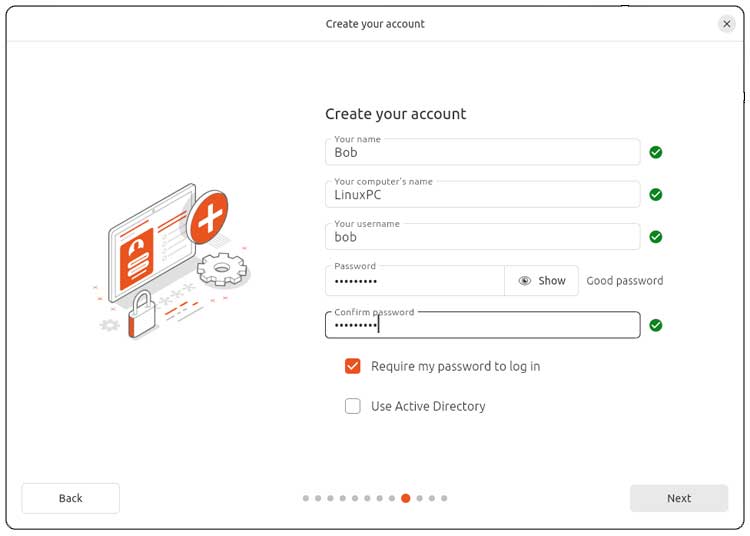
Next, you will need to create a user account by entering your name, username, computer name and a password.
Then you will need to choose your time zone and will then be shown a summary screen. And if everything looks good, you can click on the Install button to begin the Linux installation. Once the installation is complete, you will be prompted to restart your computer so you can begin using Linux from your hard drive.
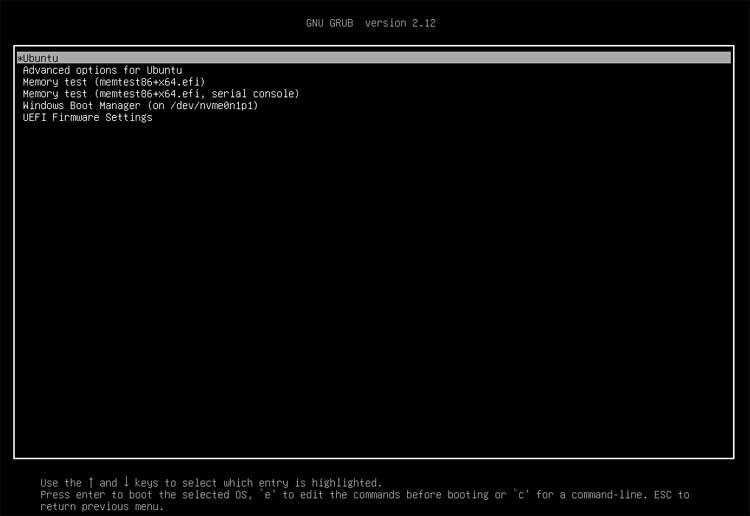
You will then be shown the GRUB bootloader where you can choose the first option to start Ubuntu or choose the Windows Boot Manager option to boot into Windows. If you choose the Ubuntu option, you will be prompted to enter your Linux password and then be taken to the Ubuntu desktop where you can start using Linux.
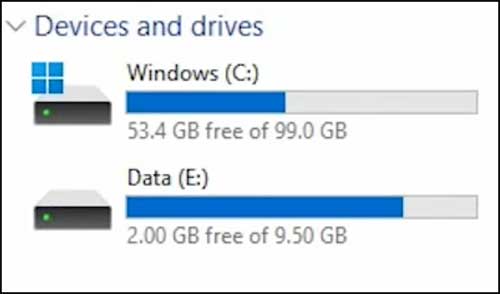
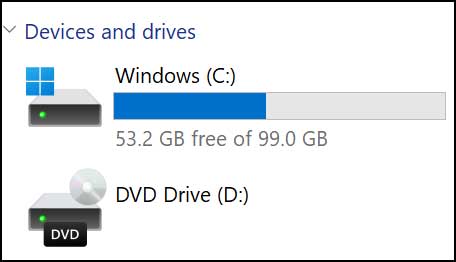
But if we boot into Windows and open File Explorer, we will see that our Data drive is still there but it has been shrunk down to 10GB which is enough space to keep our files that we had on the drive.
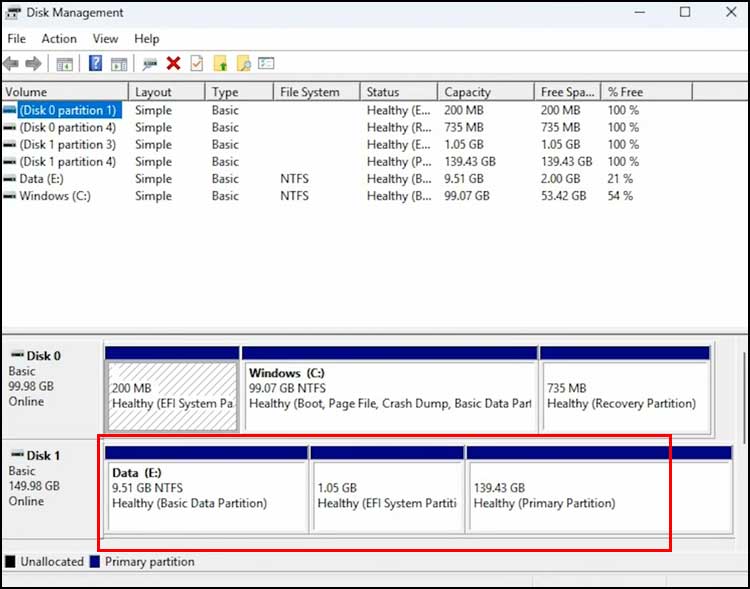
If we look at Disk Management, we will see that Disk 1 has a 10 GB Data partition and then a 139 GB partition for Ubuntu.
Installing Linux on a Secondary Drive – Option 2
Now we will go through the installation process again but this time we will use the option that says Erase entire disk and install Ubuntu. Just be aware that everything on this hard drive will be erased.
If you were to click on the Advanced features button, you would be able to configure things such as disk encryption or use Logical Volume Management (LVM) instead of traditional partitions.
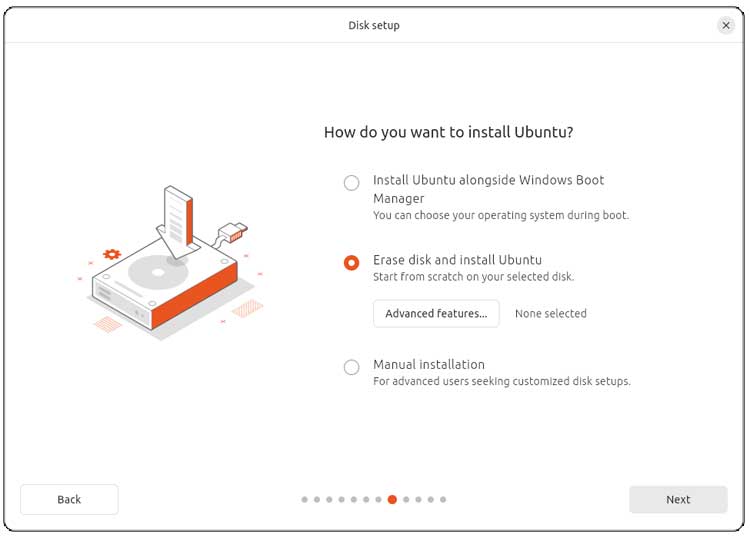
As you can see, this time we do not get prompted to configure the size of the hard drive since the entire disk will be used for Linux.
Then you will need to configure the username, computer name and password once again.
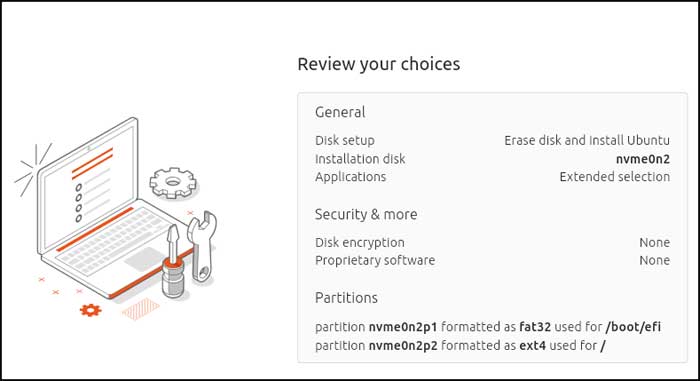
Then you will see the summary screen with the disk that Ubuntu will be installed on and the partitions that will be created. Then you can click the Install button to begin the installation.
Once you restart the computer, you will have the same GRUB boot manager screen where you can load the Ubuntu desktop or go back into Windows.
Now when we go back into Windows and open File Explorer, we can see that our Data (E:) drive is no longer there.
And when we go into Disk Management, we can see that Disk 1 is used exclusively for Linux.
For additional training resources, check out our online IT training courses.
Check out our extensive IT book series.