When it comes to email accounts, you have a lot of options such as Gmail, Yahoo, Proton, Outlook, iCloud and so on. And when it comes to email desktop clients, you have many options as well.
If you are a Microsoft Windows user, you may have used the Windows Mail app that you can use for your email, calendar and contacts. This has now been replaced by the Outlook for Windows app which is meant to be a more modern email client that more resembles the Outlook desktop client that comes with the Microsoft Office 365 accounts. In this article, we will be showing you how to add email accounts, calendars & contacts to the Outlook for Windows app.

The Outlook for Windows app can be used with a variety of email services such as Gmail, Outlook, Yahoo, iCloud and even POP3 and IMAP type accounts. The configuration process will vary depending on the type of email account you are trying to add to Outlook.
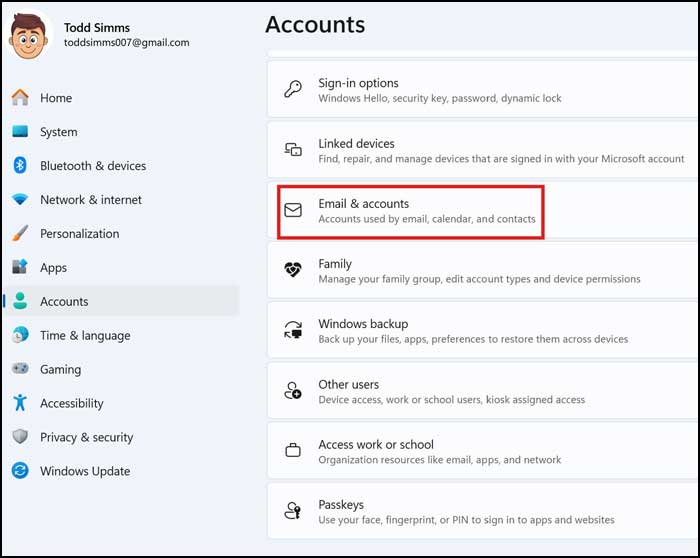
Up until the Windows 11 25H2 update, you could go to the Windows settings app under Accounts and there was a section called Email & accounts where you could configure your email accounts. This is no longer there and now you need to add your email accounts right from the Outlook for Windows app itself.
If you have not yet added an email account to Outlook for Windows, it will prompt you to do so the first time you open it. It will also most likely want to add the email account that you use to log into Windows with which is tied to your Microsoft account. If this is the one you want to add, you can continue on with the process, otherwise you will need to type in the email address you wish to add.
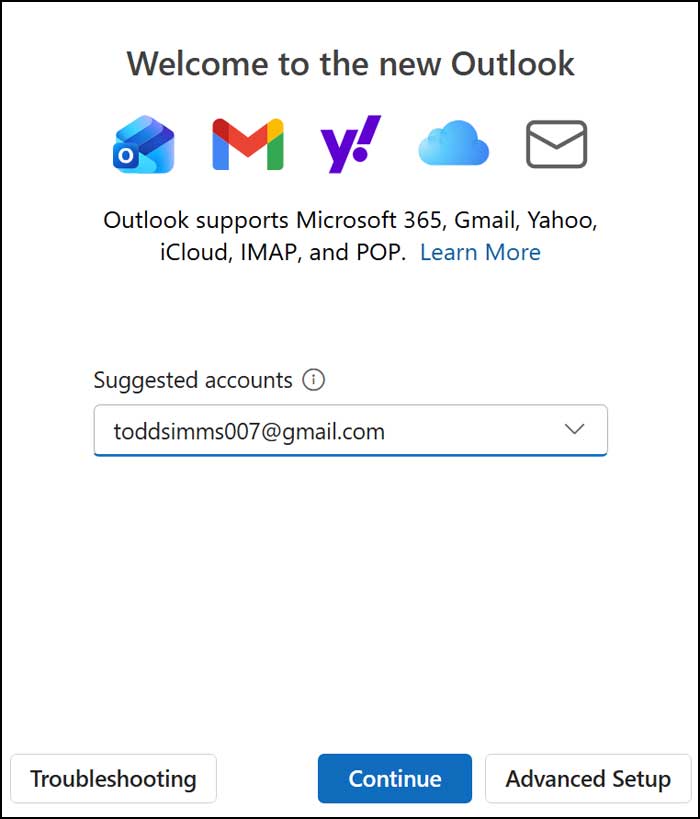
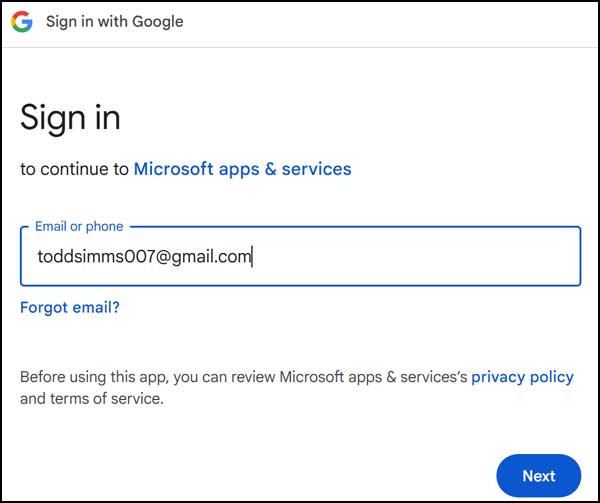
For our first example, we will be adding a Gmail account to Outlook. When doing so, you will be taken to your web browser where you will then need to sign in with your Google account.
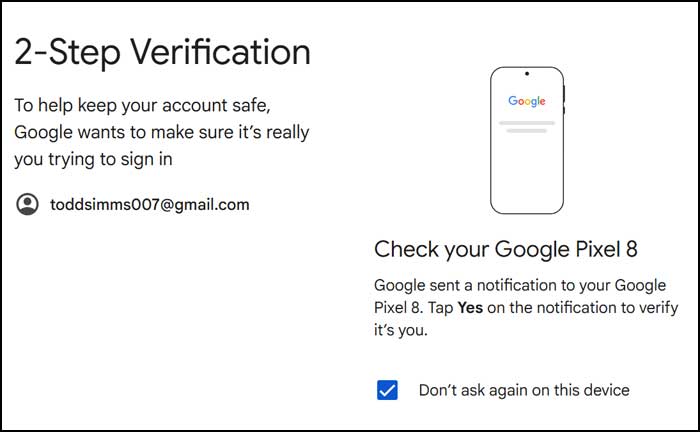
You will most likely need to provide some type of authentication to allow Outlook to access your Gmail account. This step can vary depending on how you have your account configured.
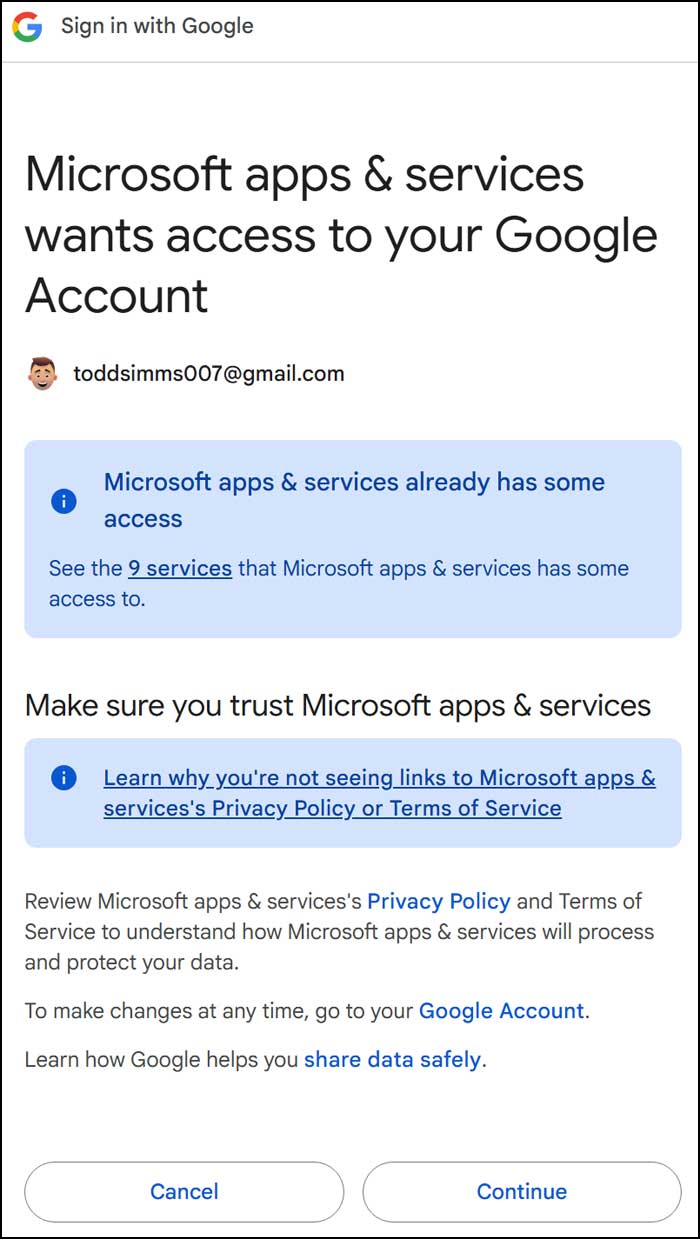
You will also need to agree to the permissions that Microsoft needs in order to connect your Gmail account to Outlook.
Once your account is configured, your email, calendar and contacts should then be imported into Outlook. If you have a lot of email, this process can take several minutes.
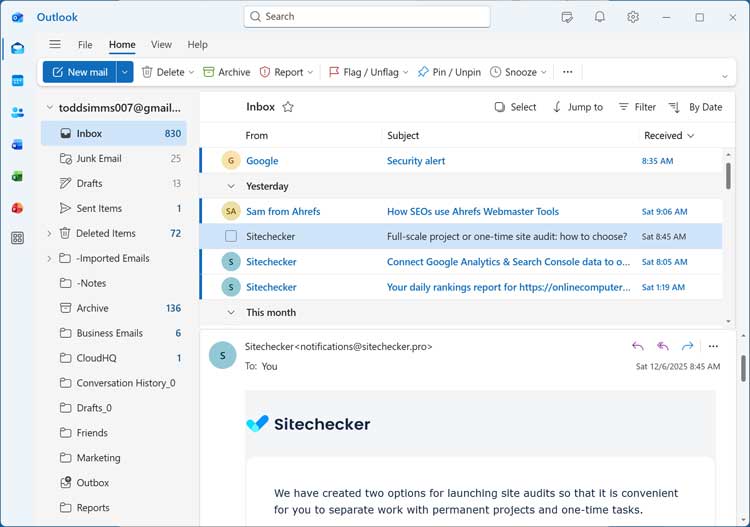
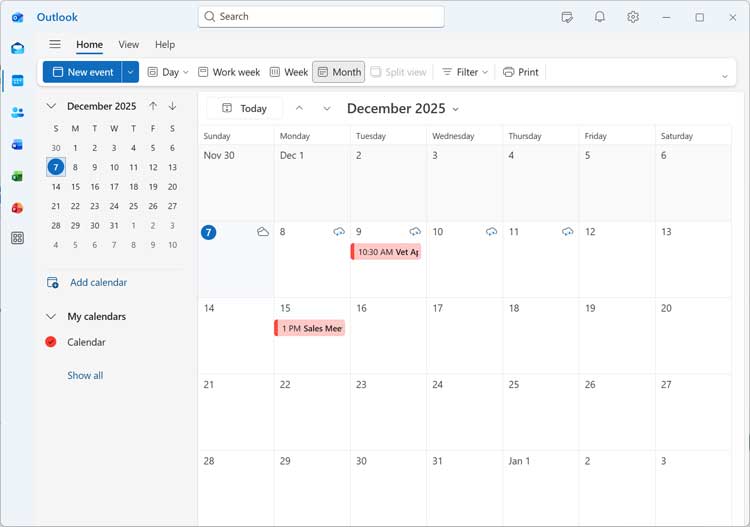
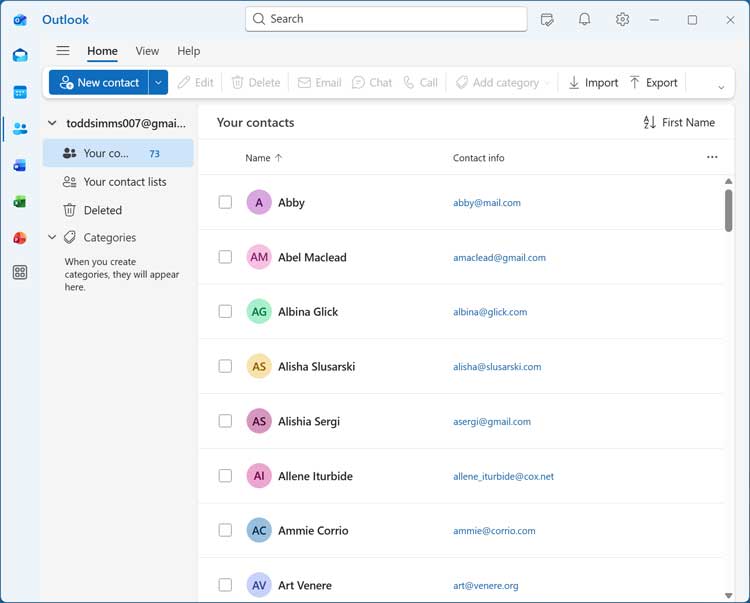
We will now add a Microsoft Outlook email account to the Outlook app to show you how the process can vary compared to a Gmail account.
If you click on the settings gear icon, you can then go to the Accounts section and click the Add account button to add a new email account to Outlook. You will also see any other accounts that you have previously configured here.
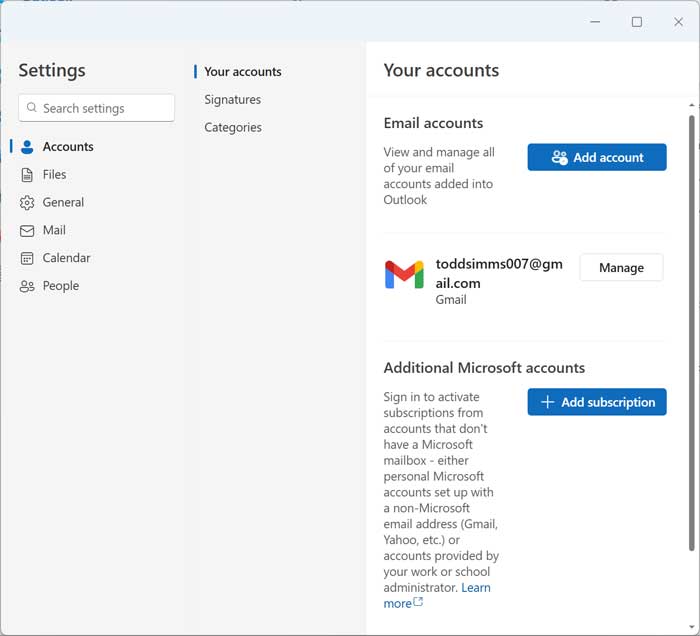
Once you click on the Add account button, you will see a familiar screen where you can type in the email address for the account you wisht to add.
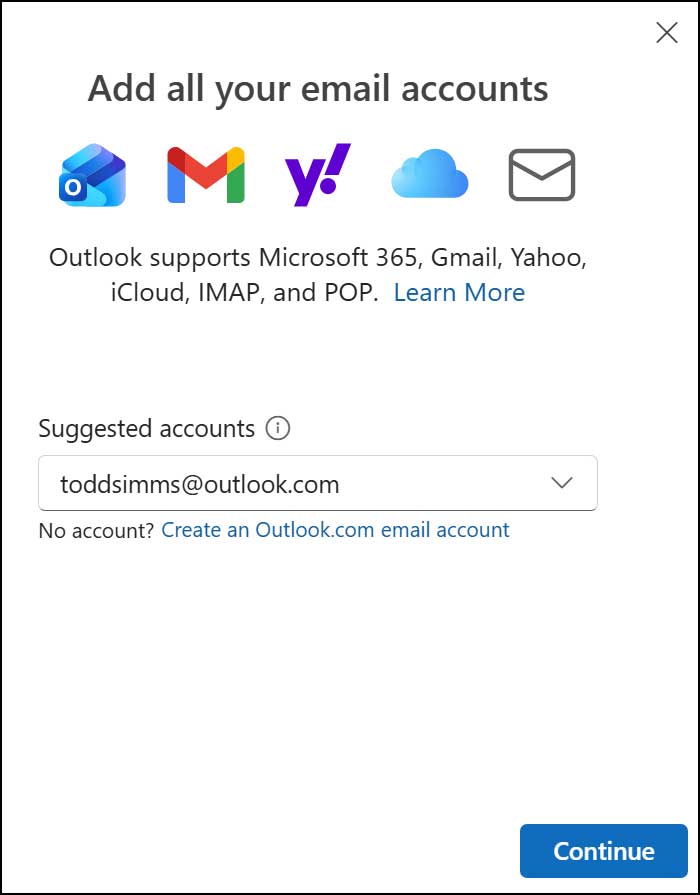
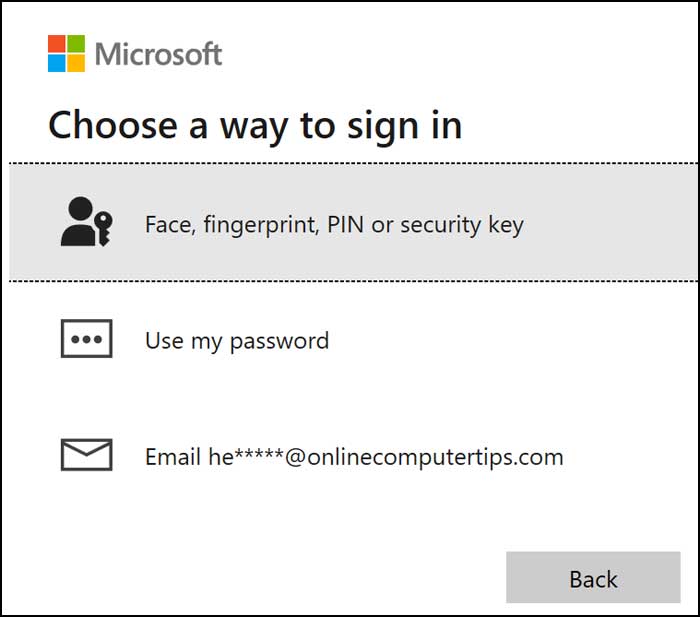
Depending on how you have your Outlook.com email account configured, you may see several ways to connect it to the Outlook for Windows app.
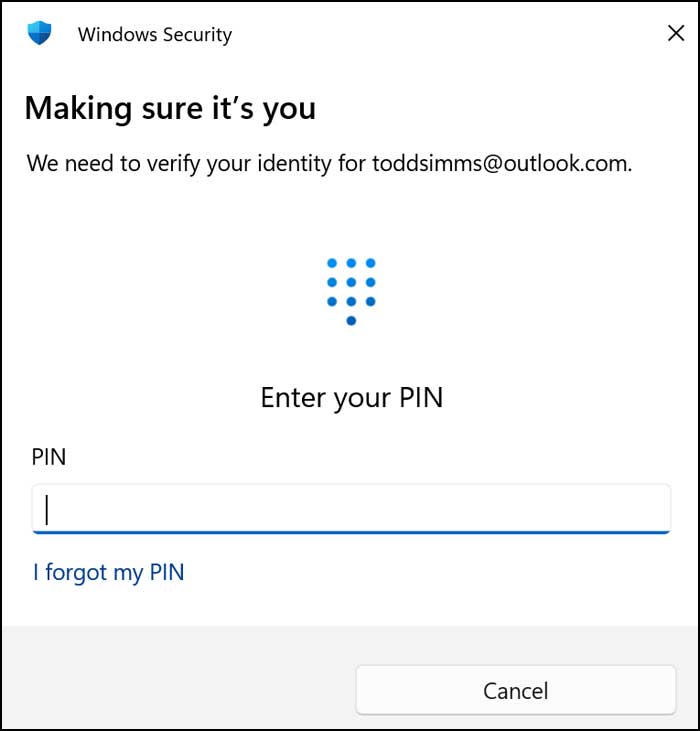
You may then be asked to configure Windows Hello with your account. If you click Ok then you will be prompted to enter the PIN that you use to log into your computer with.
Once you have added your Outlook.com account, it will be listed with your other accounts in the Accounts settings section. You can then do things such as add a description or delete the account from here.
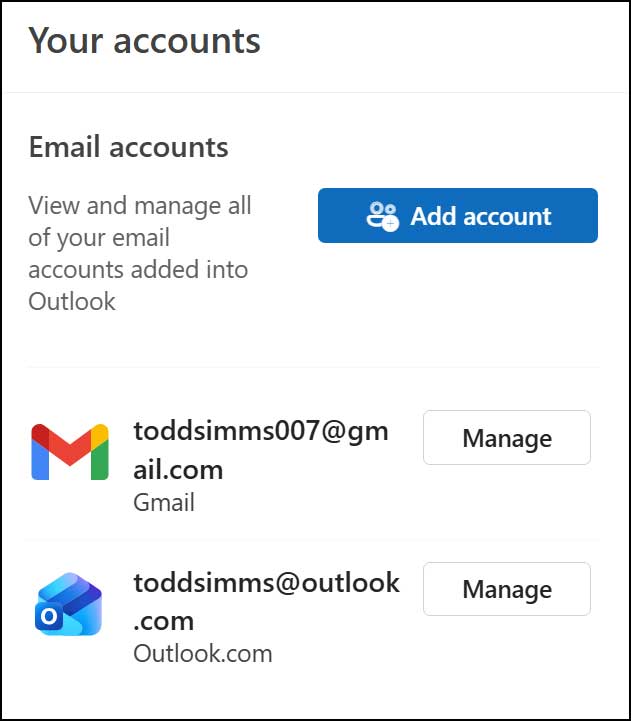
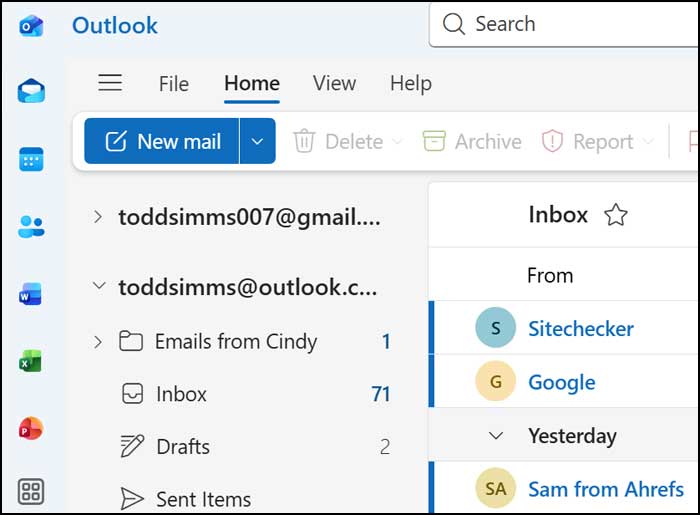
Now that we have a second account added to Outlook, we will see it listed along with the first one and can toggle between them to view the email, calendars and contacts.
For additional training resources, check out our online IT training courses.
Check out our extensive IT book series.