There are many reasons you might need to install or reinstall Microsoft Windows on your computer. You may be upgrading from Windows 10 to Windows 11 and want to do a clean installation of Windows rather than an upgrade. Or maybe you built yourself a new computer and are installing Windows for the first time.
Another reason you may need to reinstall Windows is to make sure your drive is securely cleaned and wiped. Maybe you got some type of virus or malware on your computer, and you want to make sure it’s completely gone before you reinstall Windows. In this article we will be showing you how to securely wipe a drive before installing Windows and be discussing DiskPart vs. deleting partitions.

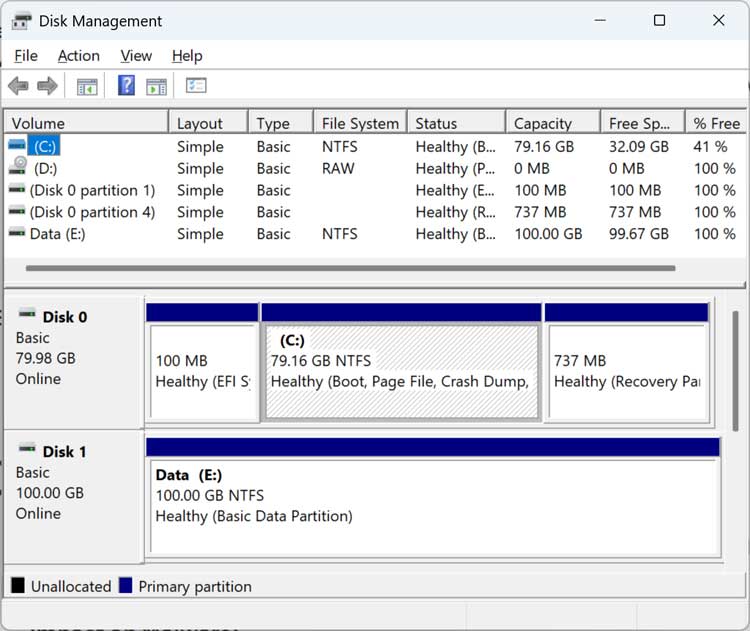
For our example, we will be using a Windows 11 computer with two hard drives installed. As you can see from Disk Management, one drive has Windows on it with all the extra partitions that are part of a typical Windows installation. The other drive is a secondary drive used to store misc. data. You should make a note of the disk number and disk size if you have more than one hard drive installed in your computer.
Wiping a Drive by Deleting the Windows Partitions
This method for wiping a hard drive by deleting its partitions involves booting the computer with a Windows installation flash drive and going through the typical installation process. You can use an app such as the Windows Media Creation tool, Rufus or WinToUSB to create your bootable flash drive.
Once you start the Windows installation process, simply go through the wizard like you normally would.
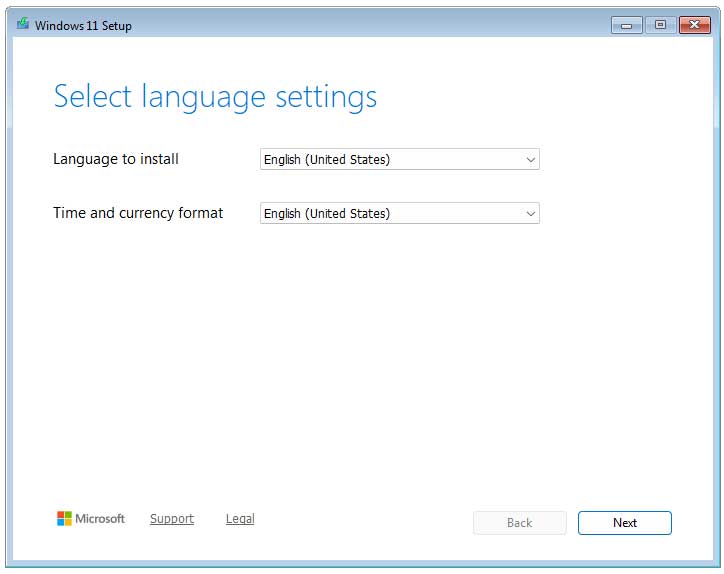
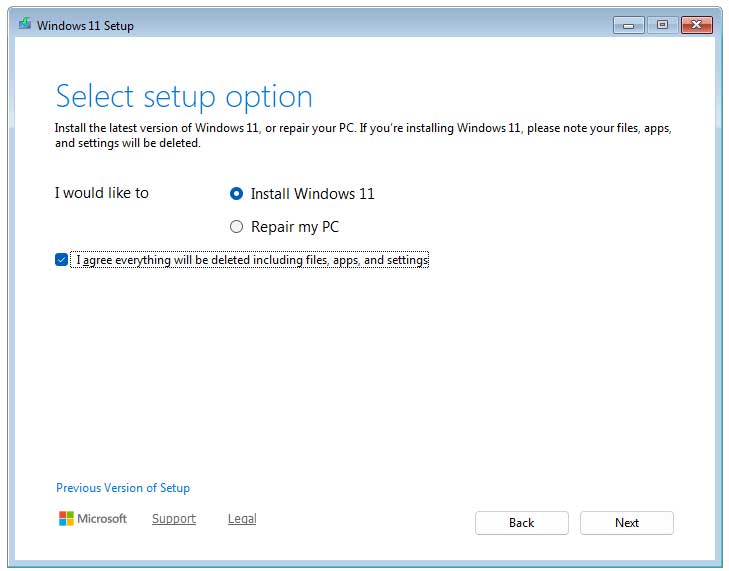
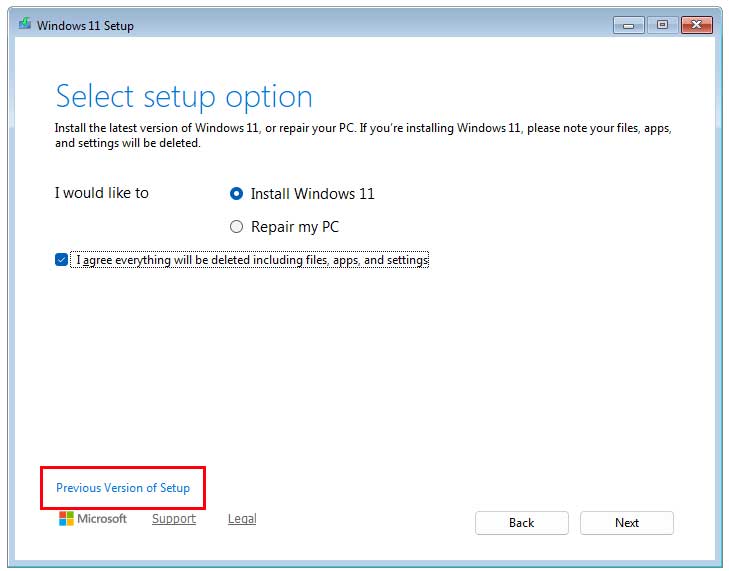
You will then choose the option to Install Windows 11 and check the box that says I agree everything will be deleted including files, apps, and settings and click the Next button.
You will then be asked for your product key, and you can just click the link that says I don’t have a product key to continue. Then you will need to choose the version of Windows that matches your product key and click the Next button. Then you will need to accept the Windows license agreement by clicking the Accept button.
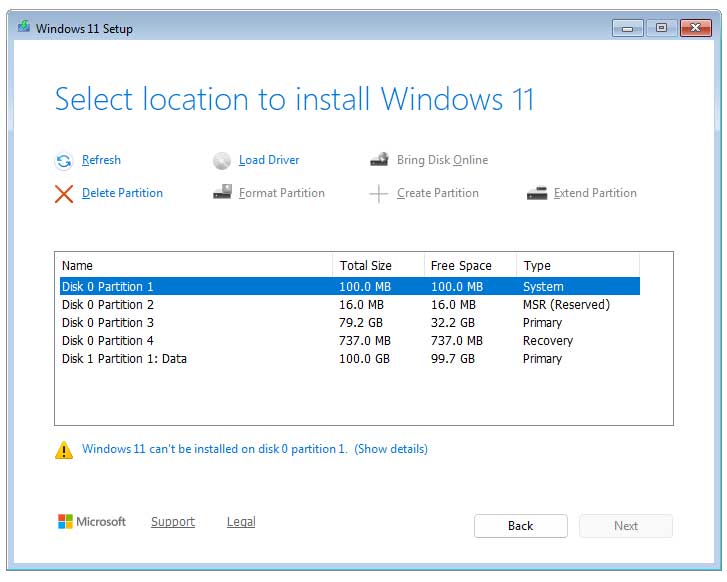
You will then see a screen that says Select location to install Windows 11 and it will show your hard drives and their associated partitions. You will then want to click on each partition associated with your Windows disk (Disk 0 in our example), and then click on Delete Partition. Just be careful that you do not select one of your other drives if you have one installed in your computer.
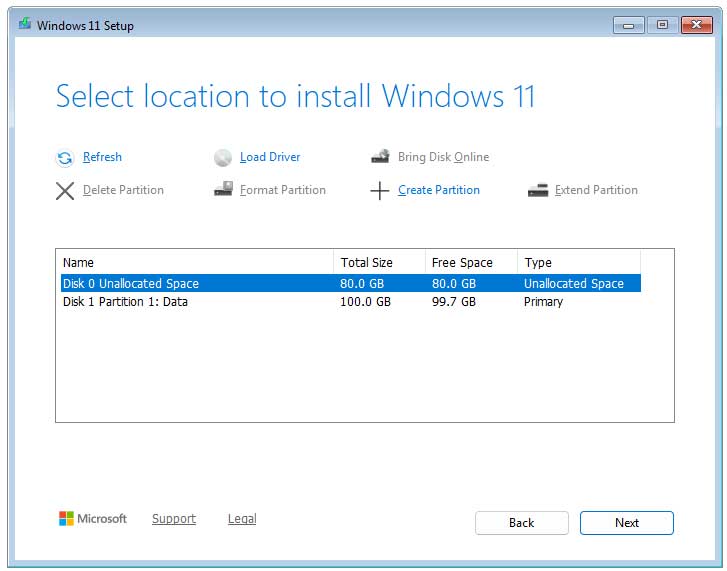
Once you have all the Windows partitions deleted, you will have a blank disk that shows unallocated space. You can then create your own partition or split your disk into multiple partitions if desired. If you just click on the Next button, Windows will create its own partitions and use the entire disk for Windows.
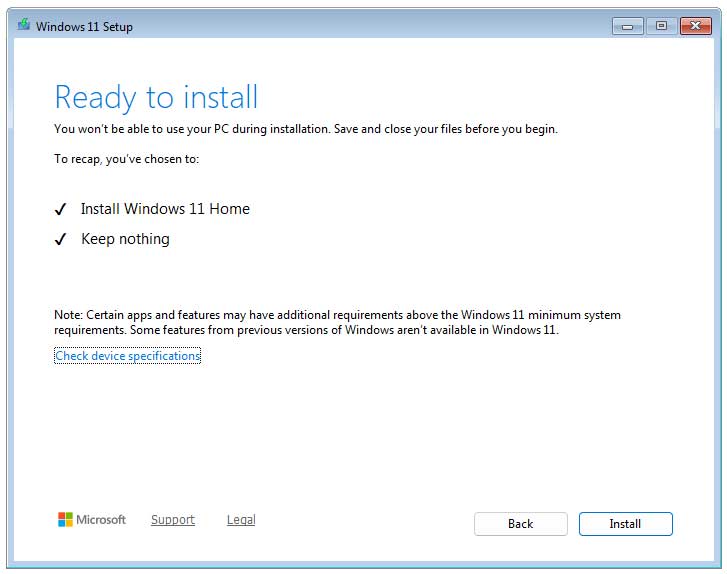
Then you can click the Install button to begin the Windows installation process.
Using DiskPart to Securely Wipe Your Windows Drive
DiskPart is a Windows command line utility that lets you manage disks, partitions, and volumes, including creating, deleting, and formatting them. It has a clean option that can be used to wipe a drive and all its data and partitions. There is the standard clean option and then the more advanced clean all option.
- Diskpart clean – Removes all partition and volume information from a disk, leaving it unallocated but without erasing data.
- Diskpart clean all – Writes zeros to every sector on the disk, completely wiping all data including hidden areas and boot sectors.
To use the DiskPart command, we will once again boot our computer using the Windows installation flash drive. This time when we get to the Select setup option screen we will click on the Previous Version of Setup link.
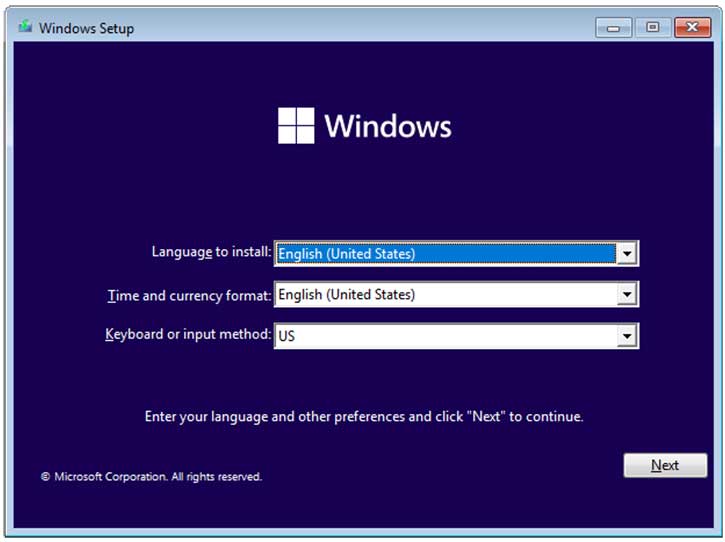
Then on the Windows setup screen we will click the Next button.
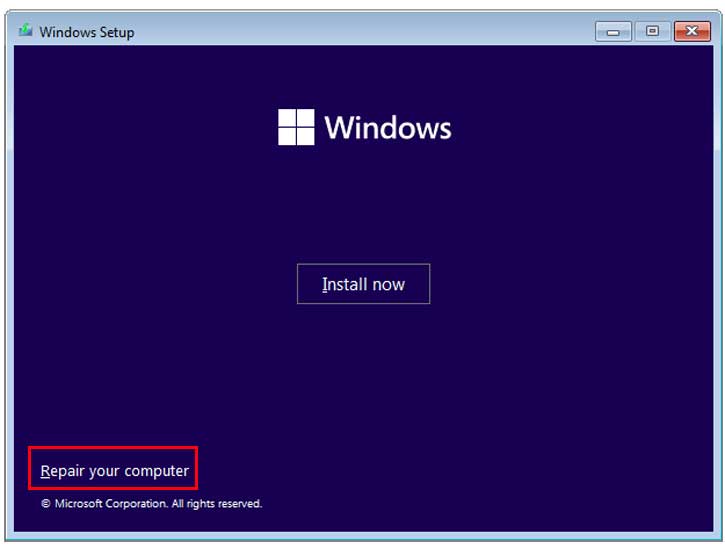
Now rather than clicking the Install now button, we will click the Repair your computer link at the lower left.
From the recovery options screen, we will click on Troubleshoot.
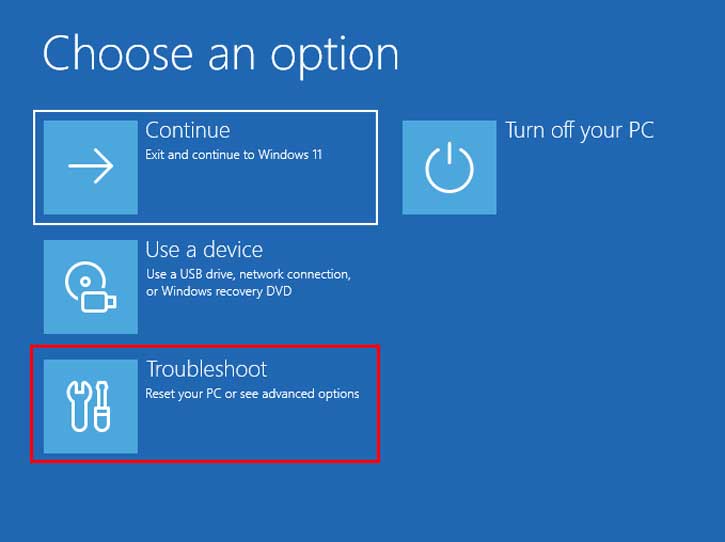
Then from the Advanced options screen, we will click on Command Prompt.
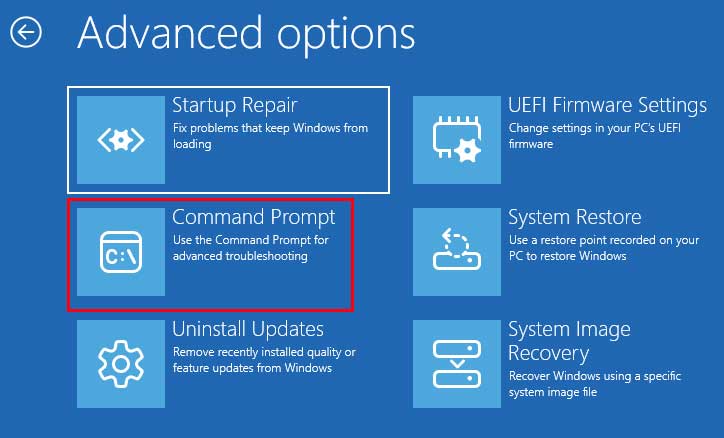
Now we will need to type a series of commands to use the DiskPart clean all command to securely wipe our drive before installing Windows.
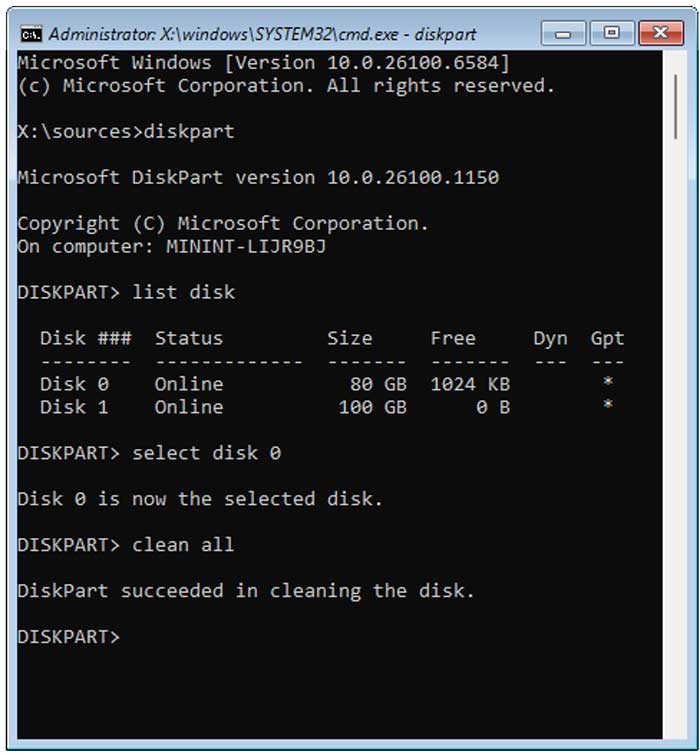
First, we will type diskpart to get to the diskpart prompt.
Next, type list disk to show your installed hard drives. Then find the drive number that matches your Windows drive. It will most likely be Disk 0. You can also look at the size to confirm.
Now we will type select disk 0 to make that the active disk for DiskPart.
Then we will type clean all to start the advanced cleaning process. You can also use clean if you want a quicker, yet less secure wipe of your hard drive.
The clean option is instant while the clean all option can take several minutes depending on the size and speed of your hard drive.
Once the process is complete, you will see a message that says DiskPart succeeded in cleaning the disk. You can then type exit to exit the DiskPart prompt.
Now you will need to shut down your computer and restart it with the Windows installation flash drive and go through the installation process like normal. When you get to the hard drive configuration screen, you will see that your drive is shown as blank with unallocated space. Then you can have setup install Windows on your newly wiped drive.
For additional training resources, check out our online IT training courses.
Check out our extensive IT book series.