
Last Updated on June 7, 2026
If you transitioned from Windows 10 to Windows 11, you’ve probably noticed a significant shift in the overall design and functionality. Many familiar features have been altered or removed, and several built-in apps have received major updates. One notable example is Notepad, which now includes tabbed editing, text formatting options, and integration with Copilot AI. Even WordPad has been removed but there are a couple of ways to get WordPad back in Windows 11.
Despite these enhancements, a number of users still favor the straightforward, minimalist Notepad experience that was standard in Windows 10. If you’re among those who prefer the classic version without the added complexity, then we will be showing you how to make the classic Notepad app the default text editor for Windows 11. The entire process takes only a few minutes.
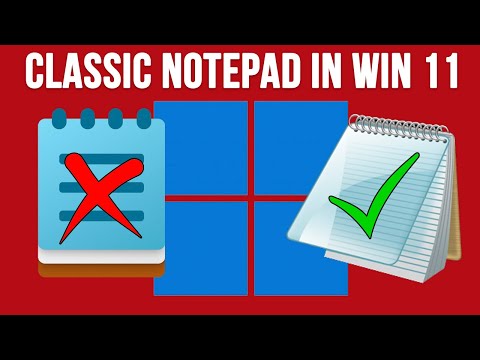
To force make the classic Notepad app the default text editor for Windows, we will be using the free Windhawk app. Windhawk works by installing mods that change how Windows functions and looks. There are many adjustments you can make using Windhawk to tweak your Windows installation.
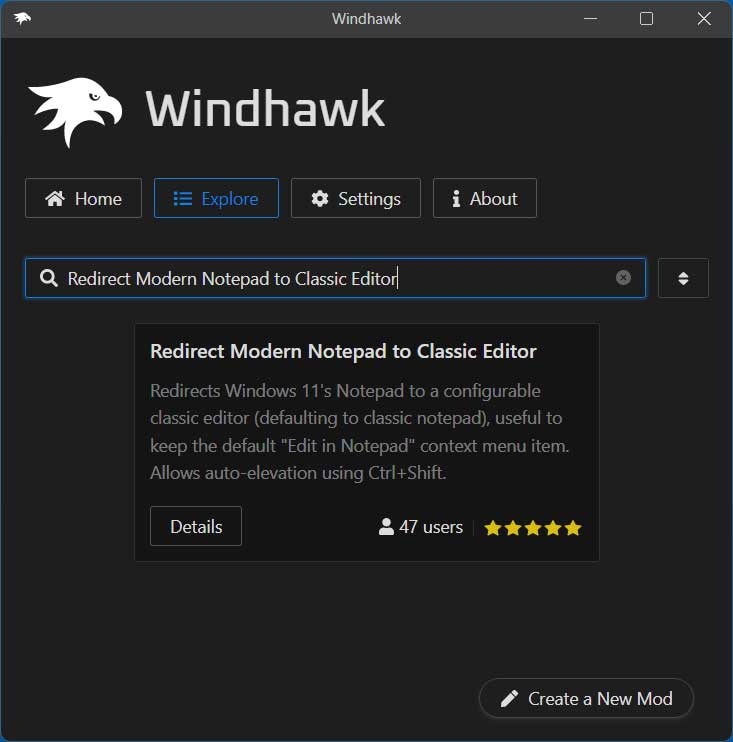
The first step in the process is to download and install the Windhawk software itself. Then once you have it installed, you can go to the Explore section and do a search for Redirect Modern Notepad to Classic Editor. Once you find the mod, click the Details button and then the Install button to have it added to Windhawk.
Installing the Windhawk App
1. Download the Tweaking Software
To force make the classic Notepad app the default text editor for Windows, we will be using the free Windhawk app. Windhawk works by installing mods that change how Windows functions and looks on a deep system level. There are many adjustments you can make using Windhawk to tweak your Windows installation to your liking.
2. Search for the Notepad Mod
The first step in the process is to download and install the Windhawk software itself. Then once you have it installed, you can go to the Explore section on the main dashboard. Do a search for Redirect Modern Notepad to Classic Editor using the search bar.
3. Install the Classic Editor Mod
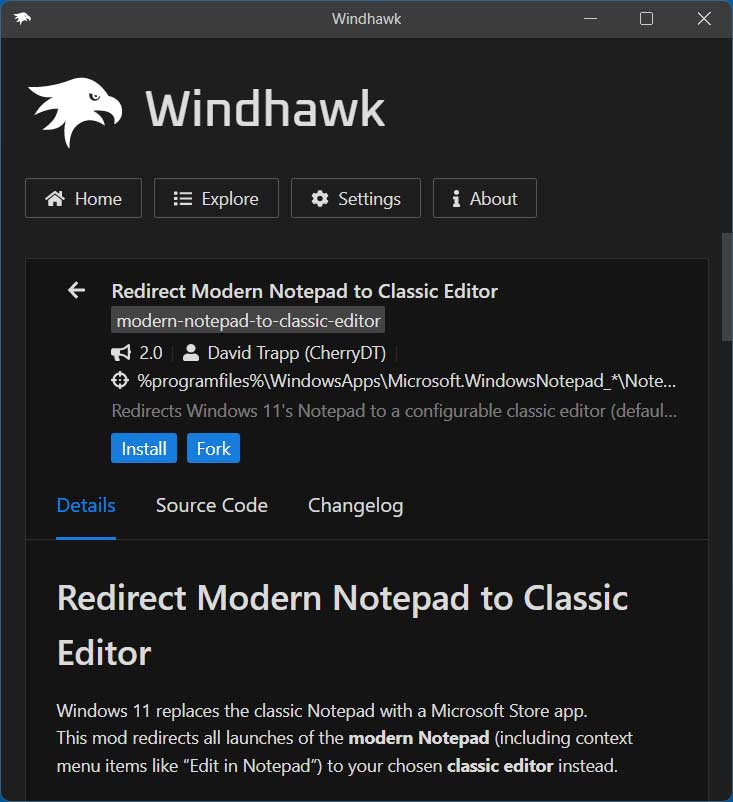
Once you find the mod in the results list, click the Details button to read more about it. Then simply click the Install button to have it added to Windhawk. The program handles all the heavy lifting in the background.
4. Accept the Security Warning
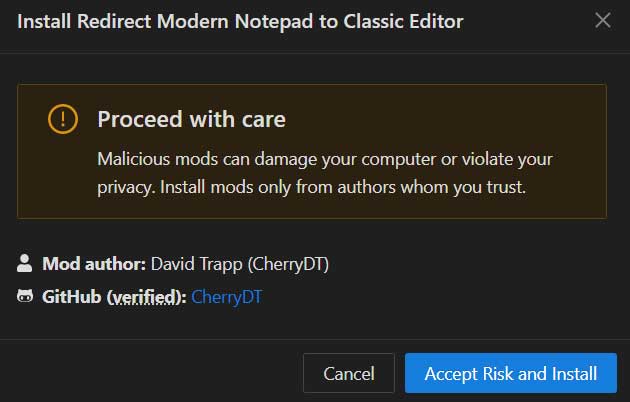
You will get a warning saying Proceed with care. Malicious mods can damage your computer or violate your privacy. Install mods only from authors whom you trust. You will get this warning with any mod that you install on this platform. Then you simply need to click the Accept Risk and Install button to continue.
Configuring the Notepad Settings
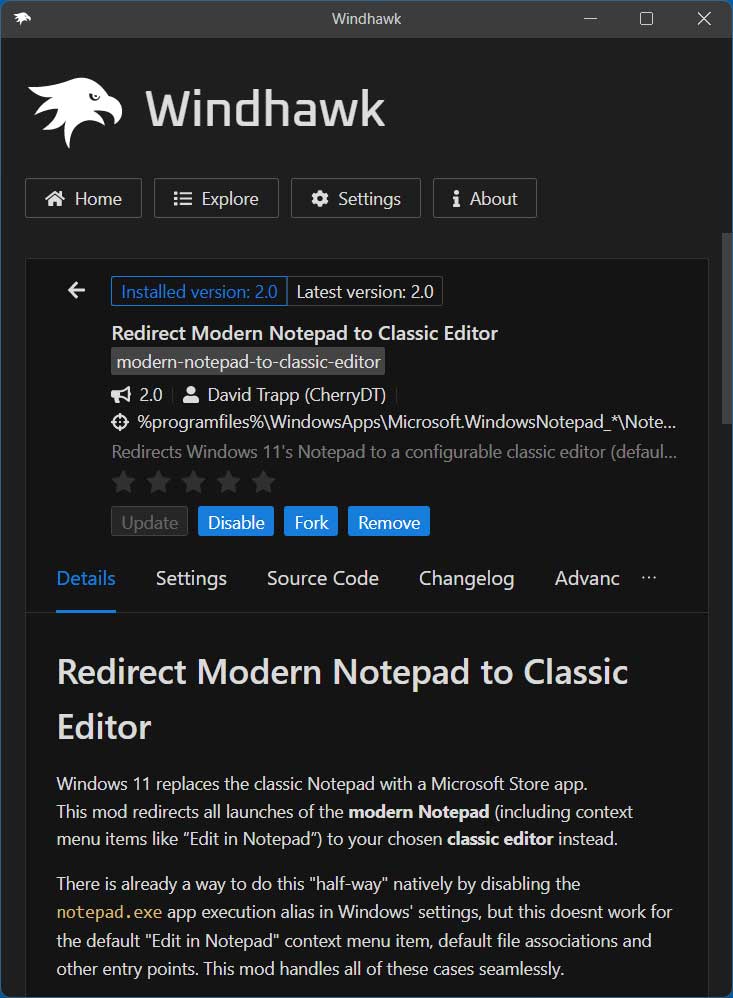
1. Verify Your Installed Mod
You will then find the mod installed in your Home section where you can enable it or disable it as needed. You can even remove it from Windhawk entirely if you do not want to use it any longer. The interface makes managing your active system tweaks incredibly simple.
2. Check the Advanced Settings
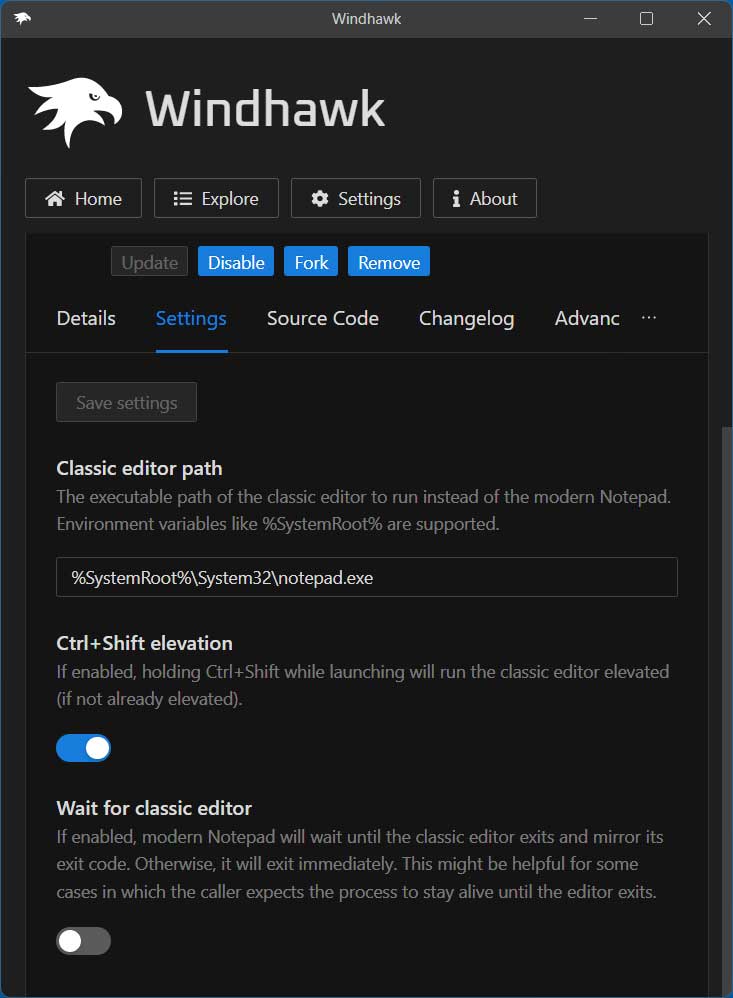
Many Windhawk mods have settings that you can adjust to alter their specific behaviors. But for this one, you will most likely not want to change anything unless you think you absolutely need to. The default configuration works flawlessly on a standard Windows 11 machine.
Fixing the App Execution Alias
1. Trigger the Alias Prompt
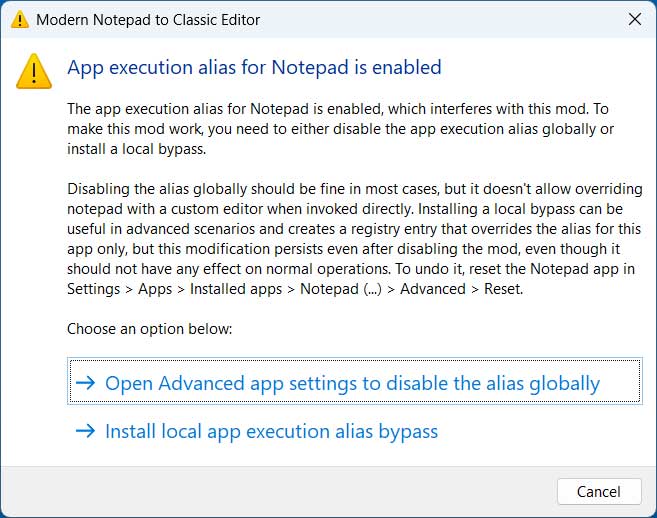
The first time you open Notepad after installing this mod, you will get a message saying App execution alias for Notepad is enabled with two options. You should be fine choosing the first one that says Open Advanced app settings to disable the alias globally. Click that specific text link to continue.
2. Navigate Windows Settings
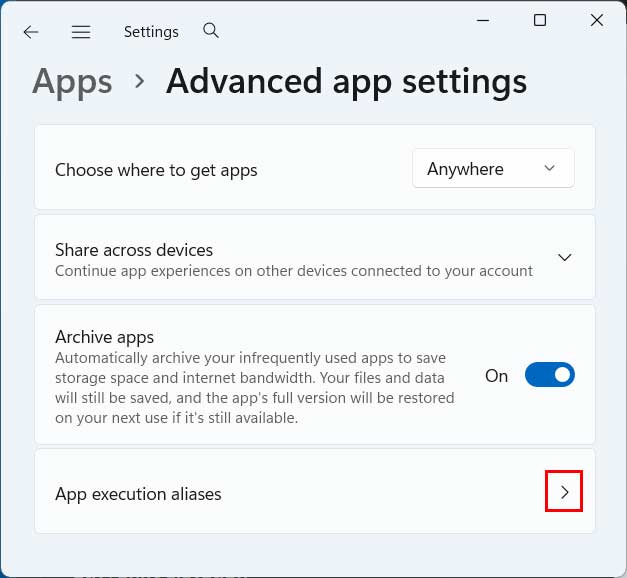
When you click this link, the Windows Settings app will automatically open to the Advanced app settings section. This saves you from hunting through multiple menus. From here, you will need to click on App execution aliases.
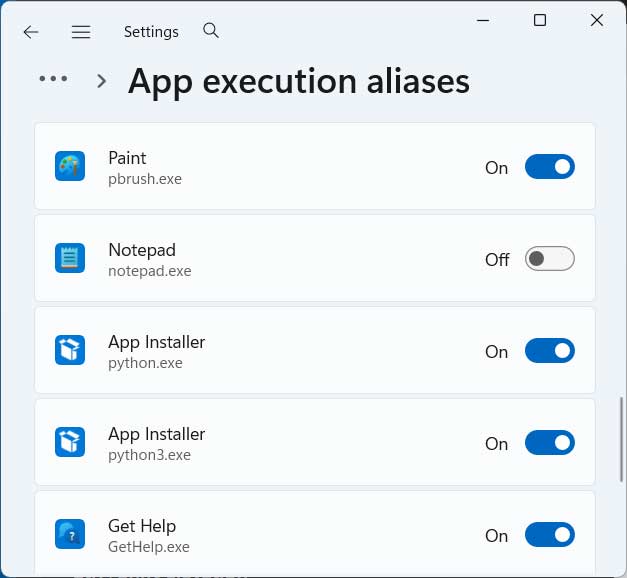
3. Turn Off the Notepad Alias
Now you will see a massive list of system programs and their rules. Then you will need to find Notepad in the list. Turn off the app execution alias setting for it by clicking the toggle switch.
Testing Your New Default Editor
1. Launch a Text File
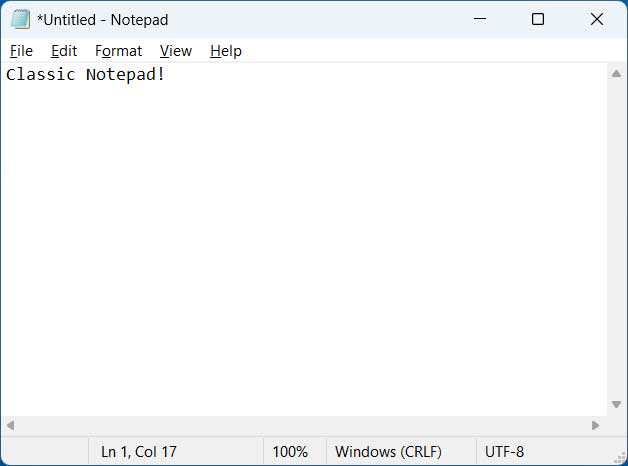
Now when you open the Notepad app or a text file, it will open with the classic Notepad app rather than the new one. Your computer will instantly recognize your new software preference. The load times will be noticeably faster without the extra bloat.
2. Keep Windhawk Running
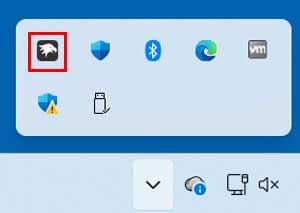
If you want to go back to the newer Notepad app, simply disable the mod and Windows will use the newer version. One thing to keep in mind when it comes to using the Windhawk app is that it needs to be running in the system tray in order for your mods to work. If it ever gets closed, you will need to restart the app and then things should start working again.
3. Ensure Startup Functionality
You can also install the classic Notepad app natively on your computer and run it that way if you do not want to use Windhawk. Otherwise, Windhawk should also be set to start with Windows by default so you do not need to start it each time you reboot your computer. You can always check the lower right corner of your taskbar to confirm it is active.
For additional training resources, check out our online IT training courses.
Check out our extensive IT book series.






