
Last Updated on May 7, 2026
How to Find Your Windows Product Key
If you need to move your Windows license to a new computer or recover a product key from a dead hard drive, you first need to know exactly what type of key you have. Finding your hidden retail, OEM, or volume license key is incredibly easy using a free utility called ShowKeyPlus.
Here is the fastest way to retrieve your product key:
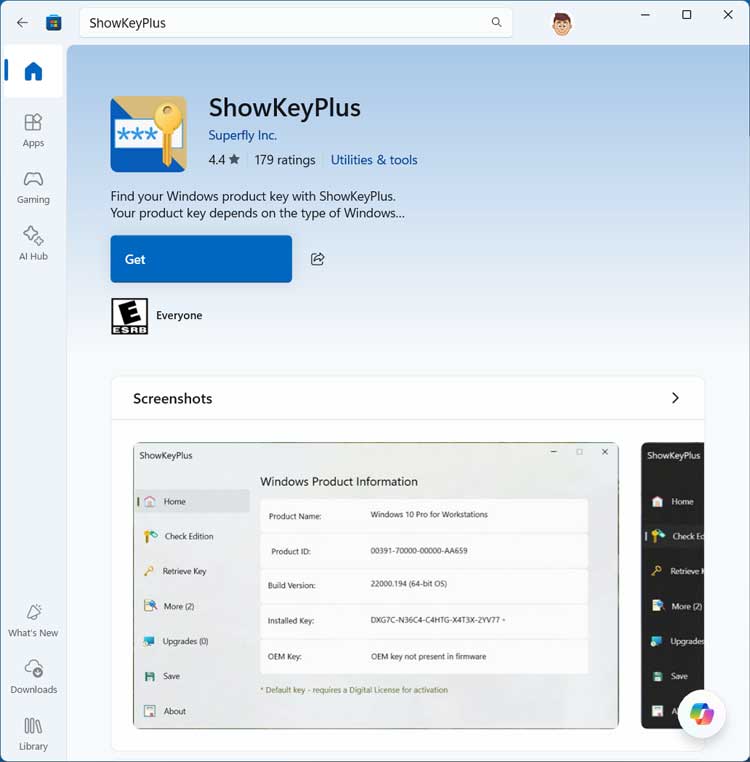
- Open the Microsoft Store app on your PC and search for ShowKeyPlus.
- Download and install the official app by Superfly Inc.
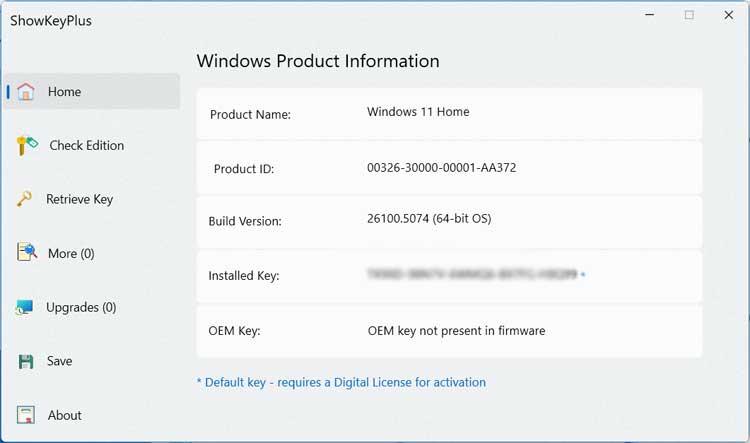
- Open the application to instantly view your installed key.
- Use the Retrieve Key option if you need to extract a license from a secondary hard drive

Downloading the ShowKeyPlus Utility
While some older computers have a physical sticker with the product key slapped on the side of the case, modern machines embed this information digitally. To extract it, open the Microsoft Store app on your desktop and search for ShowKeyPlus. Make sure you select the official version published by Superfly Inc, then click the Get or Install button to download it.
Viewing Your Installed Windows License
Launch the application once the installation finishes. The default home screen instantly reveals everything you need to know about your current operating system. You will see your exact Windows version, the product ID, and the currently installed key. More importantly, it tells you if you have an OEM key hardcoded directly into your motherboard.
Verifying Your Key Type
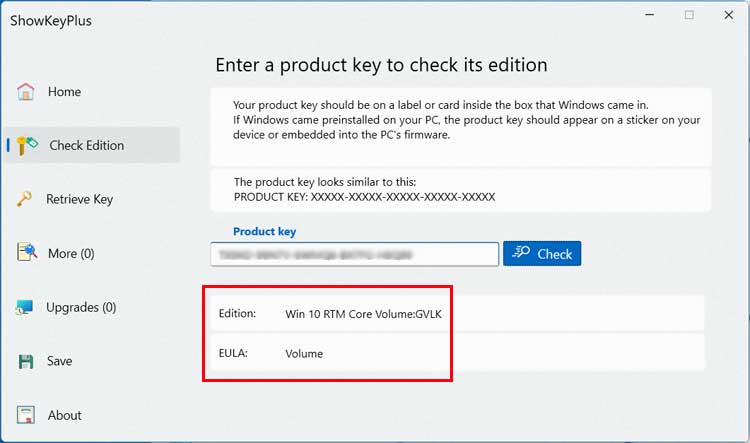
If you have a license key written down but you are not sure what version of Windows it belongs to, click the Check Edition option on the left menu. You can paste your product key here to verify if it is valid and see exactly what edition it unlocks. Keep in mind that Windows 10 and Windows 11 share the exact same licensing structure, so a Windows 11 key might display as a Windows 10 volume or retail key in the software.
How to Extract a Key from a Dead or Secondary Drive
The most powerful feature of this tool is the Retrieve Key option. If your primary computer crashes and will not boot into Windows, you can pull that hard drive out and plug it into a working computer using a cheap USB SATA adapter.
When you open the app and click Retrieve Key, it will ask you to locate the SOFTWARE hive. This is a specific registry file stored on the old drive. You just need to navigate to the Windows, System32, config, and then SOFTWARE folder on the broken drive. The application will scan that registry hive and extract the lost product key so you can use it again.
Once you have the information you need, you can use the Save option on the left menu to export your license details into a simple text file for safekeeping.
OEM vs. Retail Keys Explained
Why does it matter what type of key you have? Microsoft treats different licenses with different rules when it comes to upgrading or replacing hardware.
An OEM license (Original Equipment Manufacturer) is permanently tied to the motherboard of the computer it was originally installed on. If you bought a pre-built computer from a company like Dell, HP, or Lenovo, it has an OEM key. You cannot legally transfer this key to a brand new computer that you build yourself.
A Retail license is one that you purchased directly from Microsoft or a retail store. These keys are usually linked to your Microsoft account or a physical product card. Retail keys can be transferred to a new computer, provided you wipe the old machine first. This is why using the tool above to check your edition is so crucial before you start building a new PC.
What If No Key is Found?
Sometimes you might run the utility and find that the original key section is blank, or it says you have a digital license. Modern Windows installations frequently use Digital Entitlement. This means your hardware profile is stored securely on Microsoft activation servers.
If you ever have to wipe your hard drive and reinstall the exact same version of Windows, you can just click the option that says you do not have a product key during the setup. Once the installation finishes and you connect to the internet, Windows will recognize your motherboard and activate automatically.
For additional training resources, check out our online IT training courses.
Check out our extensive IT book series.






