For those of you who still have their music CD collection, you might be looking to convert your music to another format that you can keep on your computer or load onto your smartphone. Some common audio formats include MP3, WAV and FLAC files.
Windows Media Player used to be the go-to app to rip music CDs to audio files but with the latest version, it will not download any metadata such as album art, artist names or track names. Sure, you can still use the legacy Windows Media Player, but who knows how long that will be available on Windows 11. Fortunately, there is another program you can use to transfer your music collection to your computer. In this article, we will be showing you how to install, configure and rip music CDs with Exact Audio Copy (EAC).

Installing and Configuring EAC
The first step is to download and install Exact Audio Copy. The software is free to use for non-commercial use and can be downloaded here.
Installing EAC is fairly straightforward, but there are a few steps that you need to be aware of when performing the installation. For the choose components step, you will most likely want to choose all the options to make sure you have everything you need available when running the program.
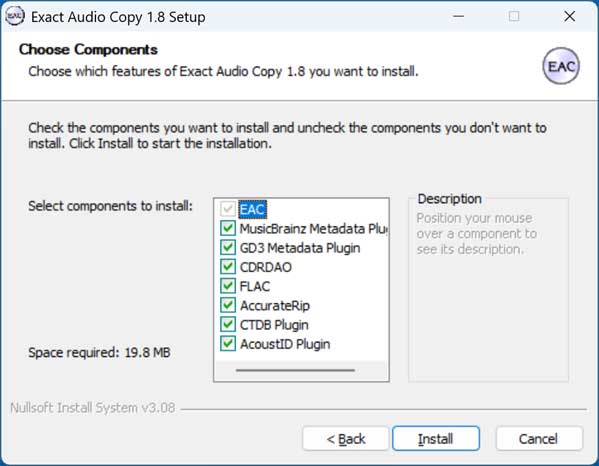
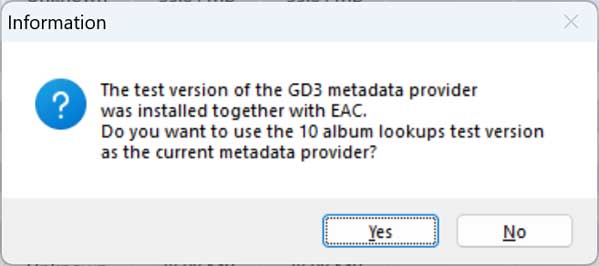
If you choose the GD3 Metadata Plugin, you will get a message saying that it is a test version that will give you 10 album lookups. You can click Yes to this if you want to try it out, but you will need to create an account to do so and it is not free to use after the first 10 album lookups. But if you like their service and will be ripping a lot of CDs, you may want to consider it.
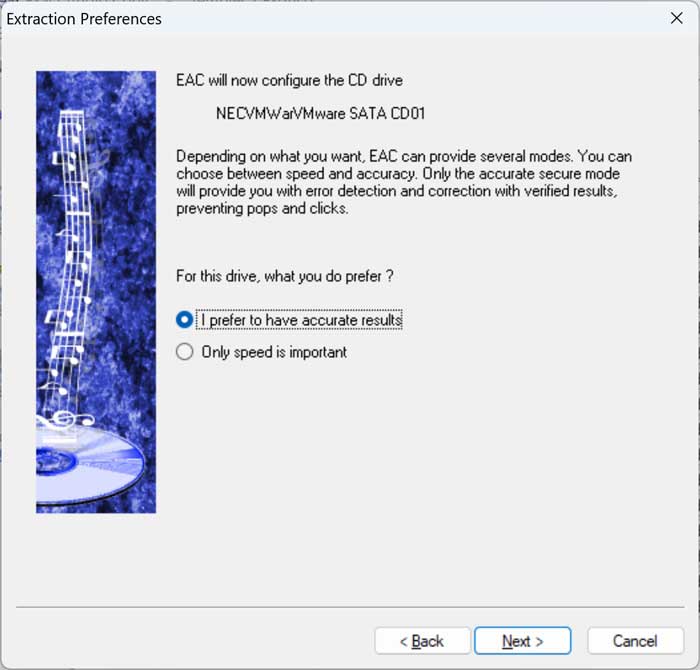
For the extraction preferences, you will most likely want to choose the I prefer to have accurate results option.
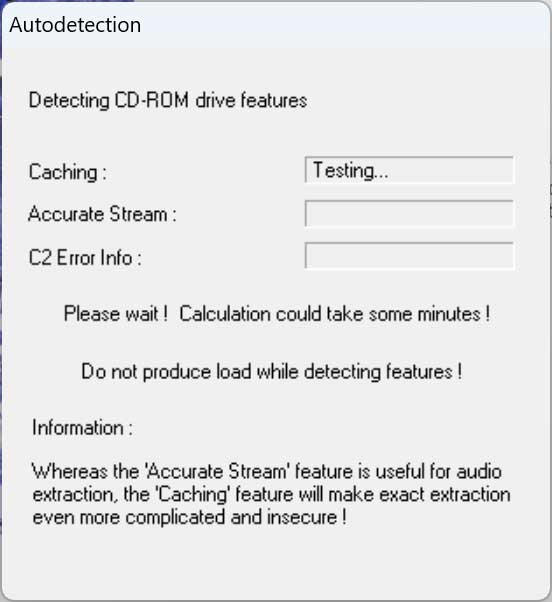
EAC will then test the performance of your CD/DVD drive, and this step will take several minutes. It is recommended not to do anything too intensive on your computer during the test so you might want to just let it run and take a break.
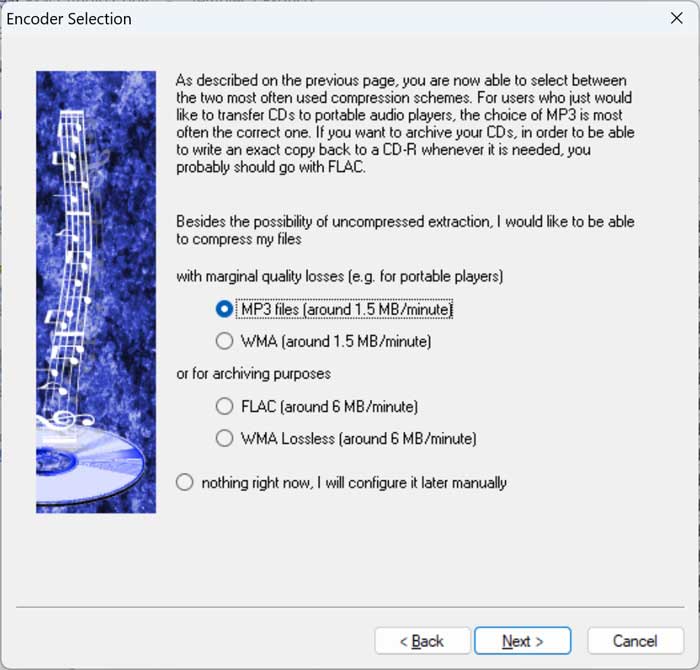
For the encoder selection setup, you can choose between MP3 and WMA with marginal quality losses or FLAC and WMA for archiving purposes. If you are planning on playing your music rather than just archiving it, you should choose the first option.
If you plan to rip your music CDs as MP3 files, you will need to provide a LAME MP3 encoder for Exact Audio Copy to use since it does not come with on. A LAME MP3 encoder is a software tool that converts audio into MP3 format using optimized, open‑source encoding algorithms. EAC will automatically start searching for LAME.exe on your computer. If you do not have this encoder, simply click on the Cancel button.
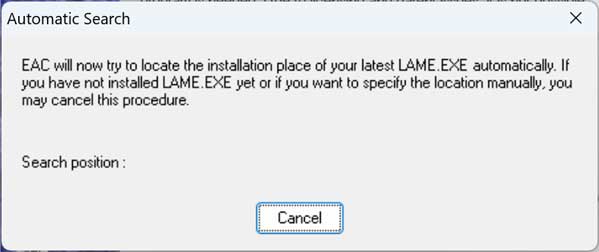
You can download a free LAME MP3 encoder from the Rare Wares website as well as other locations.
Once you have the encoder files downloaded, place them in a folder on your computer where you will not be moving them from. Try not to use your desktop or download folder since you may delete them while cleaning up your computer for example.
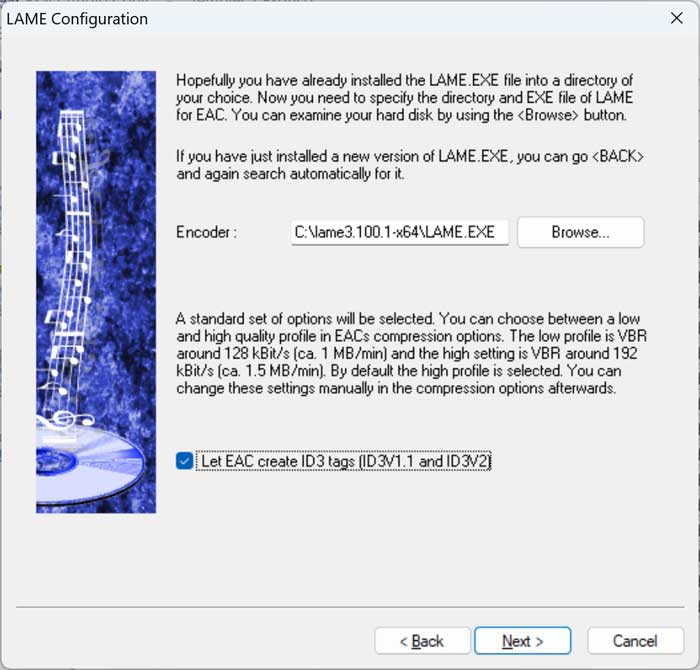
Now you can click the Browse button and find the location of the LAME.EXE file on your computer and then click Next.
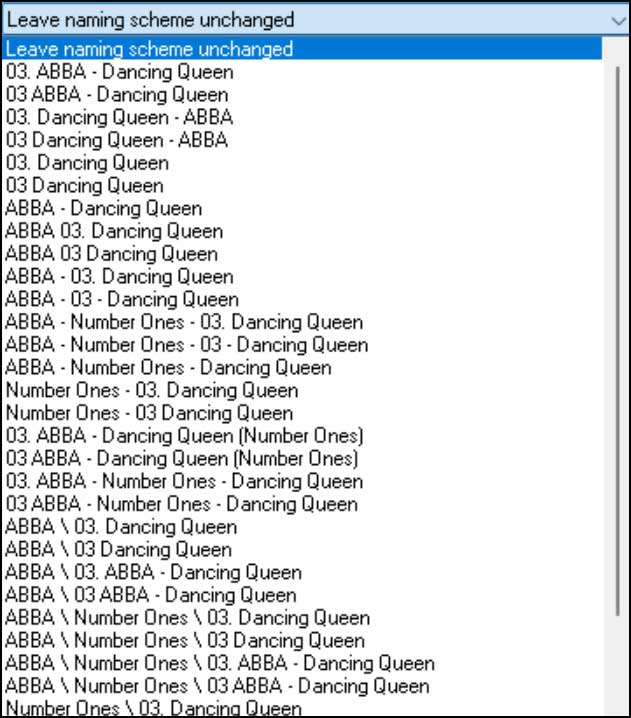
Next, you will be given the opportunity to change the naming convention of the ripped audio files if you do not want to use the default setting.
Ripping your Music CD with EAC
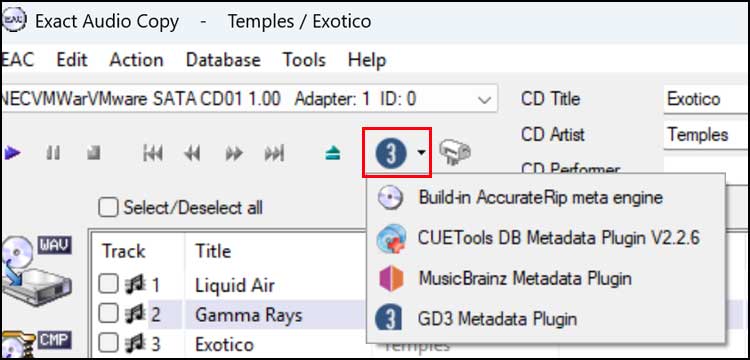
Once the setup is complete, you will be able to start using the EAC program. At the top of the interface is the option to choose which engine/plugin you want to use to download metadata information for your CD. You can try them all out to see which one gives you the best results. The GD3 Metadata Plugin is the one that will only let you use it 10 times before having to pay. Plus you will need to create an account to even use it.
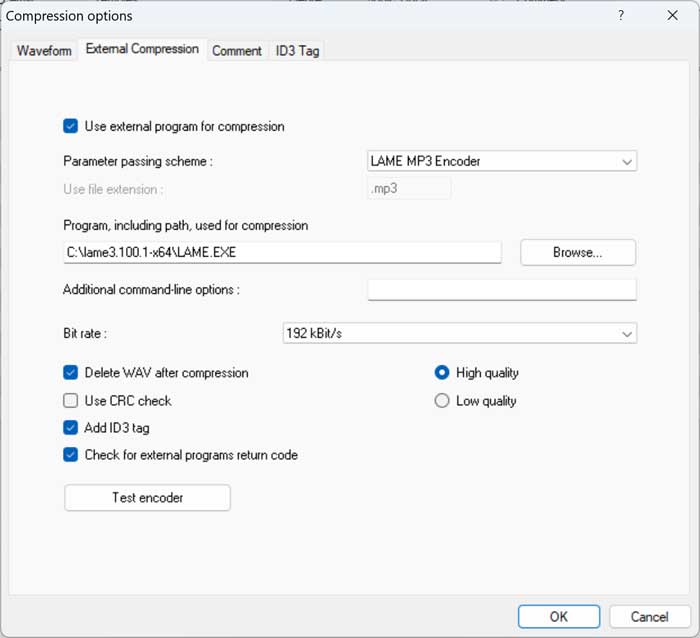
Once you have your metadata ready for your music, you should go to the EAC menu and then to the Compression options settings and External Compression tab if you are going to be ripping MP3 files.
From here, make sure Use external program for compression is checked and for the parameter passing scheme, choose LAME MP3 Encoder. Then for the box labeled Program, including path, used for compression, make sure its pointing to the location of the LAME.EXE file you downloaded. You can also change your bit rate and other settings here if you want to increase the quality or reduce the file size.
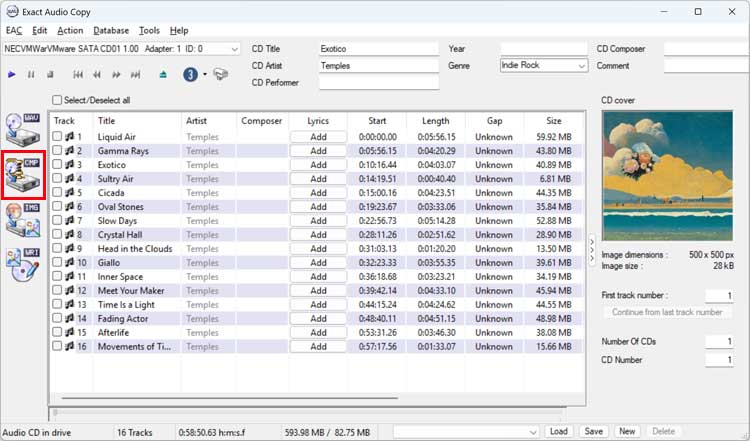
Once you have these options set, you can then click on the CMP button to start the ripping process. The CMP button is used for MP3s and there is also a WAV button.
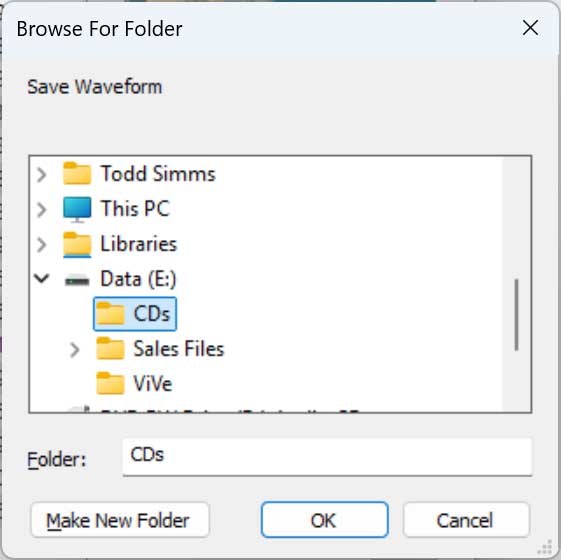
You will then need to choose a location where the ripped music files will be placed.
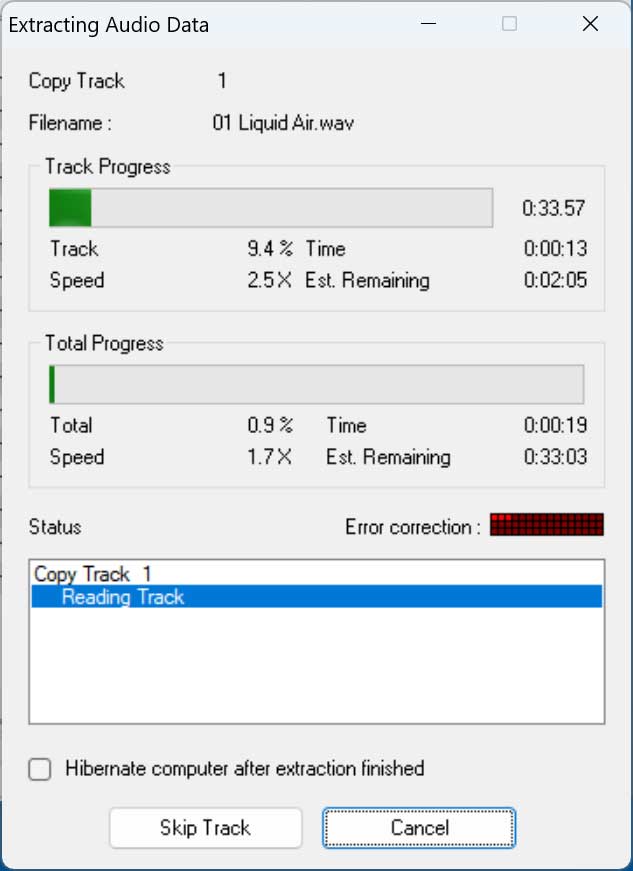
When ripping to MP3 files, you will notice that EAC creates WAV files but these will then be converted to MP3 files afterwards.
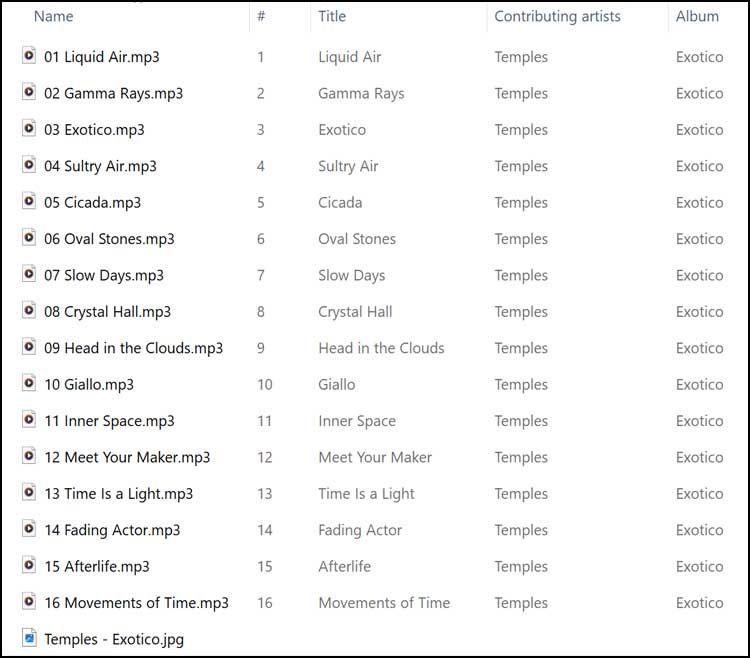
Once the process is complete, you should be able to go to your destination folder and see your newly ripped MP3 files along with their metadata and album art image file.
For additional training resources, check out our online IT training courses.
Check out our extensive IT book series.