
Last Updated on May 25, 2026
With all the AI tools available out there these days, you will find that you have many to choose from. Sure, you have the popular ChatGPT, Gemini and Copilot but those aren’t the only options you have. In this article, we will be talking about the EaseMate AI tool that you can use as an alternative to these popular large language models.
EaseMate AI is an AI-powered productivity tool designed to help users automate tasks, manage workflows, and get quick, intelligent assistance through natural language interactions. It streamlines everyday work by helping with content creation, organization, and decision support, making tasks faster and more efficient.
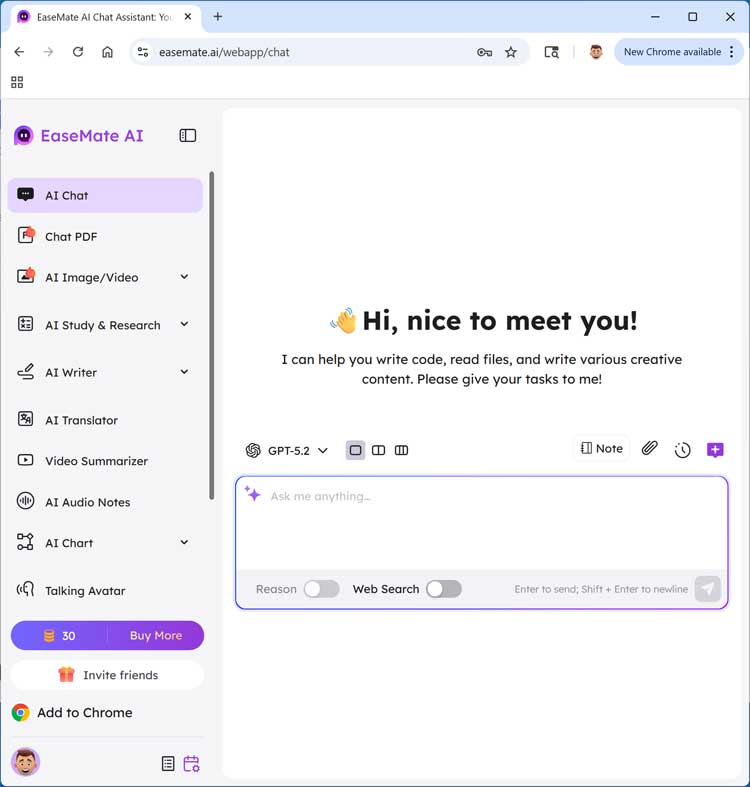
If you have ever used any of the previously mentioned tools, you will find EaseMate AI very easy to use and notice that it has many features that these other tools don’t have. Once you go to the EaseMate AI website, you will notice that it has a similar to other tools such as ChatGPT. One nice feature of EaseMate AI is that you can use ChatGPT for free with no login.
At the bottom of the website, you will see the familiar prompt box with several options such as using Reason mode or having your question researched on the web. There is also a Note feature that can be used to help you save ideas and refer back to them later. You can also upload image files such as JPG, JPEG and PNG files to be analyzed. Next to that, you will find a chat history button.
Earning Credits and Selecting AI Models
1. Claim Your Free Sign-Up Credits
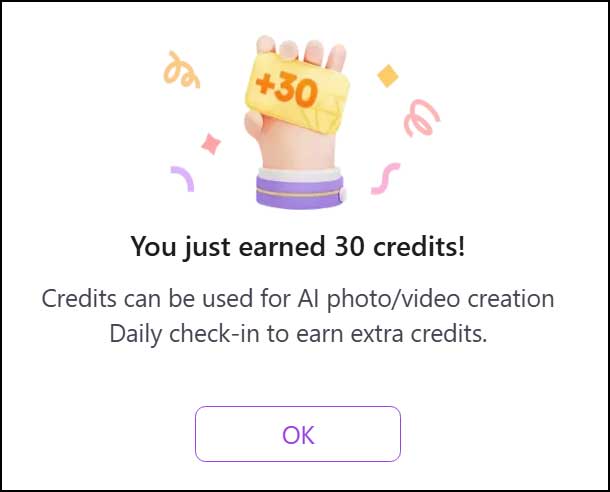
There is no need to sign in to use EaseMate AI. But if you do register an account, you will get 30 free credits instantly. You can use these credits for premium features such as high resolution AI image generation.
2. Check In Daily for More Credits
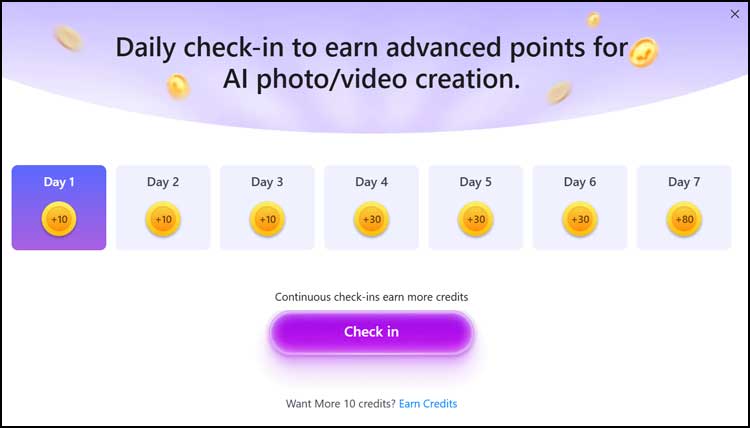
And when you check in to the dashboard every day, you can get additional credits. The platform rewards consistent users with a rolling bonus structure. Click the daily check-in button to stack your virtual currency.
3. Choose Your Preferred LLM
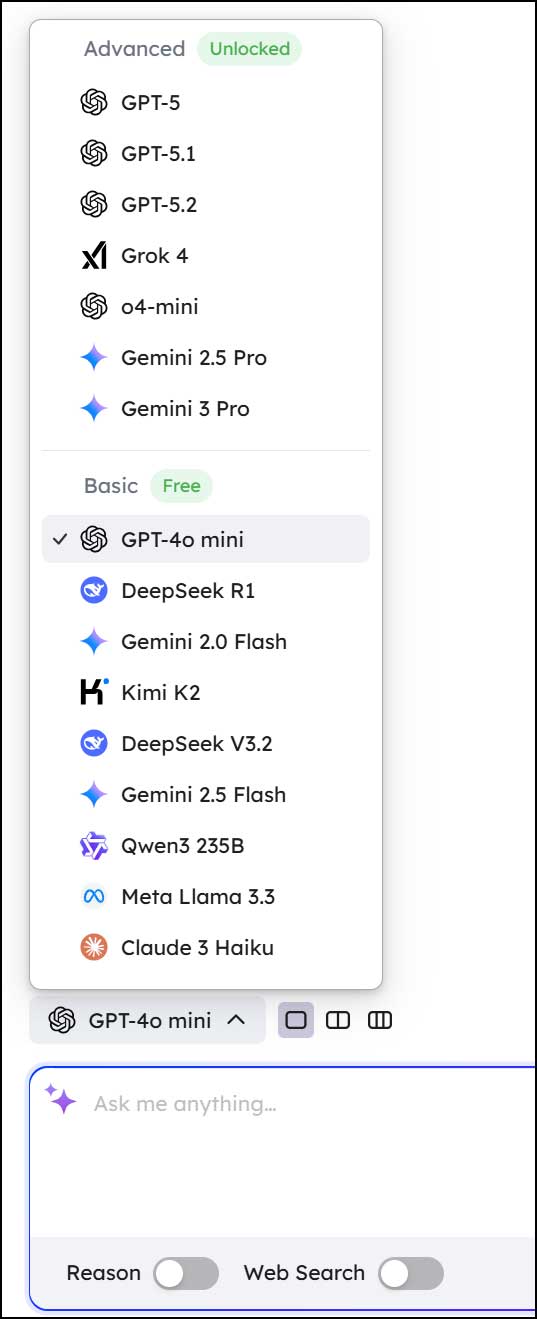
When you click on the LLM selector, you will see that there are many models you can use. The list includes heavy hitters such as ChatGPT 5, Grok, Gemini, Meta and Claude. Logging in with a free account will unlock the more advanced models.
4. Query Multiple Models Simultaneously
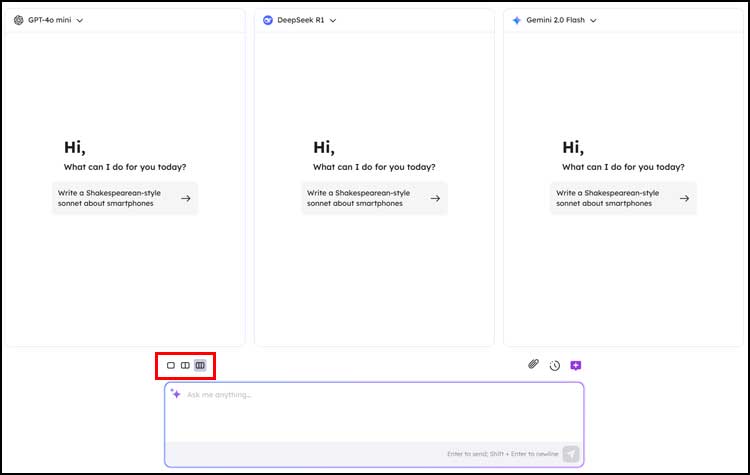
One unique feature of EaseMate AI is the ability to choose up to three models to run your query against at the exact same time. This saves you from running identical prompts across separate browser tabs. You get three distinct analytical perspectives displayed side by side.
Generating Responses and Images
1. Type and Execute Your Prompt
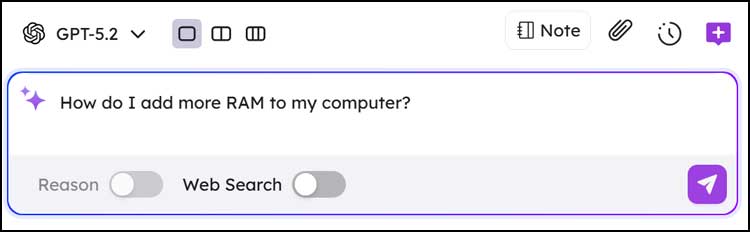
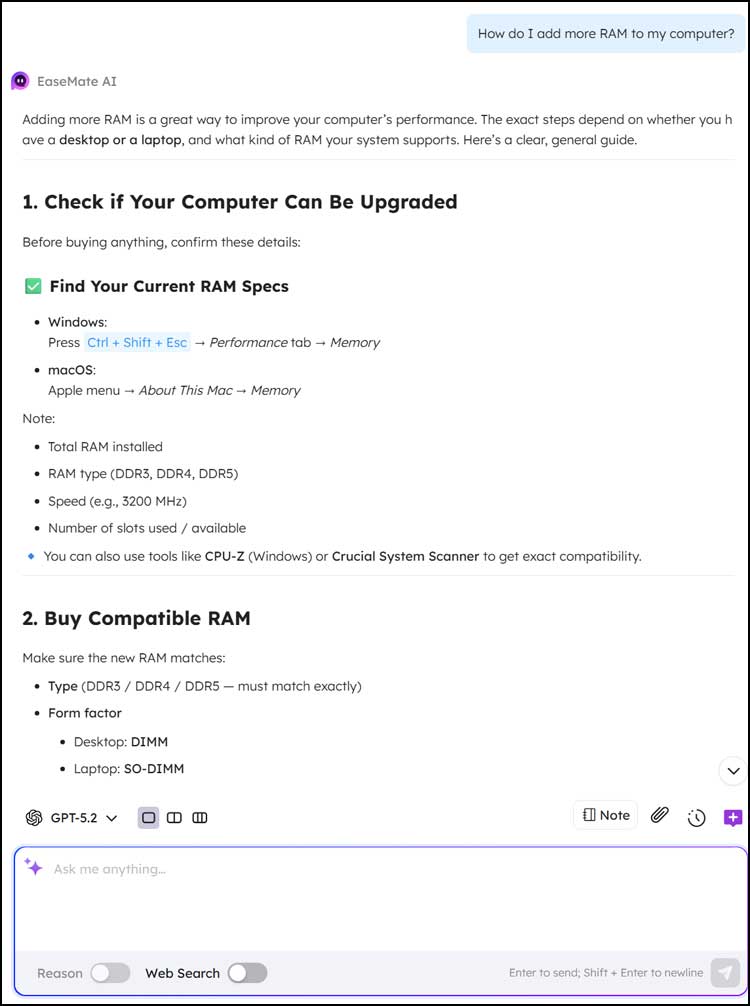
To perform a query, all you need to do is type in your prompt and press enter. You can also click the purple send button and the system will do the rest. The processing engine handles complex text extremely fast.
3. Access the Image and Video Generator
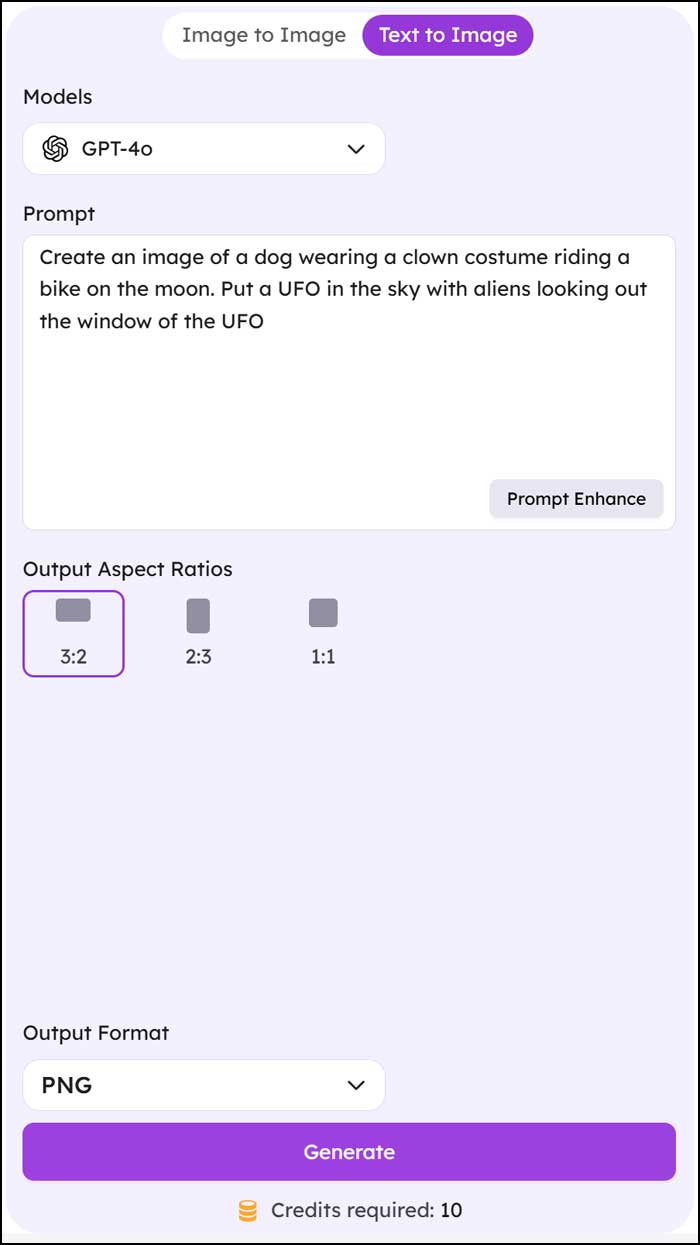
Here is a brief overview of some of the other tools you will find in the navigation area at the left of the website. Under the AI Image/Video tab, you can perform image to image or text to image creation. You choose exactly which generation model you want to use.
4. Utilize the Prompt Enhance Tool
Writing good image prompts takes practice. The Prompt Enhance button can be used to generate a much more detailed version of your short prompt. It injects specific descriptive keywords to guarantee a high quality final render.
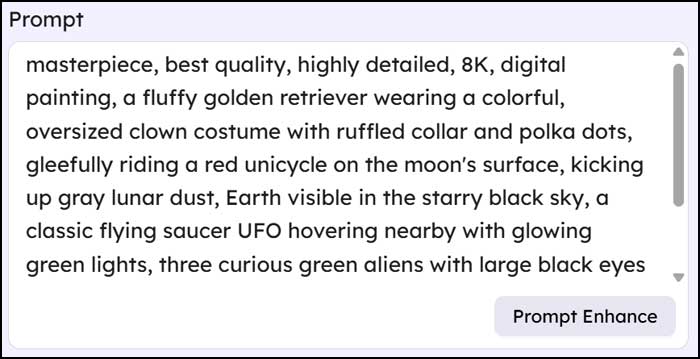
5. View the Final Rendered Art
The image below shows the result from the text to image prompt shown above. The AI engine processes the complex enhanced prompt and delivers a vivid file. You can save this custom graphic directly to your local hard drive.

Exploring Additional Workflow Features
1. Leverage the AI Study and Research Tool
The AI Study & Research feature is used to help users learn and analyze complex topics. It pulls accurate data to help you research information more effectively using AI assistance. Think of it as an interactive academic tutor.
2. Draft Documents with the AI Writer
The AI Writer tool is used to help you create written content quickly and easily with AI assistance. It generates full emails, blog posts, and reports. You cut your blank-page drafting time down to zero.
3. Translate Foreign Text Instantly
The AI Translator feature is used to translate text or live conversations between different languages. It processes the foreign words quickly and accurately. This breaks down communication barriers for remote global teams.
4. Summarize Long Videos
The Video Summarizer is used to quickly understand the key points of a video without watching the entire thing. It reads the transcript and extracts the main highlights. This saves hours of tedious manual review.
5. Capture Automated Audio Notes
The AI Audio Notes feature is designed to capture spoken information seamlessly. It turns messy verbal meetings into useful, organized notes automatically. You never have to scramble to write down action items again.
6. Build Visual Charts from Raw Data
The AI Chart tool processes boring numbers instantly. This can be used to turn raw data or text information into clear, visual charts automatically. It builds beautiful, presentation-ready graphics in seconds.
7. Interact with a Talking Avatar
The Talking Avatar feature is designed to turn dry AI text responses into a human‑like visual experience. A digital face reads the generated output aloud. This makes the chatbot interaction feel significantly more personal.
8. Organize Your Custom Prompts
The AI Prompt Organizer is designed to help you save and manage your most successful commands. It allows you to reuse complex AI prompts efficiently. You never have to rewrite your favorite system instructions from scratch.
9. Manage Data in the Notebook
The Notebook feature in EaseMate AI acts as a centralized digital workspace. It is built strictly for collecting, organizing, and managing your information in one single place. It keeps your daily workflow incredibly tidy.
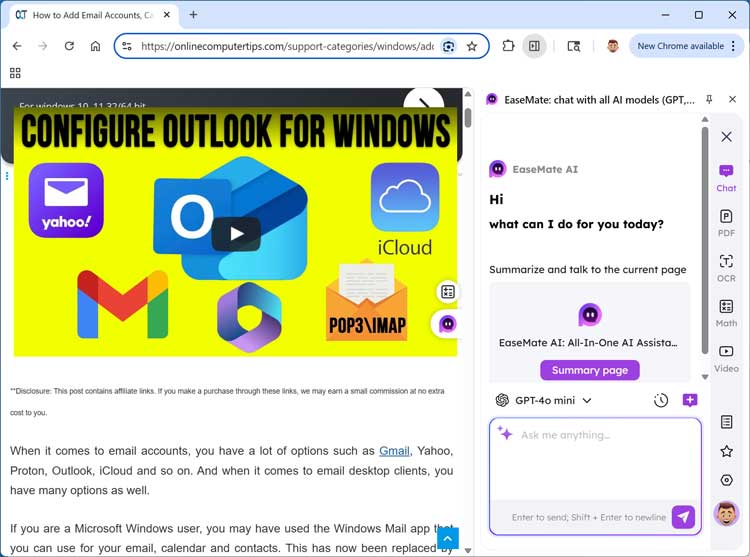
10. Install the Google Chrome Extension
The Add to Chrome feature allows you to install EaseMate AI as a dedicated web browser extension. This integration means you can use its AI tools directly while browsing the web. It sits right in your top menu bar for instant access.
For additional training resources, check out our online IT training courses.
Check out our extensive IT book series.






