Last Updated on August 16, 2026
If you are a Microsoft Windows user, then you most likely log into your computer using a PIN rather than a password. When you install or log into Windows the first time, it will prompt you to configure a PIN after you add your Microsoft account and its related password. The Windows Hello PIN is a secure, device-specific way to sign in to your Windows computer that is specific to the computer itself. So, if someone gets your PIN, it is useless on any other device besides the computer it was created on.
This PIN is also used for things such as signing into Microsoft Services, authorizing system changes and accessing password managers. If you save your passwords in the Google Chrome web browser, then you may be prompted to enter your PIN every time you have Chrome autofill a username and password login box for you. If you feel that this is too much of a hassle and not needed, you can disable the feature. In this article, we will be showing you how to disable the Windows Hello PIN prompt when using saved website passwords in Chrome.

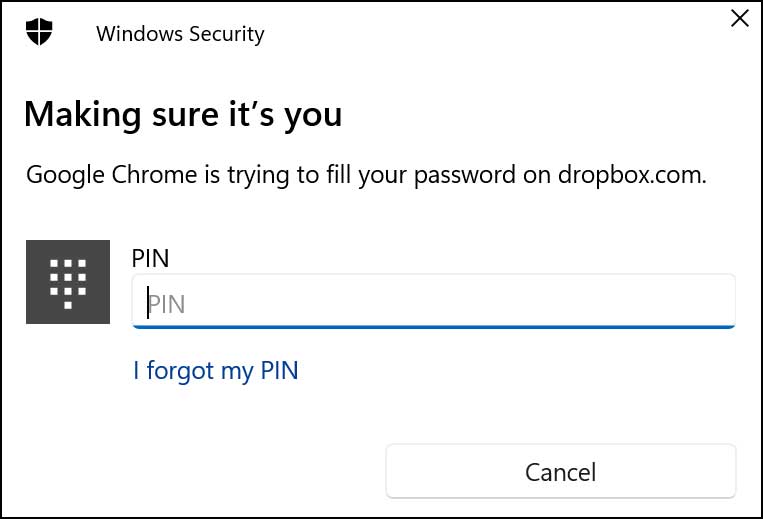
The image below shows a typical Windows Hello PIN prompt when trying to autofill the saved name and password for the dropbox.com website. As you can see, it looks just like the PIN prompt you see when you log into your computer. If you want to disable the PIN feature for your Windows login, you can do that as well.
Disabling the Chrome PIN Prompt
1. Open Google Password Manager Settings
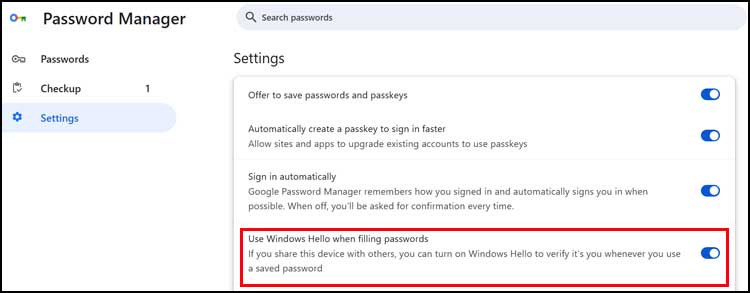
To disable the Windows Hello PIN prompt when using saved website passwords in Chrome, you need to open the browser settings. Click on the three vertical dots at the upper right hand corner of your screen. Click on Passwords and autofill and then select Google Password Manager to open your vault. You will then need to click on the Settings section on the left side of the screen. You can also type chrome://password-manager/settings directly into the address bar of your browser to jump straight there.
2. Toggle the Windows Hello Setting
Look through the available security options on this specific settings page. You just need to locate the toggle switch labeled Use Windows Hello when filling passwords. Click that blue switch to turn the feature off permanently. Chrome will instantly stop asking for your Windows PIN every time you try to log into a saved website.
Troubleshooting Missing PIN Settings
1. Check Your Google Sync Status
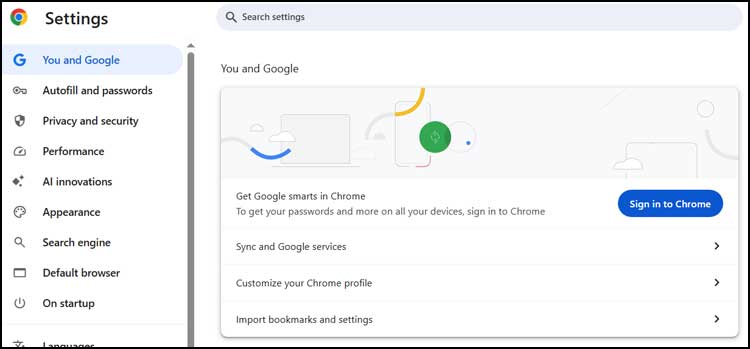
Sometimes you might not see the Use Windows Hello when filling passwords option available in your menu. This usually happens because you are not currently syncing your Google account settings with your other trusted devices. To check this specific status, you will need to open the main Chrome settings menu. Navigate to the You and Google section to verify your active login status.
2. Sign Into Your Google Account
Make absolutely sure that you are signed in with your primary Google account. When you sign in with your Google account, you will be able to access all the Google apps seamlessly. This also puts all of your synced information such as saved documents and email right at your fingertips.
3. Enable Browser Synchronization
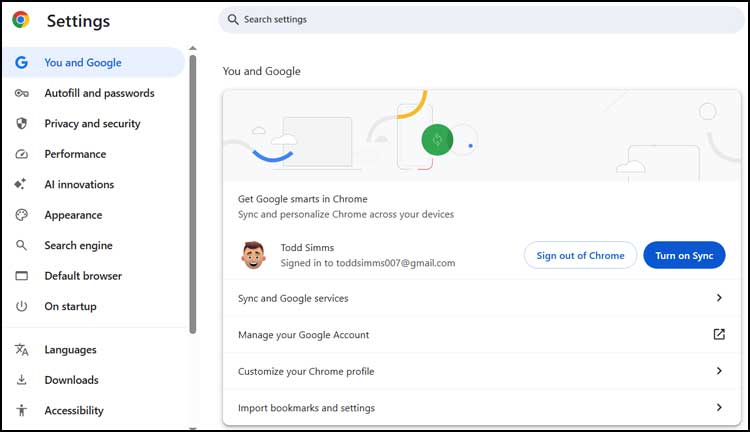
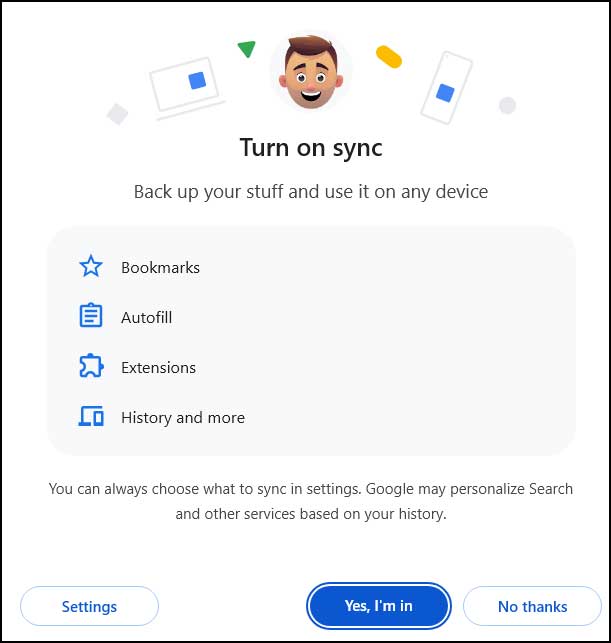
Once you are signed into your Google account, look for a blue button that says Turn on Sync. You must click on this button to enable synchronizing your personal browser data. This action instantly links your bookmarks, browser history, and saved passwords between all your devices logged in with the same Google account.
4. Confirm the Sync Prompt
Chrome will display a popup window asking you to confirm this major account change. Click the blue Yes, I’m in button to finalize the synchronization process. Your browser will take a few seconds to download your encrypted vault data from the cloud.
5. Return to the Password Manager
Once you are completely signed in and synced, you can go back to the Chrome Password Manager screen. Refresh the page if the new options do not load immediately. You should now clearly see the Use Windows Hello when filling passwords option available to disable.
For additional training resources, check out our online IT training courses.
Check out our extensive IT book series.